
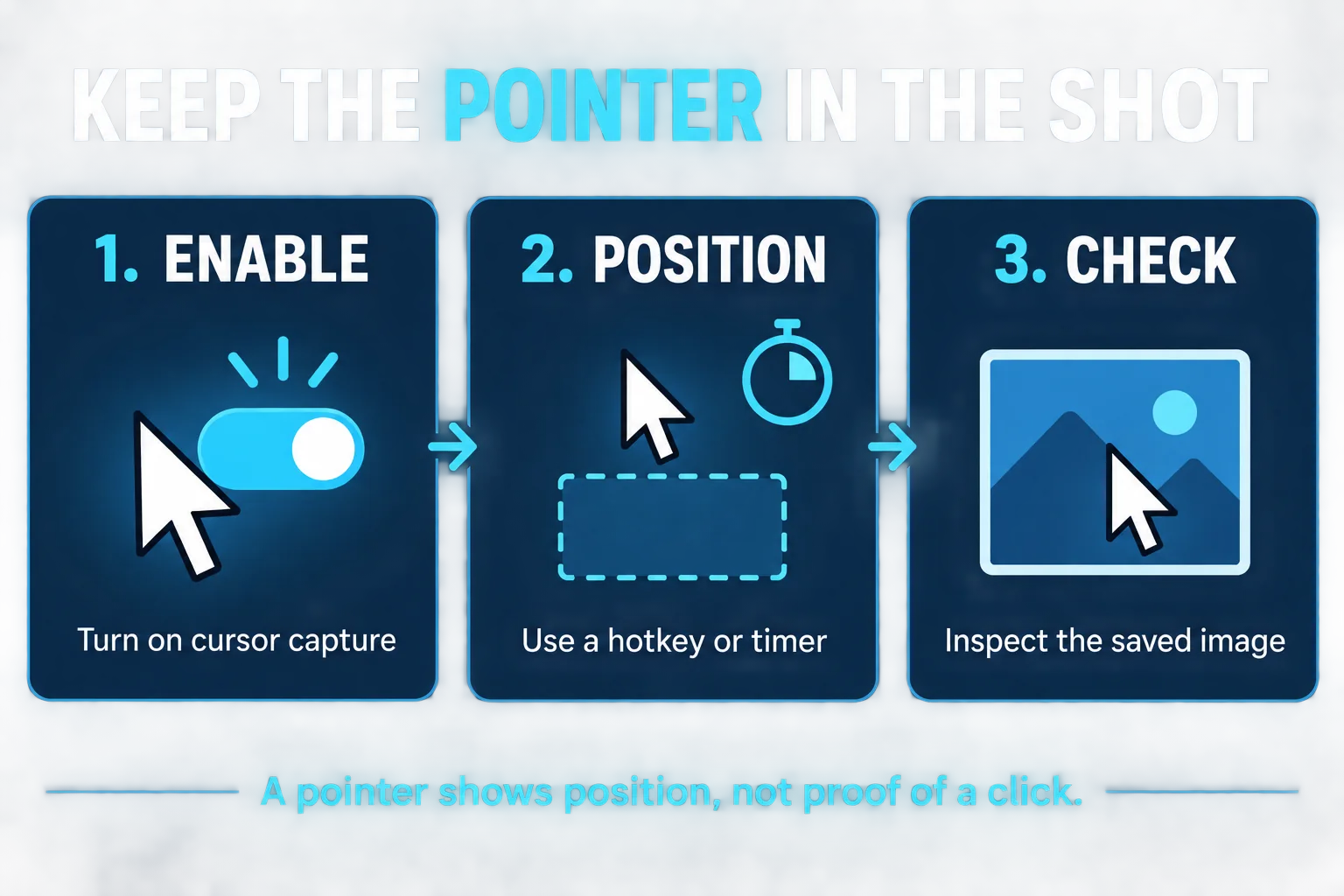
To include the mouse pointer in a screenshot, use a capture option that explicitly keeps it. On Windows, Greenshot has Capture mousepointer, and Snagit has Capture Cursor. On a Mac, open Screenshot with Shift + Command + 5, then enable Options → Show Mouse Pointer.
The other half of the job is timing. Put the pointer where you want it, then start the capture with a keyboard shortcut or a timer. Clicking a capture button and immediately taking the shot can leave the pointer on the capture controls instead of the thing you want to explain.
Choose the method for your screenshot
| Your setup | Start here | Position the pointer |
|---|---|---|
| Windows, using Greenshot | Preferences → Capture → Capture mousepointer | Use a full-screen hotkey, then crop |
| Windows or Mac, using Snagit | Capture window → Capture Cursor | Use your capture hotkey or a delay |
| Mac, using the built-in Screenshot app | Shift + Command + 5 → Options → Show Mouse Pointer | Choose a timer before clicking Capture |
| A saved image with no pointer | Retake it if the pointer's position matters | An annotation can explain a target, but cannot recover the original position |
For a one-off Windows image, I would use a full-screen capture and crop it afterward. You can keep your hand on the keyboard and avoid turning the pointer into a selection crosshair halfway through the task. For repeat documentation work, a saved Snagit preset is more convenient.
Windows: include the cursor with Greenshot
Greenshot's capture settings include a pointer option. If you need the app, use the official Greenshot download page.
- Right-click the Greenshot icon in the Windows notification area and open Preferences.
- Open the Capture tab and check Capture mousepointer. Apply the setting.
- Return to the window you want to capture and leave the pointer on the relevant button, field, or menu item.
- Press Ctrl + Print Screen for a full-screen capture. That is the documented default; use your assigned shortcut if you changed it.
- Open the result in the editor, crop away unnecessary surroundings, and save the image.
The captured pointer is a separate object in the Greenshot editor. You can move or remove it, but leave it in its original position when the image is meant to show exactly where the pointer was.
What about Snipping Tool?
If your Windows screenshot keeps omitting the cursor, switch to a tool with a documented pointer setting. Microsoft's current Snipping Tool instructions describe still-image modes, delay, and recording, but do not document an include-pointer switch for still images. A delay gives you time to open a menu; it does not by itself promise to include the pointer.
You may see older guides recommending Problem Steps Recorder. Microsoft has deprecated Steps Recorder, so I would not build a new screenshot workflow around it. For ordinary snips that do not need the cursor, use our Windows 11 Snipping Tool guide.
Snagit: turn on Capture Cursor before the shot
TechSmith's image-capture settings include Capture Cursor. Set it up in the Capture window, rather than looking for a cursor switch in an image you have already opened in the editor.
- Open Snagit's Capture window and select Image.
- Enable Capture Cursor.
- Choose the capture area you need. A full-screen image is a useful starting point when preserving pointer position matters; you can crop the result.
- Move the pointer to the target and use your configured capture hotkey. If you need time to reopen a menu, enable Time Delay and start the countdown first.
- Inspect the image in Snagit Editor, then save the finished screenshot.
Check which shortcut starts your capture. TechSmith documents a difference between the current Capture-window settings and saved preset settings on Windows: the global capture hotkey uses the current settings, while a preset hotkey uses that preset. If the cursor disappears only with one shortcut, check that preset's cursor option.
For a Windows dropdown or flyout, TechSmith documents Menu selection with a time delay. Start the countdown, reopen the menu, and hover over the relevant item before capture. Our Snagit dropdown-menu guide covers menu bars and submenus in more detail.
Mac: use Show Mouse Pointer and a timer
Apple's built-in Screenshot app supports including the mouse pointer in the picture. Start with an entire-screen capture so you can position the pointer freely.
- Press Shift + Command + 5 to open Screenshot.
- Select Capture Entire Screen.
- Open Options and enable Show Mouse Pointer.
- In the same menu, choose a Timer delay and a save location.
- Click Capture, then move the pointer onto the target while the timer runs. Leave it there until the screenshot is taken.
- Open the saved image and check the pointer before cropping or sharing it.
Apple notes that available options depend on the selected capture or recording mode. If the pointer option is missing, return to an entire-screen image capture and check Options again. The Mac screenshot guide explains the other capture modes; this method is about keeping the pointer where the reader needs to see it.
If the pointer is missing or in the wrong place
Check the actual image, not just the preview. Open the file you are going to send. Make sure cropping has not cut off the pointer and that the recipient can see it at the size the screenshot will be displayed.
Keep the target open. A dropdown may close when you click the capture app, and a tooltip may disappear when you move away. Set a delay first, restore the target state, and then leave the pointer still. If a shortcut is intercepted by another capture app, change it in the tool you intend to use.
Retake an image that needs the original position. Pasting a cursor icon into an old screenshot cannot tell you where the mouse was. If you only need to explain which control to use, an arrow or numbered step is clearer. Treat that as an annotation, and keep the unedited original when the distinction matters.
A visible pointer shows a position in a still image. It does not prove that a button was clicked or that an action completed. For instructions, pair it with a short explanation of the action and its expected result. Before sending a full-screen image, also hide sensitive details in the screenshot, including account names or unrelated windows.