
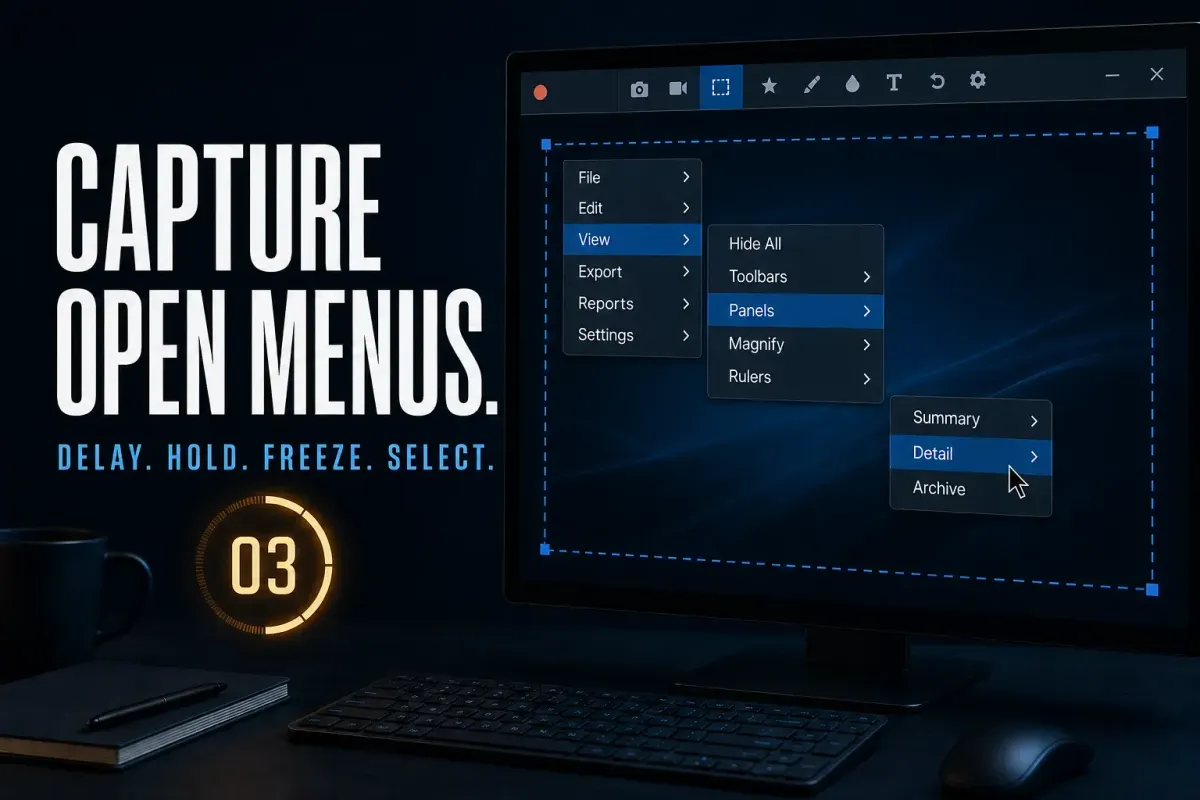
On Windows, start a delayed Menu capture before opening the dropdown, build the menu during the countdown and keep the required branch open. On Mac, use the Menu controls available in your build; the documented Menu Capture shortcut there is Control+Shift+E, not Command+Shift+E.
The key is to prepare the screen after starting capture, so returning to Snagit does not dismiss the menu. A custom web panel or tooltip may need Region capture instead of menu detection.
I checked these documented steps against the official help pages on September 22, 2026. Menu controls can differ between versions, and the countdown sequence applies to timed capture, not every Mac shortcut. Test with a harmless menu that shows no account details, notifications or customer data.
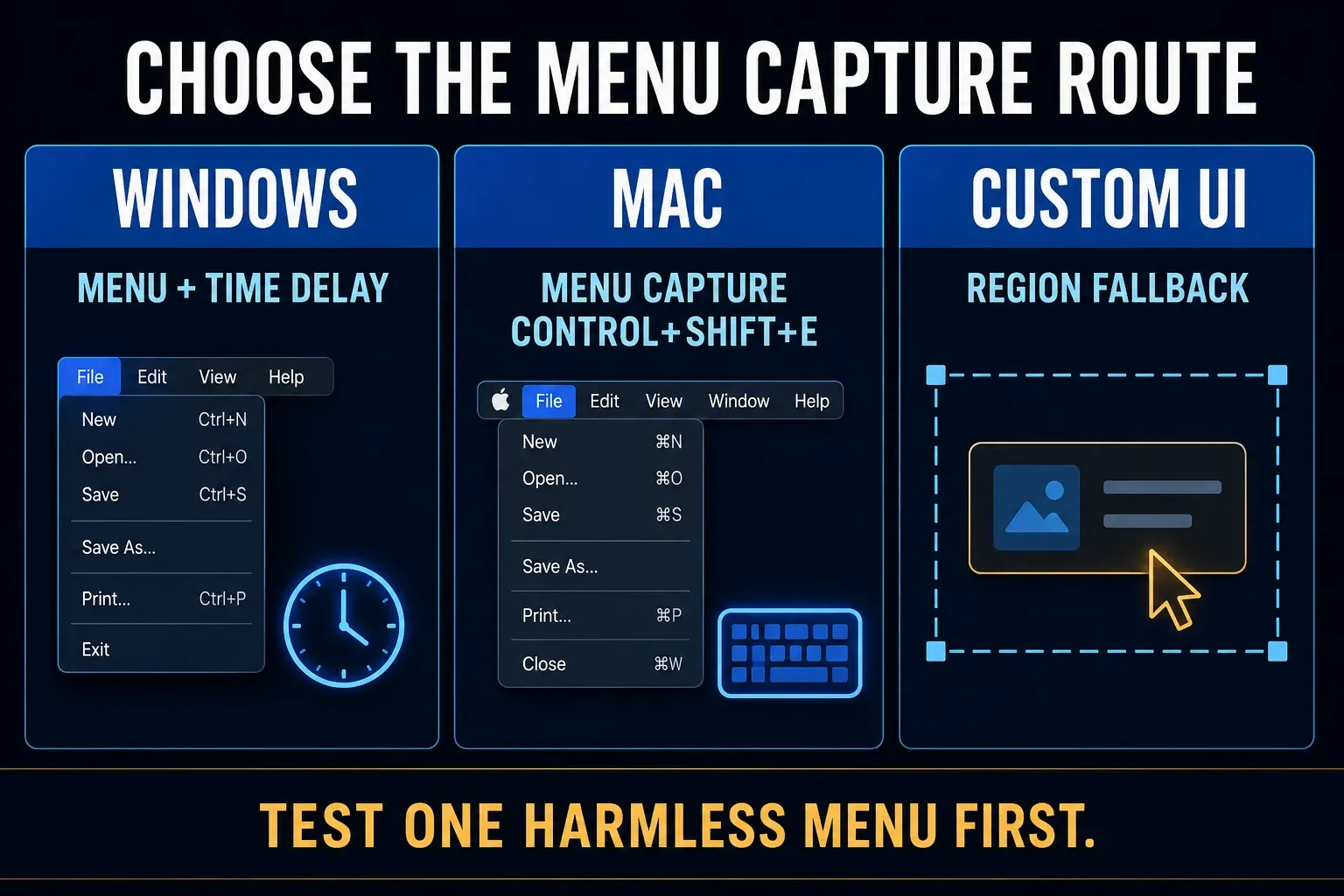
Choose Menu, Region or the Mac capture command
| Target | Route | Check |
|---|---|---|
| Windows application menu | Image > Selection > Menu; check Advanced if needed | Set Time Delay before opening the menu |
| Cascading submenu | Windows Menu Properties | Include open submenus and keep the branch visible |
| Parent menu label | Windows Capture Menu Bar | Include it only when it explains the path |
| Custom web panel or tooltip | Region with preparation time | Menu detection may not recognize the visible panel |
| Mac application menu | Image > Menu or configured Menu Capture command | Check the documented Mac routes below |
| Black or empty result | Repeat with a harmless local menu | Compare before assigning a cause |
Menu tries to identify the menu object. Region lets you draw around visible content yourself. Choose by what the capture includes, not by whether the application calls its control a menu.
Capture a Windows dropdown menu step by step
- In Snagit Capture, select Image.
- Choose Menu under Selection. If it is not listed directly, check Advanced > Menu.
- Open Menu Properties.
- Enable Capture Open Sub-Menus when you need a cascading branch.
- Enable Capture Menu Bar when the parent label is useful.
- Enable Time Delay and set the preparation time.
- Click Capture. You can also use your configured global capture hotkey.
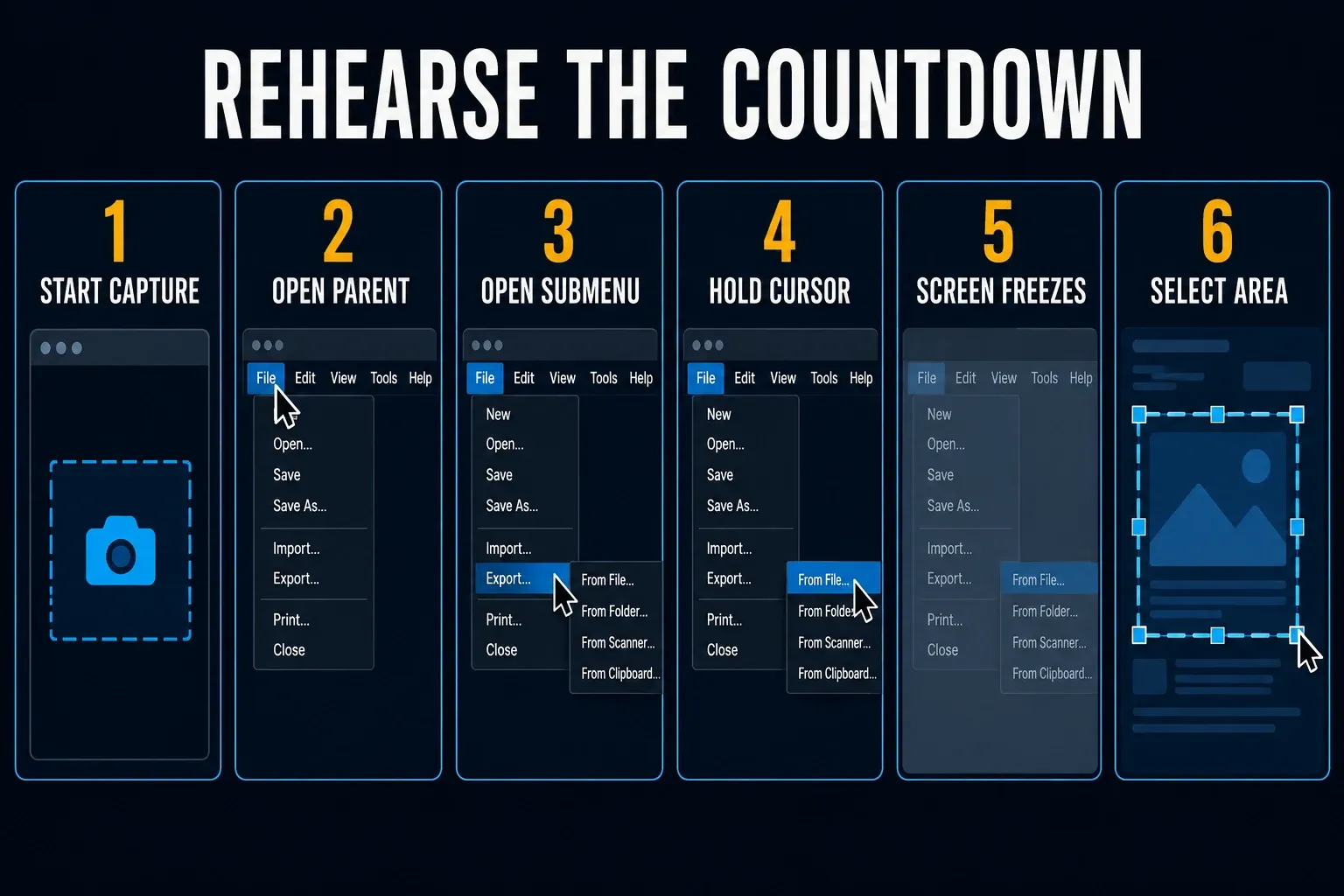
- During the countdown, open the menu and required submenu, then hold the pointer in the active branch.
- Inspect the result. If your version presents frozen-screen crosshairs, select the required area; otherwise review the automatically captured menu.
TechSmith's Windows menu-capture instructions describe these properties and the countdown. Its Common Captures tutorial places Menu under Advanced on Windows and describes automatic capture. Follow the controls your installed build presents; do not wait for an extra selection step if the image has already opened.
Keep Preview in Editor enabled for the first attempt and review any automatic Share destination before capture. Save a preset only after the intended menu, bounds and privacy checks pass.
Rehearse the countdown before the real capture
Count the actions needed to open the final branch. Allow time for a parent click, any submenu hovers and the panel animation. Rehearse once with neutral content instead of rushing through a live account menu.
Start from the same pointer position each time. Avoid crossing unrelated menu items, which may open a different branch. Hold the required branch open until Snagit captures it or presents the frozen selection screen.
If the countdown finishes too early, increase the delay. If a menu times out, shorten the wait or try the application's keyboard navigation. Change one variable at a time so you know which adjustment helped.
TechSmith's delay support note explains the preparation purpose. It is an older video resource, not evidence that every current version has identical controls.
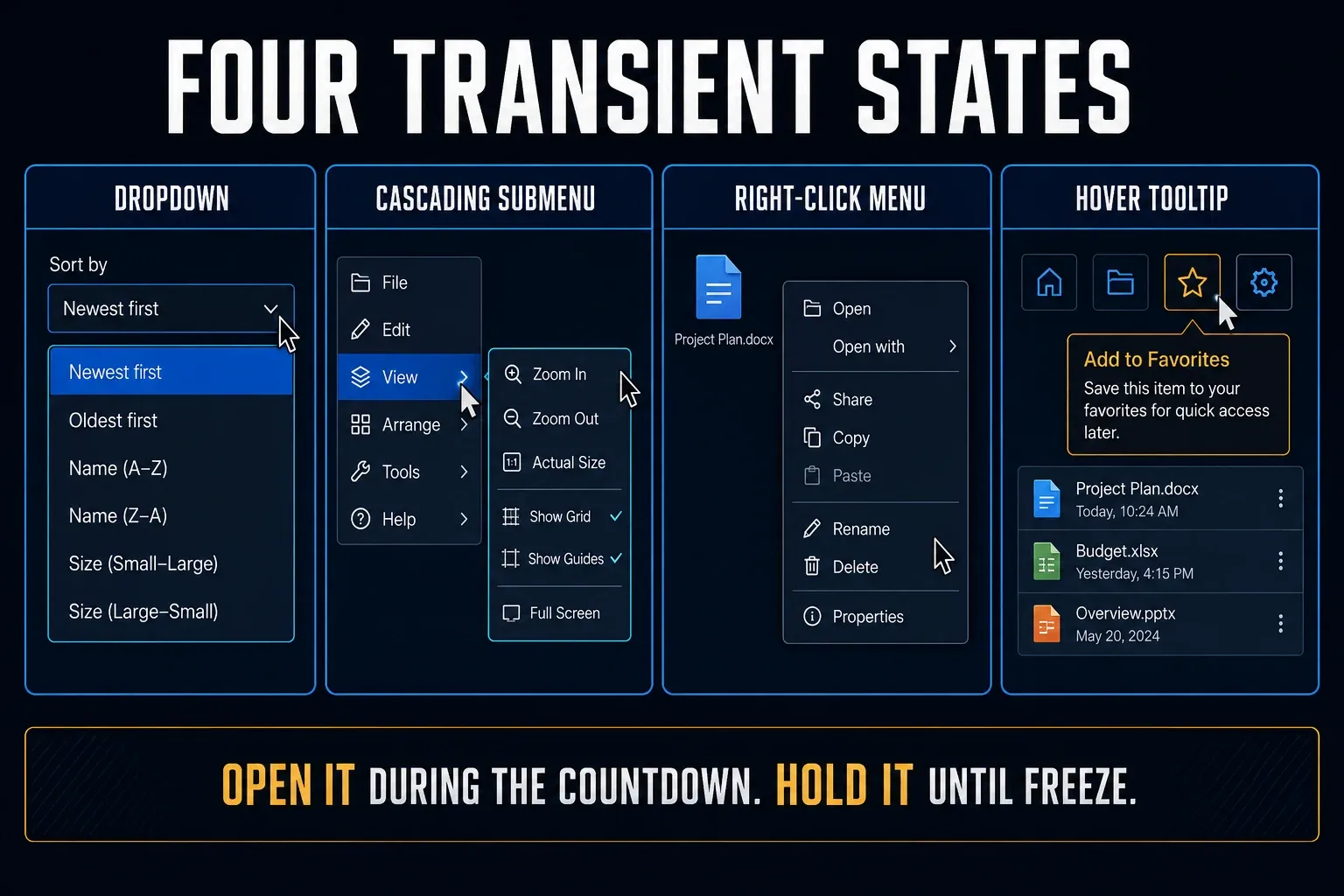
Set Menu Properties for a cascading submenu
For a cascading capture on Windows, keep each required branch open. The submenu option cannot include a panel that you never opened.
Include the menu-bar label when an isolated panel would leave readers unsure whether to start in File, Edit or View. Omit surrounding controls that add no useful context.
Review the output before annotation. Confirm that the parent and child labels are readable, the selected item is in the intended state, and no neighboring private item is visible. Crop only after preserving an untouched source.
Capture a right-click menu or hover state
For a right-click menu on Windows, begin the delayed capture first, then right-click during the countdown. If a hotkey closes the menu or changes focus, retry by clicking Capture before opening it. This is a diagnostic alternative, not a guarantee for every application.
For a tooltip or custom browser panel, switch to Region if Menu selects the wrong object. Start the delayed capture, reproduce the hover state and select the visible area when prompted. On Mac, use the preparation option available in your build or the native timer below.
Wait for the panel to stop moving before capture. A partially expanded branch can hide a label even when the capture itself succeeds.
Some applications remove transient UI when they lose focus. Use the application's keyboard navigation when available, or open the menu after the countdown begins. Do not install untrusted tools or weaken security controls just to hold a menu open.
Keep a CSS hover state visible in Chrome
For a webpage you are allowed to inspect, Chrome DevTools can hold a CSS hover style: select the element in Elements, open Styles, click :hov and check :hover. Then capture the visible panel. Chrome's pseudo-class documentation describes this control.
This changes the CSS state for inspection only. It doesn’t guarantee that a JavaScript-driven dropdown opens, and it can’t hold a native application menu. Remove the forced state afterward and verify the real interaction separately, since a forced state isn’t evidence of a successful user action.
Choose bounds that preserve menu context
Include enough of the parent application to orient the reader, but do not capture the entire desktop by habit. For a File menu, the application title, parent label, and open panel may be enough. For a browser account menu, exclude the profile name, email address, avatar, and synchronized tabs.
Watch for shadows and flyouts that extend beyond the visible panel. A tight region can clip the submenu edge or make a selected row look incomplete. Leave a small margin during capture, then crop after checking every required branch.
To include the pointer in a Snagit image, enable Capture Cursor; holding a hover state doesn’t enable it by itself. TechSmith’s image-capture documentation says you can move, edit or delete the captured cursor in Editor. Keep its position truthful if it explains the selected command.
Inspect the image at the width readers will see. If labels are too small, make separate parent and child captures or enlarge the source interface before recapturing. Upscaling a tiny crop cannot recover missing text.
Capture a menu on Mac without guessing Windows controls
TechSmith's hotkeys guide, labeled for Snagit 2025, lists Control+Shift+E for Menu Capture. Command+Shift+E opens Editor instead. Verify the assigned command in Snagit Editor > Snagit > Settings > Keyboard, especially if you changed shortcuts or use a different keyboard layout.
The current Common Captures tutorial describes Image > Selection > Menu on Mac and a timed route: enable Time Delay where available, set the delay, click Capture or use the global Control+Shift+C shortcut, then open the menu during the countdown. Review the resulting image. If your build uses the separate Menu Capture command, check its assigned shortcut and the on-screen instructions instead of combining two different start methods.
Use the practical tutorial that matches your installed controls. Check Snagit > About Snagit when matching instructions to a version. If you cannot find a usable timer, the independent macOS method below avoids guessing at Snagit's controls.
Press Shift+Command+5, choose a screenshot area, then use Options > Timer and select a delay. Confirm Save to and Show Mouse Pointer if needed, click Capture and open the menu during the wait. Unlike drawing a Snagit region after a countdown, the native Screenshot area is selected beforehand. Apple documents this timer workflow. Open the resulting file in Snagit for annotation if needed.
Check the start path when your settings are ignored
On Windows, the global capture hotkey uses the current Capture-window settings, while a preset hotkey uses its saved settings. The floating OneClick button can use a different default setup without delay. These distinctions come from TechSmith's capture-mode reference.
If a shortcut ignores Menu or Delay, click Capture in the main window once. If that works, inspect the shortcut or preset instead of reinstalling Snagit. Use the Snagit presets guide to save the working configuration.
Name the preset for its actual job, such as Windows menu with submenus. Check its cursor and output settings as well as the timer.
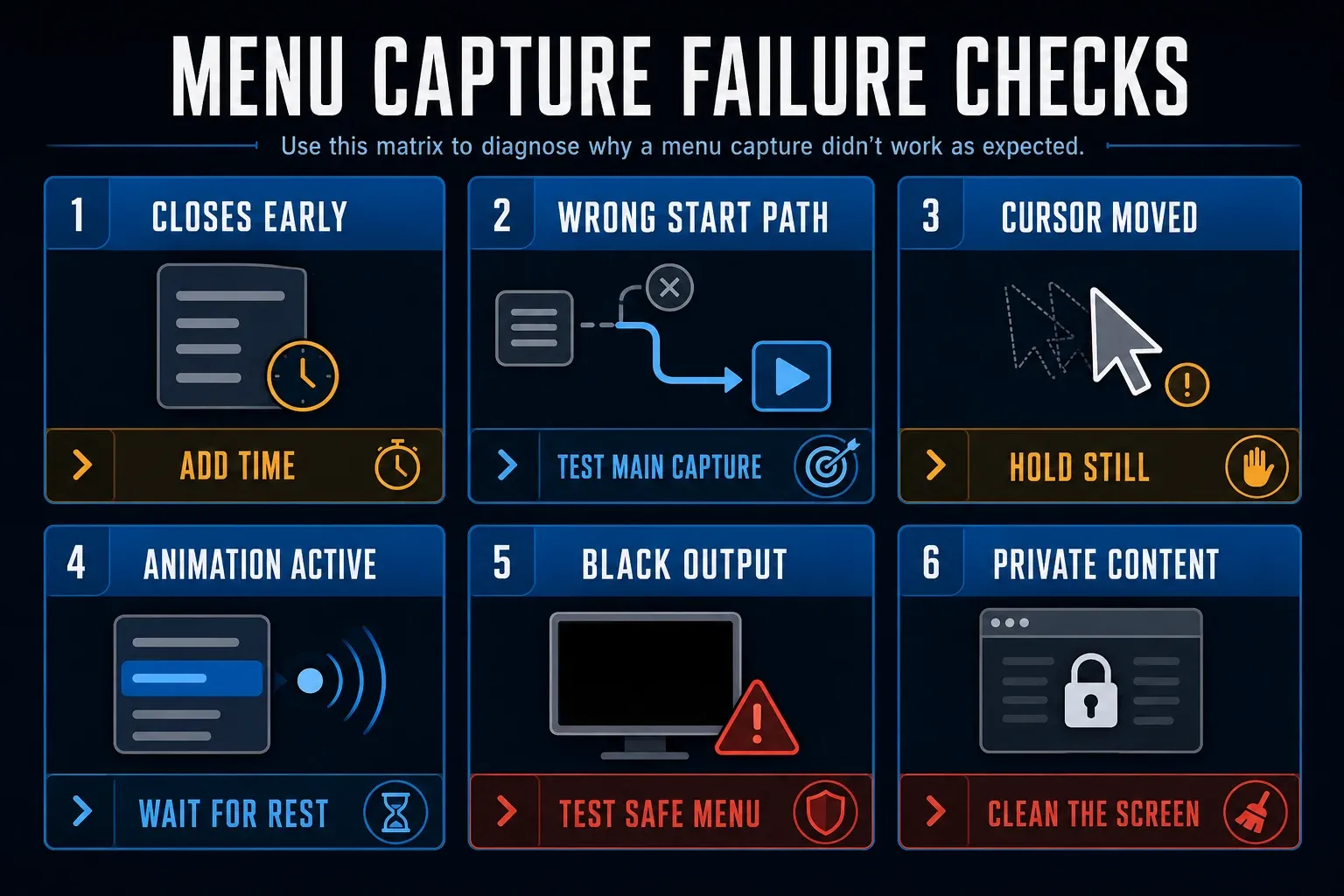
Fix a menu that closes before capture
In a timed Windows test, confirm that the countdown starts before building the menu. Immediate crosshairs can mean you started a different capture route. Return to the main Capture window and inspect the settings.
Next, test a longer delay and a pointer path that stays inside the active branch. Compare Menu with Region for a custom control. If the panel disappears when its window loses focus, reopen it after starting the countdown.
If Snagit cannot begin any capture, leaves the screen unchanged, or throws an error outside this single menu, move to the Snagit unable to capture guide. Investigate the wider capture failure before spending more time on menu timing.
Diagnose a black, empty, or incomplete menu
Repeat with an ordinary local application menu and record whether Menu and Region both fail. If only one target is black, that narrows the investigation, though it doesn’t prove hardware acceleration or content protection caused it. Respect capture restrictions rather than disabling security controls to obtain the image.
If ordinary menus fail too, use the Snagit black-screen checks for the relevant platform. Include the exact version and comparison result when contacting support rather than assuming an update will fix it.
For an incomplete cascading capture on Windows, check Capture Open Sub-Menus and open every needed level before capture. A missing branch may simply not have been open at the capture moment.
Clean the result without losing evidence
Save or retain the untouched capture first. Then crop empty surroundings, add one clear arrow or numbered step, and remove irrelevant cursor clutter. Keep the menu hierarchy visible when it explains how the reader arrived at the selected command.
Prefer mock data before capture. If private text remains, remove it completely from a separate flattened delivery copy, reopen that exported file and inspect the pixels. Do not distribute an editable master that still contains covered or hidden secrets. The screenshot annotation guide covers the editing workflow.
PNG is a useful delivery choice for interface text because it avoids JPEG compression artifacts. It does not prevent a website from shrinking the image. Check the final document or page, and use the Snagit export settings guide when choosing the saved format.
Send support a reproducible menu test
If the harmless test still fails, record the Snagit and OS versions, target application, selection mode, properties, delay, capture start method and exact moment the menu closes. Include whether Menu and Region behaved differently.
Attach a neutral sample and say whether an ordinary local menu worked. Exclude account names, messages, license keys, customer records and private browser data.
Snagit capture dropdown menu FAQ
How do I capture a dropdown menu in Snagit on Windows?
On Windows, select Image and Menu, checking Advanced if needed. Set the menu properties and Time Delay, start capture, then open the menu during the countdown. Review the result or select the area if crosshairs appear.
How do I include a cascading submenu?
On Windows, enable Capture Open Sub-Menus and keep the required branch visibly open. Check the result before cropping or annotating.
How do I include the menu-bar label?
On Windows, enable Capture Menu Bar when the parent label helps readers locate the command.
Why does the dropdown close before Snagit captures it?
Check the countdown, capture start method, pointer path and application focus. Try Region for a custom control. A menu closing is not by itself proof of a Snagit defect.
How do I capture a right-click menu?
On Windows, start a delayed capture and then open the context menu. Keep the target visible until capture. On Mac, use the installed Menu route or the native Screenshot timer.
What is the Snagit Menu Capture shortcut on Mac?
The vendor's Snagit 2025 guide lists Control+Shift+E for Menu Capture. Command+Shift+E opens Editor. Verify your assignment in Snagit Editor > Snagit > Settings > Keyboard.
Why are my Menu settings ignored when I press a hotkey?
A preset hotkey uses its saved settings; the global hotkey uses the current Capture-window setup. Compare with the main Capture button and inspect the shortcut assignment.
When should I use Region instead of Menu?
Use Region when automatic Menu selection misses a custom panel or tooltip. Allow preparation time; on Mac, use the installed timing option or Apple's Screenshot timer.