
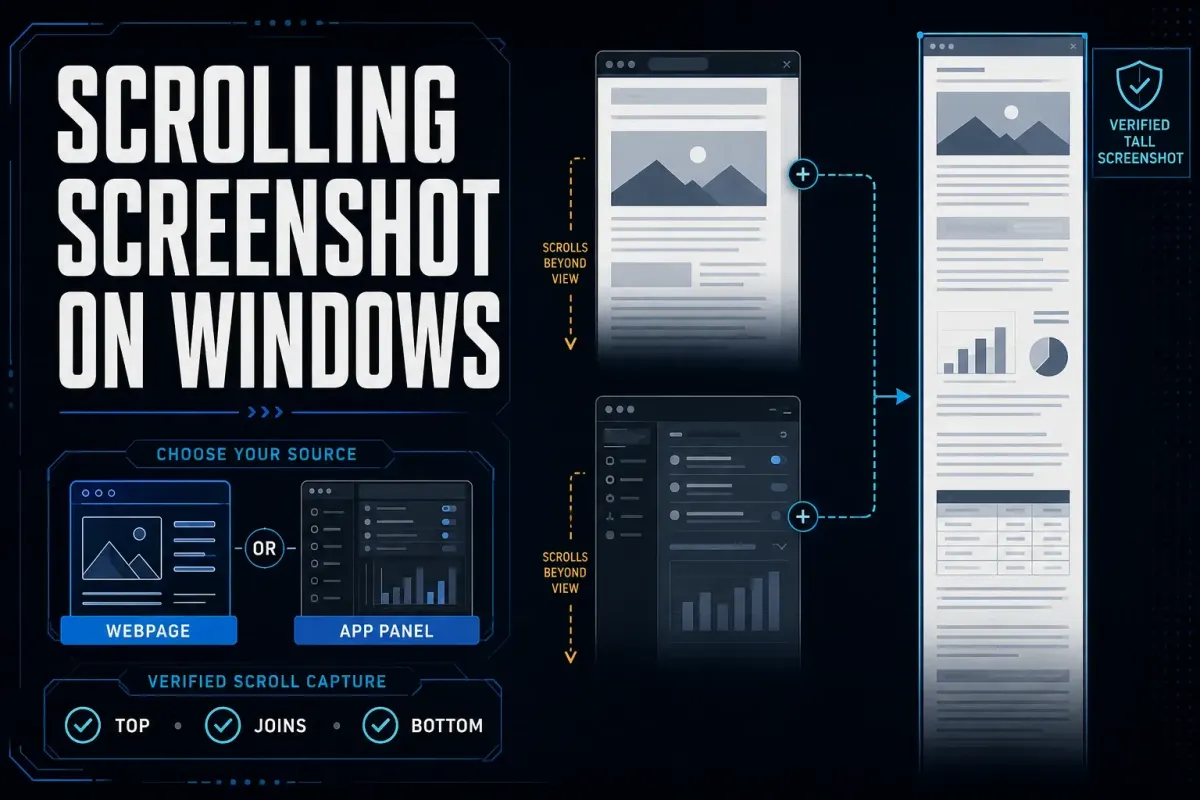
To take a scrolling screenshot of a webpage on Windows, open it in Microsoft Edge, press Ctrl+Shift+S, choose Capture full page, then copy or save the image. Chrome and Firefox also have built-in full-page options. For a desktop app or a panel with its own scrollbar, try ShareX or Snagit and select only the scrolling content. Check the saved image before sharing it; a long file can still have missing sections.
Windows Snipping Tool captures a rectangle, a window, the full screen, a freeform area, or video. Microsoft's current support page doesn't list scrolling capture. “Full screen” means whatever is visible on your display right now, not the content below it.
Documentation checked September 19, 2026 against Microsoft, Google, Mozilla, ShareX, and TechSmith. These are documentation-based instructions, not a five-app Windows test. Menus and capture permissions can vary by version and organization.
Scrolling screenshot methods on Windows at a glance
| Method | Use for | Output | Main limit |
|---|---|---|---|
| Edge Screenshot | Whole webpage with no extra install | Image or clipboard | Webpages, not arbitrary desktop windows |
| Chrome DevTools | Occasional full-page Chrome capture | PNG | Hidden command and document-level capture |
| Firefox Screenshots | Simple full-page browser capture | PNG or clipboard | Webpage content only |
| ShareX | Free scrolling capture of pages and compatible app panels | Stitched image | Static, animated, and hover elements can break matching |
| Snagit | Repeated capture, editing, and documentation | Stitched image; editable in Snagit | Paid tool and target-specific setup |
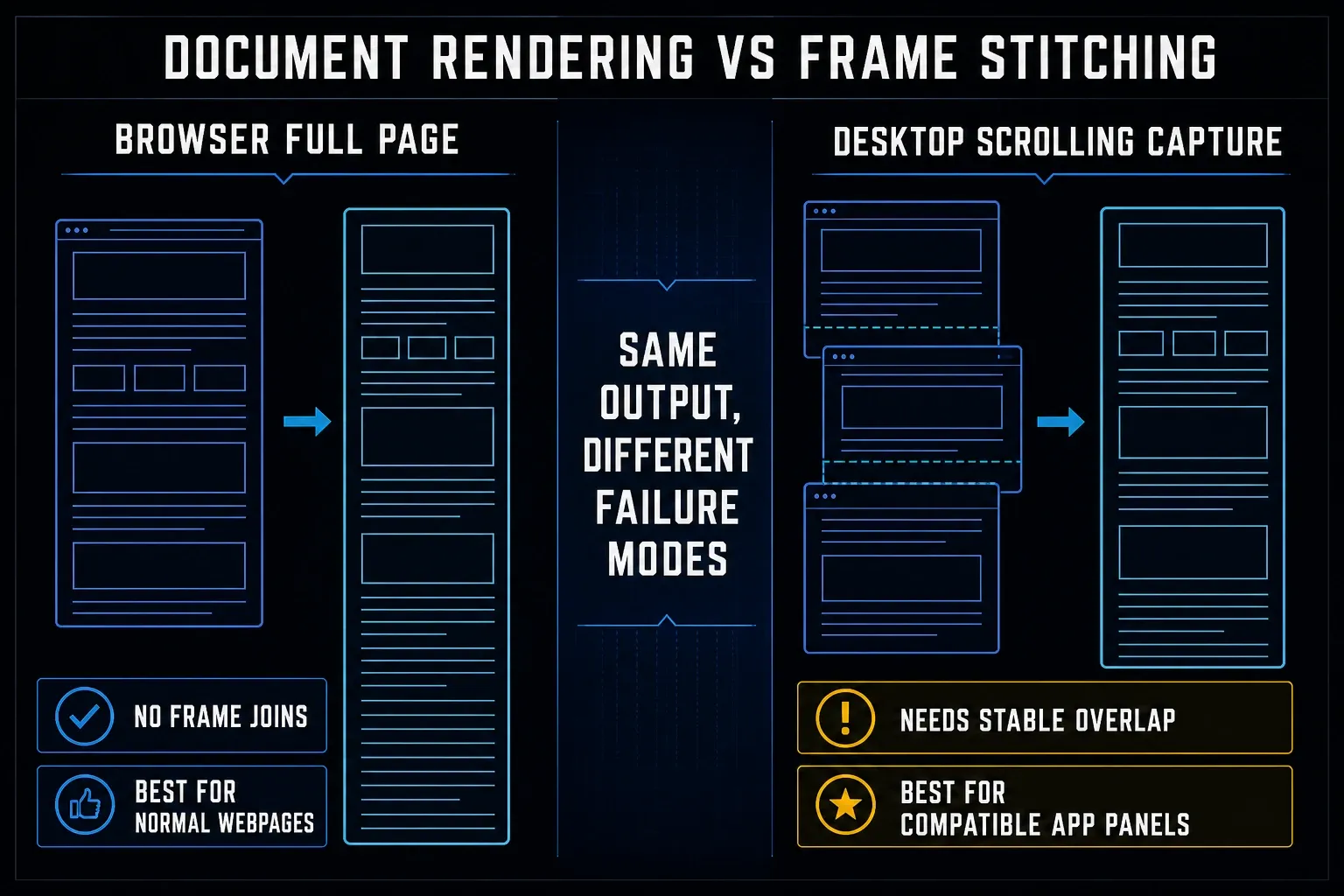
Start with the content you need to save. A browser full-page command captures its webpage beyond the visible area. ShareX builds a longer image by joining overlapping screen captures. A separate scrollbar, a fixed header, or changing rows can prevent either approach from producing a complete result.
Identify what is actually scrolling
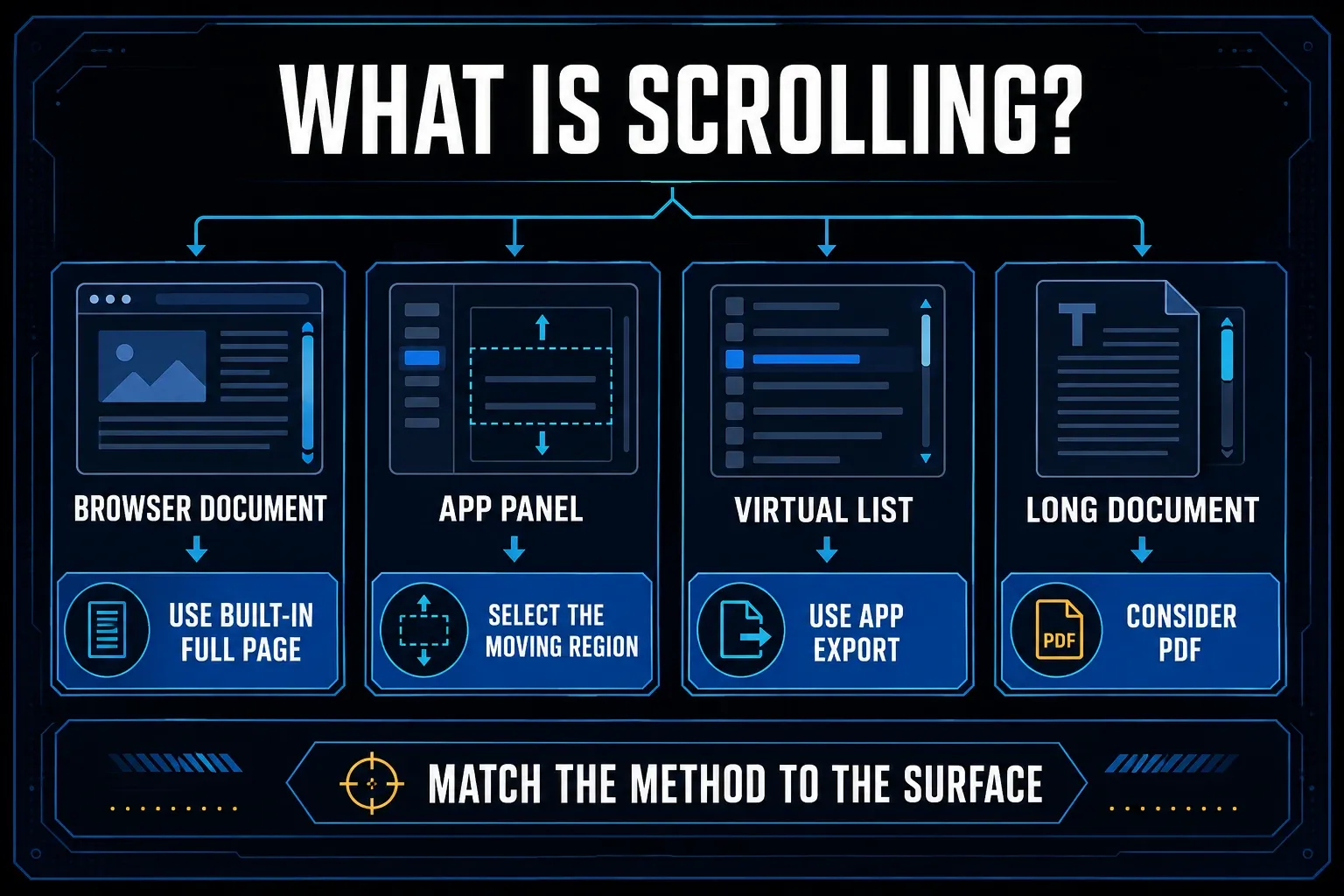
A normal webpage scrolls as one document. Edge, Chrome, and Firefox provide full-page commands for this case. They do not guarantee that every image has loaded or that every panel inside the page will expand. Check the last section against the original page.
An application panel scrolls on its own, with a scrollbar inside a fixed window. Chat history, settings lists, code panes, and dashboard tables often work this way. Your desktop capture tool has to target that panel, not the title bar, toolbar, or fixed sidebar around it. To find out which region moves, click inside the content and turn the mouse wheel.
A virtualized list may render only the visible rows and a small buffer, then recycle those elements as you scroll. The rest of its data can still exist in memory or on a server. Google explains this distinction in its list virtualization guide. A full-page image is therefore not proof that every row was included. For a complete transaction list or chat archive, prefer the app’s authorized export and compare the record count.
A long document may work better as a PDF. If the recipient needs to search, select, quote, or print the text, one narrow 30,000-pixel image makes more work for them. Before you capture, decide whether the job is visual proof, readable documentation, or a data export.
Before a long capture, try a short section with recognizable headings or row numbers. Record the app and output, for example, “Edge webpage to image” or “desktop panel to stitched image.” A successful webpage capture does not establish that the same tool can capture a separate application.
Why Snipping Tool does not capture content below the screen
Microsoft's current Snipping Tool guide lists Rectangle, Window, Full screen, Freeform, and Video modes. It also documents Windows+Shift+S for an image overlay and Windows+Shift+R for video, but there's no scrolling screenshot mode in it.
Snipping Tool is still handy once you have a browser capture. It can crop, draw, add shapes, extract text, and use Quick redact for email addresses or phone numbers. Microsoft says text recognition runs locally on the device. But none of those editing features turns a visible-screen snip into a full scrolling page.
Do not confuse full screen with full page
Full screen captures what's on the display right now. Full page captures a browser document beyond the viewport. Scrolling capture usually stitches several frames together from a moving page or panel. Keep these three terms straight when you write instructions or report a failure.
Method 1: capture a full webpage in Microsoft Edge
In Edge, press Ctrl+Shift+S, or open Screenshot from the right-click menu or the Settings menu. Choose Capture full page. Look over the result and add a mark if you need one, then copy or save it.
According to Microsoft's Edge Screenshot page, the tool captures a full webpage, including the parts you'd have to scroll to, and can copy or save the result. The same page warns that availability can vary by device, market, and browser version.
Use Edge when the target is a normal webpage
Edge is a practical starting point if it is already installed: the full-page action needs no extension. For an article, help page, or static report, scroll through once to load delayed images, return to the top, and run Screenshot. Check the footer in the saved file.
It won't capture every desktop program. A web app with a fixed shell and an inner virtualized table may also need the table's own export or a panel-specific capture.
Method 2: use Chrome's full-size DevTools command
In Chrome, press Ctrl+Shift+I to open DevTools. With DevTools focused, press Ctrl+Shift+P, type screenshot, and choose Capture full size screenshot. Save the downloaded PNG. If the shortcut opens printing, DevTools did not have focus. The Chrome full-page screenshot guide covers the command, Device Toolbar, and common export failures.
Google’s full-size capture documentation describes capturing content outside the visible viewport. Before using the command, scroll through delayed-loading sections and wait for the page to settle. Keep device emulation off unless you want a mobile layout, and check whether docking DevTools has narrowed the page. Inspect the downloaded image, not just the download notification.
Use PDF when reading matters more than pixels
With the webpage focused, press Ctrl+P and choose Save as PDF in Chrome’s print workflow. This can preserve selectable text in an ordinary text-based page, but images of text do not become searchable automatically. Print styles can change layout or omit elements. Test search, links, and the final page in the exported PDF. Keep PNG when you need an image of the rendered page; use PDF when its text and page layout are more useful.
Method 3: use Firefox Save full page
Right-click an empty part of the webpage, select Take Screenshot, and choose Save full page. If you prefer the keyboard, Mozilla's Firefox screenshot guide also documents Ctrl+Shift+S on Windows and Linux.
Download saves a PNG to Firefox's usual download folder, and Copy puts the image on the clipboard. Because Mozilla labels full-page and visible-page capture separately, it's easier to avoid the full-screen versus full-page mistake.
Switching browsers can be the simplest fix
When a public webpage fails in one browser, opening the same URL in Edge or Firefox can be quicker than installing a capture utility. Do not switch if the page depends on a specific signed-in session, local state, or a browser-only extension until you've checked data access and reproducibility.
Method 4: take a scrolling screenshot with ShareX
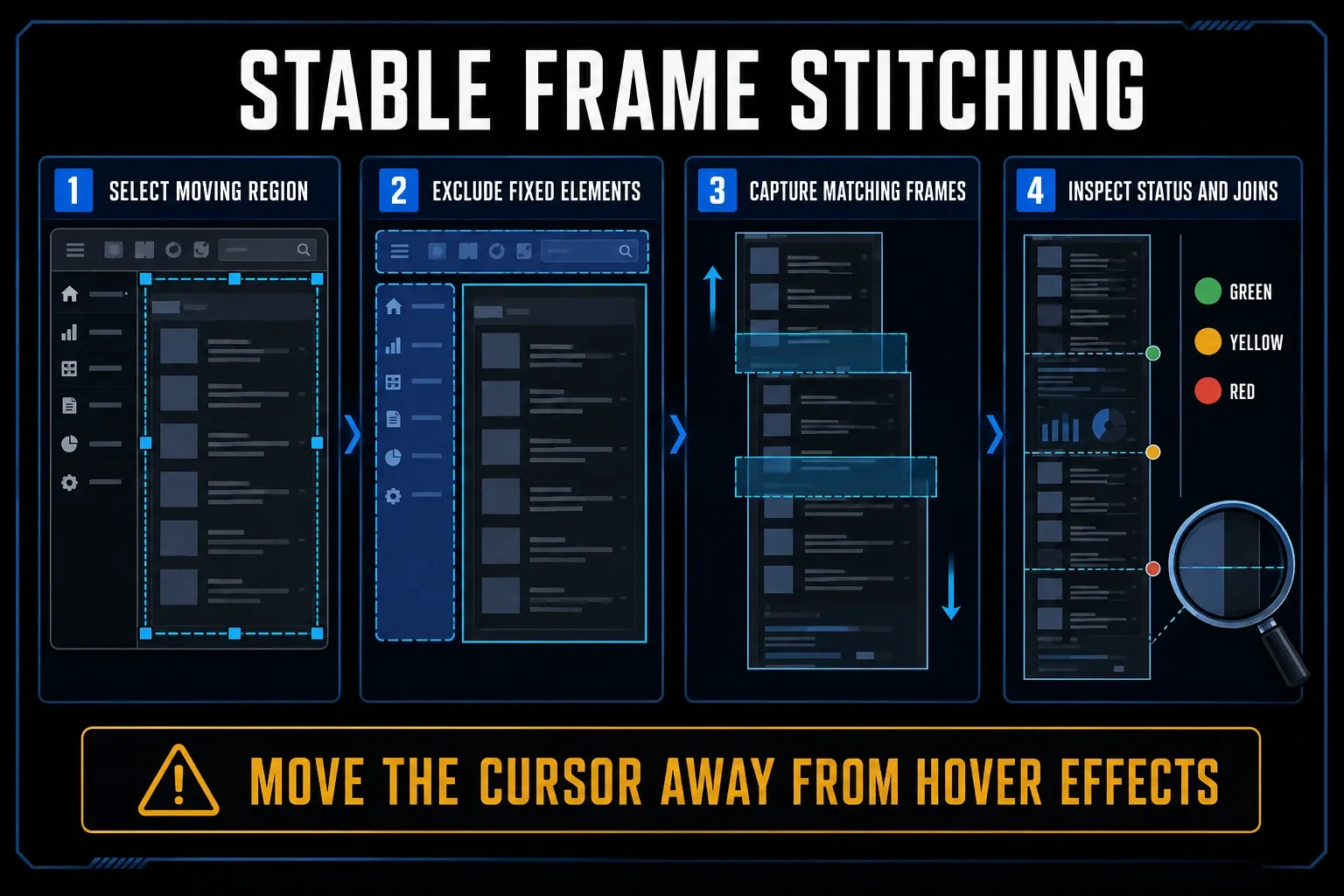
Before capture, select Save image to file under ShareX’s After capture tasks if you need a local copy, and turn off upload-related tasks for private material. Open the main window or tray menu, choose Capture > Scrolling capture, and drag to select the scrolling region. In the current ShareX instructions, capture starts automatically after selection, scrolls to the end, and displays the combined image. You can assign a Start/Stop scrolling capture hotkey to stop it yourself. Review the result and confirm that you have saved a local image before closing it; copying or uploading alone is not a local file.
ShareX reports the result with a color indicator. Green means the capture completed successfully according to its matching checks. Yellow means at least one join used an imperfect match. Red means it could not combine the first two images and stopped. Even a green result needs a content check: compare the first and last rows with the original.
Select only the content that moves
ShareX advises leaving static sidebars and footers out of the selection because they interfere with frame matching. Draw the region inside the app's fixed chrome. It also helps to move the cursor away from hover-sensitive content and to pause animation where you can.
ShareX is useful when you want a free Windows capture tool. If editing arrows, numbered steps, and repeatable exports will take more of your time than capture itself, compare the workflows in Snagit versus ShareX. Neither tool guarantees a clean result in every application.
Method 5: use Snagit for repeated scrolling capture
In Snagit, select All-in-One and click Capture. For automatic capture, point at the scrollable window and click an orange direction arrow if one appears. For manual capture, drag to select a region, click Scrolling Capture on the toolbar, then scroll smoothly in one direction. Click Done when the last required section is visible. The result opens in Editor for review and saving. TechSmith’s current scrolling capture instructions use this workflow; older versions may use Panoramic Capture and different controls.
The detailed Snagit scrolling capture guide walks through its current workflow. Snagit makes sense when annotation, redaction, step creation, or repeatable documentation follows the capture. For one ordinary webpage, though, I wouldn't buy it before trying Edge, Chrome, or Firefox.
Test the exact application before standardizing
Try the actual application before committing to a long capture. TechSmith’s scrolling-capture troubleshooting identifies unsupported applications, conflicting utilities, drivers, and security software as possible obstacles. It recommends excluding scrollbars and floating controls, scrolling in one direction, and trying default 100% app zoom. Start with those capture adjustments. Do not disable security software or bypass an organization’s policy to make the screenshot work.
Fix a scrolling screenshot that stops or stitches badly
- Identify the scrolling surface. Check whether the page, an inner panel, or a virtual list moves.
- Load the content. Scroll through the target once and wait for images, fonts, and rows.
- Remove moving distractions. Close chat, cookie bars, tooltips, video, and auto-rotating content.
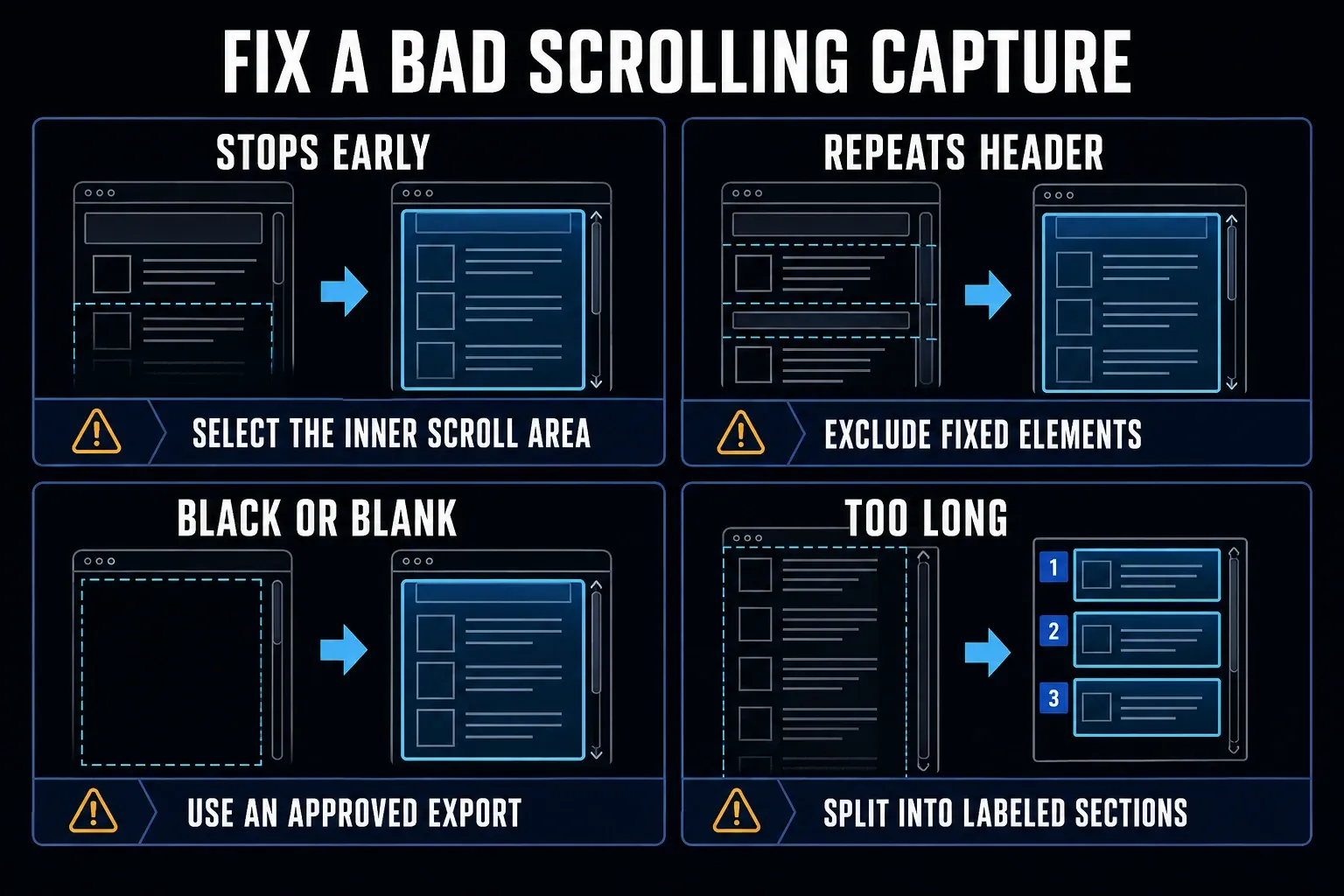
- Select a stable region. Exclude fixed headers, sidebars, scrollbars, and hover effects when using a stitching tool.
- Keep scale stable. Avoid changing zoom, DPI, or monitor during capture.
- Try the native browser route. Use Edge, Chrome, or Firefox full-page capture for an ordinary webpage instead of continuing with a failed desktop stitch.
- Split a difficult target. Capture labeled sections with overlap when the output is too tall or dynamic.
- Verify the export. Inspect joins, repeated rows, missing content, and private fields.
Repeated headers or duplicated rows
A fixed header can reappear in successive frames and disrupt matching. Select a region below it or close the floating control if the page allows that. For changing tables, verify row numbers; a smooth join can still hide a missing record. Try the browser’s full-page command for a normal webpage, or export the underlying data when you need every row.
The capture stops after one or two scrolls
First check whether you selected the outer window while an inner panel actually scrolls. Re-select only the moving region, exclude animated content, and move the pointer away from hover-sensitive rows. ShareX’s red status specifically means the first pair did not match. On an endless feed, decide where to stop and use the Start/Stop hotkey; there may be no fixed page bottom to detect.
Black, blank, or protected content
A black image does not identify its cause. Compare a new capture of a harmless text window with the target: if only the target is black, investigate that application or content restriction. TechSmith’s black and blank capture guidance documents protected services and security-software interference. Use the black screenshot diagnostic checks to separate those cases. Keep protection enabled and use an approved export when capture is restricted.
The image is too long to use
A technically complete image can still be awkward to hand over. Split it into overlapping sections and name the files in order. Use PDF or the source export when readers need to search, copy, or print the content.
Protect private data in a long capture
A scrolling image can expose far more than the first screen ever shows. Before you capture, switch to a test account, close unrelated tabs, hide notifications, and remove customer data. Never include passwords, recovery codes, API tokens, private messages, or payment details.
Remove sensitive fields before capture where possible. Otherwise, cover the entire field with a fully opaque shape and export a flattened PNG or JPEG copy. Reopen that exported file and inspect every covered area. A removable object in an editable project is not permanent redaction, and blur can leave characters recognizable. Share the checked flattened copy, not the layered source.
Before capturing private material in ShareX, check After capture tasks and disable Upload image to host and any other upload-related task for that workflow. Its capture-and-upload task list explains how a capture can be sent online. Also check the hotkey’s task overrides and try a non-sensitive capture to confirm that nothing uploads. Clipboard history, synced folders, ticket attachments, and public share links are separate places to review before distributing a file.
Use this final Windows capture check
- Confirm the correct URL, app, account, and content state.
- Inspect the entire saved image, including the top, every join, and the final section.
- Compare row numbers, headings, or timestamps across every stitch.
- Check that floating controls were not repeated.
- Confirm private information is absent or irreversibly covered.
- Open the exported file outside the capture app.
Need instructions for a different device? The cross-platform scrolling screenshot guide also covers Mac, browser, and phone options. For Windows, choose a method by whether the target is a browser page or an app panel.
Which Windows scrolling screenshot method should you use?
Use your browser’s built-in method for an ordinary webpage. Edge exposes Screenshot directly, Chrome uses DevTools, and Firefox offers Save full page. Try ShareX for free desktop stitching, or Snagit when you also need its editor and documentation tools. Both can capture webpages as well as compatible app regions.
If the first result is incomplete, identify what is missing before switching tools: unloaded images, a separate scrolling panel, repeated headers, or rows that were never rendered. For an archive that must contain every record, check the app’s export rather than relying on one tall image.
Windows scrolling screenshot FAQ
Can Snipping Tool take a scrolling screenshot?
Microsoft's current Snipping Tool documentation lists rectangle, window, full-screen, freeform, and video capture, but not scrolling capture. Use a browser's full-page tool or a scrolling-capable desktop app.
What is the easiest way to capture a whole webpage on Windows?
In Microsoft Edge, press Ctrl+Shift+S and choose Capture full page. Chrome has Capture full size screenshot in DevTools, and Firefox offers Take Screenshot followed by Save full page.
How do I take a scrolling screenshot in Chrome on Windows?
Press Ctrl+Shift+I to open Chrome DevTools. With DevTools focused, press Ctrl+Shift+P, type screenshot, and choose Capture full size screenshot. Load delayed content first, save the PNG, and check the whole image, including the last section.
How do I take a scrolling screenshot in Firefox on Windows?
Right-click an empty part of the page, choose Take Screenshot, then Save full page. You can also open Firefox Screenshots with Ctrl+Shift+S.
Can ShareX capture a scrolling application window?
ShareX can stitch compatible scrolling regions. Select the content that moves and exclude static or animated elements. Its matching status does not prove that every row was captured; check the saved image against the original, especially for virtualized lists.
Why does my scrolling screenshot repeat the header?
A fixed header can appear in successive captured frames and disrupt matching. Select a region below it, close a floating control when possible, or try the browser’s built-in full-page capture for an ordinary webpage.
Should I save a long page as PNG or PDF?
Use PNG when you need an image of the page. Consider PDF for reading and printing a text-based document, but test selectable text, links, and completeness after export. Print styles may change the layout, and a PDF made from image-only content is not automatically searchable.