
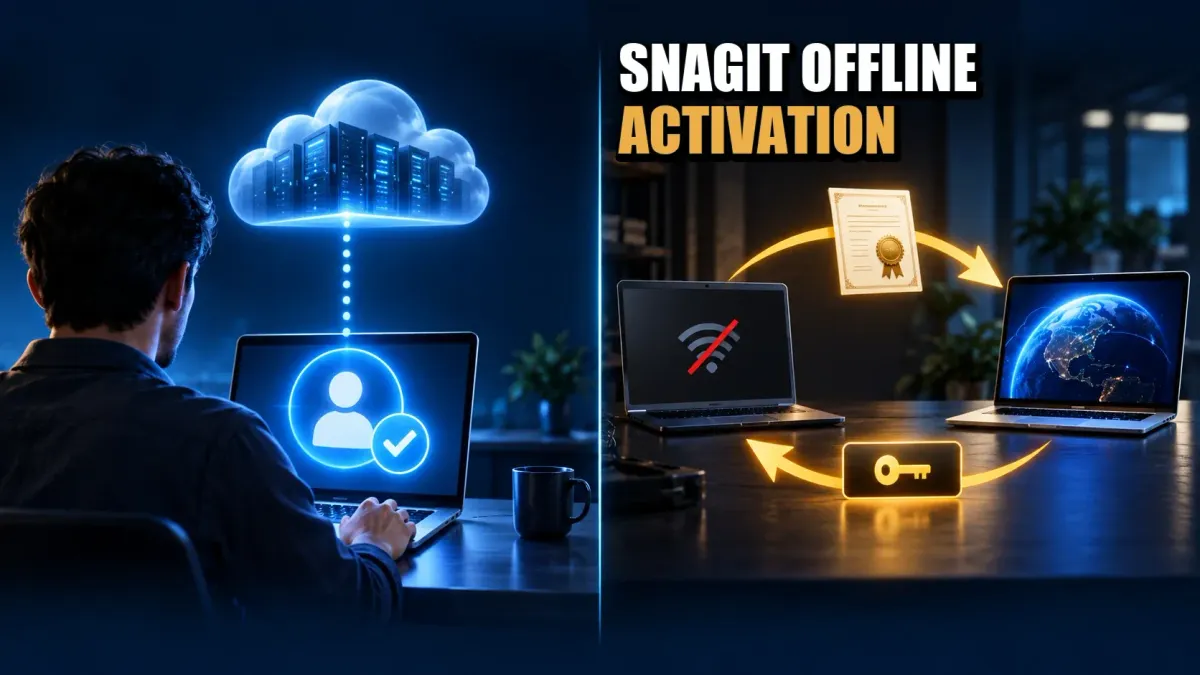
Snagit Individual subscriptions cannot be activated on a permanently disconnected computer. They need an initial online sign-in, then another successful validation by day 91. An eligible Business subscription can use TechSmith's offline certificate-and-code procedure, with a second, connected device handling the online part. Offline activation doesn't turn a subscription into a perpetual license, so plan for its expiry and renewal before you isolate the computer.
Choose the correct license path first
Check your purchase record before you change any network settings. TechSmith's license comparison separates account-based Individual subscriptions from key-based Business subscriptions. Individual has no software key, while Business is licensed per user and supports transfer, offline activation, and managed deployment. The Snagit pricing and licenses guide covers cost and purchase options.
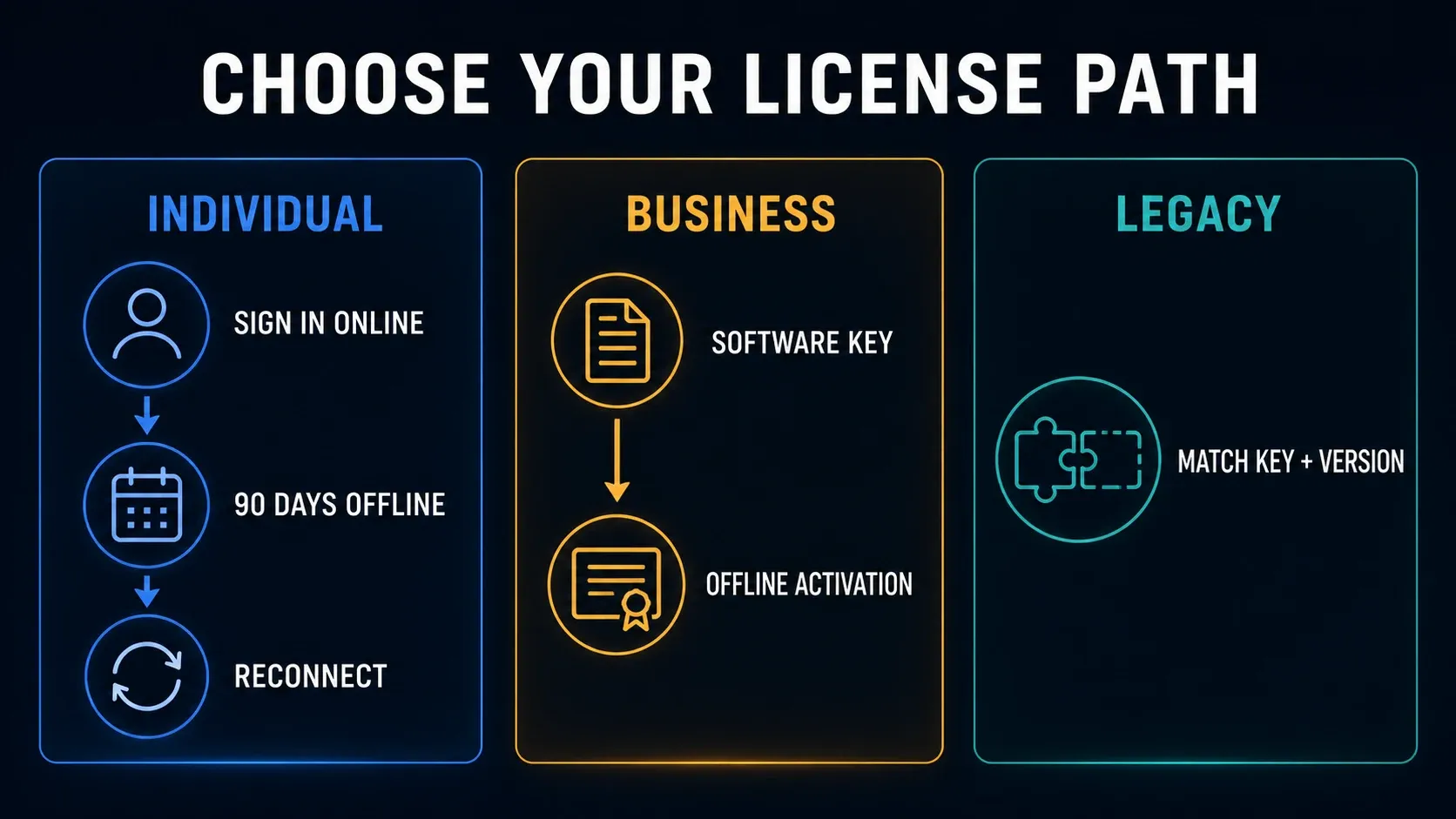
| License | Activation | Offline use | Check before deployment |
|---|---|---|---|
| Individual subscription | TechSmith purchase account | Initial online sign-in; revalidate by day 91 | A successful license check and an active subscription are required. |
| Business subscription | Assigned software key | Supported certificate-and-code procedure | Confirm entitlement, expiry, renewal and approved certificate transfer. |
| Active Legacy subscription | Existing subscription key | TechSmith documents Ask Me Later after a failed periodic check, only until expiry | Confirm the supported procedure for your version and deployment. |
| Older perpetual license | Key for the purchased version | Original entitlement and version-specific activation | Do not assume it activates a current subscription release. |
TechSmith's key recovery guide explains where to find a key-based purchase. A software key normally has 25 characters, so keep it out of public posts, screenshots, ticket titles, and shared documents. On a narrow screen, swipe the table horizontally to read every column.
How Individual subscriptions work offline
Connect the computer, open Snagit, and sign in with the TechSmith account you used to buy the subscription. The Individual activation troubleshooting article says to check that the account email matches the purchase. A different personal or work account doesn't get the license just because it's on the same computer.
TechSmith's internet connection policy allows up to 90 days offline and requires validation by day 91. A successful reconnection to the licensing service resets that period. Joining Wi-Fi isn't the same as a completed license check, since a proxy can still block it. The offline period also won't extend an expired subscription or make cloud services work without a connection.
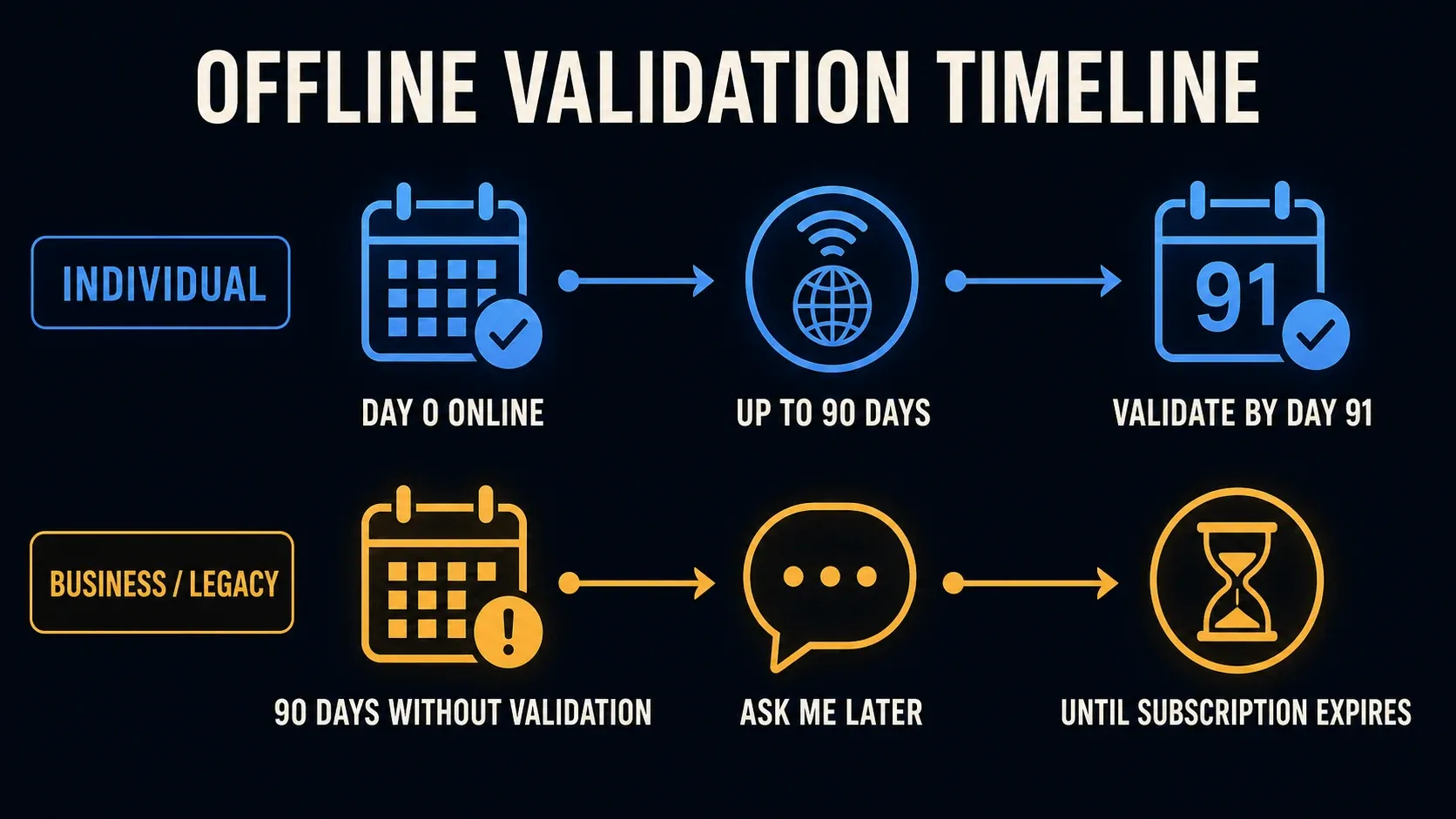
Validate the license before a field trip or a planned network shutdown. Confirm that Snagit recognizes the active subscription, then test the capture and save actions you need while offline. Write down the validation date and line up the next approved connection before day 91. A reminder around day 75 is one practical option, though TechSmith doesn't require it.
The offline-duration guidance describes Ask Me Later for Business or Legacy subscriptions that cannot reach the activation service after 90 days. It lets you keep working only until that subscription expires. This isn't the Individual activation method, and it doesn't replace an agreed renewal plan for a disconnected deployment.
Activate a Business license on an offline computer
This procedure is for an eligible key-based Business installation that cannot contact the activation service. The target computer creates a certificate, and a separate online device sends it to TechSmith and gets back an activation code. Check that your organization permits this transfer. If certificates can't leave the isolated environment, work out a supported arrangement with IT and TechSmith before you go any further.
- On the offline computer, open Snagit, enter the eligible software key, and click Unlock.
- If Snagit cannot reach the activation service, choose Offline Activation.
- Click Copy to copy the certificate text, or Save As to save it as a .txt file. Keep this dialog open.
- Transfer the complete certificate text to a connected device through your approved process.
- Open the activation website linked from TechSmith's official instructions or the dialog. Paste the certificate text and click Activate.
- Copy the entire activation code returned by TechSmith and transfer it back to the offline computer.
- Paste the code into the original open dialog and click Register. Then test that Snagit opens and performs the required local tasks while offline.
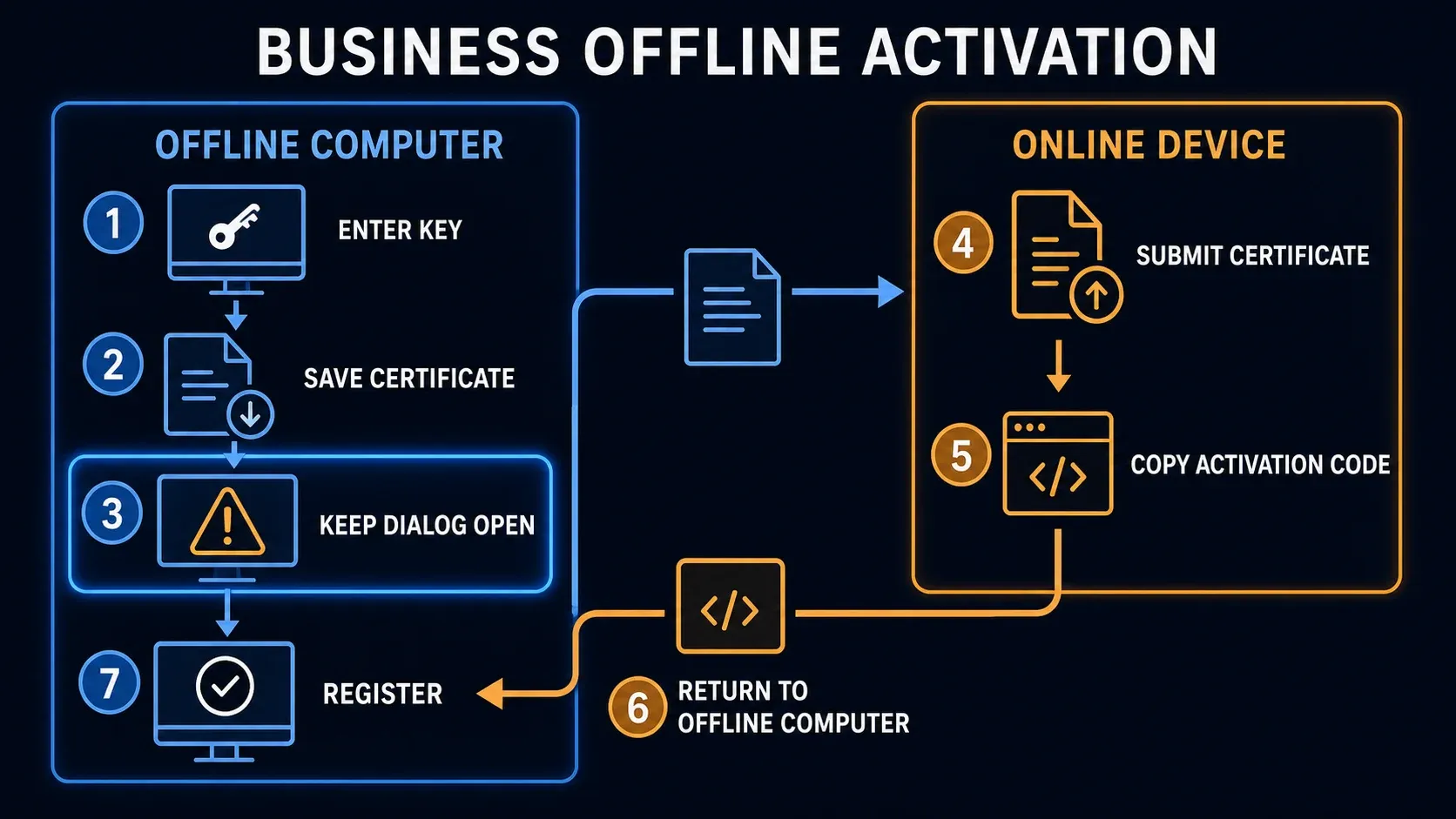
TechSmith's offline activation instructions show this procedure for both Windows and Mac, and they explicitly say to keep the dialog open. If you closed it or can't complete the request, start the documented procedure over instead of mixing certificate text and codes from different attempts.
Treat the certificate and the response as controlled deployment records, and move them on approved removable media or through a permitted transfer service. Do not copy another user's activation files or put keys and certificates into public troubleshooting posts.
An offline installer is not an offline activation
Downloading the installer to a USB drive solves exactly one thing: installation. It doesn't change the license type or remove an activation requirement. TechSmith's USB and disc installation instructions say to download the Windows .exe or Mac .dmg on a connected computer, then move that exact file to the target machine.
Pick the installer that matches both the operating system and the license. The key-version guide says active Business and Legacy subscriptions can access the latest release. With a perpetual 2024-or-earlier purchase, check which version is attached to the key in your account, since an old perpetual key isn't automatically valid for a current subscription build.
TechSmith moved new Snagit purchases to annual subscriptions in 2025. Its subscription transition policy keeps older perpetual rights intact but doesn't grant every later upgrade. Before you install an old build, check both what the license entitles you to and whether your operating system supports it.
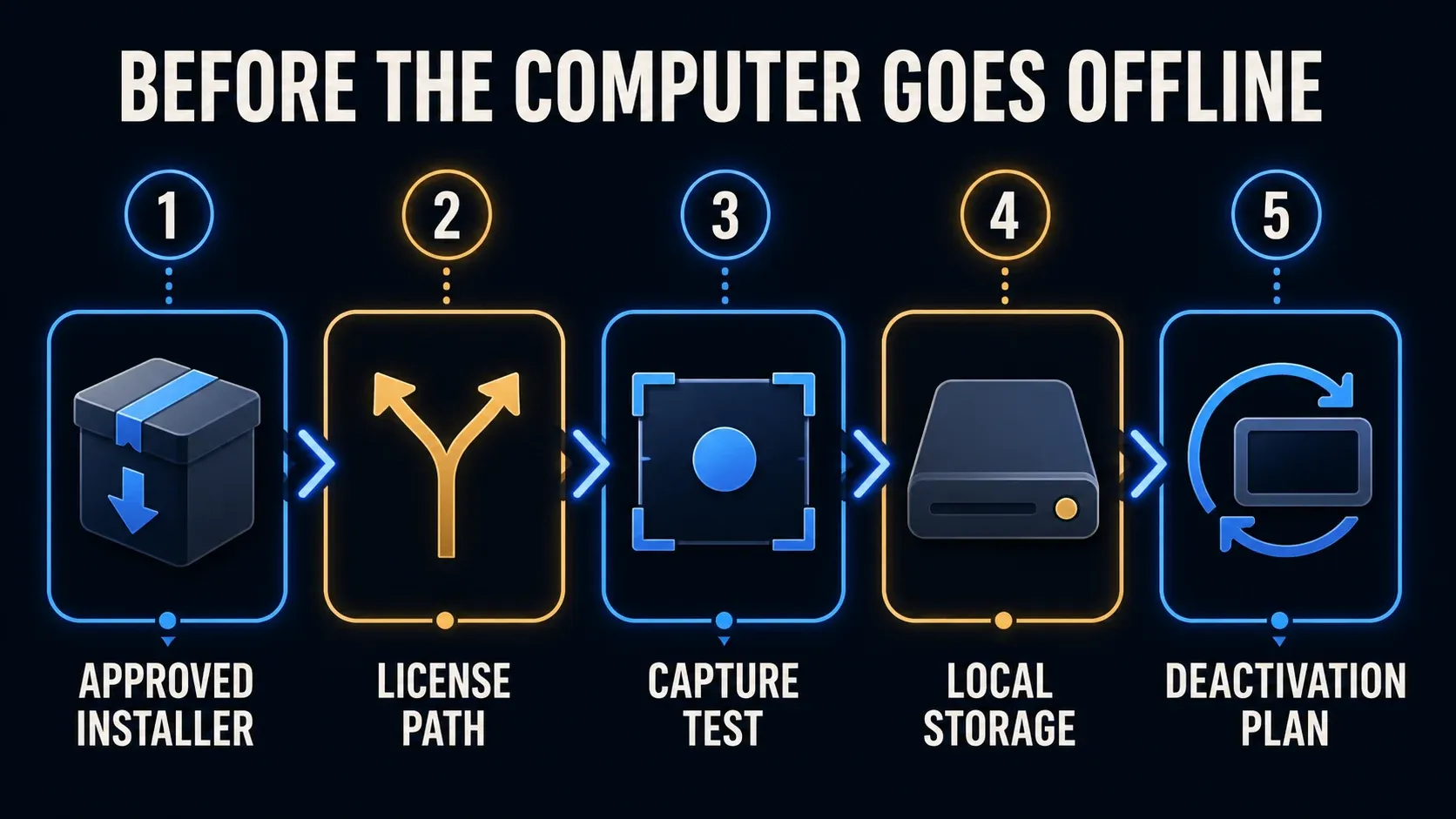
Run this preflight before the computer is isolated
- Confirm the license type, assigned user, Snagit version, and the purchase account or software key required by that entitlement. Individual subscriptions do not have a key.
- Download the correct signed installer and any approved deployment package while connected.
- Install and activate through the path that belongs to that license. Do not mix account sign-in with a key from another entitlement.
- Disconnect the computer through the approved process, then restart it offline. Test capture, Editor, save, export, and the file locations your users need.
- Document where the installer, activation record, backups, and future deactivation record will be stored.
For a managed Windows installation, follow TechSmith's current deployment documentation. Its preparation tool takes an MSI installer and produces configuration files for deployment. Test the real package on a representative computer that has the intended security rules and storage locations. A successful manual installation doesn't prove that a silent deployment will behave the same way.
Test the local workflow, not just the activation screen
Once Snagit is registered, test the work it has to do in the restricted environment, using sample material instead of customer or classified data. Cover the application you need, the capture type, editing tools, file destination, and restart behavior.
- Capture a region and a scrolling window if that capture type is required.
- Open the result in Editor and add the annotations your team uses.
- Save an editable SNAGX image source and reopen it from the approved local or network path.
- Export a PNG and, when needed, record and export a short MP4.
- Close and reopen Snagit, then restart the operating system and repeat one capture.
- Confirm that blocked sharing services, cloud destinations, assets, or update checks do not interrupt the required local task.
The Snagit beginner tutorial gives you a capture-and-edit workflow to check against. If you need video, test the relevant steps from the screen recording guide as well. Make sure every file you need is available locally, because a cloud placeholder isn't an offline copy.
Restricted network or fully air-gapped computer?
A restricted network may activate normally once the correct destinations are allowed through. An air-gapped computer can never make that connection and needs the supported offline path. Work out which situation you're really in before you ask a security team to change policy. When IT can approve a narrowly scoped exception, I'd take that over the certificate route, because it saves you carrying certificates and activation codes between machines as controlled files.
On a restricted Windows network, start with TechSmith's proxy and firewall requirements. That page separates the licensing, sign-in, updates, assets, and analytics destinations, and it lists ports 443 and 80 with a note that only 443 may be needed. Ask IT to pick the documented access your deployment needs rather than allowing every connected feature by default.
Don't disable the firewall, endpoint protection, or proxy as a permanent fix. Ask IT to check the failed connection and, if needed, approve a narrowly scoped exception. Retest after the change and remove temporary access when policy requires it. A Mac deployment should also follow the Mac-specific instructions and your organization's network controls.
Fix common offline activation failures
- No Offline Activation option: confirm the license and installed version are eligible. Individual uses account sign-in, not the Business certificate procedure.
- No license found: check the purchase account and assigned entitlement. An Individual purchase does not supply a key.
- Invalid key or version mismatch: check the complete key, product, entitlement and installed release. Verify the actual system date and time; do not change the clock to evade validation.
- Certificate or activation code rejected: return to the official procedure, keep its dialog open, and copy the complete text without editing it. Do not combine files from different attempts or computers. If it still fails, send the exact error through an approved private support channel.
- Unable to reach the activation service: distinguish an intentionally disconnected device from a blocked connection. For a connected work machine, ask IT to check the proxy, firewall, VPN and relevant service destinations.
TechSmith has separate Windows activation-message guidance and Mac activation-message guidance, but their older key-limit examples shouldn't replace the current subscription terms. Write down the exact message and version before you change anything. Before you share anything publicly, redact keys, account emails, certificates, codes, device names, and internal network details.
If activation succeeds but Snagit won't start, you're dealing with a separate problem. The Snagit Editor troubleshooting guide covers launch failures without mixing them into licensing steps.
Deactivation and machine replacement
Read TechSmith's clear-activations instructions before you replace the machine, because account-based clearing, deactivation on an accessible device, and offline deactivation are separate procedures.
If the old device is unavailable: the account's Keys-tab clearing method applies to single-user Snagit 2021–2024 keys. TechSmith explicitly excludes multi-user keys and active Business subscriptions for 2025 and later from that self-service option. Individual subscriptions have their own Clear activations option on the account Dashboard or Online store orders. If your license is excluded or the option is missing, contact support instead of assuming an account button can clear it.
For eligible Windows 2021-or-later installations offline: open Editor, choose Help > Deactivate Offline, then Generate Deactivation Certificate. Copy or save the certificate, take it to a connected device, and submit it on the deactivation website linked in the official instructions.
On Mac 2021 or later: choose Snagit > Manage License > Deactivate License. When the disconnected app offers Offline Deactivation, copy or save its certificate and submit it from a connected device. Generating a certificate without submitting it doesn't finish the documented process, so confirm completion before you wipe the old computer.
Keep the old device until the transfer plan is settled, and record the assigned user, computer, Snagit version, and deactivation result. If the device failed first, contact TechSmith Support with purchase details through its private support process. Don't post the full key in a public message.
Back up the capture Library separately from the license; the Snagit Library backup guide explains what to keep. Activation records won't bring back your captures or editable image sources.
Security rules for activation files
- Store software keys in an approved password or asset-management system, not in the article, a screenshot, or a shared spreadsheet.
- Treat certificate and activation-code files as controlled deployment artifacts, even though they are not the same as a password.
- Use approved removable media and scan it according to the receiving environment's policy.
- Redact account emails, keys, device names, and network data from screenshots sent outside the organization.
- Keep an audit record of assignment, activation, transfer, and deactivation without storing unnecessary personal data.
- Reject cracks, modified installers, hosts-file blocks, clock tricks, and activation files from another machine.
Snagit offline activation FAQ
Can I activate a Snagit Individual subscription permanently offline?
No. Individual subscriptions require initial online sign-in and successful validation again by day 91. The offline allowance does not extend the paid subscription term.
Which Snagit license supports activation on a disconnected computer?
An eligible Business subscription supports TechSmith's certificate-and-code offline procedure. You still need an active entitlement and a plan for expiry, renewal, and later deactivation. Offline activation is not a perpetual license.
Do I need internet on the computer that will run Snagit?
Individual needs internet for initial sign-in and periodic validation. An eligible Business target computer can remain disconnected during the certificate procedure, but a separate online device is needed to obtain its activation code. Your organization must permit transferring the certificate and code.
Does copying the installer to USB activate Snagit offline?
No. A USB drive moves the .exe installer for Windows or the .dmg installer for Mac. Activation remains a separate step governed by the Individual, Business, or older license entitlement.
What should I do if Snagit cannot reach the activation server?
First distinguish a restricted connection from a fully disconnected computer. On a restricted Windows network, have IT check TechSmith's current proxy and firewall requirements. For an eligible Business installation that must stay offline, follow the official Offline Activation procedure.
Can I close the Offline Activation dialog while I use another device?
No. TechSmith tells you to keep that dialog open while you move the certificate to an online device and bring the activation code back.
Can I reuse an offline activation code on another computer?
Do not do that. Return the complete code to the same open request on the same computer. Use the proper transfer or deactivation process for another device.
For other startup and account problems, use the Snagit troubleshooting directory.