
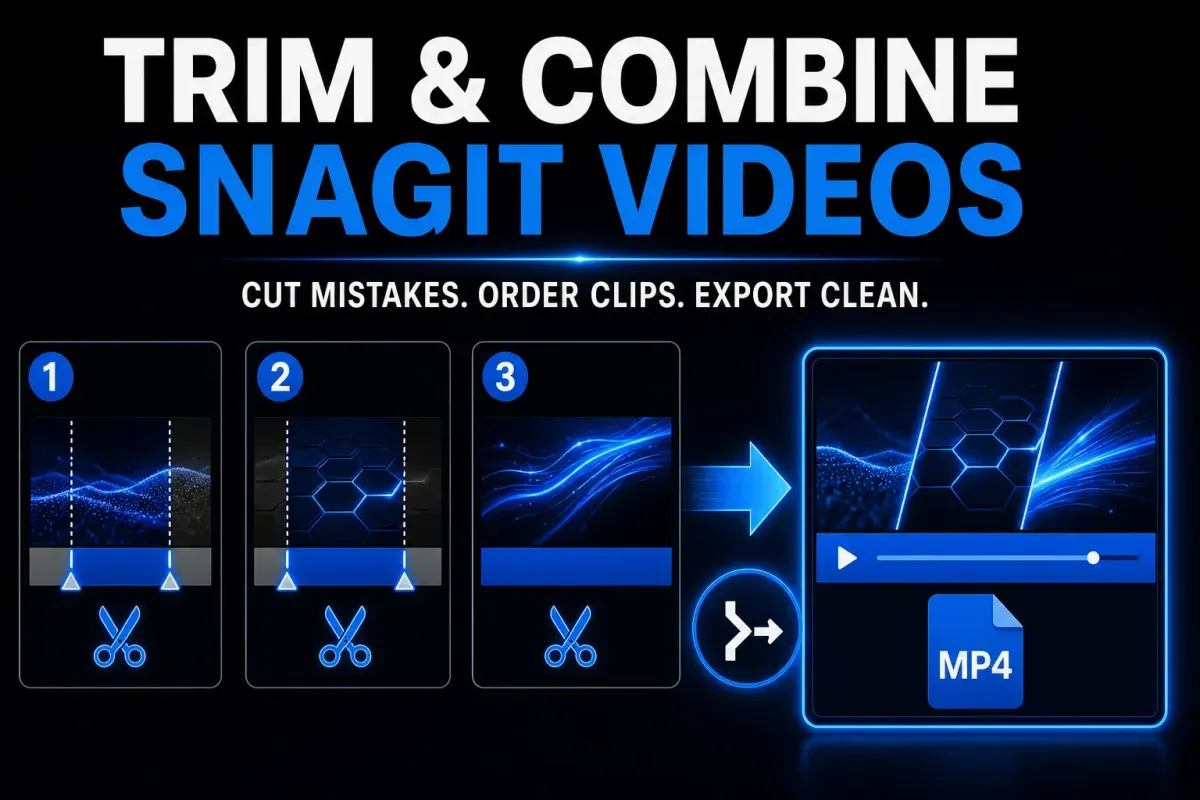
To trim a Snagit video, open the recording in Snagit Editor and use the timeline handles to select the part you want to remove. Preview the selection, then click Cut Out. To combine clips, open one video, click Add Videos or choose Video > Combine Videos, select the clips, put them in the correct order, and create the combined video. Play the finished file from start to finish before sharing it.
Those two tools handle quick cleanup and simple assembly, and honestly, that's all Snagit gives you. There's no conventional multitrack timeline, no transitions, no separate audio repair, no detailed clip effects. If your edit needs those controls, send the recording to Camtasia Editor instead of forcing the job through Snagit.
Fact-checked August 26, 2026. Independent guide. SnagitPro is not affiliated with or endorsed by TechSmith.
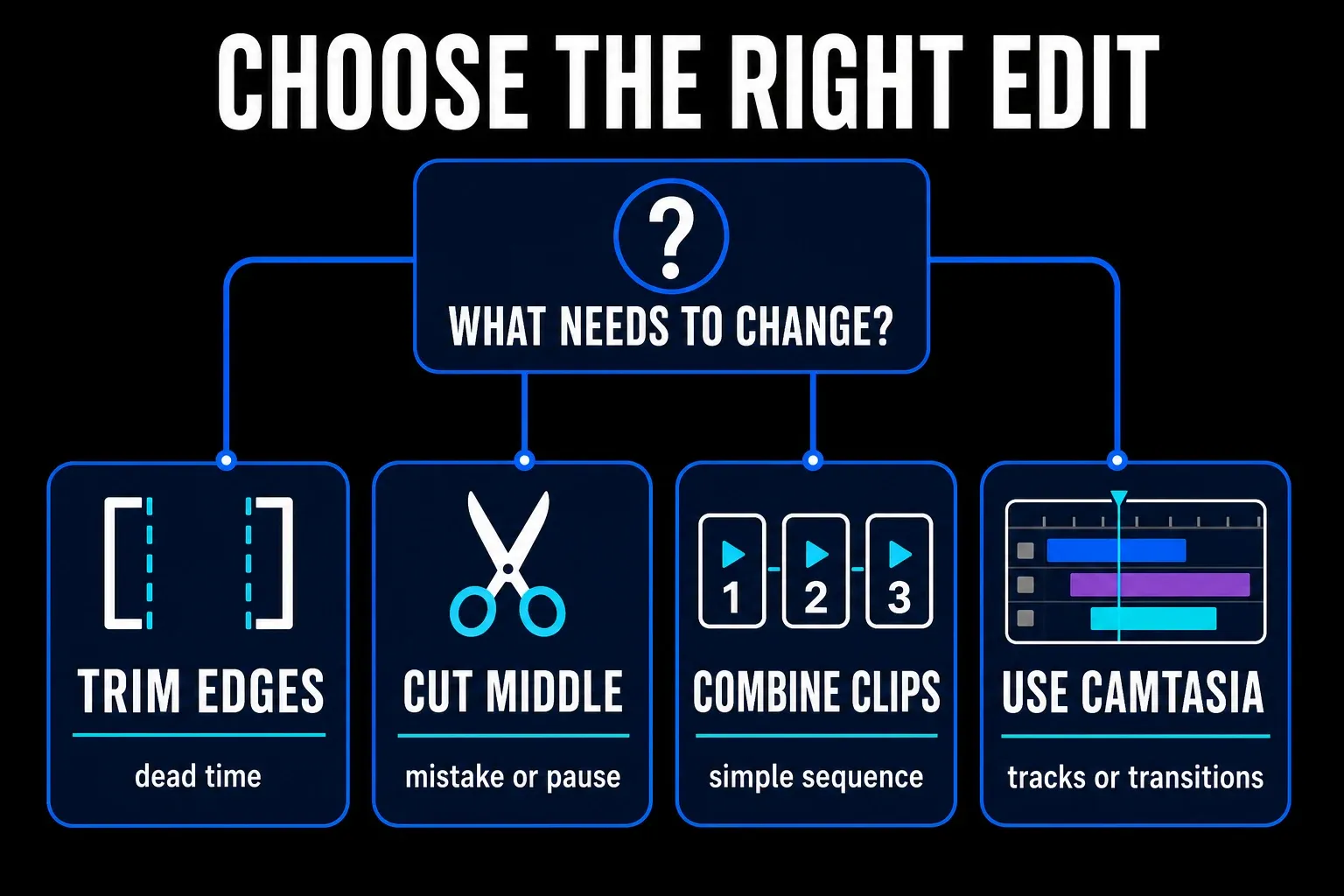
| Edit you need | Use in Snagit | Use another editor when |
|---|---|---|
| Remove dead time at the start or end | Trim with the timeline handles | You need a precise timeline with several tracks |
| Remove a mistake in the middle | Select the section and use Cut Out | The cut also needs audio repair or a transition |
| Join several short recordings | Add Videos and set the clip order | You need overlays, titles, music, or independent media layers |
| Turn one short silent action into a loop | Create an animated GIF after trimming | The result needs narration or normal video controls |
Protect the source clips before editing
Hang on to the original recordings until you've checked the final combined file. Rush the edit and you can remove the wrong pause, stack clips in the wrong order, or spot a dimension mismatch only after export.
- Find every source recording in the Recent Captures Tray or Library.
- Give the clips clear working names such as
01-login.mp4,02-settings.mp4, and03-result.mp4. - Copy any irreplaceable imported videos to a separate folder before editing.
- Open each clip and note its opening frame, closing frame, dimensions, and audio state.
- Decide whether the viewer needs one combined MP4, a short GIF, or separate clips.
Consistent capture dimensions give you the cleanest sequence. If one clip is tall and another is wide, Snagit has to fit them into one output frame. Older official Snagit help states that smaller clips can receive black borders when dimensions differ, and current rendering can vary by build — so combine two short test clips before committing to a long project.
Still need to record the source material? Start with the Snagit screen recording guide. That guide owns the capture area, microphone, system audio, webcam, frame-rate, and recording-length decisions.
Trim the beginning or end of a Snagit video
An edge trim is the right move when the mistake sits before the real action starts or after it ends. The usual suspects: the countdown, a delayed first click, a mouse move into position, or several silent seconds before you stop recording.
- Open the video in Snagit Editor.
- Find the first frame the viewer should see. To remove the opening, set the green Start handle at the beginning of the video and the red End handle at that first wanted frame.
- Scrub through the selected opening to confirm it contains only material you want removed, then click Cut Out.
- Replay the shortened video and find the point after the final action where the viewer has had enough time to read the result.
- To remove the ending, set the green Start handle at that point and the red End handle at the end of the video.
- Review the selected ending, click Cut Out, then replay the video. The handles select the part to remove; opening and ending cuts are separate selections.
Don't cut directly on the final click. Leave a brief hold after the result appears — the viewer needs time to confirm the step worked, especially when the payoff is an error message, settings panel, or completed form.
Cut a mistake from the middle
A middle cut earns its keep on a wrong menu choice, a long pause, a repeated sentence, or a notification that pops up between two clean sections. TechSmith's current feature catalog describes video trimming as removing the beginning, end, or unwanted sections, and its documented Editor workflow uses selection handles, a preview, and Cut Out.
- Move the playhead to the first frame you want removed.
- Set the start of the selection.
- Move to the first clean frame after the mistake and set the end of the selection.
- Drag through the selected section to confirm that it contains the entire mistake and nothing else.
- Click Cut Out.
- Replay five to ten seconds before and after the cut.
Listen as carefully as you watch. A cut can look clean while a word, breath, click sound, or system alert gets clipped. Snagit records a finished video stream rather than an independently editable set of audio tracks, so if the join sounds abrupt, undo the cut and widen or narrow the selection. When you need separate audio control, that's a Camtasia job.
Cutting a private notification doesn't prove that no private data remains elsewhere. Check the first frame, the last frame, the webcam background, browser tabs, account names, and every pause in the final video.
Combine several videos in the right order
Snagit will happily merge several short recordings into one video. TechSmith's current feature catalog lists Combine clips and Video trimming as current Snagit features, and the documented combine workflow starts from one video and opens the Combine Videos window.
- Open the first clip in Snagit Editor.
- Click Add Videos on the video playback toolbar. If that control is not visible, open the Video menu and choose Combine Videos.
- Select each source clip you want to include.
- Read the numbers assigned to the selected clips. They show the output order.
- Reorder or deselect clips until the sequence matches the real task.
- Create the combined video.
- Play every join and check the final frame before saving or sharing.
Some older builds take a tray-based route instead: select multiple videos, right-click the selection, and choose Combine Videos. Follow whatever your installed version actually shows — don't mix instructions from an old screenshot with a newer interface.
Make the joins feel intentional
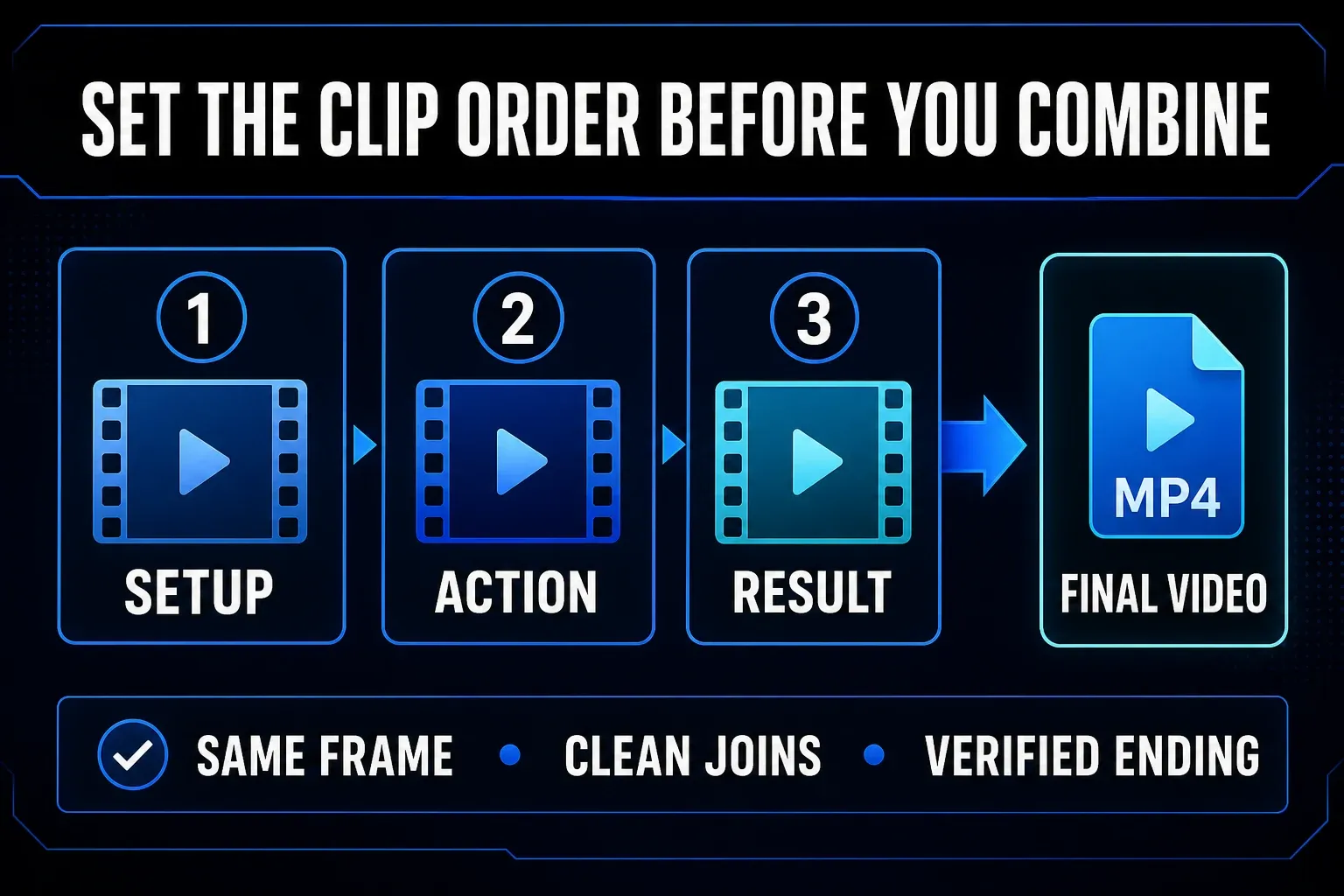
Snagit can line clips up in sequence, but it won't hide a poor handoff. Clean joins start while you're still recording.
- Keep the capture region fixed. Use the same dimensions and app position for every clip.
- End on a stable frame. Stop after the cursor settles and the interface finishes changing.
- Start the next clip on the same state. A menu that is open at the end of clip one should still be open at the start of clip two.
- Use consistent audio. Keep the same microphone, distance, level, and room when narration continues across clips.
- Remove duplicate actions. Do not show the same click at the end of one clip and the start of the next.
A short pause between actions usually reads better than an aggressive cut. You're after a sequence the viewer can follow, not the smallest possible duration.
When Snagit is the wrong video editor
Use Snagit when the job is a quick recording with a few cuts and a simple clip order. Reach for Camtasia Editor or another timeline editor when you need:
- screen, webcam, cursor, music, and narration on separate tracks;
- transitions or a designed title sequence;
- audio repair, level changes, or replacement narration after recording;
- precise speed changes, zooms, overlays, or captions burned into the edit;
- several rounds of revisions across a reusable project timeline.
TechSmith itself positions Snagit as a fast capture tool with basic video editing. Its own video-merging guide describes Snagit as the lightweight choice and Camtasia as the tool for a fuller editing workflow.
Fix a Snagit combine failure
If Add Videos is missing, the combine button is unavailable, or Snagit cannot create the combined video, start with the smallest test you can reproduce.
- Confirm the installed Snagit version in Help > About Snagit on Windows or Snagit > About Snagit on Mac.
- Update through the supported TechSmith route if your build predates the combine feature or has a known fix available.
- Try two short Snagit recordings captured with the same dimensions.
- Copy imported source files to a local folder and confirm that each one plays by itself.
- Restart Snagit and repeat the two-clip test.
- If only one imported clip fails, convert it through an approved media workflow rather than assuming every codec is supported.
Running Snagit inside a VMware virtual machine? TechSmith has a specific support article for Combine Videos errors in VMware. Its February 2026 procedure turns off Accelerated 3D Graphics in the virtual machine display settings. Don't apply that fix to a normal Windows or Mac installation.
If ordinary recording or playback also fails, work through the Snagit video capture troubleshooting guide instead. A recording failure and a combine-only failure need different evidence.
Export and inspect the finished video
Don't treat a successful combine dialog as final approval. Save the output, then open it outside Snagit — in the player or destination your viewer will actually use.
- Play the first five seconds and confirm the intended opening frame.
- Watch every cut and clip boundary with sound on.
- Check for black borders, jumps in scale, missing frames, or a sudden cursor move.
- Listen for duplicated words, clipped audio, level changes, and notification sounds.
- Pause on any frame that may contain private data.
- Watch the ending and confirm that the final result remains visible long enough to read.
- Keep the source clips until the delivered file passes this review.
The Snagit export settings guide walks through choosing between MP4, animated GIF, and other delivery formats. A short silent loop may work as a GIF; narration, system audio, normal playback controls, or a longer explanation call for MP4.
Frequently asked questions
Can Snagit trim a video?
Yes. Snagit can remove unwanted material at the beginning, end, or middle of a recording. Select the unwanted section with the timeline handles, preview it, and use Cut Out.
Can Snagit combine multiple videos?
Yes. Open a video in Snagit Editor, click Add Videos or choose Video > Combine Videos, select the clips, set their order, and create the combined video.
Can Snagit combine videos that were recorded elsewhere?
Snagit can add supported video files that it can open, but do not assume every codec or container will work. Test imported clips individually and run a two-clip combine before editing a long sequence.
Why do combined Snagit videos have black borders?
Mismatched clip dimensions can force Snagit to fit smaller video inside the output frame. Record with one consistent region and preview a short combined test before producing the full sequence.
Can Snagit add transitions between combined clips?
Snagit is designed for basic cuts and simple clip assembly. Use Camtasia Editor or another timeline editor when the sequence needs transitions, titles, independent tracks, or detailed effects.
Why can’t Snagit combine videos in VMware?
TechSmith documents a VMware-specific error and recommends turning off Accelerated 3D Graphics in the virtual machine display settings. Use that step only when Snagit is running inside VMware.