
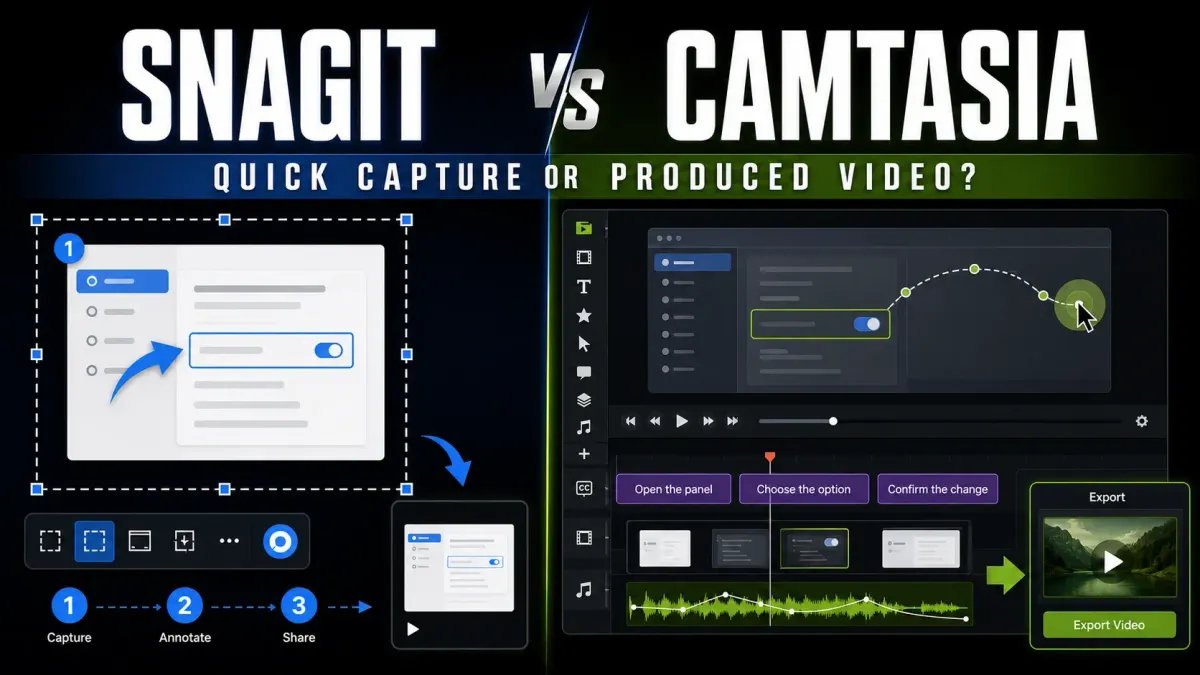
Choose Snagit for screenshots, scrolling captures, annotated instructions and videos that need simple cuts. Choose Camtasia Editor for a multitrack timeline, cursor editing, transitions and produced tutorials. The decision is about the work you need to finish, not just how long you record.
Current individual Camtasia plans include Snagit. Starter gives you Snagit plus watermarked Camtasia Editor exports; Essentials is the first individual tier with watermark-free Editor output. Some extra features run in a third app, Camtasia Audiate. Buying a plan and choosing an editing app are separate decisions.
Checked September 12, 2026. This comparison uses TechSmith’s current product, licence and support documentation. It is not a new hands-on speed test. Regional prices differ, and the August price illustration below is historical rather than a current checkout quote.
Snagit vs Camtasia: the short answer
| Your output | Start with | Reason |
|---|---|---|
| Screenshot or long webpage | Snagit | Image, scrolling and panoramic capture |
| Annotated instructions or support image | Snagit | Image objects, numbered steps and templates |
| Clip needing cuts or GIF export | Snagit | Trim, cut, combine and export |
| Tutorial with separate video and audio tracks | Camtasia Editor | Arrange and revise media on a timeline |
| Transcript-based editing or filler-word cleanup | Audiate with an eligible plan | Separate app; selected features included with Essentials |
| Video quiz or LMS package | Camtasia Editor | Quizzes and SCORM delivery need the correct export and player |
| Both screenshots and edited videos | A suitable Camtasia plan | Current individual plans include Snagit; check the export tier |
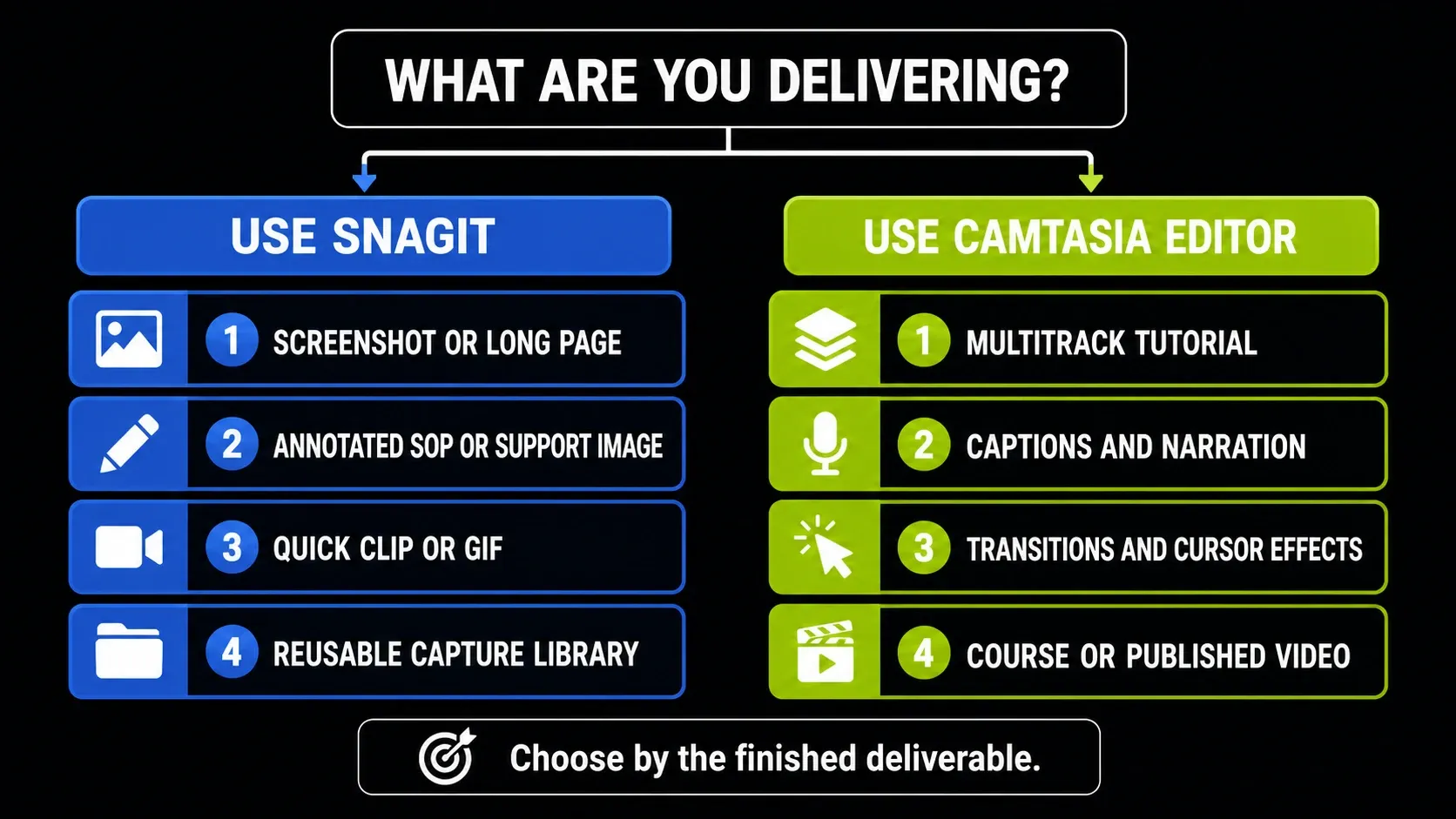
Start with the finished file your audience receives. An annotated image may explain a setting without a video. A lesson with narration, captions and changing on-screen emphasis needs editing controls even when the recording is only two minutes long.
Three apps, three different jobs
Snagit captures and edits images. Its feature catalogue covers scrolling capture, OCR, annotations, templates and presets. It also records the screen, webcam, microphone and system audio. Use it for a support reply, a numbered guide or a demonstration that needs basic video cleanup.
Camtasia Editor arranges recordings, images and audio on a multitrack timeline. Audiate handles transcript-based editing, filler-word removal and related audio work. TechSmith’s Essentials guide includes selected Audiate features, but Audiate is a separate installation. Do not assume every feature advertised for the Camtasia suite is inside Editor.
Snagit can correct a recording too. The difference is the amount of control: cutting out a mistake and joining clips is different from moving a webcam track, replacing narration and adjusting an animation independently.
Screen recording: the same start, a different finish
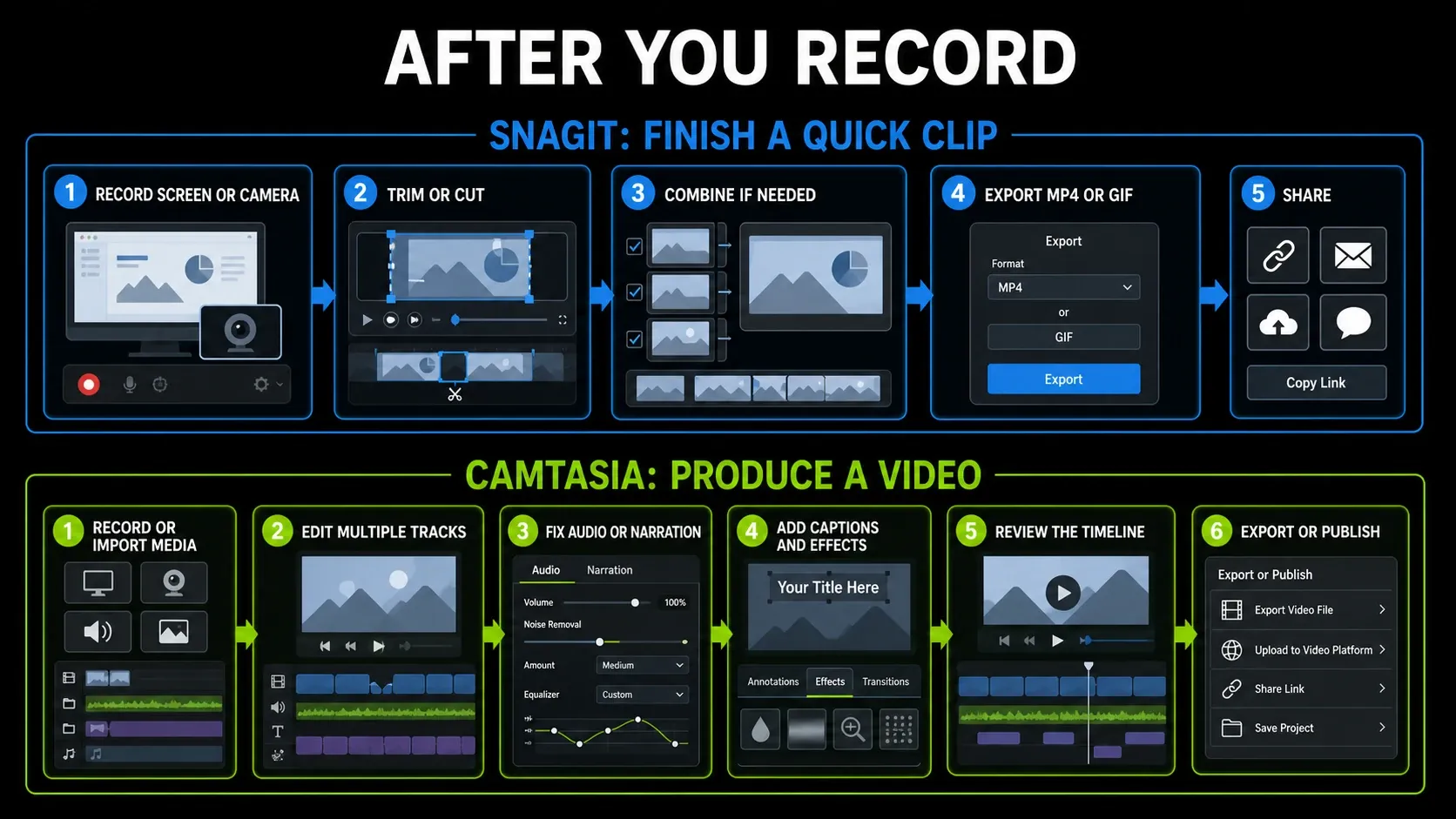
In Snagit, you can trim the beginning or end, remove a middle section, combine clips, save a frame as an image and create a GIF. Those tools can finish a bug report or a simple walkthrough. The trim-and-combine guide explains that workflow.
Camtasia Editor is useful when a correction affects several elements. You can move media on separate tracks, adjust timing, add transitions or revise captions. Keep the original recording and project. Separate camera/audio editing and cursor-path changes depend on the information captured in that source; importing a finished MP4 does not recreate its original tracks or cursor metadata.
Neither app has a fixed recording-time limit. TechSmith recommends keeping Snagit recordings within one hour and Camtasia recordings within four hours. These are vendor recommendations, not guaranteed limits or performance results. Decide by the editing task, then test representative media on your machine.
Screenshots and documentation belong in Snagit
Camtasia Editor can place an image in a video, but Snagit supplies the screenshot workflow: capture a region, menu or scrolling page, then add labels and numbered markers. Use the scrolling capture guide for long content and the OCR workflow for text extraction.
Keep an editable SNAGX source when you need to revise labels or callouts. A PNG is a delivery image with flattened content, not a substitute for those separate objects. TechSmith’s source graphics guidance explains the distinction. Converting a PNG back to SNAGX does not restore the original objects.
For an automatic click-by-click guide, use Step Capture and review the generated instructions. For a single screenshot, the Snagit Editor guide covers the image tools. Neither task requires a multitrack video project.
Current Camtasia plans and Snagit access
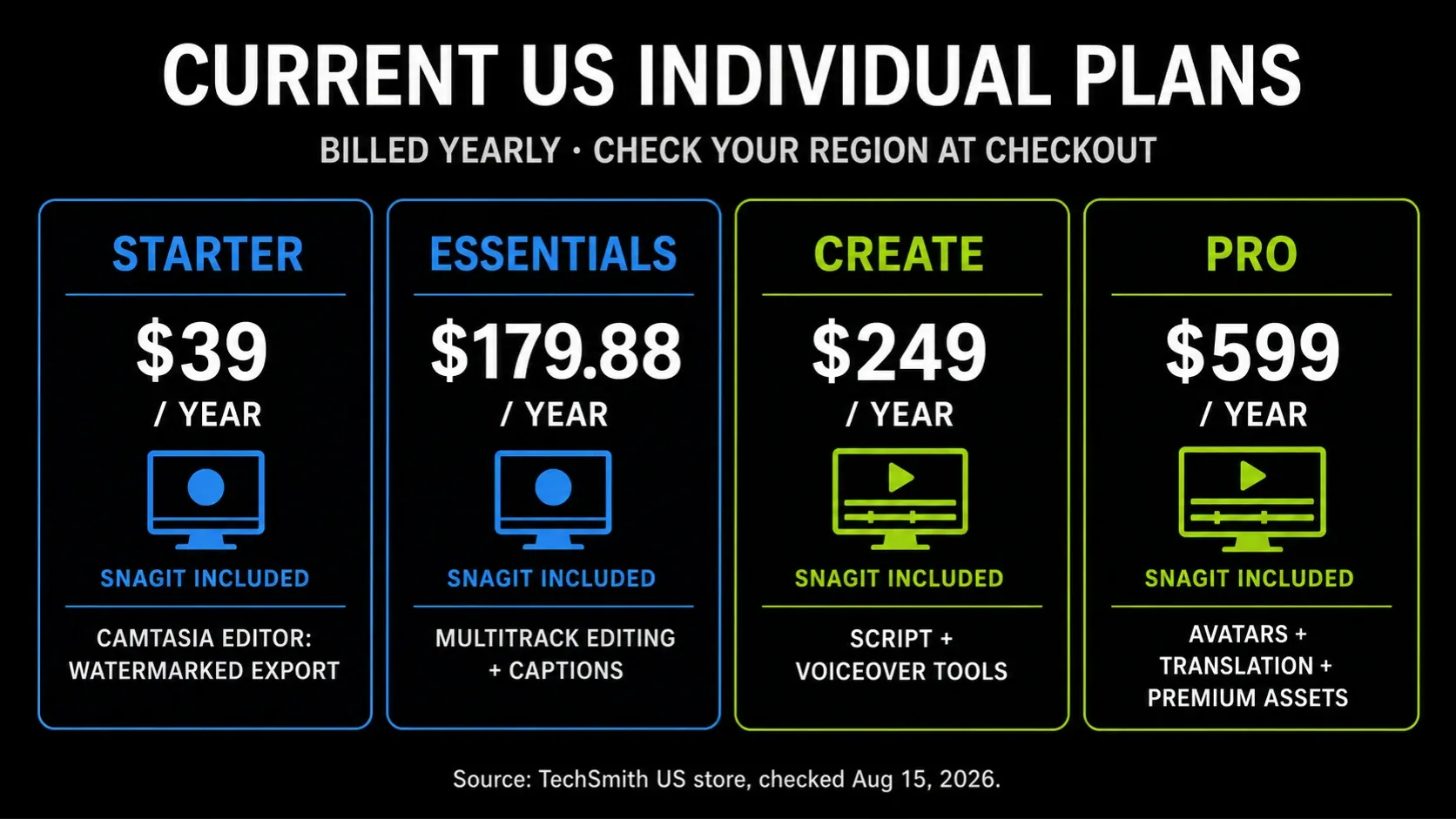
The individual plan comparison lists Starter, Essentials, Create and Pro, billed yearly with non-transferable individual licences. All four include Snagit. The table below compares entitlements; check the store in your region for the current price, currency and tax treatment.
| Plan | Editor export | Additional distinction |
|---|---|---|
| Starter | Watermarked | Includes Snagit; core Editor tools are available with watermarked output |
| Essentials | Watermark-free | Includes Snagit and selected Audiate text/audio editing features |
| Create | Watermark-free | Adds script and generated-voice tools in Audiate |
| Pro | Watermark-free | Adds Audiate avatars, translation/dubbing and further assets/publishing benefits |
You do not need to buy Starter just to learn Camtasia Editor. TechSmith allows unlimited-time free use with watermarked exports. Snagit has a separate 15-day trial. The Starter subscription provides Snagit access; its Editor output still carries a watermark. Advanced timeline tools are not exclusive to Essentials, but watermark-free individual exports start there.
Already have Camtasia? Check your entitlement before purchasing Snagit separately. TechSmith’s existing-licence guidance explains the inclusion. Our Snagit pricing and licence guide covers the buying options in detail.
Historical illustration: the image immediately below retains its August 15, 2026 price snapshot. Its dollar amounts are not newly verified September prices. Use the live store for prices and the text table above for the checked plan distinctions.
Which paid tier is worth considering?
Starter: consider it for Snagit access when your work centres on captures and documentation. Watermarked Editor output can be useful for evaluating a video workflow, but it is unsuitable when your deliverable requires a clean export.
Essentials: start here for watermark-free individual Editor exports. Its selected Audiate features include transcript-based editing, filler-word removal, transcription and audio adjustments. Install the relevant app and check the feature you need; this is not access to every Audiate creation tool.
Create: consider it if generated scripts or narration are part of your production process. These tools belong to Audiate. If you record your own narration and only need timeline editing, identify a specific missing feature before paying for the higher tier.
Pro: consider it for Audiate avatars, translation and dubbing, or its additional assets and publishing features. An individual Pro subscription is still for one licensed user; it does not give a whole team shared seats. For multiple users, compare a business quote.
How Snagit and Camtasia work together
Build the image instructions in Snagit and the narrated lesson in Camtasia Editor. Snagit 2026.3 on Windows and Mac can send Step Capture content to Camtasia Online or Camtasia Editor 2026.2.0 and newer, as documented in the Windows release notes and Mac release notes. This turns still steps into a video workflow; it does not recover motion that was never recorded.
For live video on Windows, Snagit 2026.1 added Open In > Camtasia Editor to the Capture window’s Video tab for independent screen, camera and audio editing. Keep the editable source afterward. Camtasia’s project-file guidance says projects reference media locations; a standalone project keeps the media together. Save that source as well as the exported MP4.
Before a cloud handoff, inspect the source for private data. Current Snagit releases send native SNAGX images to Camtasia Online with cursor, text and other capture information. An annotation covering something on the canvas is not proof that the native file is safe to share.
Feature comparison for real work
| Capability | Snagit | Camtasia Editor or Audiate |
|---|---|---|
| Screenshot, scrolling capture, image OCR | Dedicated image tools | Use the included Snagit app |
| Screen, webcam and audio recording | Yes | Yes, with a multitrack recording workflow |
| Trim, cut and combine clips | Yes | Yes |
| Full multitrack video timeline | No | Camtasia Editor |
| Cursor effects | Effects during capture | Editor can revise cursor data in suitable recordings |
| Captions and transcript-based editing | Not a full caption/transcript workflow | Editor captions; Audiate transcript-based editing |
| Quizzes and SCORM | No | Editor, with the required player/export setup |
| Generated voice, avatars and translation | Not the purpose of Snagit | Audiate features vary by plan |
| Windows and macOS desktop apps | Yes | Yes; check each app’s requirements |
Check the delivery platform before buying for quizzes. TechSmith’s video export guidance requires the Smart Player for interactive quiz/hotspot playback and SCORM settings for LMS reporting. An ordinary MP4 upload to YouTube does not preserve those interactions. Export a sample package and test it in your actual LMS; adding a quiz does not by itself establish that results are being tracked.
Business, education, activation, and offline use
Individual subscriptions require an initial online sign-in and periodic validation, with up to 90 days offline between connections. That does not make cloud features available offline. Business licences use software keys, allow reassignment and support eligible offline activation. For disconnected deployment, check the licence before installing; see the offline activation guide.
The US Camtasia Business store lists $198 per user per year on September 12, 2026 and explicitly includes Editor and Snagit. Do not assume that this also includes Audiate: it is not listed among the included applications on that page. Ask for the required Audiate features in the quote if your workflow depends on them.
Education has separate eligibility rules. The US Camtasia student offer lists $45 per year for verified eligible students on the same date. Do not apply a student price to a business purchase or assume that a regional offer is available everywhere. Confirm your eligibility and the included products before paying.
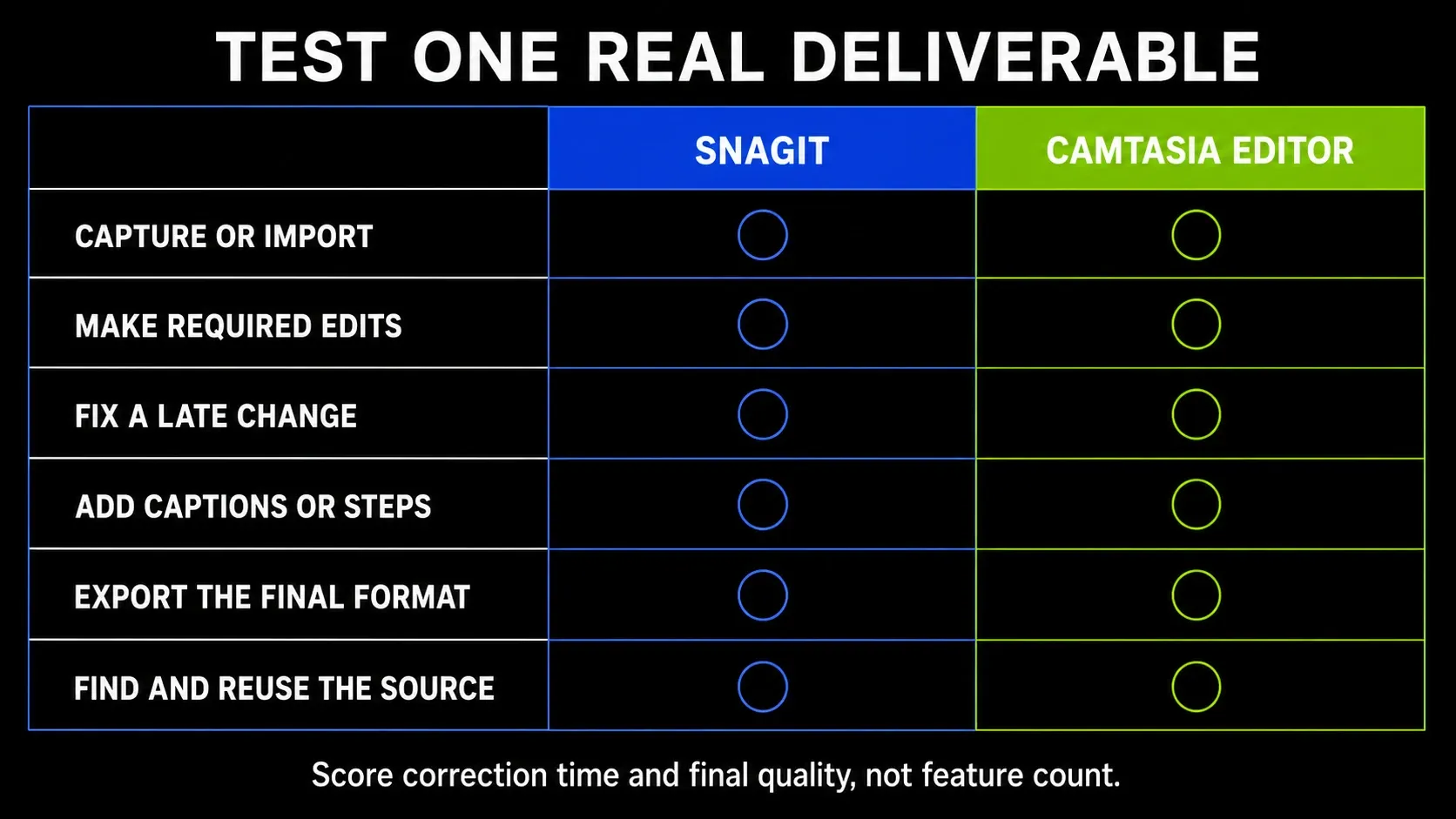
Run one representative task before choosing
- Choose a real deliverable and use safe sample data.
- Capture or import the material needed for that task.
- Make the edits your audience requires, such as numbered labels or captions.
- Introduce one late correction and see which source files you need.
- Export the format your audience actually receives.
- Reopen the saved source and confirm the media are available.
- Record correction time, missing functions and the final output quality.
- Choose the lowest suitable licence that meets the task and watermark requirements.
This is a test you can run, not a benchmark we performed. Use your actual machine and representative media. Check the Camtasia requirements before installing; minimum specifications do not predict export time or smooth playback for your project. Avoid choosing from unsupported RAM or “fastest editor” claims.
Choose Snagit if
- Your main output is an image, scrolling capture or numbered guide.
- You need OCR, editable image objects, presets or templates.
- Your videos need cuts, combined clips or GIF export rather than independent timeline tracks.
Choose Camtasia Essentials or higher if
- Your individual licence must export Camtasia videos without a watermark.
- You need a timeline for tutorials, demonstrations or training videos.
- The chosen tier includes the separate Audiate tools you actually need.
- Your intended player or LMS supports the required interactive delivery.
Snagit vs Camtasia FAQ
Can Snagit replace Camtasia?
Snagit can handle screenshots, scrolling captures, annotated guides, basic video cuts and GIFs. It does not replace Camtasia Editor’s full multitrack timeline or interactive quiz delivery. Choose by the edits and output you need, not a fixed video length.
Do current Camtasia plans include Snagit?
Yes. Current individual Starter, Essentials, Create and Pro plans include Snagit. The checked US Business offer also lists Snagit. Confirm legacy, education, reseller or custom enterprise entitlements separately.
What is the cheapest current Camtasia plan?
Starter is the entry individual subscription and includes Snagit with watermarked Camtasia Editor exports. Check your regional store for the current annual price. You can also use Camtasia Editor free with watermarked exports without buying Starter.
Which Camtasia plan removes the watermark?
Essentials is the first current individual tier with watermark-free Camtasia Editor exports. Create and Pro also remove the watermark. Starter keeps it on Editor output, even though its advanced editing tools are available.
Can Camtasia take screenshots?
Use the included Snagit app for screenshots, scrolling captures, OCR and image annotations. Camtasia Editor can place images in a video project, but it does not replace Snagit’s capture-and-edit workflow.
Is Snagit enough for YouTube tutorials?
Snagit can finish a walkthrough that only needs simple cuts and an ordinary video export. Use Camtasia Editor for independent tracks, transitions, caption work or repeated timeline revisions. YouTube does not preserve Camtasia quiz or hotspot interactions in an ordinary MP4 upload.
Do Snagit and Camtasia work offline?
Individual subscriptions require initial online sign-in and validation after up to 90 days offline. Cloud features still need a connection. Eligible Business licences support offline activation; check the licence type before planning a disconnected deployment.
Should I buy Snagit separately if I have Camtasia?
Check the entitlement first. Current individual Camtasia plans and the checked US Business offer include Snagit. Do not buy a duplicate for the same user unless a different licence requirement or an excluded legacy entitlement makes it necessary.
If your real choice is between a screenshot and an asynchronous video message, Snagit vs Loom addresses that separate decision. For other capture products, use the comparisons hub.