
If Snagit says “Unable to Capture” or nothing happens, open the Snagit Capture window and click its red Capture button once. If that works, the capture engine is running and the shortcut is the likely problem. If the button also fails, fully quit Snagit Capture and Editor, reopen Snagit, then choose the symptom below before changing permissions, drivers, or security settings.
That order protects your presets and Library while separating a hotkey failure from a broader capture problem. Don't start with a reinstall, a Registry edit, or a permanent antivirus exception.
Fact-checked September 17, 2026. Independent guide. SnagitPro is not affiliated with or endorsed by TechSmith.
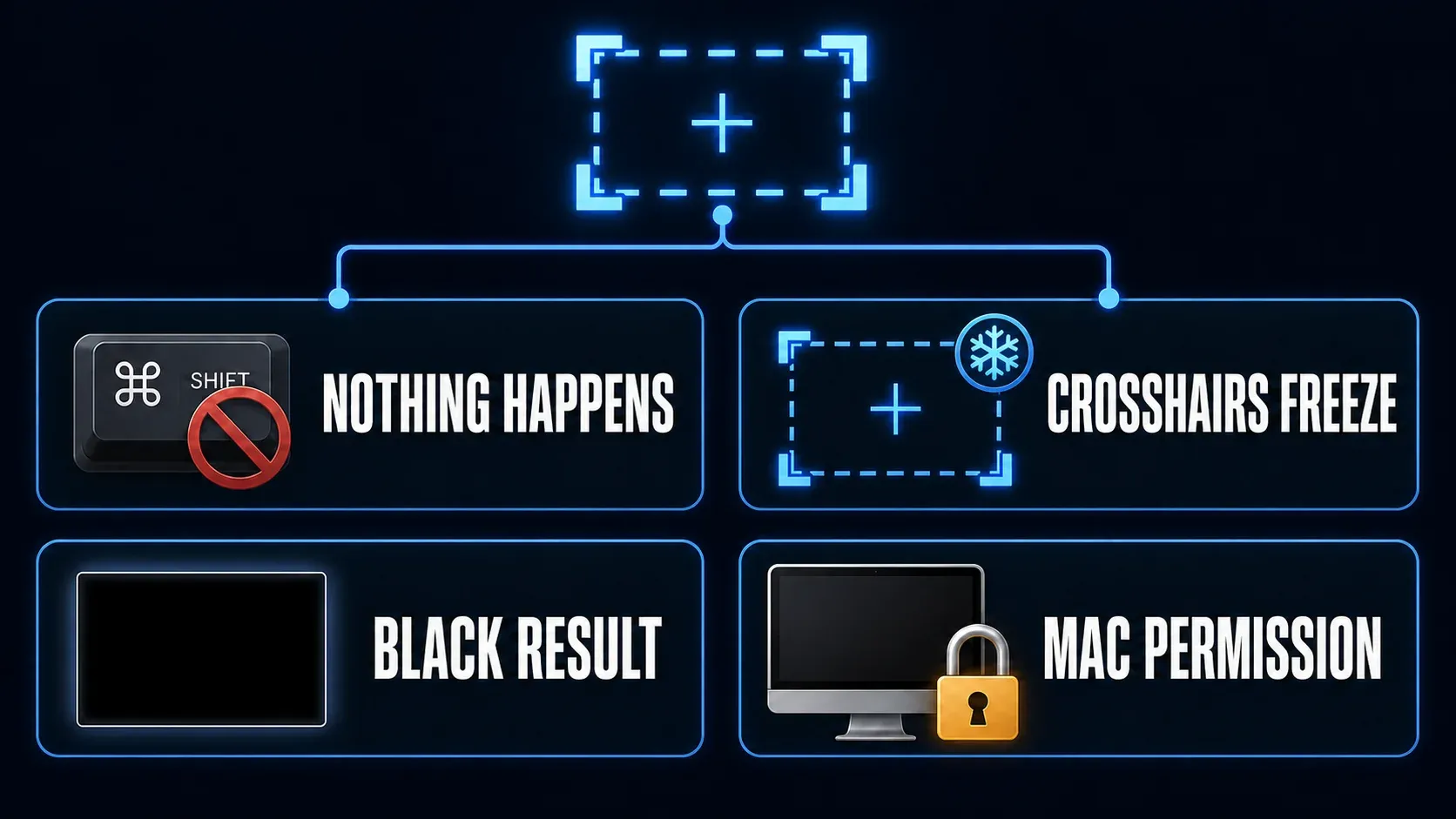
| What you see | First safe check | Likely branch |
|---|---|---|
| Print Screen or another shortcut does nothing | Click the red Capture button | Hotkey conflict or Windows Snipping Tool |
| The red button also does nothing | Quit Capture and Editor, reopen, and update | Stopped process, old build, permission, or app conflict |
| Crosshairs appear but freeze | Enable Simplified crosshairs | Display, GPU, or multi-monitor rendering |
| Mac captures only the desktop | Check Screen & System Audio Recording | macOS privacy permission |
| The result is black or blank | Capture the plain desktop as a control | Protected content, security tool, browser, or graphics path |
| Only video, scrolling, save, or Editor fails | Use the matching narrow guide | Mode-specific problem |
Run the five-minute safe test first
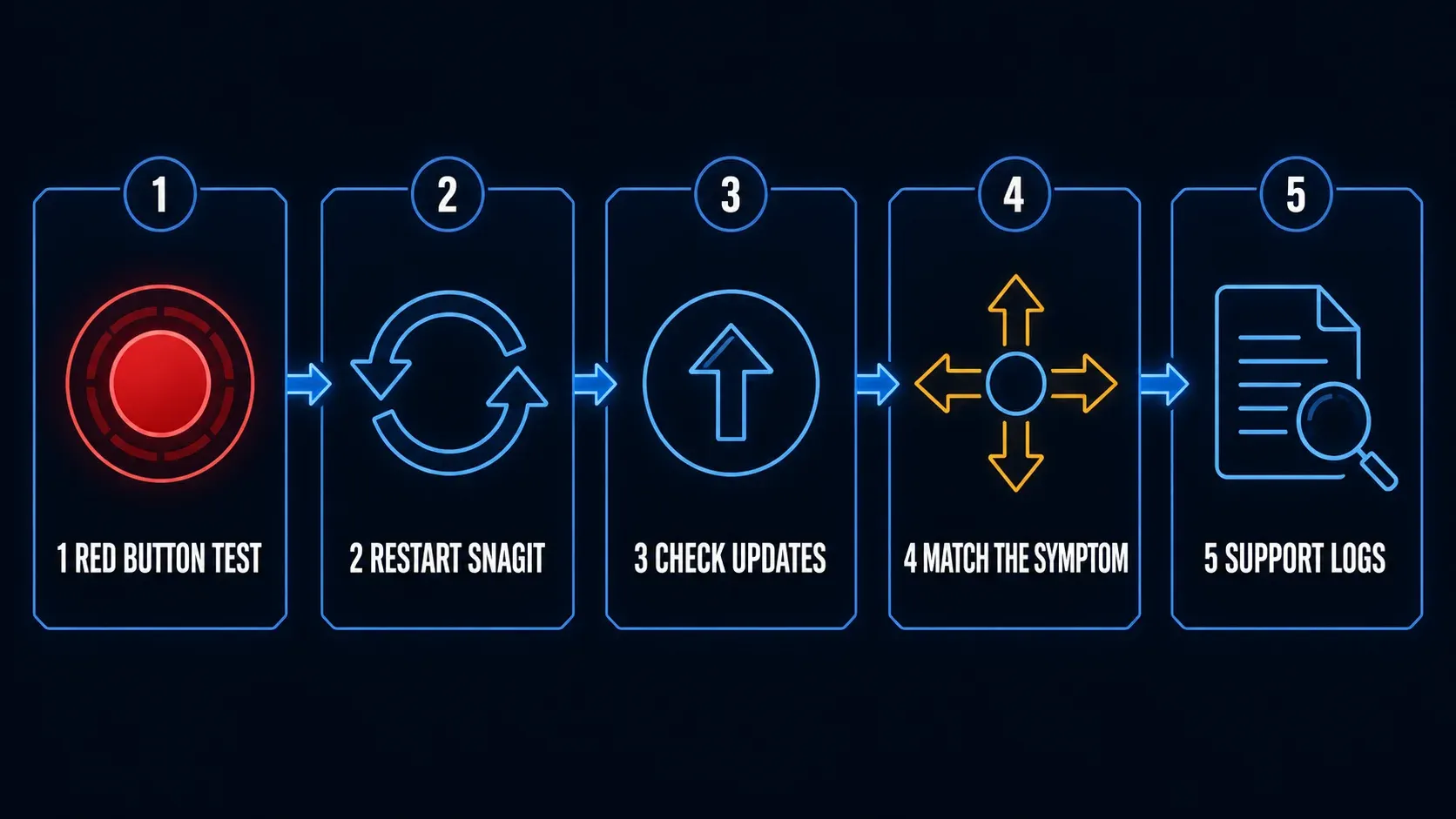
- Open Snagit Capture directly. Use the Start menu on Windows or Applications on Mac. Do not rely on Print Screen or a preset hotkey for this test.
- Select Image and click the red Capture button. Try a small region of the ordinary desktop.
- Record the outcome. Note whether nothing happens, the crosshairs freeze, a permission prompt appears, or the result is black.
- Quit both Snagit processes normally. Close Snagit Editor and exit Snagit Capture from its menu or tray/menu-bar icon, then reopen the app.
- Check the installed version and updates. On Windows, use Help > About Snagit and Help > Check for Updates. On Mac, use Snagit > About Snagit and Snagit > Check for Updates.
TechSmith's capture-mode documentation confirms that the Capture button and global hotkey can use the current Capture-window settings, while a preset hotkey uses its saved preset. Testing the button removes one variable without deleting or resetting anything.
Windows: nothing happens when you press Print Screen
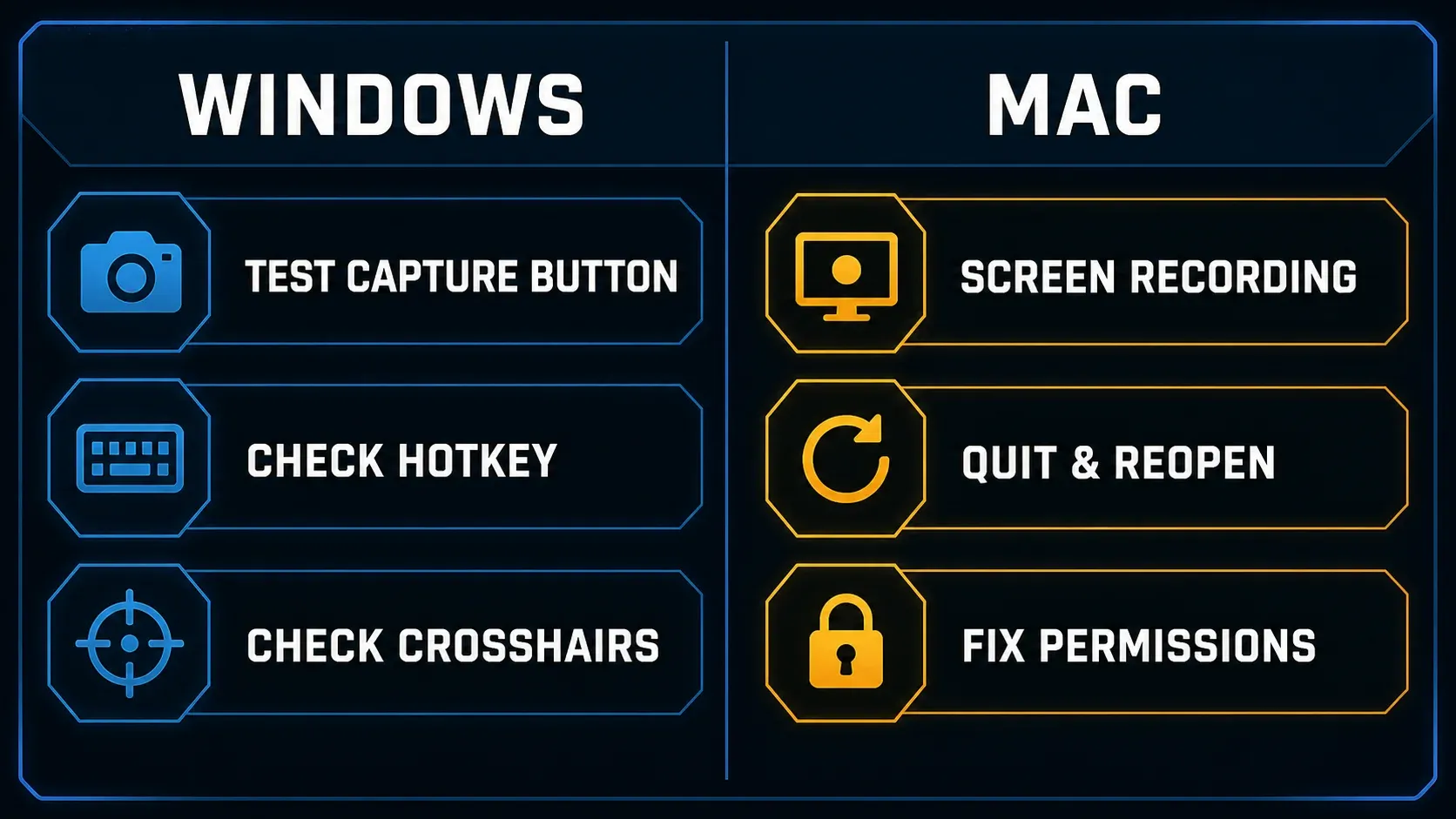
If the red Capture button works, stop troubleshooting the capture engine — the problem lives in the shortcut path. Another program may own Print Screen, Windows 11 may open Snipping Tool, or the hotkey field may be empty.
- Open Snagit Capture and confirm the current global capture hotkey.
- Press a different temporary key combination and test it once.
- If Print Screen opens Windows Snipping Tool, check Windows Settings > Accessibility > Keyboard and review Use the Print screen key to open Snipping Tool.
- Close or reconfigure the other application only when you know which shortcut it owns.
TechSmith's current Print Screen troubleshooting page documents the Windows 11 binding and third-party hotkey conflicts. My Print Screen setup guide covers the full Windows path, and the Snagit shortcuts guide explains preset hotkeys and custom assignments.
Windows: the crosshairs freeze, lag, or crash
This symptom points to selection rendering, especially on multi-monitor and high-resolution setups. Start with the reversible Snagit option:
- Open Snagit Capture.
- Select File > Capture Preferences > Capture.
- Enable Simplified crosshairs.
- Restart Snagit and test one desktop region.
TechSmith's crosshair troubleshooting article says Snagit is expected to work with two to three 1080p monitors or up to two 4K monitors at 60 Hz or lower in this context. If your layout exceeds that, disconnect one external display for a controlled test or drop its refresh rate. Put your normal setup back after the test.
That official article also contains advanced graphics and Registry procedures. Use them only for this exact Windows symptom, and preferably with IT or TechSmith support at your side. A broad “Unable to Capture” message doesn't justify touching the Registry.
Mac: repair the capture permission
If Snagit captures the desktop but misses application windows, shows a permission denial, or stopped working after a macOS update, check the screen-recording permission before anything else.
- Quit Snagit.
- Open System Settings > Privacy & Security > Screen & System Audio Recording.
- Make sure Snagit is enabled. If it is already enabled but the failure began after an OS or app update, switch it off and on again.
- Choose Quit & Reopen when macOS offers it, then test a fresh image capture.
You can also open Snagit > Settings > Capture and select Fix Capture Permissions. TechSmith's Mac permissions instructions confirm that the approval may not take effect until Snagit restarts, so don't panic if nothing changes right away. My complete Snagit Mac permissions guide separates screen, system audio, microphone, camera, and scrolling permissions.
The capture starts, but the result is black or blank
Take one image of the plain desktop, then one image of the failing app or site. The difference between those two results tells you a lot.
- Only a protected streaming app or site is black: the content may block capture through protected-media controls. Do not try to bypass that protection.
- Every desktop capture is black, white, or fragmented: security software, display handling, or another capture conflict is more likely.
- Images work but video is black or stuck on Initializing: use the video branch below.
TechSmith's image-capture article separates protected content from security-software interference. My Snagit black-screen guide walks you through the controlled browser, desktop, image, and video tests — without promising a way around protected media.
Only one Snagit mode fails
A successful basic image capture proves Snagit can reach the screen. Keep your next test inside the failing mode.
Only video recording will not start
Video adds audio-device, webcam, graphics, and encoding checks to the mix. TechSmith notes that Snagit tries to initialize audio devices when recording starts even when audio is muted, because audio can be enabled during the recording. Its video troubleshooting guide starts with system requirements, webcam, drivers, record mode, audio, and quality. Use my Snagit screen-recording guide to verify the normal setup before changing advanced capture methods.
Only scrolling capture fails
If normal regions work but the arrows never appear or stitching stops, use the Snagit scrolling-capture guide. Browser support, nested scroll areas, page zoom, Mac Accessibility permission, and security tools all belong to that narrower branch.
The capture succeeds, then saving fails
Protect the visible capture, then switch to the Failed to Save Document guide. Library location, cloud availability, filename, format, and free space are storage issues — not evidence that screen capture failed.
Capture works, but Editor will not open
Launch Editor manually. If it fails outside the capture workflow too, use the Snagit Editor won't open guide. Don't reset capture permissions for what is really a standalone Editor-startup problem.
Update safely and test app conflicts
TechSmith's update instructions use Help > Check for Updates on Windows and Snagit > Check for Updates on Mac. Install the current update available for your licensed release, restart the computer when required, then repeat the same small desktop capture.
Updates matter here because older builds have shipped capture-specific fixes. TechSmith's Snagit 2024 version history, for example, records one 2024.2.3 fix for an issue that could show an Unable to Capture message, a black screen, or a crash. One historical fix doesn't prove every current failure has the same cause, though.
If the failure continues and TechSmith's exact symptom page names security software, run a short controlled test — and only when your organization permits it. Disconnect from sensitive work, pause the named protection, take one plain-desktop capture, and restore protection immediately. If capture works only during that test, ask IT or the security vendor for an approved allow-list. Whatever you do, don't leave protection disabled.
Before touching drivers or hardware settings, compare your computer with the current Snagit system requirements. Driver changes on a managed computer belong with IT.
Build a support report that can be diagnosed
If the red button still fails after restart, update, permission, and symptom-specific checks, stop repeating resets. Record:
- the exact error text and a phone photo if Snagit cannot capture it;
- Windows or macOS version and complete Snagit version;
- whether the red Capture button and global hotkey fail in the same way;
- whether Image, Video, and a plain-desktop capture behave differently;
- monitor count, resolution, refresh rate, dock, remote session, or virtual machine;
- security software and any recent OS, driver, Snagit, or policy change;
- the exact time of one failed test so logs can be matched to the event.
TechSmith's current capture-failure page directs unresolved cases to support for system-log review. A precise symptom report gets you further than a list of reinstall attempts. If your symptom doesn't match this capture-start guide, use the Snagit troubleshooting hub to pick the narrower failure path.
Frequently asked questions
What is the first fix for Snagit Unable to Capture?
Open Snagit Capture and click the red Capture button. If it works, troubleshoot the hotkey. If it fails too, restart Snagit, check updates, and follow the branch matching the visible symptom.
Why does nothing happen when I press Print Screen?
Windows Snipping Tool or another program may own the key, or Snagit's global hotkey may be empty. Test the red Capture button, then review the Print Screen assignment.
What if the red Capture button also fails?
Quit Snagit Capture and Editor, reopen Snagit, check the installed version and updates, then test a small image of the plain desktop before changing advanced settings.
Why can Snagit capture the Mac desktop but not app windows?
Snagit may lack Screen and System Audio Recording permission. Enable it in Privacy and Security, choose Quit and Reopen, and take a fresh capture.
Why is the Snagit capture black?
A single protected app or streaming site may block capture. If every desktop capture is black, white, or fragmented, check the dedicated security-software, browser, display, and graphics troubleshooting path.
How do I fix frozen Snagit crosshairs?
On Windows, enable Simplified crosshairs under File, Capture Preferences, Capture, restart Snagit, and retest. Multi-monitor, 4K, and high-refresh setups may need a controlled display test.
Why do images work but Snagit video will not start?
Video capture adds audio-device, webcam, graphics, and encoding checks. Use TechSmith's video troubleshooting sequence instead of resetting working image-capture settings.
Should I reinstall Snagit immediately?
No. First separate hotkey, permission, crosshair, black-screen, video, scrolling, save, and Editor symptoms. Reinstall only after safer scoped checks fail and your presets, Library, and license details are protected.