
On a computer, open Google Translate, choose Images, set the source and target languages, and upload the saved screenshot. On an iPhone, Live Text can translate recognized text in Photos. On Android, Google Translate can import an existing image through its camera section; you do not need to photograph another screen.
I would choose the route by the result I need: an image with translated text, or a translation of one selected passage. Before relying on either, check what the tool read from the original. An OCR mistake can become a fluent translation of the wrong sentence.
| What you have | Where to start | Useful result |
|---|---|---|
| A saved screenshot on Windows or Mac | Google Translate in a browser, Images tab | Translated image or copied translated text |
| A screenshot in iPhone Photos | Live Text, then Translate | Recognized text translated into a chosen language |
| A screenshot on Android | Google Translate, Camera, All Images | Translation of text in the saved image |
| A short passage on a supported Mac | Preview, select recognized text, Control-click | Translation of the selected text |
Translate the saved image on Windows or Mac
Google's image-translation instructions for computers cover both translating a picture and taking the result out as text or an image. This is the route I would use for a screenshot of a message, app dialog, or short set of instructions.
- Save the screenshot as an image file you can find. Keep the original unchanged and prepare a separate copy if you need to crop private material.
- Open Google Translate in your browser and select Images at the top. Choose the language under From, or use Detect language. Set To to the language you want to read.
- Choose Browse your computer and select the screenshot. Check that you selected the intended image and that the relevant sentence is complete.
- Review the translated result. Use Show original to compare the original and translated images. On smaller screens, Google notes that this comparison may not appear side by side.
- Choose Copy text if you need the translation in a message or document. Choose Download translation if you need the translated image. Keep that file separate from the original screenshot.
If the screenshot exists only on the Windows clipboard, save it first. The Windows screenshot save-location guide explains the difference between a clipboard capture and a file. Copying pixels to the clipboard does not give the browser upload picker a file to select.
A translated image helps you understand the screen, but it is not the original interface. If you attach it to a support request, include the original too and make clear which version contains translated text. The exact error wording may matter to the person diagnosing the problem.
Translate a screenshot on iPhone
Open the saved screenshot in Photos and tap the Live Text button. Then tap Translate. You may need to tap Continue, choose a language, or use Change Language. Apple's Live Text instructions describe this route and its availability limits.
Live Text needs an iPhone XS, iPhone XR, or later with iOS 15 or later, and language and region support varies. If text recognition is disabled, check Settings → General → Language & Region → Live Text. The button will not help if the image's text is too small or unclear to recognize.
For a passage you want to paste elsewhere, use the iPhone screenshot text-copying steps, check the copied original, then translate that text. This makes the recognition stage easier to inspect than a large overlay covering several unrelated text blocks.
If you use the Google Translate app on iPhone instead, its saved-image translation route is Camera → Gallery after choosing the languages. Select the existing screenshot; the camera route includes images you already have.
Translate an existing screenshot on Android
In the Google Translate app, select the source and target languages, tap Camera, then tap All Images to choose an image you already captured. Google's current Android image-translation instructions use that label. Camera is the entry point; you are importing the screenshot rather than taking a new photo.
After translation, you can select the text you need and use Copy text from the actions at the bottom. If the result contains unrelated fragments, narrow the selection and compare it with the original before copying.
For a copy-first approach, extract the original text from the Android screenshot, correct any recognition errors, and paste it into the translator's text field. I prefer this for an error message with a version number, filename, or several similar-looking characters.
Google documents offline camera translation for downloaded languages. Treat that as a specific camera-translation feature, not a promise that every image-upload service works offline or keeps every operation on your device.
Translate selected screenshot text in Mac Preview
If Live Text recognizes the text, open the screenshot in Preview, drag to select the passage, then Control-click → Translate and choose a language. Apple's Preview text-interaction guide also notes that translation and Live Text availability vary by language and region.
If selection does not work, check Tools → Text Selection. That enables the selection tool; it does not make unreadable text recognizable. For copying rather than translating in place, the Mac screenshot OCR guide explains the available routes.
If you already use Snagit to extract screen text, you can check that extracted text and paste it into a text translator. Capture, recognition, and translation are separate jobs, so keep the original image even when the text result looks tidy.
When the translation looks wrong, check the original text first
There are two different problems to separate. The tool may have recognized the wrong letters, or it may have translated correctly recognized words poorly. Changing the target language will not fix a missing word in the recognized source.
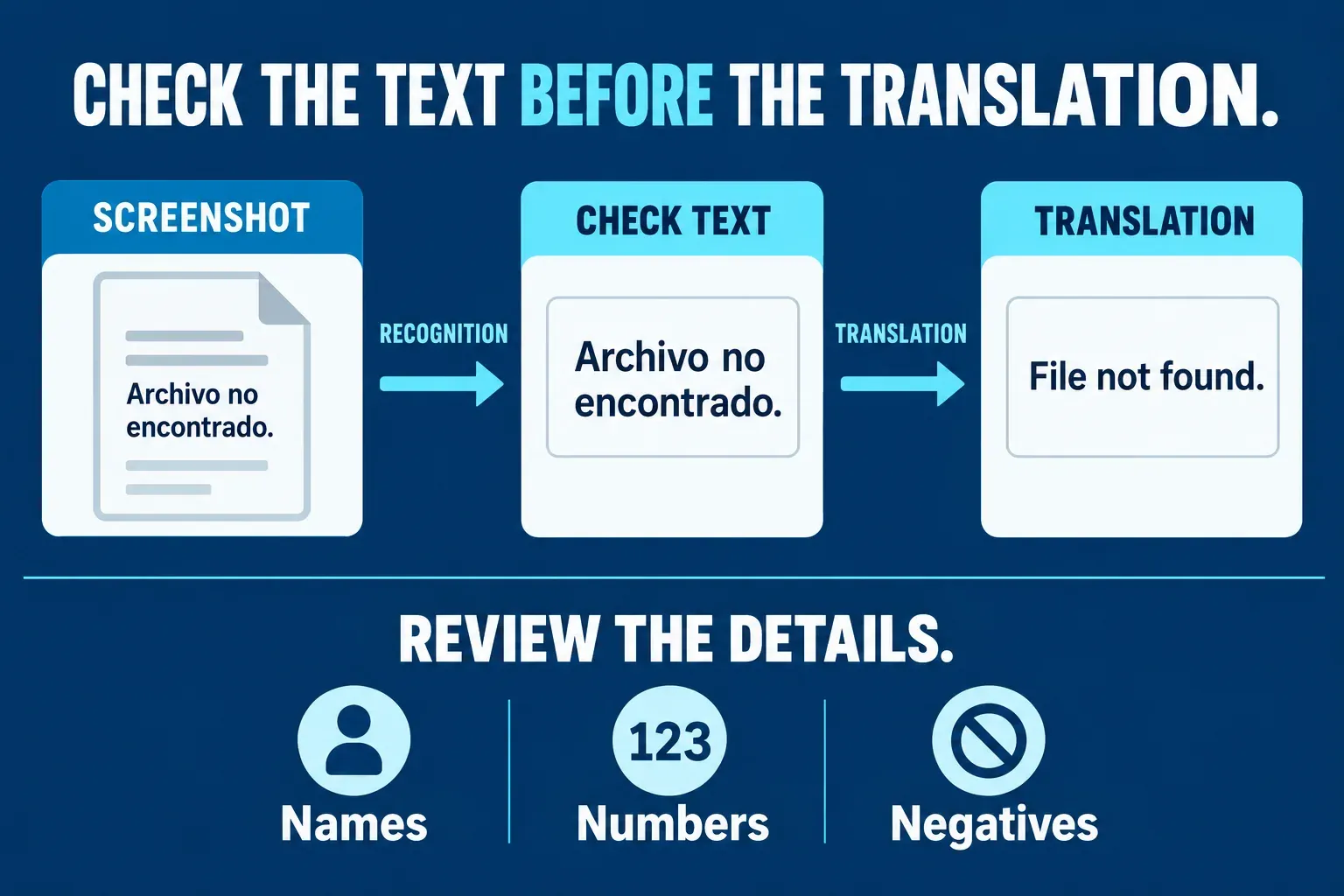
In a simple example, Archivo no encontrado. means File not found. If recognition drops no, the negative meaning is lost before translation even begins. This is why I would inspect names, numbers, units, and negative words rather than judging accuracy by how smooth the English sounds.
Check the source language as well. Automatic detection is convenient, but a short button label, a product name, or a screenshot mixing languages gives it less context. Choose the known source language manually and translate a complete relevant sentence where possible.
Google warns that small, unclear, or stylized text can reduce image-translation accuracy. Use the clearest original, keep characters upright, and crop away unrelated panels without clipping the sentence. If the source is still open, capture the text at a readable source size rather than enlarging an already tiny screenshot.
For legal, medical, or other consequential wording, use the machine result to understand the passage and have a qualified person confirm the meaning before acting on it. A translated overlay is convenient reading help, not proof that each term is correct.
Choose what to upload and what to keep
Before uploading a screenshot to an online translator, review the whole frame for messages, account details, identifiers, and background content. Use a service approved for that material. Cropping a copy can remove unrelated content, but the words you want translated still go to the selected service.
I would keep three things together when accuracy matters: the original screenshot, the checked source text, and the translation with its language pair. That makes it possible to review a disputed phrase later without guessing what the screen originally said.