
Write the step in text first. Then give each screenshot alt text covering only what a reader would miss without the image, usually a short phrase naming the screen and the control or result that matters. Aim for a short, useful description; under about 100 characters is a practical editorial target, not a universal accessibility limit. If the step text already says everything the screenshot shows, an empty alt attribute (alt="") is a legitimate choice. If the screenshot is a dense settings screen, a chart or a before-and-after comparison, write a short alt and put the full description in the page.
Those three cases cover most documentation screenshots. The harder calls sit at the edges: whether to start with "Screenshot of", what to do when the capture is nothing but an error message, and how to handle numbered callouts. General alt-text guides rarely reach those questions. One instructional designer asked on r/instructionaldesign in June 2023 how to write alt text for software-training courses built from screenshots, narration and outline boxes, a situation most documentation writers will recognize.
Below is how I decide each case, with the W3C and style-guide rules behind every call. It goes deeper than the alt-text section of my software user documentation guide, and it applies to any capture tool, not only Snagit.
Write the step before you write the alt text
Alt text is easier when the instruction around the image is already complete. A usable step answers three questions in plain text: what the reader does, which control they use, and what should happen next. Here is a step built from TechSmith's Grab Text tutorial:
In the Capture window, select the Image tab, then choose Grab Text in the Selection dropdown. Click Capture, or press Print Screen on Windows or Shift+Ctrl+C on a Mac, and drag across the text you need. The Grab Text Results dialog opens in Snagit Editor; click Copy All.
With that text in place, a screenshot of the Capture window only has to confirm what the reader should see. The alt text can stay short: "Snagit Capture window with Grab Text selected in the Selection dropdown." That is 72 characters, and it names the screen and the one setting the step depends on.
The test I use is simple. Cover the image and read the step. If a reader could still finish the task, the image is support, and its alt text can be brief or even empty. If the reader would get stuck, either the step is missing something or the image carries information that the alt text has to deliver.
Decide what job the screenshot is doing
The W3C alt decision tree sorts images by role, and documentation screenshots fall into the same roles. The job decides the alt text, not the fact that it is a screenshot.
| What the screenshot does | Typical case in a guide | What to write |
|---|---|---|
| Confirms where a control is, and the step names it | Capture window under a step that names Grab Text | Short identifying alt, or alt="" if the step says everything the image shows |
| Shows a result the text doesn't describe | A finished capture with the blur already applied | The result that matters: "Exported invoice with the account number blurred" |
| Decorates or repeats the text | A header image, or an icon next to its own label | alt=""; keep the attribute, empty |
| Works as a link or button | A thumbnail that opens a template download | The destination or action: "Download the SOP template (DOCX)" |
| Shows only text | An error dialog, a code snippet, a config line | Put the exact text in the page; then the image can take alt="" or a short label |
| Packs in more than a phrase can carry | A settings screen with many values, a chart, two states side by side | Short alt that identifies it, plus a full description in the page |
Two details from W3C trip people up. First, an empty alt is not the same as a missing one. The W3C decorative images page warns that when the attribute is left out, some screen readers announce the file name instead. Second, a linked image needs alt text describing the action or destination, not its appearance. "Download the SOP template" helps; "blue document icon" doesn't.
The procedural case needs a judgment call. W3C allows alt="" when surrounding text already describes the image. Microsoft's style guide, in contrast, gives a procedure screenshot a short identifying alt. My rule: if the text says "shown below" or otherwise points at the image, I give it a short alt, because with an empty alt a screen reader skips the image the text just mentioned. If the image is pure reinforcement and nothing refers to it, an empty alt is fine.
How long should alt text for a screenshot be?
The guidance converges on short. Microsoft's Writing Style Guide says to limit alt text to 150 characters and move complex descriptions into surrounding or linked content. Siteimprove's alt-text guidance uses 100 characters as a rule of thumb. WebAIM says a few words are typically enough, and only rarely a short sentence or two.
I aim for under 100 characters where that preserves the meaning. Microsoft’s 150-character limit is its own style rule, not a numeric limit imposed by WCAG. When the relevant content needs a fuller explanation, I put that explanation in the page where everyone can read it rather than cutting necessary meaning to meet a counter. Section508.gov's alt-text guide lists both failure modes side by side: alt text too short to describe the relevant content, and alt text so long it describes things that don't matter.
Length follows from purpose. Microsoft's own example is a procedure screenshot of an account-creation tab. Its recommended alt is "Screenshot of the tab for creating an account." The rejected version lists every field and the highlighted button, and Microsoft's note explains why: the procedural steps already provide that information.
Should alt text start with "Screenshot of"?
Style guides disagree here, so pick one rule and apply it everywhere. They agree that openers such as "image of" or "graphic of" waste words, because screen readers already announce images as images. Where they differ is the type word. Microsoft says to start by specifying what the image is, such as a screenshot, diagram or photograph. WebAIM treats the type as worth mentioning only when it matters in context; in its icon example, the word "icon" is redundant.
My house rule: lead with the screen name. "Snagit Capture window with Grab Text selected" already tells a listener this is an interface. I add "Screenshot of" only when a page mixes screenshots with diagrams or photos and the difference matters. Whatever you choose, write it into your style sheet, along with Microsoft's small habits worth copying: start with a capital letter and end with a period, even for a fragment. A help center where half the images start with "Screenshot of" and half don't sounds careless when it is read aloud.
Weak alt text and better versions
| Weak | Better | Why |
|---|---|---|
| "Screenshot" | "Snagit Capture window with Grab Text selected in the Selection dropdown" | Names the screen and the setting the step depends on |
| "capture-0412.png" (the file name) | "Export dialog with PNG chosen as the format" | File names describe nothing; Microsoft rules them out explicitly |
| "Settings page with a sidebar, twelve toggles, a blue Save button and a search field" | "Security settings with Two-step verification switched on" | Describes the state that matters, not the layout |
| "Red box around the button" | "Share menu with Copy link highlighted" | Says what is marked, not the color or shape of the mark |
| An error dialog with alt "Error message" | alt="", with the exact message quoted in the step | The text becomes searchable, copyable and translatable |
| A chart described in 400 characters of alt | "Weekly ticket volume, described in the table below" | Short alt points to a full description everyone can read |
Screenshots that show nothing but text
A crop of an error dialog, a terminal line or a config snippet is a special case. WCAG's Understanding document for 1.4.5 excludes screenshots from "images of text" when they contain significant other visual content. A tight crop around one error message usually contains nothing else. In practice it works like an image of text, and a reader can't search it, copy it, translate it or resize it cleanly.
So I give that text a home in the page. Quote the error message exactly in the step, put code in a code block, and list config values as text. The screenshot can stay to show where the message appears, and since the text sits right beside it, the W3C decision tree allows an empty alt.
When the only copy of the text is inside an old capture, Snagit's Grab Text can pull it out, and my guide on copying text from a screenshot in Snagit walks through it. Proofread the result. TechSmith's OCR notes say text that is too small isn't detected, and low contrast, slanted or shadowed text causes errors. If recognition fails outright, my Snagit OCR troubleshooting page covers the usual causes. On a Mac without Snagit, Live Text in Preview does the same job; see my guide to copying text from a screenshot on a Mac.
Annotated screenshots: callouts, numbers and color
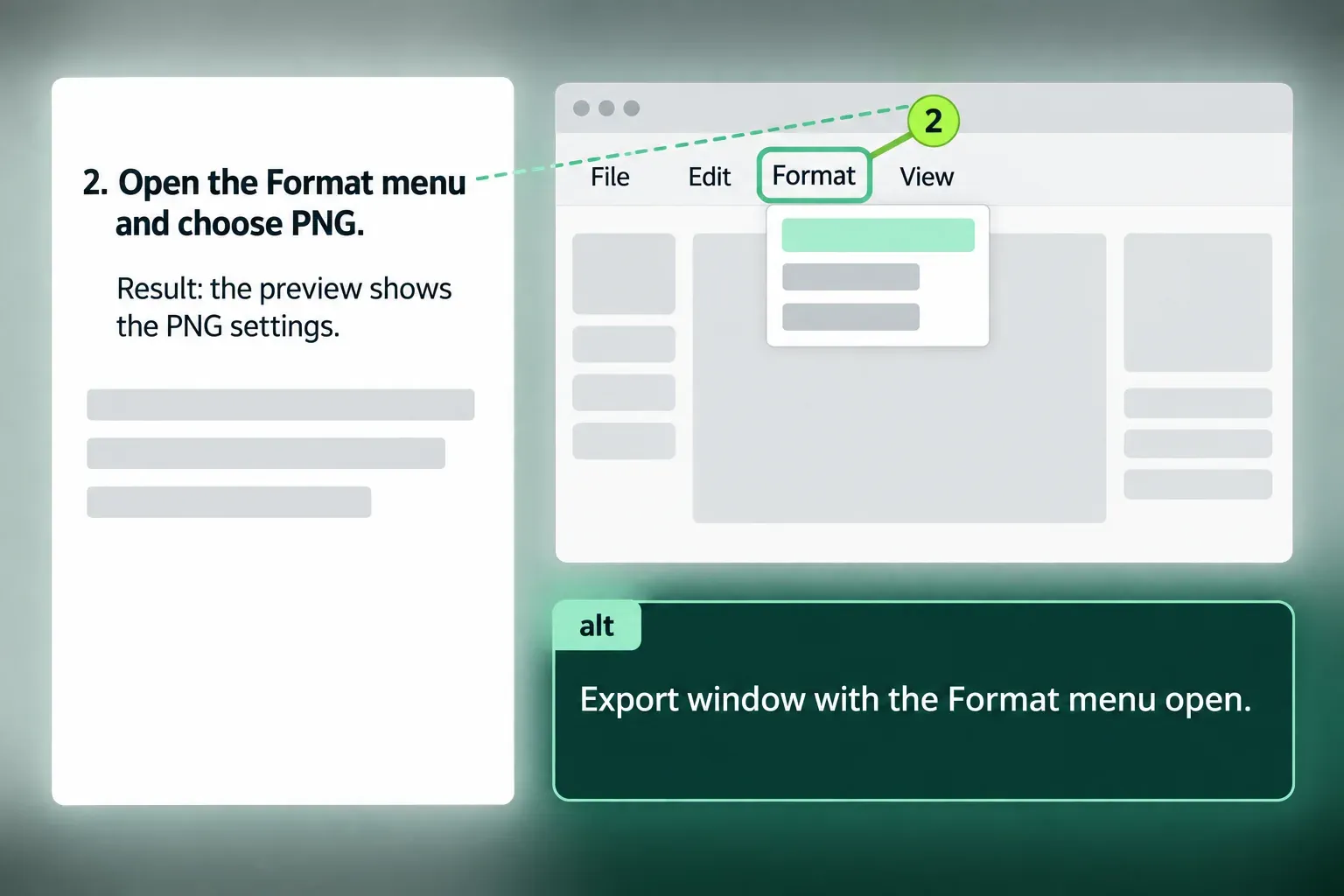
Arrows, boxes and numbered callouts are visual. Their meaning has to exist in text too. If callout 3 marks the Format menu, the step should say "Format menu", not "the item marked 3" on its own. Numbers work well as a bridge between the text and the image, as long as the text also names what each number points to.
Don't make color carry the instruction. "Click the item in the red box" fails anyone who can't see red, and WCAG 1.4.1 says color must not be the only visual means of conveying information. Name the control and let the box point to it.
The alt text for an annotated screenshot names the interface state and what the annotation identifies. My guide to annotating a screenshot uses "Snagit Video capture panel with an arrow pointing to the System Audio toggle" as the model. Before you write any of it, check what the capture exposes. Account names, emails and tokens must not appear in the image, the alt text, the caption or the file name. My guide to redacting personal information from screenshots covers that pass.
Complex screenshots and multiple states
Some screenshots can't be summarized in 150 characters: a permissions matrix, a dashboard, a before-and-after pair. For these, W3C's complex images tutorial calls for a two-part text alternative. A short description identifies the image and, where needed, points to the long description. The long description carries the information itself.
The long description can sit in the main text, behind a link next to the image, or be tied to the image with aria-describedby. All three appear among the techniques listed in Understanding WCAG 1.1.1. In a typical CMS, the easiest choice that helps everyone is visible text right after the image: a table of the settings shown, or a list of what changed between two states.
Splitting often works better than describing. Instead of one capture showing the Free and Pro settings side by side, use two captures, each with its own alt text, and a short table of the differences. Instead of a full-screen dashboard, crop to the panel the step is about. A tighter crop is easier to see and easier to describe.
Alt text, caption and step text: who does what
| Element | Who gets it | What belongs there |
|---|---|---|
| Step text | Everyone | The action, the control by name, and the expected result |
| Alt text | Screen-reader users, and anyone whose image fails to load | What the image adds that the text doesn't, in one short phrase |
| Caption | All readers, including people using screen readers | What to notice, why it matters, or a limitation such as a plan or version |
| Long description | Everyone, in the page | Values, relationships or differences that a phrase can't hold |
Don't repeat the caption in the alt text. A screen-reader user often hears both, one after the other. Microsoft's guide says the caption and alt text shouldn't be redundant, and that alt text shouldn't simply repeat the surrounding text. Let the alt text identify the image and the caption explain it.
Where you actually type alt text
A capture tool produces an image file. The alt text belongs to the page or document where that image is placed, so you write it in the publishing tool. These are the entry points as each vendor documents them:
| Tool | Where alt text goes | Worth knowing |
|---|---|---|
| Ghost | The alt button on the right of the image card's caption line, per Ghost's alt text release note | The same line toggles between caption and alt, so check both |
| WordPress | Image block settings: Alternative text, or Mark as decorative, per the Image block documentation | Alt set in the block applies to that post only; the Media Library value is the default for new inserts |
| Microsoft Word and Microsoft 365 | Right-click the picture, then View Alt Text, or Picture Format, then Alt Text, per Microsoft's alt text help | Has a Mark as decorative checkbox; AI-generated alt text comes with an Approve alt text checkbox |
| Google Docs | Image options, then Alt text, or Ctrl+Alt+Y (Cmd+Option+Y on a Mac), per Google's accessibility help | Some images arrive with automatic alt text; Google says to verify it |
| Confluence Cloud | Select the image, then Edit alt text in the floating toolbar, per Atlassian's image documentation | The same toolbar option covers videos |
Treat automatic alt text as a draft at most. An AI model can name what is on screen, but it can't know which control your step is about. Nielsen Norman Group's alt text article from November 2024 says AI tools still struggle to capture the intention behind an image, and recommends using AI to refine alt text rather than write it. For instruction screenshots, intention is the whole point.
Where Snagit fits
Snagit covers the capture side: a tight crop, a numbered callout, a blur over private data, and Grab Text when you need the words from an image. It does not write alt text into your help center; you add that where the image is published, as in the table above. For choosing PNG or PDF and keeping an editable SNAGX master, see my Snagit export settings guide.
If your documentation team includes keyboard or screen-reader users, the tool itself matters too. TechSmith's guide for using Snagit accessibly says interactive elements carry screen-reader labels, and both Snagit Capture and Snagit Editor can be navigated with Tab and the arrow keys, with Enter (Return on a Mac) to select. For conformance details and exceptions, TechSmith points to its VPATs, and its accessibility features article says they are available on its Trust Portal.
A checklist before you publish
- Cover every image and read the steps. Each one still says what to do, which control to use, and what should happen.
- Each screenshot has alt text chosen by its job: short, empty, functional, or short plus a long description.
- No alt starts with "image of" or uses a file name. Each description is concise and preserves the relevant meaning; complex information has an accessible full description.
- Error messages, code and config values exist as real text, not only inside a crop.
- Callouts are named in the text; no step depends on color alone.
- Complex screenshots have a description or table in the page.
- Automatic alt text has been rewritten or approved by a person.
- No private data in the image, alt text, caption or file name.
- The published page has been checked, not just the editor view.
Alt text ages with the interface. When a button moves or a menu is renamed, the step, the screenshot, the alt text and the caption all go stale at once. My guide to keeping documentation screenshots current covers the review triggers. For the wider procedure around these images, my guide to creating an SOP with screenshots shows where accessibility fits among the other steps.