
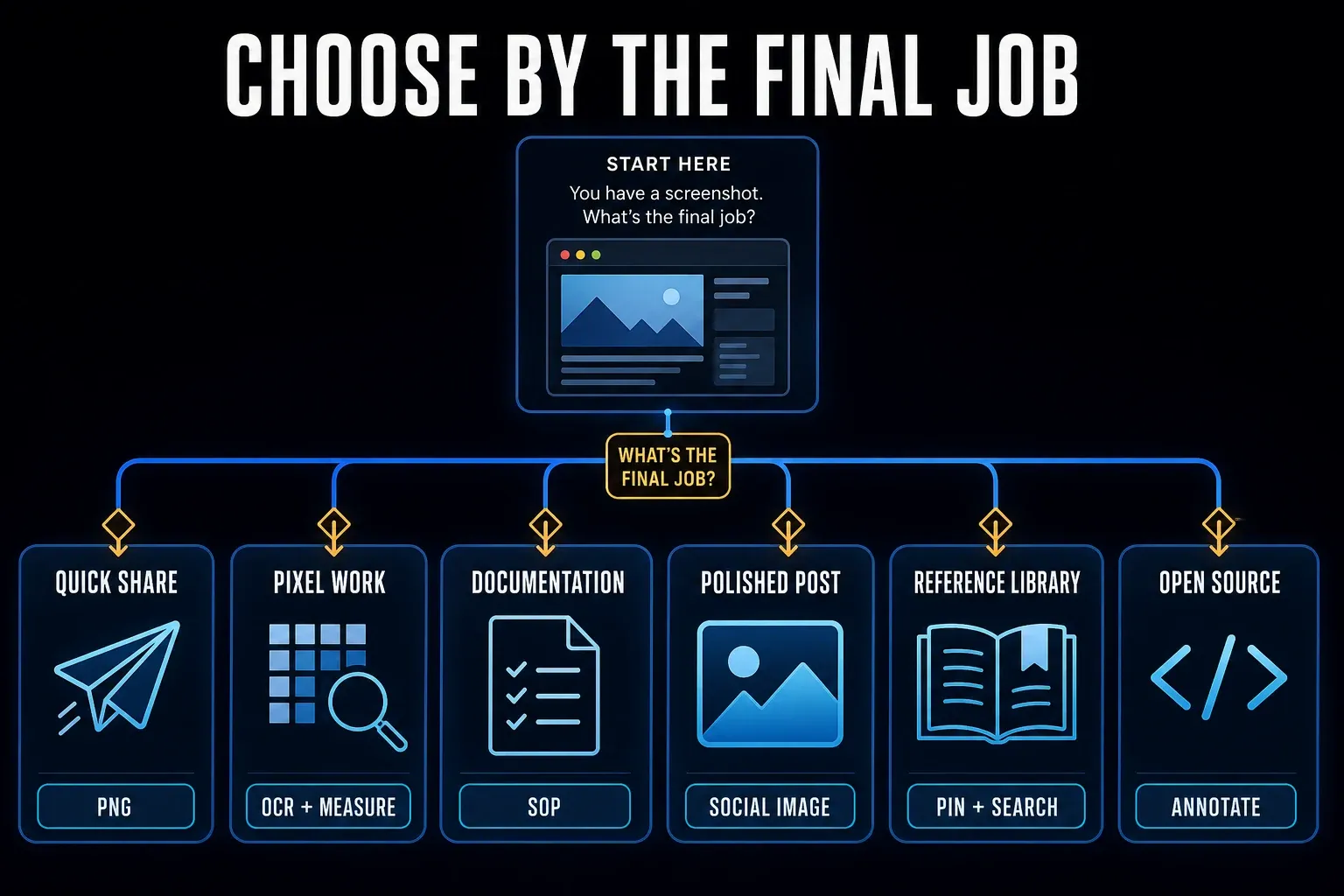
Start with macOS Screenshot for a region or window you need to send. Shortlist CleanShot X for daily capture and editing, Shottr for pixel measurement and OCR, Snagit for maintained instructions, Xnapper for presentation styling, ScreenFloat for floating references, or Flameshot for open-source annotation on Apple Silicon. Choose the tool that handles your repeated task, not the one with the longest feature list.
This guide covers still-image work on Mac rather than full video editors or meeting recorders. I checked official features, licenses, system requirements, and documented data routes on September 18, 2026. These are editorial recommendations drawn from that documentation. Prices are in US dollars; confirm your region and taxes at checkout.
SnagitPro is an independent publication, unaffiliated with Apple, TechSmith, or the other vendors covered here.
Best screenshot software for Mac at a glance
| Pick | Best Mac job | License snapshot | Main tradeoff |
|---|---|---|---|
| macOS Screenshot | Included regions, windows, full screens, and recordings | Included with macOS | No general scrolling capture or dedicated capture library |
| CleanShot X | Daily capture, editing, and optional sharing | $35 one-time Basic license when checked | One year of updates; cloud costs more if you need a team service |
| Shottr | Scrolling, OCR, and pixel inspection | Free non-commercial use; $12 one-time Basic license | Commercial use requires a license |
| Snagit | Documentation, SOPs, tutorials, and maintained source files | Annual Individual subscription; regional checkout price | Subscription and a larger workflow than casual users need |
| Xnapper | Polished screenshots for social posts and presentations | Free with watermark; Basic $29.99 one-time | Presentation is the focus, not long-form documentation |
| ScreenFloat | Floating references, capture history, search, and reuse | $17.99 one-time when checked | Deep organization may be unnecessary for disposable captures |
| Flameshot | Free open-source annotation on Apple Silicon | Free, GPL-3.0 | Official v14 notes say Intel packaging was dropped, but the release assets still list an Intel DMG; verify before downloading |
A picture for Messages may need only a crop, while a support guide needs readable labels and a source you can update later. A presentation image may want padding and consistent dimensions. Start with one example of the output you actually make.
How to compare these Mac screenshot tools
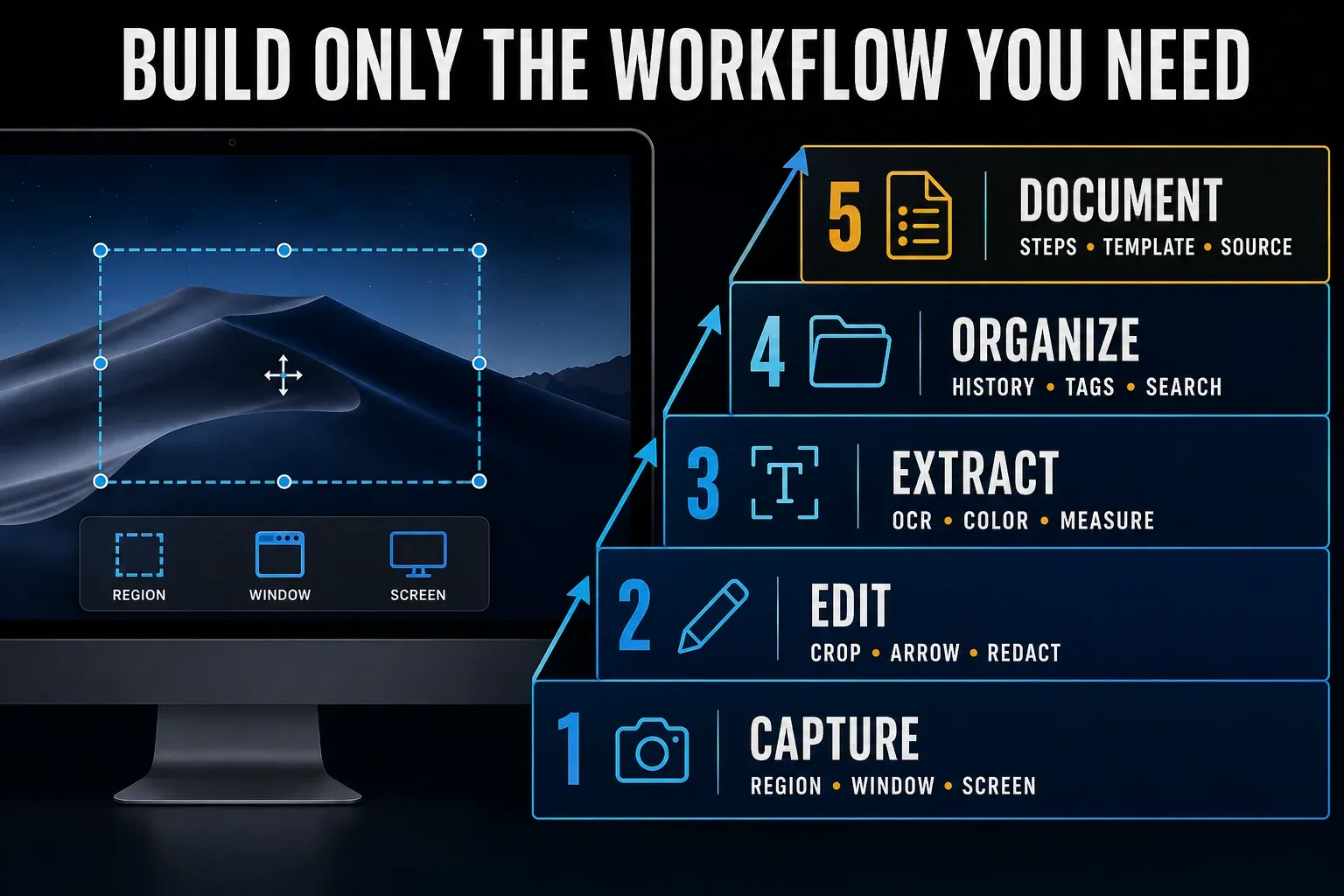
Check six things before choosing: the capture modes you need, editable annotations, opaque redaction, local saving, repeatable output settings, and a license that permits your work. A tool can be excellent for one job and unsuitable for another.
Count the actions between your shortcut and the finished file, including naming, corrections, and finding the image again. Try one routine task in each finalist rather than assuming a longer feature list will make it quicker.
Comparing more than one operating system? Use the cross-platform screenshot software guide. If you already use Snagit and want to replace it, the Mac alternatives guide addresses that decision.
macOS Screenshot is enough for quick, local capture
Apple’s Mac screenshot guide documents Shift-Command-3 for the screen, Shift-Command-4 for a region, and Shift-Command-5 for capture controls, recording, timer, and save-location options. On supported Macs with Tahoe 26 or later, Capture Format distinguishes SDR screenshots in PNG from HDR screenshots in HEIF. Check the format when a recipient specifically needs PNG.
Use the built-in tool when the result goes straight into a message or ticket. Preview’s annotation tools add shapes, text, and drawing. Save in a folder you control; Desktop or Documents may be synced to iCloud depending on your settings.
Basic text extraction can also be free: open an image in Preview and use Live Text to select and copy recognized text where supported. A separate app becomes useful for scrolling capture, capture history, reusable annotations, or fewer handoffs. Screenshot itself has no general scrolling-page mode.
CleanShot X: daily capture, editing, and sharing
CleanShot X combines region and window capture, scrolling, recording, annotation, on-device OCR, history, pinning, and backgrounds. CleanShot Cloud is optional; you can use the app and save locally without uploading captures.
CleanShot’s pricing page lists Basic at $35 once, with one year of updates and 1 GB of cloud storage. Update renewal is optional at $19 per year. Pro costs $10 per user per month billed annually and adds unlimited cloud storage subject to fair use, plus team controls. Both plans include the full app; current builds require macOS 13 or newer. Direct purchase has a 30-day money-back guarantee, not a free trial.
Consider CleanShot X if you repeatedly capture, mark up, and send images. If you mainly maintain illustrated procedures, compare source editing and organization with Snagit in my CleanShot X comparison.
Shottr: low-cost measurement and OCR
Shottr offers scrolling capture, OCR and QR recognition, combining, resizing, pinning, annotations, a screen ruler, and a color picker. It supports macOS Catalina 10.15 or later. Optional S3 upload is separate from local capture.
Shottr allows ongoing free use, with upgrade prompts after 30 days, but commercial use requires a license. Basic is a $12 one-time purchase covering one user on up to five computers. Do not treat the free download as permission for unlicensed client work.
Shortlist Shottr when you measure spacing or compare interface states. On Retina displays, its ruler defaults to logical pixels; click the dimension box to use physical pixels. The developer says update checks, license validation, and non-identifying telemetry contact its service; telemetry can be disabled in Preferences. That is different from uploading your images.
Snagit: documentation you will update later
Snagit combines scrolling, OCR, numbered markup, Smart Redact, Step Capture, and a searchable library. Its editable SNAGX format and templates let you keep annotations available for later changes. Share a flattened export when recipients should not receive the editable source.
Snagit Individual is an annual, non-transferable subscription with account sign-in. The store returned a regional price during this check, so confirm your selected currency, billing period, and full checkout total. The dated US $39 observation in the Snagit pricing guide is not a quote for every region. The dedicated Mac system requirements list Golden Gate 27, Tahoe 26, or Sequoia 15. A store banner still says macOS 14+; for a new deployment, use the stricter requirements page and confirm your exact release.
Consider Snagit for SOPs, help-center articles, onboarding, or recurring support instructions. Test whether you can revise an old annotated image and find it in the library. For occasional disposable captures, try the built-in app first. The Snagit for Mac guide covers setup and permissions.
Xnapper: consistent presentation styling
Xnapper balances images on a canvas, adds backgrounds, provides social-media ratios, and supports arrows, shapes, history, and compression. Text recognition uses the built-in macOS vision engine on-device. Its automatic redaction targets patterns such as email addresses and API keys; inspect the result rather than assuming every private field was detected.
The free version adds a watermark. Xnapper Basic is $29.99 for one macOS device, with one year of updates and continued use of the last eligible version. The listed requirement is macOS 10.15 or later. Cloud upload is still marked as coming soon on the feature page, so don't count it as a reason to buy the current app.
Use Xnapper when you need repeatable spacing and framing for posts or presentations. For long-page capture or a library of editable procedures, compare those specific capabilities separately.
ScreenFloat: floating references and a searchable library
ScreenFloat keeps shots above other windows and can pin them to a Space or app. Its Shots Browser supports names, notes, tags, ratings, favorites, and smart folders. It detects text, barcodes, and faces, records screen and audio, and offers optional iCloud sync. Annotations and redactions remain editable in its library, so export with the intended redactions applied before sharing.
The vendor lists a $17.99 one-time purchase and a trial, requiring macOS Monterey 12.3 or newer. It states that the Mac App Store, trial, and Setapp versions have the same functionality.
Use ScreenFloat when a specification or comparison image needs to remain visible while you work in another app. If you discard every screenshot after pasting it, you may not need its organization features.
Flameshot: open-source annotation on Apple Silicon
Flameshot is free, open source, and cross-platform. Its editor provides arrows, text, shapes, counters, blur or pixelation, and solid-color boxes. It also documents command-line controls for scripted capture.
The v14.0.0 release notes say the Intel Mac build is no longer included, yet the same current release page still lists both arm64 and Intel DMG assets. Since the official evidence conflicts, verify the asset and compatibility on the release page before downloading for an Intel Mac.
Flameshot suits someone who wants open-source markup rather than a documentation library or presentation designer. My Snagit versus Flameshot guide examines that tradeoff.
Privacy depends on the route, not the product label
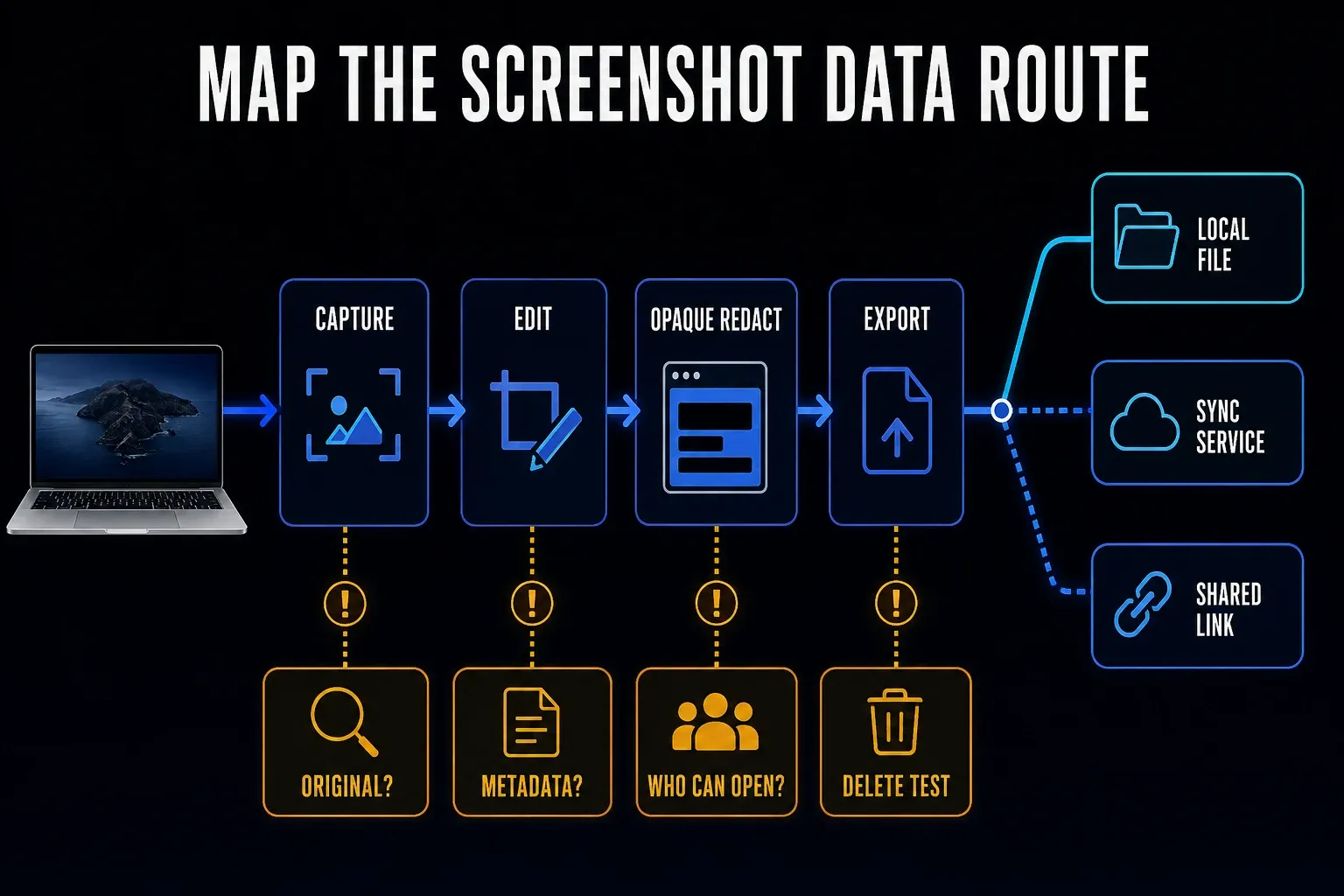
A local editor may still check for updates or validate a license. Optional destinations such as S3, iCloud, or a vendor cloud have their own access and retention rules. Check which route your chosen app actually uses, including any folder sync outside the app.
Practice with dummy data first. Cover private text with a fully opaque block, export a flattened PNG, and reopen it in another viewer. Never send the editable project, the unredacted original, or an export with annotations disabled. A 400-percent visual check can reveal missed edges, but it can't tell you whether the file holds other private information.
For work images, check where the original and final file are stored, who can open any shared link, and what deletion removes. Pattern detection can miss a field. Prefer opaque removal to weak blur or pixelation, and inspect each final image.
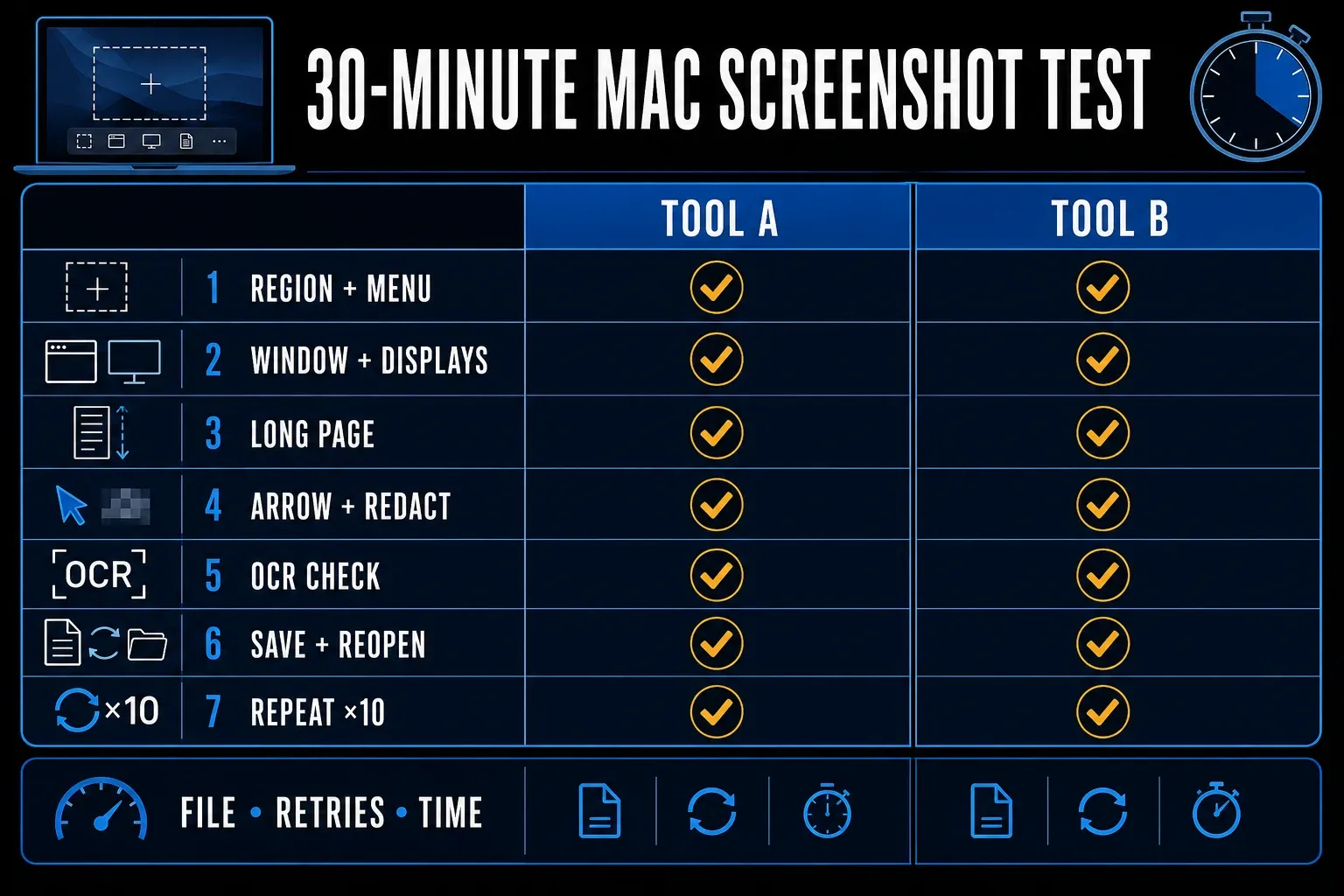
Run this 30-minute Mac screenshot test
Treat 30 minutes as an initial timebox rather than a promise of how long it takes. Compare two finalists one at a time, using dummy data, and test only the tasks you need and the app supports. Here is a suggested checklist:
- Capture a region with small text. If you need an open menu, test a timed capture or the documented menu shortcut.
- Capture one app window and, if relevant, each of your displays. Check Retina scaling and the final file format.
- If scrolling is required, capture a long webpage with a sticky header and lazy-loaded images. Inspect the beginning, middle, and end.
- Add an arrow, text label, crop, and opaque block over dummy private text. Try numbered steps where available.
- Try OCR on one paragraph where supported, then compare the output with the source.
- Save a PNG in an approved folder with a useful name, such as ticket-184-login.png, then reopen it in another viewer.
- Repeat your routine task ten times if you need to compare repeatability. Record retries and corrections; continue beyond the initial timebox when necessary.
Compare complete content, readable text, scrolling seams, output location, redaction, and retrieval, and record only the features you tried. The pixelated icon in the checklist isn't a recommendation to pixelate private text.
Which Mac screenshot tool should you choose?
Keep macOS Screenshot if it completes your task. Compare CleanShot X for daily capture, Shottr for measurement and OCR, Snagit for maintained instructions, Xnapper for styling, ScreenFloat for visible references, and Flameshot for open-source markup on Apple Silicon.
If price is the deciding factor, the free screenshot software comparison separates free use from commercial-license restrictions. Check your macOS version and export requirements before choosing a download.
Mac screenshot software FAQ
What is the best screenshot software for Mac?
Start with the included Screenshot app. Shortlist CleanShot X for daily capture and editing, Snagit for maintained instructions, or Shottr for measurement and OCR. These are task-based choices, not a measured universal ranking.
What is the best free screenshot tool for Mac?
Start with macOS Screenshot and Preview. Shottr allows ongoing free use but requires a license for commercial work. Flameshot is free and open source. Its v14 notes say Intel packaging was dropped, while the current release assets still list an Intel DMG; verify the release page before downloading for an Intel Mac.
Can a Mac take a scrolling screenshot without another app?
macOS Screenshot has no general scrolling-page capture mode. CleanShot X, Shottr, and Snagit document scrolling workflows. For a webpage, a browser-specific full-page command may be enough; inspect the output for missing content.
Is CleanShot X better than Snagit on Mac?
CleanShot X combines capture, markup, recording, and optional sharing. Snagit is worth comparing when you maintain instructions with editable source files, templates, numbered steps, and a searchable library. Try the output you need in each.
Which Mac screenshot app has OCR?
Preview provides Live Text for supported images. CleanShot X, Shottr, Snagit, Xnapper, and ScreenFloat also document text recognition. CleanShot and Xnapper describe on-device recognition. Check your language and verify copied text; OCR is not automatically accurate.
Which screenshot app is safest for private information?
No app is automatically safe for every type of data. Use an approved storage route, opaque redaction, and a checked flattened export. Do not share the editable source. Disable uploads you do not need and check any folder-sync settings.
Is paid screenshot software worth it on a Mac?
Pay for a feature that removes repeated work, such as scrolling capture, consistent formatting, or editable documentation. Basic capture, markup, and some text extraction are already available without another purchase. Try the relevant workflow before committing.