
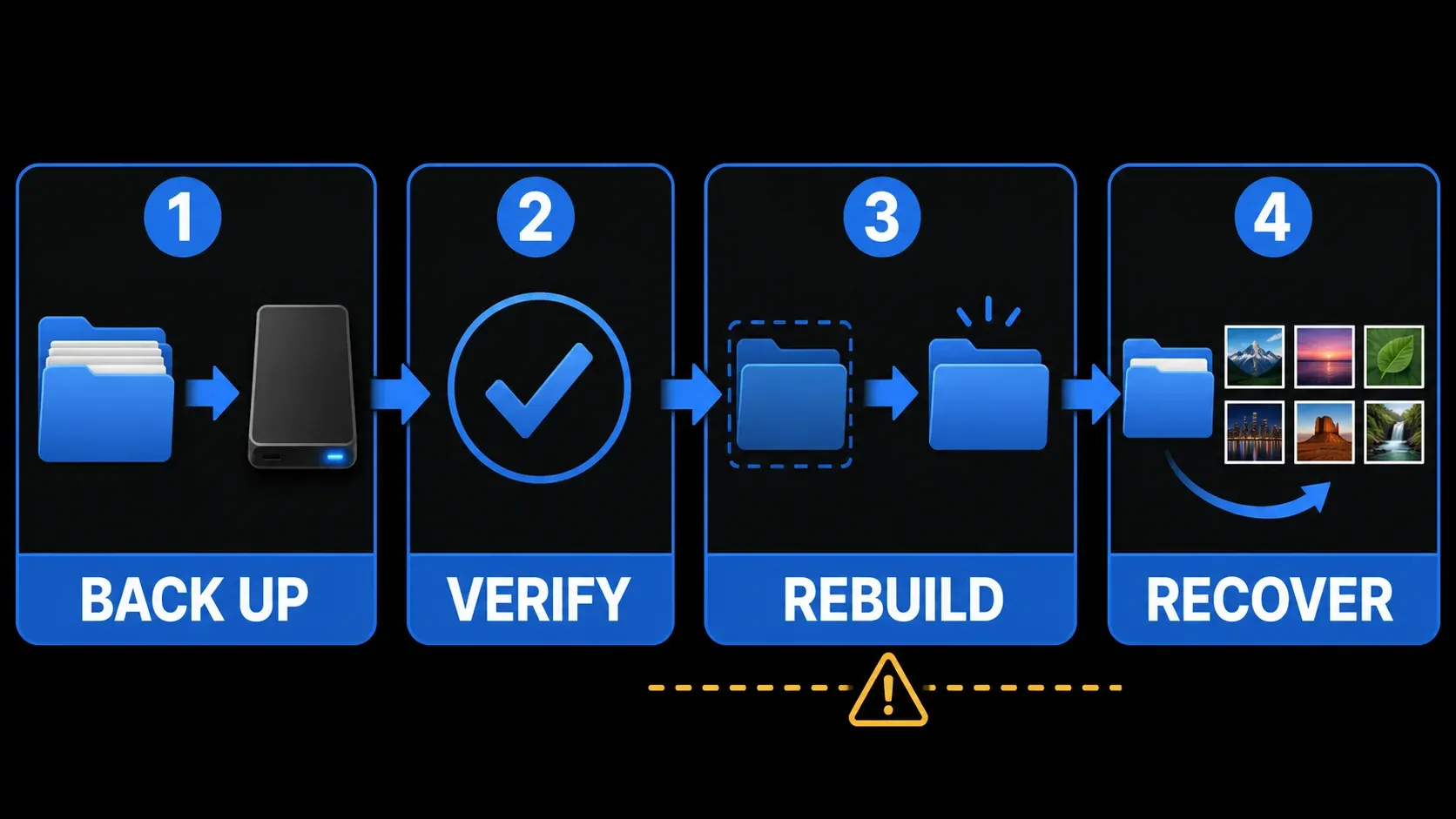
If Snagit shows “Failed to initialize the Snagit DataStore,” do not delete the DataStore folder yet. First identify the installed Snagit year. This exact folder belongs to Snagit 2021 and earlier on Windows. Close Snagit, copy the complete DataStore to a separate location, verify that the copy contains files, and only then rebuild the working folder. If this is a managed PC, stop after the backup and send the error, version, and displayed path to IT.
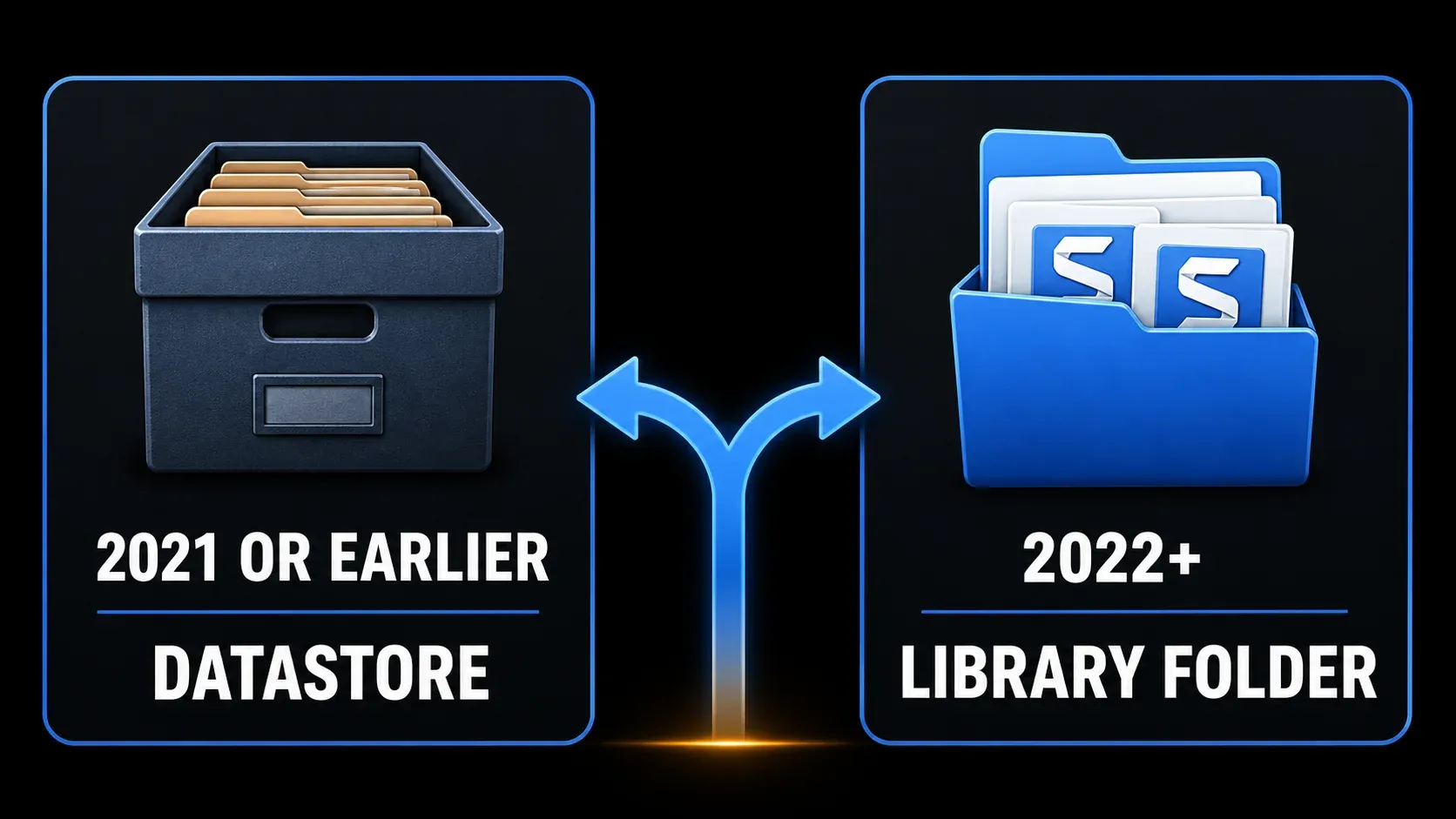
Snagit 2022 and later use a different Library design and the SNAGX format. TechSmith states that the old DataStore folder is no longer used beginning with Snagit 2022. Apply a 2021 deletion procedure to a current Library and you can put the wrong files at risk.
Fact-checked September 18, 2026. Independent guide. SnagitPro is not affiliated with or endorsed by TechSmith.
| Your situation | Correct first action | Do not do yet |
|---|---|---|
| Snagit 2021 or earlier on a personal Windows PC | Back up the complete DataStore, then rebuild the working copy | Delete, reinstall, or run database tools before the backup |
| Snagit 2021 or earlier on a managed PC, VDI, or remote desktop | Give IT the error, version, and full path shown | Edit the Registry, MST, mapped drive, or permissions yourself |
| Snagit 2022 or later | Confirm the error text and check for an old side-by-side installation or managed legacy component | Delete the current Library as if it were the old DataStore |
| Library opens but is empty, has broken thumbnails, or cannot save | Use the current Library or save-error guide | Rebuild a legacy DataStore that is not involved |
Confirm that this is the legacy DataStore error
Read the complete message and the path it names. The wording must include Failed to initialize the Snagit DataStore. A blank Library, a failed export, an Editor crash, and an “Unable to Start” message can all look related, but each has a different owner.
- Open Windows Settings > Apps > Installed apps and find the Snagit year.
- If Snagit opens far enough, use Help > About Snagit and record the complete version.
- Copy the full path from the error or take a phone photo before closing it.
- Note whether the PC is personal, company-managed, virtual, or connected through Remote Desktop.
TechSmith's exact DataStore error article separates individual installations from enterprise deployments. Its rebuild link now opens a page titled for Snagit 2021 and older — and that version label is the safest boundary for this procedure.
Protect the DataStore before any repair
The old DataStore can hold captures that were never saved anywhere else. Treat the folder as user data, not as a disposable cache.
- Exit Snagit Capture and Snagit Editor.
- Open Task Manager and confirm that the legacy processes named by TechSmith are stopped:
Snagit32.exe,SnagitEditor.exe, andSnagPriv.exe. - Press Windows+R and open
%LocalAppData%\TechSmith\Snagit\. - Copy the entire
DataStorefolder to a different local folder or external backup location. - Compare the original and copy by folder size and item count. Open the copy and confirm that it is not empty.
The default location can differ when an administrator or an older Snagit preference changed it. If the error names another path, preserve that folder too. Don't move the only copy, and don't put your backup inside the folder you're about to rebuild.
If the captures contain customer records, private chats, credentials, or internal documentation, keep the backup under the same access controls as the original. My Snagit Library backup guide covers verification, storage separation, moves, current Libraries, and legacy restore warnings in more depth.
Rebuild the DataStore on a personal Windows PC
TechSmith's published sequence copies the DataStore to the Desktop, deletes the working folder, and opens Snagit so the application creates a new DataStore. I prefer one reversible change before permanent deletion: after you verify the backup, rename the original working folder to DataStore.old.
- Keep the separate verified backup unchanged.
- In
%LocalAppData%\TechSmith\Snagit\, renameDataStoretoDataStore.old. - Open Snagit once and wait for Editor to finish starting.
- Take one disposable test capture and confirm that it appears in the new Library.
- If Snagit still fails, close every Snagit process again. If the attempted launch created a new
DataStore, preserve it under a separate unused folder name first; do not overwrite or merge folders. Then rename the originalDataStore.oldback toDataStore. Keep the separate verified backup unchanged, and stop for support if the folder identities are unclear.
Renaming is my own reversible safeguard rather than a quoted TechSmith step, and it gives you the same “old folder absent” test without erasing anything immediately. If Snagit doesn't build a clean store, restore the name and fall back to TechSmith's published procedure or support.
A clean start confirms that the old DataStore is involved, but it doesn't prove that every file inside it is damaged. Keep both backups until you finish recovery and have verified the captures you need.
Recover captures without replacing a good Library
Don't import the old state over the new state until you know what the restore command will actually do. TechSmith's manual Datastore restore procedure warns that restoring a .snagarchive replaces captures in the current Datastore. It cannot merge two Datastores.
- You need a few old captures: keep the new working store, copy the old backup again, and open individual legacy
.SNAGfiles from the copy where supported. - You need the full old store: back up the new state too, create the archive exactly as TechSmith documents, and accept that restore replaces the current state.
- The old store contains irreplaceable work: stop after making two verified copies and submit one copy to TechSmith Support. TechSmith says its support team may attempt a repair.
- You are moving into Snagit 2022 or later: use the supported conversion path instead of copying an old DataStore over a current Library.
Snagit 2022 introduced the cross-platform SNAGX format to replace the older Windows SNAG format. TechSmith's Library Conversion Tool Guide explains that legacy conversion requires SQL CE components — and notes that those components are no longer supported by Microsoft. Use TechSmith's installer, deployment resources, or support. Whatever you do, don't download loose SQL DLLs from an unofficial site.
If you only need to understand or recover a current editable file, use the SNAGX file guide. That page owns the file-format questions; this one owns the exact legacy initialization message.
Enterprise and VDI: fix the path or deployment
On a managed PC, you shouldn't rebuild a centrally configured store or edit deployment values yourself. The same message can come from the legacy deployment path rather than from damaged personal captures.
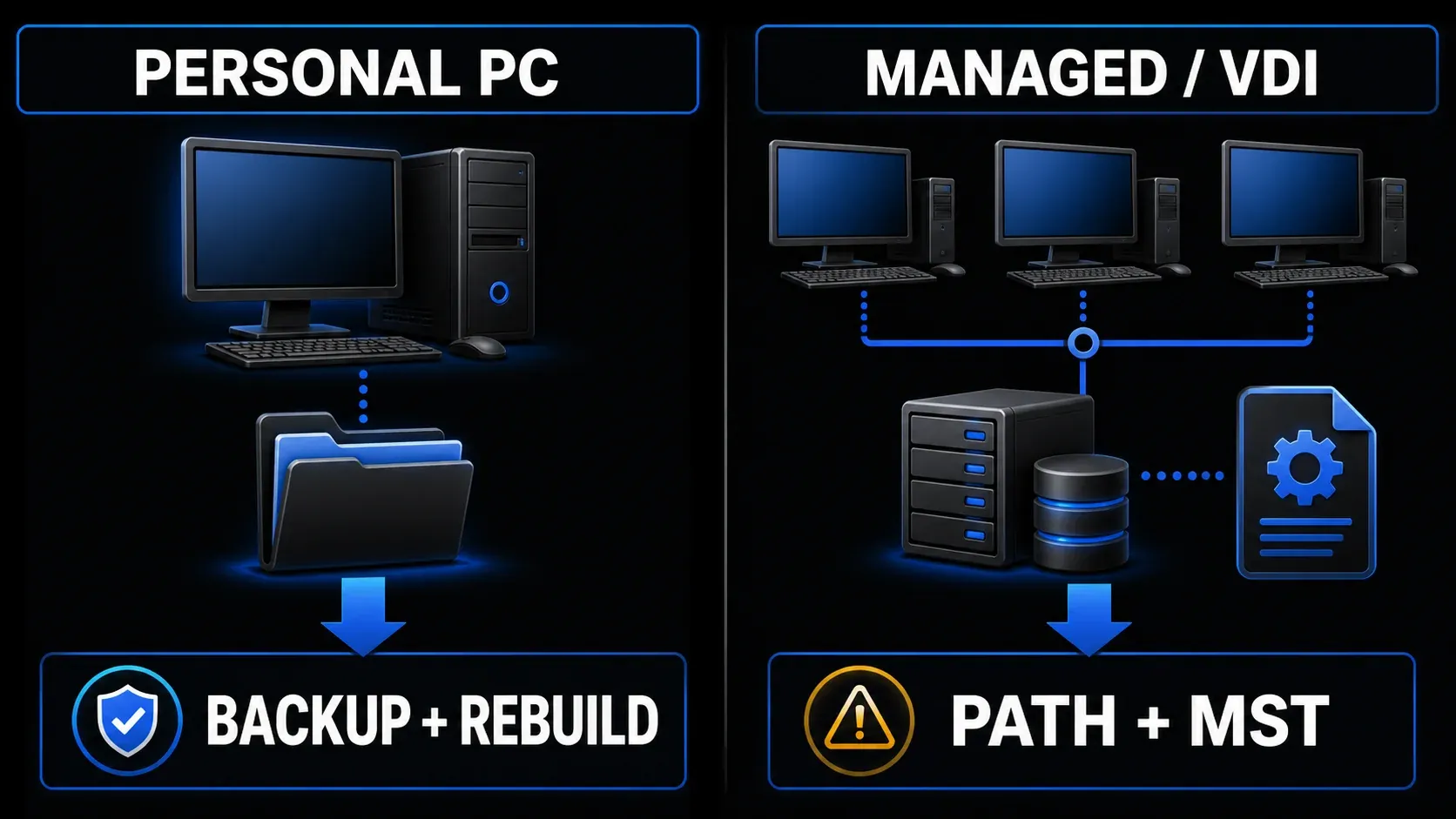
TechSmith documents three legacy enterprise causes:
%LocalAppData%is not local. The old SQL CE database must be cached and run locally; the exact-error article says it cannot run from a network location.- The transform uses a mapped drive or home-drive variable. A path such as
K:\Snagitor a value based on%HOMEDRIVE%/%HOMESHARE%can fail where the equivalent UNC path works. - The MST was created incorrectly. Recreate it with TechSmith's official deployment resources for the installed release, then test with a non-production user.
Send IT the Snagit version, the full error text, the path shown, whether the issue affects one user or many, the deployment method, and whether the profile or drive is redirected. That evidence gets further than a user-level reinstall.
If you use Snagit 2022 or later
Don't delete the current Library just because an old support result mentions DataStore. TechSmith's manual restore article says DataStore stopped being used beginning with Snagit 2022. Current releases store editable captures as SNAGX files in the active Library folder.
If a current release shows the exact legacy wording, check Windows Installed apps for an older side-by-side Snagit version and ask IT whether a legacy transform or conversion component remains. Record the path in the error, and contact TechSmith when the installed year and the path don't match the old architecture.
Use the symptom owner that matches what actually happens:
- For an empty Library, broken thumbnails, missing tags, or cloud availability, use the current Library location and backup guide.
- For a capture that reaches Editor but cannot be written, use the Failed to Save Document guide.
- For Editor that will not launch without the DataStore wording, use the Snagit Editor startup guide.
- For installation or version updates after the data is protected, use the Snagit install and update guide.
TechSmith's April 2026 missing-Library procedure checks the active folder and offline cloud availability for current releases. Its separate legacy section repeats the same warning: a Datastore restore replaces the current captures and cannot merge them.
Fixes to avoid
- Do not delete the only DataStore. A folder full of unsaved captures is user data.
- Do not import an archive over a working Library without backing up both states. The restore is a replacement.
- Do not edit Registry deployment values on a managed PC. IT needs to correct the MST, path, or profile policy centrally.
- Do not download SQL CE DLLs from a driver or DLL website. Use TechSmith's deployment and conversion packages.
- Do not reinstall first. Reinstalling the application does not give you a verified copy of the captures.
- Do not apply this Windows legacy procedure to Mac. Mac Library and startup paths are different.
If another error replaces the DataStore message, stop and follow the new exact symptom. The Snagit troubleshooting hub groups this site's error-specific routes without forcing every failure into one repair.
Build a support package
Contact TechSmith Support when the clean rebuild fails, the DataStore holds irreplaceable captures, the error points to an unexpected profile or network path, or multiple managed users fail after the same deployment.
Include:
- the exact error text and full path;
- Windows version and complete Snagit version;
- whether Snagit is personal, company-managed, VDI, App-V, or Remote Desktop;
- whether a verified copy of the original DataStore exists;
- whether a renamed or newly created DataStore changes the result;
- mapped drive, UNC path, profile redirection, and MST details for IT cases;
- the time of one failed launch so support logs can be matched.
Don't upload the DataStore until TechSmith gives you an approved transfer method. Captures can contain private material, and the support copy contains exactly the same files.
Frequently asked questions
What is the first safe fix for Failed to Initialize Snagit DataStore?
Confirm that you use Snagit 2021 or earlier, close every Snagit process, copy the complete DataStore to a separate location, verify the copy, then rebuild the working folder.
Where is the Snagit DataStore folder?
The default legacy Windows location is %LocalAppData%\TechSmith\Snagit\DataStore in the user profile. A custom or managed deployment may use another path, so record the path shown in the error.
Is the DataStore the same as the current Snagit Library?
No. TechSmith says the DataStore folder is no longer used beginning with Snagit 2022. Current releases use a Library folder with SNAGX files.
Can I delete the Snagit DataStore?
Only after you create and verify a separate backup. A safer first test is to keep the backup unchanged and rename the working folder so you can restore it if the rebuild fails.
Will reinstalling Snagit fix the DataStore error?
Do not use reinstall as the first step. Protect the captures and identify the version and path first. A managed path or damaged user store may remain relevant after the application is reinstalled.
Why does this error affect a managed or virtual PC?
Legacy deployments can fail when LocalAppData is redirected, a transform uses a mapped or home drive instead of a UNC path, or the MST contains the wrong data-path configuration.
Can Snagit merge two Datastores?
No. TechSmith says a Datastore restore replaces the current captures and cannot merge two Datastores. Back up both states before importing an archive.
Does the Snagit DataStore fix apply to Mac?
No. This exact procedure is for the legacy Windows DataStore. Use Mac-specific Library or startup troubleshooting when the error and folder names differ.