
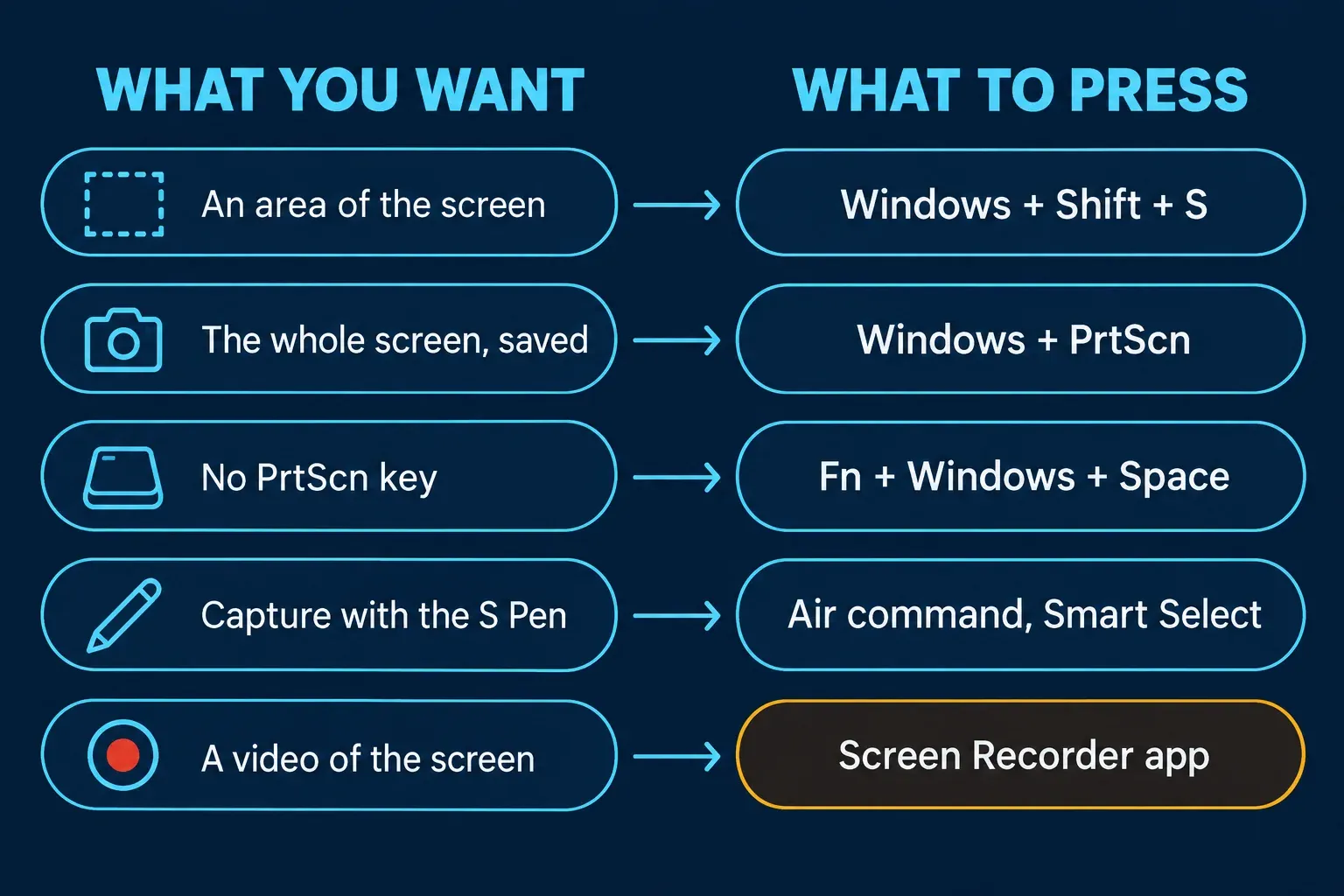
On a Samsung laptop that runs Windows, press Windows + Shift + S to capture an area of the screen with Snipping Tool, or Windows + PrtScn to save the whole screen. Microsoft's Print Screen page says that shortcut works depending on your hardware, that a laptop without a PrtScn key can use Fn + Windows + Space instead, and that the images land in Pictures, then Screenshots. If your Galaxy Book has an S Pen, Samsung adds a third route: Air command with Smart Select.
I read Samsung's support pages on Air command, the function keys and Screen Recorder, plus Microsoft's pages on Print Screen and Snipping Tool, in October 2026. One thing stands out: none of Samsung's pages I read gives a Samsung-specific Print Screen key combination. The Windows shortcuts do the work, and Samsung's own contribution is the Fn key, the S Pen tools and a screen recorder on newer models.
Samsung laptop screenshot shortcuts at a glance
| Method | What it does | Works on |
|---|---|---|
| Windows + Shift + S | Opens the Snipping Tool overlay to capture an area | Any Samsung laptop running Windows |
| Windows + PrtScn | Takes a screenshot that Microsoft says is saved in Pictures, then Screenshots | Depending on hardware, per Microsoft |
| Fn + Windows + Space | The Microsoft-documented alternative when the keyboard has no PrtScn key | Laptops without a PrtScn key |
| Air command, Smart Select | Captures and saves specific content from your screen | Galaxy Book models with the S Pen; also openable from Start |
| Screen Recorder app | Records a video of the screen instead of a still image | Windows 11 on Galaxy Book5 and Galaxy Book4 with One UI 6.0 or later |
Windows shortcuts: area, full screen and no PrtScn key
These are Windows shortcuts, so they are the same on any Windows PC. Microsoft's Snipping Tool page lists three ways to open the tool: search for it from Start, press Windows + Shift + S, or press Print Screen. The first one I'd learn is Windows + Shift + S, which drops straight into the selection overlay. My Snipping Tool guide for Windows 11 covers what to do after the capture.
- Press Windows + Shift + S.
- Drag over the area you want. Microsoft lists rectangle, freeform, window and full-screen snips, so choose a different mode if you need another shape.
- Paste the capture with Ctrl + V where you need it, or use the Snipping Tool window if it opens.
For the whole screen, Microsoft's Print Screen shortcut page says that depending on your hardware you may use Windows logo key + PrtScn, and that if the device has no PrtScn button you may use Fn + Windows logo key + Space Bar. To find the files, it says to open File Explorer, select Pictures, then Screenshots. My guide to where screenshots go on Windows 11 covers the other places a capture can end up.
For only the active window, Microsoft documents Alt + Print Screen. It copies that window to the clipboard; paste it into your approved editor or document with Ctrl + V. This is a clipboard route, so do not look for a newly saved file just because the keys worked.
Older Galaxy Book pages describe a different route. Verizon's support page for the Galaxy Book S says to click Start, choose Snip & Sketch, click New, click the Save icon and pick a location, and to find the result in Photos under Collection. On a current Windows 11 install, search for Snipping Tool instead.
If the shortcut does nothing: the Fn key
Samsung's page on the function keys on a Samsung Notebook describes two ways to use a hotkey: hold Fn and press the key, or press Fn Lock first so the hotkeys work without holding Fn. Another Samsung page, on the function keys on a Samsung PC, adds a requirement: the Fn hotkeys need the Samsung Settings app, or Book Settings on the Galaxy Book and Galaxy Book 2.
Neither page lists a Print Screen key, so I can't tell you which key carries it on your model. Look at the labels printed on your keys: if PrtScn is a secondary label, try Fn with that key, then with Windows. If a key combination works in one mode and not the other, Fn Lock is the first thing to check. For the case where PrtScn exists but another app grabs it, see my Print Screen not working guide.
Use the S Pen: Air command and Smart Select
Samsung's page on using Air command on a Galaxy Book describes a menu with Smart Select, which captures and saves specific content from your screen, and Screen Write, which annotates or writes directly on your display. To open it:
- With an S Pen: hold the pen close to the Galaxy Book until the pointer appears, then press the S Pen button while hovering over the screen.
- Without an S Pen: click the Start icon on the taskbar and select Air command.
Samsung notes that you can use Air command on models without an S Pen, but the app won't be fully compatible, and that if it isn't preinstalled you can download it from the Microsoft Store. The page doesn't say where a Smart Select capture is saved, so check the folder after your first try rather than assuming Pictures, then Screenshots.
Record a video instead
If what you need is a clip, Samsung's Screen Recorder page says the app is available only on Windows 11 and on Galaxy Book5 and Galaxy Book4 series PCs running One UI 6.0 or later. Type Screen Recorder in the taskbar search, open it, then click the red Record dot in the toolbar. Samsung's page doesn't list other models, so on those use a Windows tool or a separate recorder.
If your Samsung isn't a Windows laptop
Samsung also sells phones and tablets, and the screenshot steps there are different. Samsung has a separate page, how to take a screenshot on a Samsung phone or tablet. If your Samsung laptop runs ChromeOS, the Windows shortcuts above don't apply; my Chromebook screenshot guide covers the Chromebook keys.
The short version
Use Windows + Shift + S for an area and Windows + PrtScn for the whole screen. If your keyboard has no PrtScn key, Microsoft documents Fn + Windows + Space. On an S Pen model, Air command's Smart Select is a Samsung alternative. Check Fn and Fn Lock if a shortcut does nothing, and Screen Recorder if you need video on a Galaxy Book4 or Book5.