
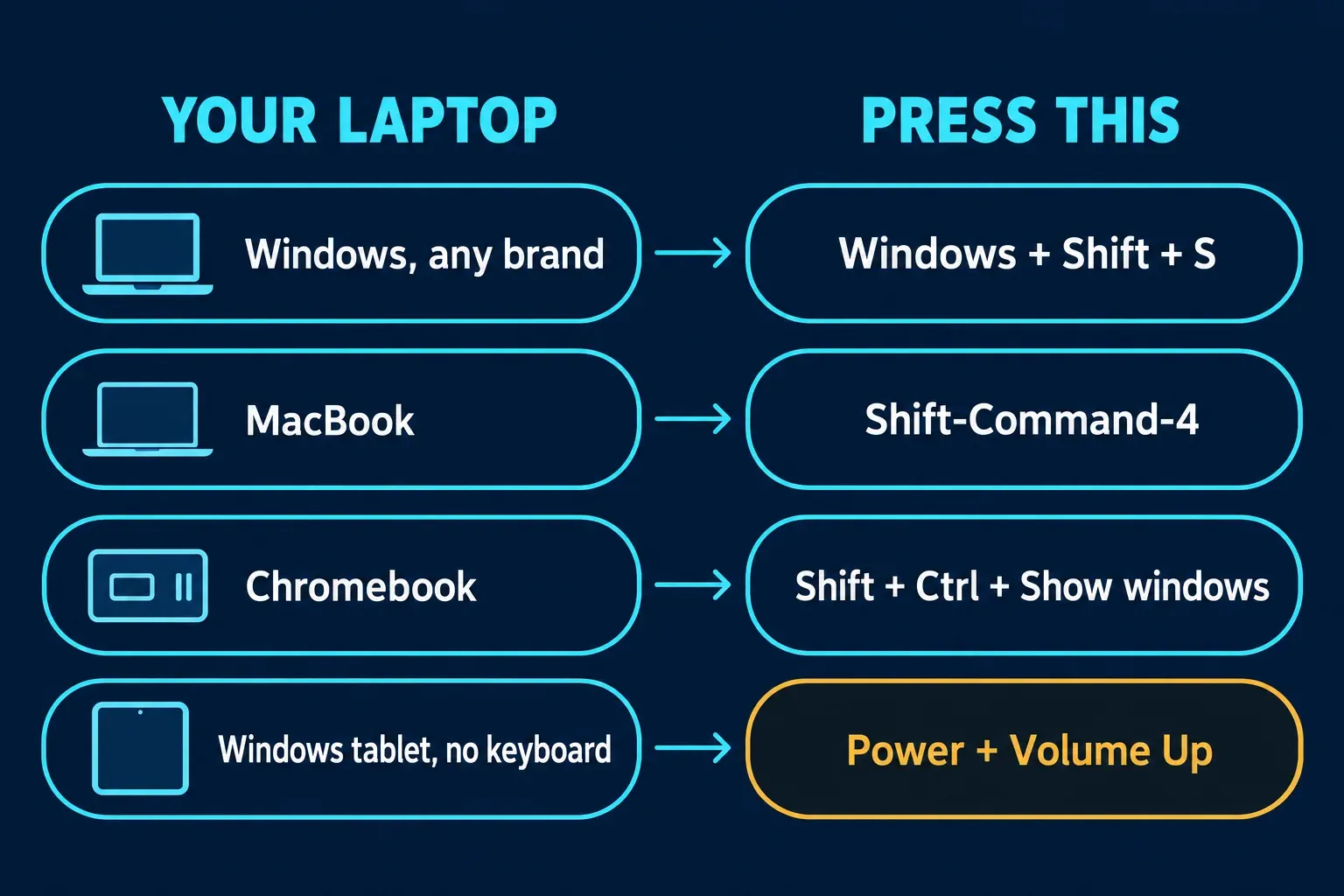
To screenshot on a laptop, press Windows + Shift + S on any Windows laptop, Shift-Command-4 on a MacBook or Shift + Ctrl + Show windows on a Chromebook, then drag over the part of the screen you want. For the whole screen as a file, press Windows + PrtSc, Shift-Command-3 or Ctrl + Show windows. The operating system decides the shortcut. The brand only changes where PrtSc sits, whether you need Fn and which extra buttons or pens you get.
On a Windows laptop I'd start with Windows + Shift + S, because it doesn't need a PrtSc key at all, so it behaves the same on an Acer, a Dell or a Surface. Below is one table for every kind of laptop, then what each brand changes, where the files land and what to check when nothing happens.
Which screenshot shortcut does your laptop use?
| Your laptop | Part of the screen | Whole screen | Where it goes |
|---|---|---|---|
| Windows laptop, any brand | Windows + Shift + S, then drag | Windows + PrtSc | Part: Clipboard, plus Pictures → Screenshots while Snipping Tool's auto-save is on. Whole screen: Pictures → Screenshots |
| MacBook | Shift-Command-4, then drag | Shift-Command-3 | Desktop; hold Control as well to copy instead |
| Chromebook | Shift + Ctrl + Show windows, then drag | Ctrl + Show windows | Downloads, and copied to the clipboard |
| Windows tablet or 2-in-1, keyboard detached | Pen menu → Snipping Tool | Hold Power, then press Volume Up | Pictures → Screenshots |
| Chromebook tablet | Quick settings → Screen capture | Power + Volume down | Downloads |
Which Windows shortcut should you press?
Every Windows laptop shares the same shortcuts, whoever made it. Microsoft's list of Windows keyboard shortcuts describes five that matter for screenshots:
Windows + Shift + Slets you select a region and copies it to the clipboard; from there you can open Snipping Tool to mark it up or share it. The bar at the top also offers window, full screen and freeform modes.Windows + PrtSccaptures the full screen and saves it as a file in the Screenshots subfolder of Pictures.PrtScon its own opens the same region selection on Windows 11. On Windows 10 it copies the whole screen to the clipboard.Alt + PrtSccopies only the active window to the clipboard.Windows + Alt + PrtSccaptures the game or app you're in through Xbox Game Bar and, according to Microsoft's Game Bar guide, saves a PNG in Videos → Captures.
I'd use Windows + Shift + S for everyday captures, because selecting the area first saves cropping later, and Windows + PrtSc when I need a file without opening anything. If you'd rather have PrtSc copy the whole screen as it used to, go to Start → Settings → Accessibility → Keyboard and turn off Use the Print Screen button to open screen snipping. My guide to using Snipping Tool on Windows 11 covers the modes, the delay timer and the editor, and the Snipping Tool keyboard shortcuts list has every key in one place.
What changes from one laptop brand to another?
The Windows shortcuts above don't change between brands. The keyboard does: whether PrtSc has a key of its own, whether it hides behind Fn, and what extra keys, buttons or pens the maker adds. Each row links to my guide for that brand.
| Brand, with its full guide | What's different |
|---|---|
| Acer laptops | Aspire Lite models have no PrtSc key. The fn-lock on Esc is off by default, and Nitro or Predator software can switch off the Windows key, which stops every Windows-key shortcut. |
| ASUS laptops | A capture key in the top row: F11 on the standard layout, F6 on the ROG example. The row ships in hotkey mode, so that key may open a capture tool instead of acting as an F-key. |
| Dell laptops | PrtScr often shares F10 or sits on Insert. Keyboards with no PrtScr key use Fn + Insert instead. |
| HP laptops | prt sc can be a second label that needs Fn. Action Keys Mode, usually in the BIOS, decides whether f1 to f12 need Fn at all. |
| Lenovo laptops | IdeaPad and Yoga keyboards add a scissors key that opens Snipping Tool, and Fn + Esc switches hotkey mode. ThinkPad PrtSc placement varies by model. |
| Samsung laptops | No Samsung-only shortcut. Fn Lock and the Samsung Settings app control the hotkeys, and S Pen models add Smart Select in Air command. |
| Microsoft Surface | Newer keyboards have a Snipping key. Power + Volume Up works on Surface Pro, Go and Book, but not on a Surface Laptop. |
| Chromebooks, any maker | ChromeOS shortcuts instead of Windows ones. Some keyboards have a dedicated Screenshot key. |
Before deciding a brand's shortcut is broken, I'd check whether the key you're pressing prints PrtSc as its main label or as a second one, because a second label is normally the one you reach with Fn. Acer, ASUS and Lenovo Chromebooks follow the Chromebook row, not their Windows siblings.
What if your laptop has no PrtSc key?
Some compact keyboards, Acer's Aspire Lite among them, have no PrtSc key. You still have four routes:
Windows + Shift + Sdoesn't use PrtSc, so it works on every Windows keyboard.Fn + Windows + Spacetakes a full-screen screenshot on devices without a PrtScn button, as Microsoft's Print Screen page puts it, though whether it works depends on the hardware.- The On-Screen Keyboard, turned on at Start → Settings → Accessibility → Keyboard per Microsoft's On-Screen Keyboard guide, has its own PrtScn key, as an answer on Microsoft Q&A points out.
- Open Snipping Tool from Start and select New. Pinning it to the taskbar makes that a single click.
I'd go with Windows + Shift + S first, because the On-Screen Keyboard covers part of the screen you're trying to capture.
How do you screenshot on a MacBook?
Press Shift-Command-3 for the whole screen or Shift-Command-4 and drag for part of it. After Shift-Command-4, press Space to capture one window instead. Shift-Command-5 opens the Screenshot toolbar with capture and recording options. Apple's Mac User Guide says the files are saved to the desktop, and holding Control with the other keys copies the screenshot instead.
I'd learn Shift-Command-4 first, because adding Space turns the same shortcut into a clean window capture. My guide to taking a screenshot on a Mac has every shortcut in one table. If you're coming from Windows, snipping on a Mac maps each Snipping Tool feature to its Mac equivalent.
How do you screenshot on a Chromebook?
Press Ctrl + Show windows for the whole screen. For part of it or a single window, press Shift + Ctrl + Show windows and pick an option from the toolbar at the bottom. Google's Chromebook screenshot help adds three alternatives: a Screenshot key on keyboards that have one, Screen capture in quick settings, and Ctrl + Shift + F5 on an external keyboard with no Show windows key.
Every capture is copied to the clipboard and saved to Downloads; Settings → Select folder in the same capture toolbar sends them somewhere else. My guide to screenshots on a Chromebook covers tablets, external keyboards and maker differences.
How do you screenshot on a 2-in-1 or tablet without the keyboard?
On a Windows tablet, hold Power and press Volume Up. Microsoft's hardware button table lists that pair as the screenshot on devices built to the Windows 10 button layout; older tablets with a Windows button under the screen use Windows button + Volume Down. Press Volume Up as soon as Power is down, because holding Power on its own brings up the shutdown screen.
A pen is the other route. Microsoft's pen guide says the Windows 11 pen menu includes Snipping Tool by default, which helps on a folded Lenovo Yoga or a Surface Pro without its cover. Samsung S Pen models add Smart Select. On a Chromebook tablet, press Power + Volume down, as listed in Google's Chromebook keyboard shortcuts.
Where did the screenshot go?
It depends on the shortcut more than the laptop:
- Pictures → Screenshots:
Windows + PrtSc, Power + Volume Up andFn + Windows + Space, plus a copy of each Snipping Tool capture on Windows 11 while auto-save is on. - Clipboard only:
Alt + PrtSc, andWindows + Shift + SorPrtScwhen Snipping Tool's auto-save is off. Paste withCtrl + Vbefore you copy anything else. - Videos → Captures: Xbox Game Bar screenshots and clips.
- Desktop: Mac screenshots, unless someone changed Save to in the
Shift-Command-5Options menu. - Downloads: Chromebook screenshots and recordings, unless a different folder was selected.
If OneDrive backs up your Pictures folder, Screenshots lives inside OneDrive. Older guides tell you to switch on Save screenshots I capture to OneDrive, but Microsoft says that OneDrive setting is no longer available. My guides to where screenshots go on Windows 11 and where screenshots go on a Mac walk through every folder and how to search for a lost capture.
How do you record the laptop screen instead?
- Windows: press
Windows + Shift + R, select the area, then Start and later Stop. Microsoft's Snipping Tool instructions offer to save the recording or open it in Clipchamp, and the shortcut list says the MP4 is saved automatically in Videos → Screen Recordings. - Mac: press
Shift-Command-5, choose a recording option and click Record; to stop, click the stop button in the menu bar. My guide on how to stop a screen recording on Mac helps when that button is hard to find. - Chromebook: press
Shift + Ctrl + Show windows, select Screen record and choose full screen, part of it or a window. Turn on the front camera or audio in the toolbar's settings before you start.
What if the screenshot shortcut does nothing?
Work through these in order, from the quickest check to the slowest:
- Press the key with Fn, then without it. TechSmith's Print Screen troubleshooting note suggests
Fn + Escto turn off the function lock. On many HP laptops the switch is Action Keys Mode in the BIOS instead. - Check whether another app took the key. TechSmith names OneDrive and Dropbox as the usual programs that claim Print Screen.
- On a gaming laptop, make sure the Windows key isn't switched off in the maker's control app, because every
Windows +shortcut needs it. - On Windows 11, check the Use the Print Screen button to open screen snipping switch, so you know whether PrtSc should open a selection or copy the screen.
If none of that helps, my checklists for Print Screen not working, Snipping Tool not working, screenshots not saving on Windows and Mac screenshots not working go further.
When is the built-in screenshot tool not enough?
For a one-off capture, the tools above are all you need, on every brand. They run out when the job grows: none of Snipping Tool's four modes scrolls a long page, and marking up a dozen screenshots the same way gets slow. My guide to taking a scrolling screenshot covers the free routes first.
I'd only pay for Snagit if you capture for documentation or support every week, because that's where its scrolling capture, reusable presets and blur tools save real time. It runs on Windows and macOS, according to TechSmith's system requirements, so on a Chromebook the built-in tool is the one you have. My roundup of the best screenshot software compares it with the free options.