
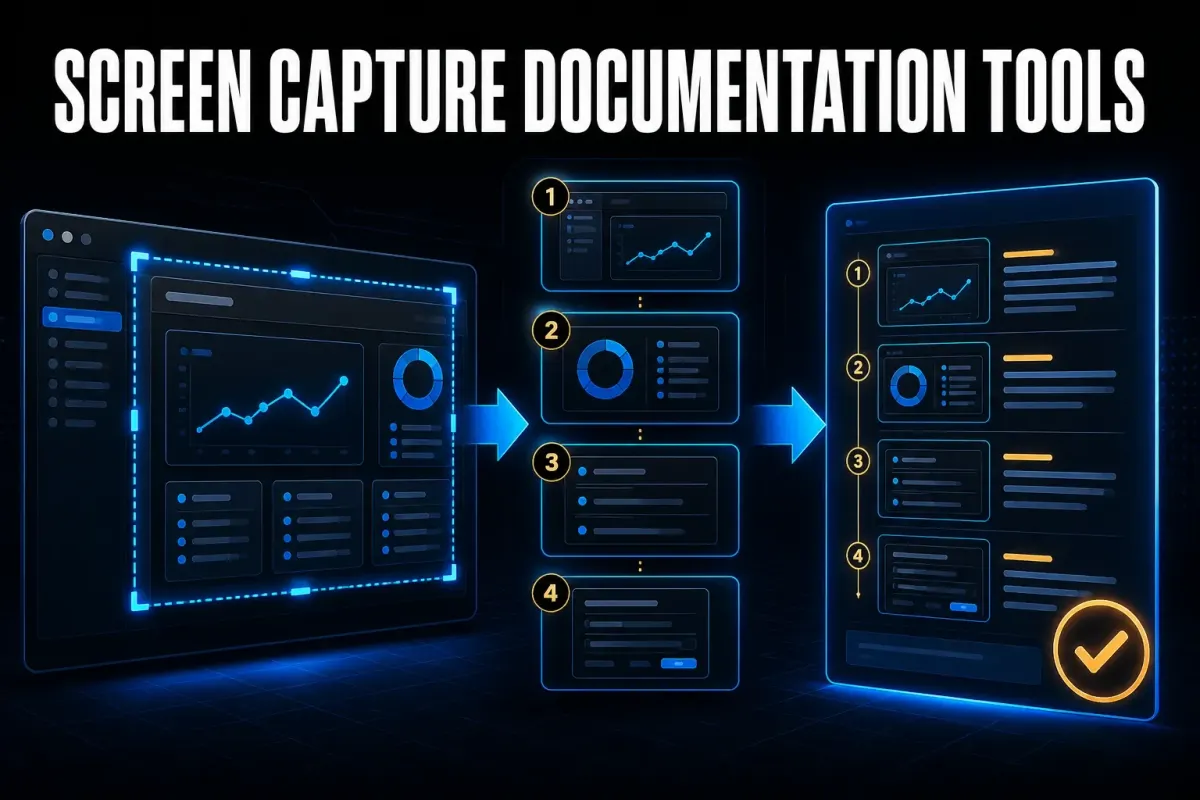
Choose a screen capture documentation tool by the instruction you need to deliver. Snagit suits detailed image editing, Scribe creates screenshot-and-text guides, and Tango offers live browser guidance, subject to workspace access. Folge offers local desktop authoring, with separate data-sharing choices for AI and publishing. Guidde focuses on narrated instructions, Supademo on interactive demos, and iorad on tutorials delivered in several formats.
For a small job, you may only need an existing screenshot tool and a document editor. For repeated procedures, shortlist two tools and test the same safe task in both. Check the paid features you actually need, correct the generated steps, and open the result where your reader will use it.
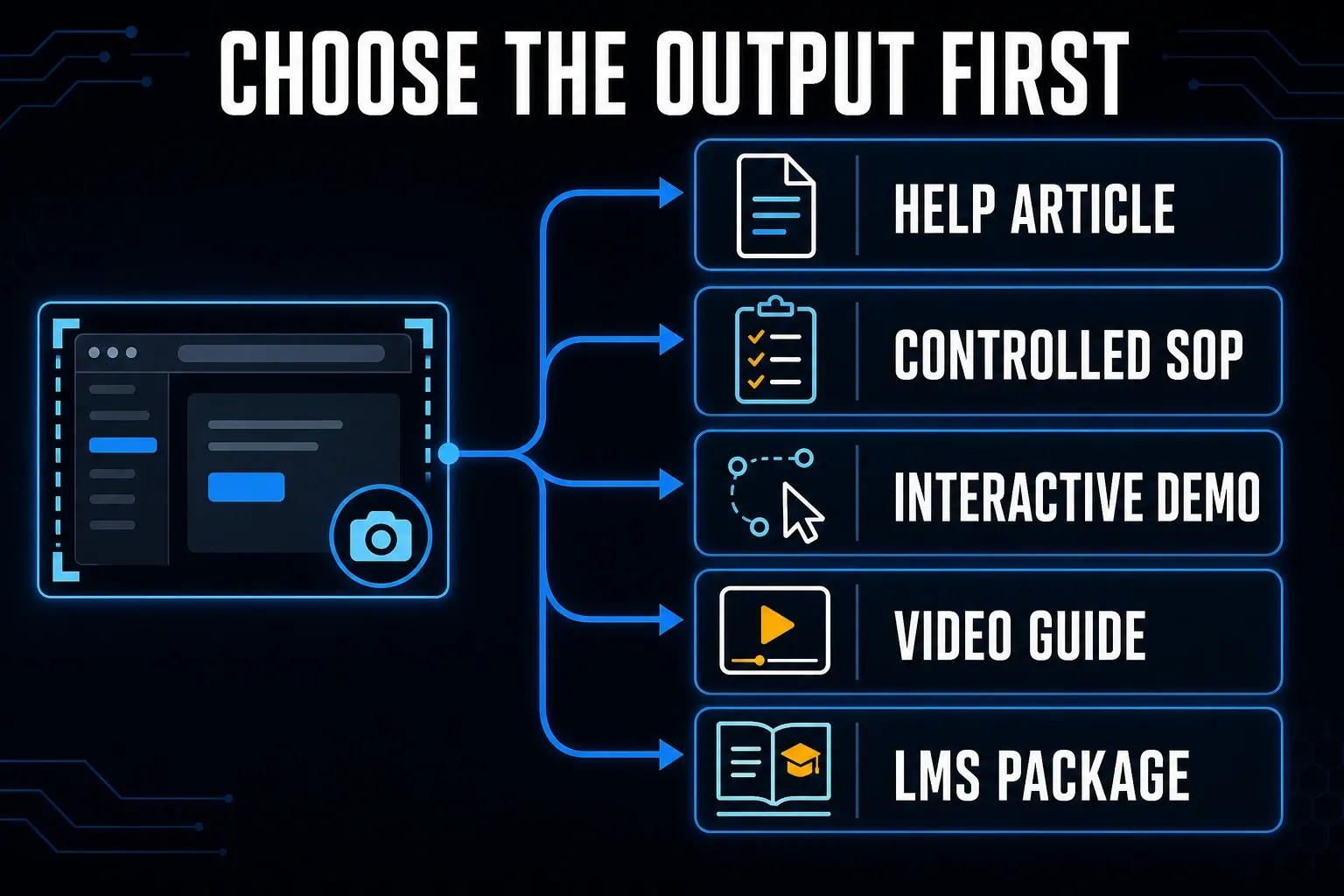
Screen capture documentation tools compared
| Tool | Consider it for | Capture route | Useful output | Important boundary |
|---|---|---|---|---|
| Snagit | Detailed visual instructions | Windows and Mac desktop | Edited images, Step Capture guides and Office exports | Set ownership and a publishing destination |
| Scribe | Screenshot-and-text step guides | Browser; desktop on Pro | Link or embed; PDF, HTML and Markdown on Pro | Screenshot editing and manual redaction are paid features |
| Tango | Recorded workflows and live browser guidance | Browser; desktop on Pro | Link or embed; file exports on Pro | Pins are listed under Enterprise; Guide Me access also depends on workspace role |
| Folge | Local desktop authoring | Windows and Mac desktop | Local files; advanced formats require a paid license | Optional external AI and publishing can send data elsewhere |
| Guidde | Narrated, video-led instructions | Desktop on Business and Enterprise | Video and structured step views | Capture mode and narration affect step type |
| Supademo | Interactive product demos | Browser, desktop, Figma or uploaded media | Screenshot/video or HTML demos | A demo is separate from the reader’s live application |
| iorad | Multi-format software tutorials | Browser extension | Interactive, article, PDF, video and SCORM options | Confirm private-sharing and export entitlements for your plan |
What a screen capture documentation tool should do
A useful tool records the relevant action, preserves its context and lets you correct the instruction. Capturing a click does not establish that the chosen action was correct. A generated guide still needs prerequisites, clear control names and an expected result.
Take an account-setup procedure as an example. Can you remove an accidental click, replace an outdated frame, explain a required permission and move the finished guide to your help center? Test those edits before importing a real customer workflow. Treat them as selection criteria, not features every product necessarily includes.
For approval trails, training records or a maintained knowledge base, compare the broader process documentation software options. If you already have a recording or document to turn into a draft, the automatic SOP generator guide separates those inputs from new live capture.
How we compared the seven tools
I checked the official product and support documentation for these seven tools on September 19, 2026. They cover different capture and delivery jobs, so their order is not a performance ranking. Six questions shaped the shortlist:
- Capture boundary: Can you record the required browser page, desktop application or existing media?
- Output: Does the needed plan deliver the file, hosted guide, player or LMS package your readers use?
- Correction: Can you remove false steps, replace frames, rewrite text and add missing decisions?
- Privacy: What is excluded before capture, what is stored, and what reaches an external service?
- Handoff: Does the exported or embedded guide work in your actual help center, wiki or LMS?
- Maintenance: What must you redo when one screen or business rule changes?
1. Snagit: detailed visual instructions
Snagit is worth considering when the image needs careful work before publication. TechSmith documents region, window and scrolling capture, annotation and export tools. Arrows, text and step numbers help explain a control without relying on a generated sentence alone.
Step Capture also assembles numbered captures from your clicks. The Windows 2026 release history documents improved PowerPoint output in version 2026.1.0: editable text, a title slide and individual image slides. Check your installed version before expecting that layout. Step Capture does not turn text entry or keyboard shortcuts into separate steps. Add the missing instructions before sharing.
Keep an editable source and choose where the approved instruction will live. An exported image does not itself provide a document owner or approval trail. The Scribe versus Snagit comparison examines generated guides alongside image-level editing.
2. Scribe: screenshot-and-text step guides
Scribe captures a workflow and builds steps with screenshots and text. Its current plan page lists browser capture, link sharing and embedding on Free. That makes a browser task a reasonable free trial of the capture-to-guide workflow.
Pro adds desktop capture, screenshot editing, manual redaction and exports including PDF, HTML and Markdown. Do not evaluate the free browser workflow and assume the same account can export a document or edit sensitive pixels. Enterprise automatic redaction is a separate entitlement.
Review the wording wherever a click depends on a rule. “Select Manager” is incomplete if that role is permitted only after approval, so add the condition and expected outcome yourself and check them with the process owner. Generated descriptions are a starting point; they don't prove the procedure is correct.
3. Tango: recorded workflows and live browser guidance
Tango records workflows that readers can open by link or embed. Its plan comparison lists browser capture and five shared workflows on Free; desktop capture and PDF, Markdown and HTML exports on Pro; and Pins under Enterprise. Tango’s current Guide Me access documentation says members on Free, Pro and Enterprise plans can use it, while guest users receive three trial Guide Me sessions. Check workspace access and role limits before relying on it.
Desktop-captured workflows do not support Guide Me, and the desktop app does not offer Live Blur. Test your actual browser workflow, including embedded frames and pop-ups. A Pro upgrade also requires paid seats for all workspace members. The Snagit vs Tango comparison explains the capture and guidance differences in more detail.
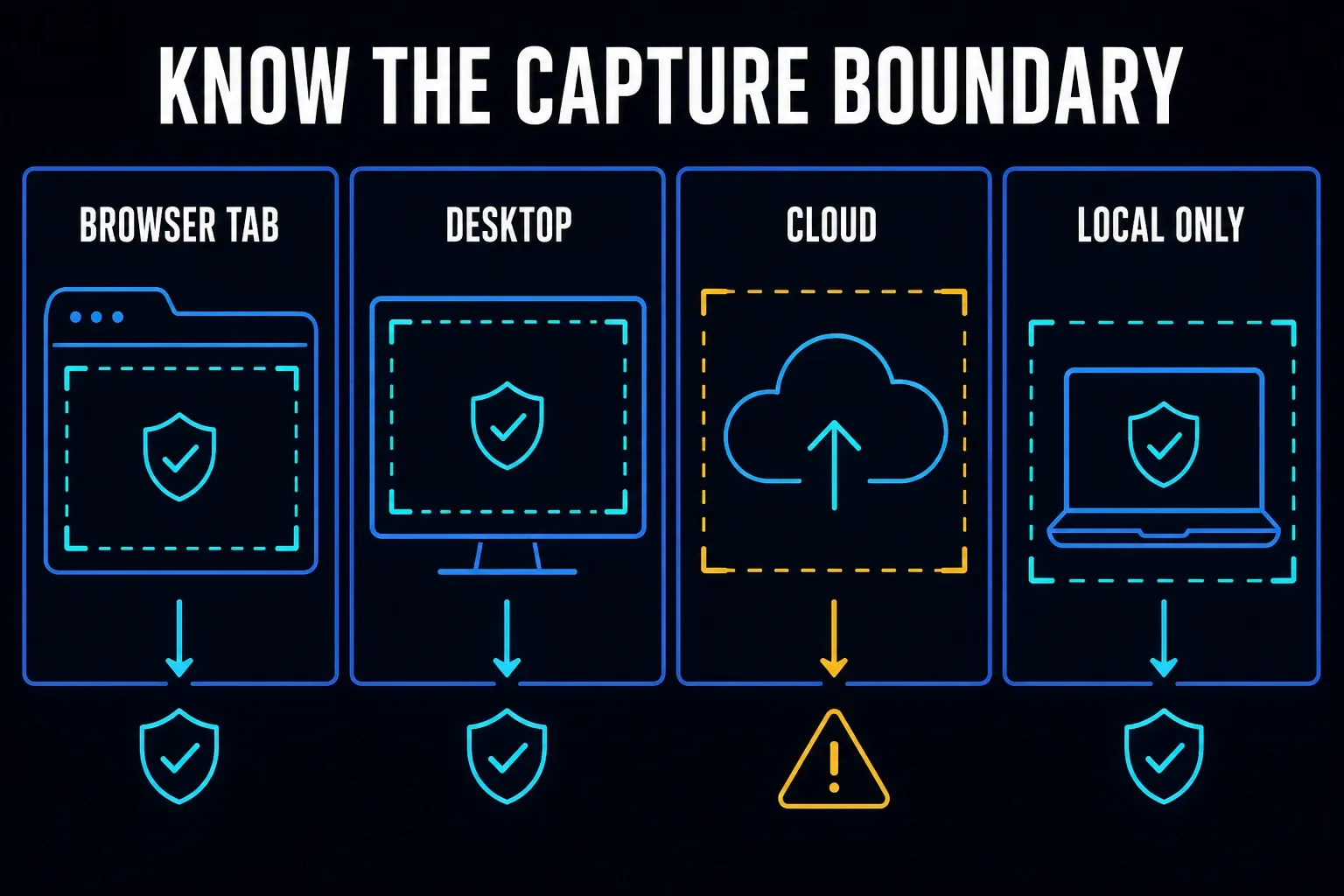
The Tango security documentation distinguishes Live Blur before capture, editing an existing screenshot, and Enterprise Secure Blur for automatic detection. Confirm the selected control and its entitlement before recording. A clean-looking share page does not verify every earlier file or exported copy. The diagram below marks different capture locations, not security certifications. Browser and desktop capture can still send data to a cloud service.
4. Folge: local desktop authoring
Folge captures screenshots on clicks and lets you reorder and annotate the resulting guide on Windows or Mac. Its core capture, editing and file-export workflow runs locally. The free edition is limited to five guides, and a paid license adds advanced exports and integrations, so check the exact format in your trial rather than assuming the entire export list is free.
There is an important exception to “local”: the optional AI Helper. Text actions send text to your configured provider, and automatic step descriptions send screenshot content. You can also configure a separate local model. Local capture does not make an external AI request private by default.
Folge lists PDF, Word, PowerPoint, HTML, Markdown, JSON and other outputs, so test the destination you need, including image order and descriptions. If files must stay on the device, keep external AI, cloud-synced folders and publishing integrations out of the workflow. Use approved storage, access controls and backups; local processing alone is not a compliance guarantee.
5. Guidde: narrated instructions
Guidde is a candidate when narration and movement help explain the task. Its desktop application guide places that app on Business and Enterprise, including the Business trial, with Windows 10 or later and macOS 11 or later support. Desktop capture does not record system audio.
For a How-To Tutorial with Magic Mic, the documented rule is specific: speaking during a click creates a video step without an automatic callout; clicking while silent creates a static step with a callout. Product Demo and Screen Capture recordings instead use continuous video steps.
Try that exact mode with synthetic material before recording a longer procedure. Inspect step boundaries, narration, callouts and the written view. If the required deliverable is a printed instruction, test that output too; a useful video does not guarantee a useful document.
6. Supademo: interactive product walkthroughs
Supademo offers browser and desktop recording, Figma input and media uploads. For a phone workflow, its documented options include mirroring to a desktop or uploading existing images or video. The result can be a guided demo rather than an instruction that operates your reader’s real account.
The extension instructions distinguish screenshot/video capture from HTML demos. They direct right-click actions and dialogs to desktop capture or manually uploaded screenshots with hotspots. Test those transitions; a browser extension is not a guarantee that every operating-system dialog will appear.
Use a demo for a feature tour or simulated onboarding sequence. Before publishing, check keyboard controls, phone-width layout and the embed with an authorized viewer account, and confirm the plan for your chosen demo type, exports and access restrictions. Keep enough approved source material to update or rebuild an important walkthrough.
7. iorad: tutorials in multiple formats
iorad documents interactive tutorials, articles, PDF, video and SCORM output. This is relevant when a knowledge base and a learning management system need versions of the same lesson. Confirm private-tutorial and export entitlements with iorad: its public pricing matrix was not readable during this check.
The browser-extension overview describes active-session screenshots, clicks, keystrokes, scrolling and page-element metadata. It says capture data stays in the browser until you complete and save it, then uploads to your account. That is the vendor’s own description rather than an independent security audit.
Change a middle step and inspect every required output again. Confirm the SCORM version your LMS accepts and test launch, resume and completion reporting. A corrected hosted tutorial does not automatically replace a PDF someone downloaded earlier.
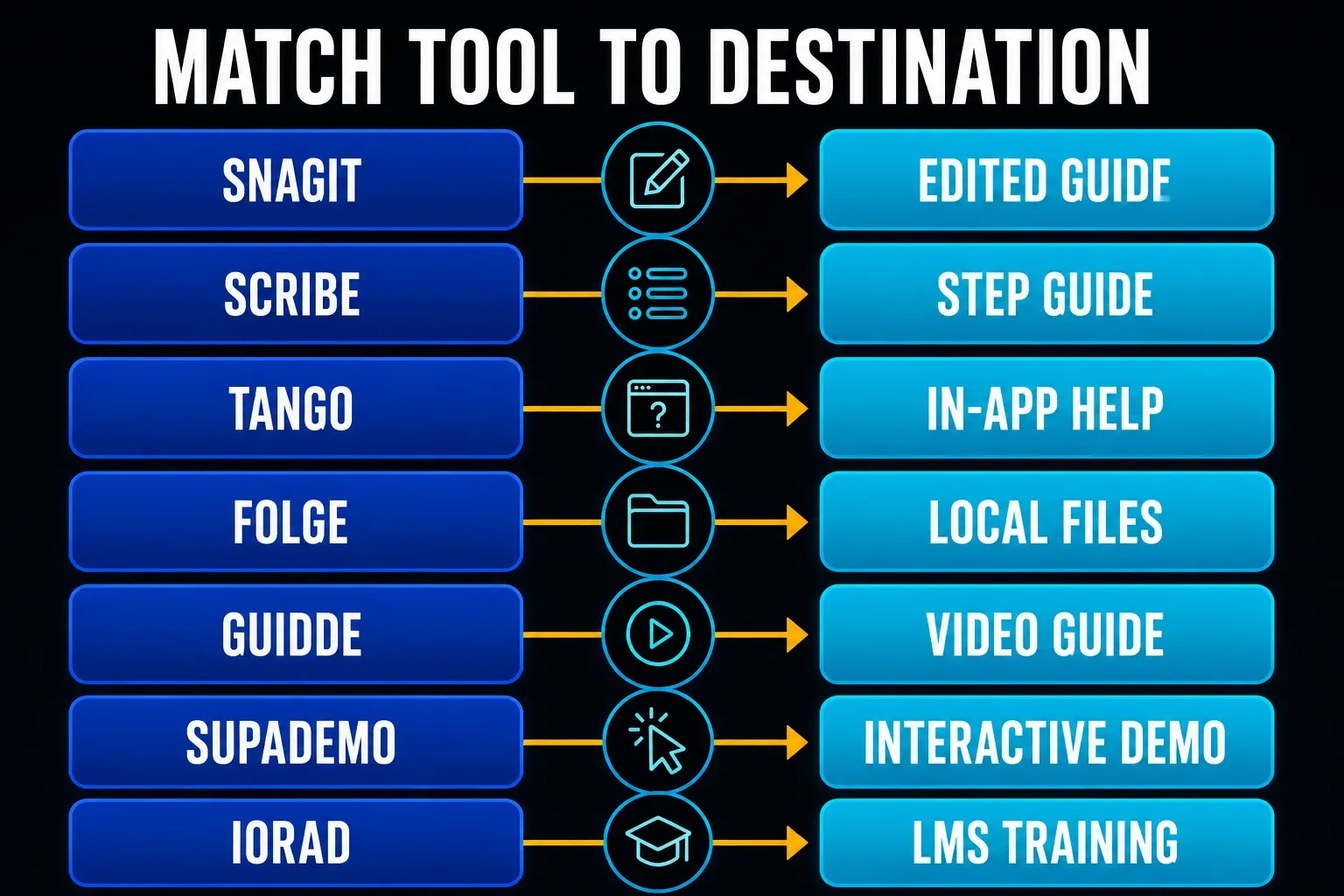
Choose the output before the tool
One-off screenshot or video review link
For a temporary explanation, an existing capture tool and an approved sharing channel may be enough. Check who can open the link, whether it expires, how to revoke access and whether a reusable file is needed. Not every support reply calls for a maintained tutorial. Compare Snagit and Droplr for screenshot editing, hosted links and access controls.
Static help article or technical guide
Shortlist Snagit for detailed image work, Scribe for generated steps, or Folge for local authoring. Keep the final guide where readers can find it, whether that is the capture platform, help center or docs repository. Put control names and instructions in real text; text inside an image is not inherently searchable or accessible.
Controlled SOP or work instruction
Choose a system that supports the controls your procedure requires: ownership, access, approval, revision history or acknowledgement. Some capture platforms also offer document-management features, so a second product is not automatically necessary. Record who verifies a changed business rule, not just who replaces its screenshot.
Interactive onboarding or product education
Tango’s Guide Me serves a live browser workflow when your account has access; a Supademo walkthrough can demonstrate a simulated sequence. Check that the learner understands which one they are using. Test the final destination on required devices and with the intended access level, not just from the creator’s signed-in account.
Video and LMS training
Consider Guidde for narrated motion and iorad for multi-format tutorials, subject to the needed plan and export. Check captions, readable step text, playback controls and any LMS reporting. If you distribute downloaded files, record which copies need replacement after an edit.
Private or offline capture
Folge’s core desktop workflow can stay local, but optional AI and publishing change that route. For Snagit, distinguish locally stored captures from cloud sharing. TechSmith’s AI processing table identifies processing by feature, so don't generalize an on-device OCR entry into a guarantee about every connected service.
Run one seven-step pilot before buying
- Choose a representative task. For example, use seven steps that include a menu, a typed value, a decision and an expected result.
- Prepare an authorized test account. Use synthetic names, addresses, IDs and files. Disable notifications and close unrelated applications.
- Record deliberately. Complete the approved path and note actions or decisions the capture cannot show.
- Count corrections. Record false steps, missing frames, unclear text, bad crops, exposed test data and manual additions.
- Deliver to the real destination. Test the help center, wiki, PDF, Word file, Markdown repository, embed or LMS package you actually need.
- Ask a second authorized tester to follow it. Provide the documented starting point without live coaching. Record questions, errors and the final result.
- Change one middle screen. Check the effort to update the source, republish it and replace each required output.
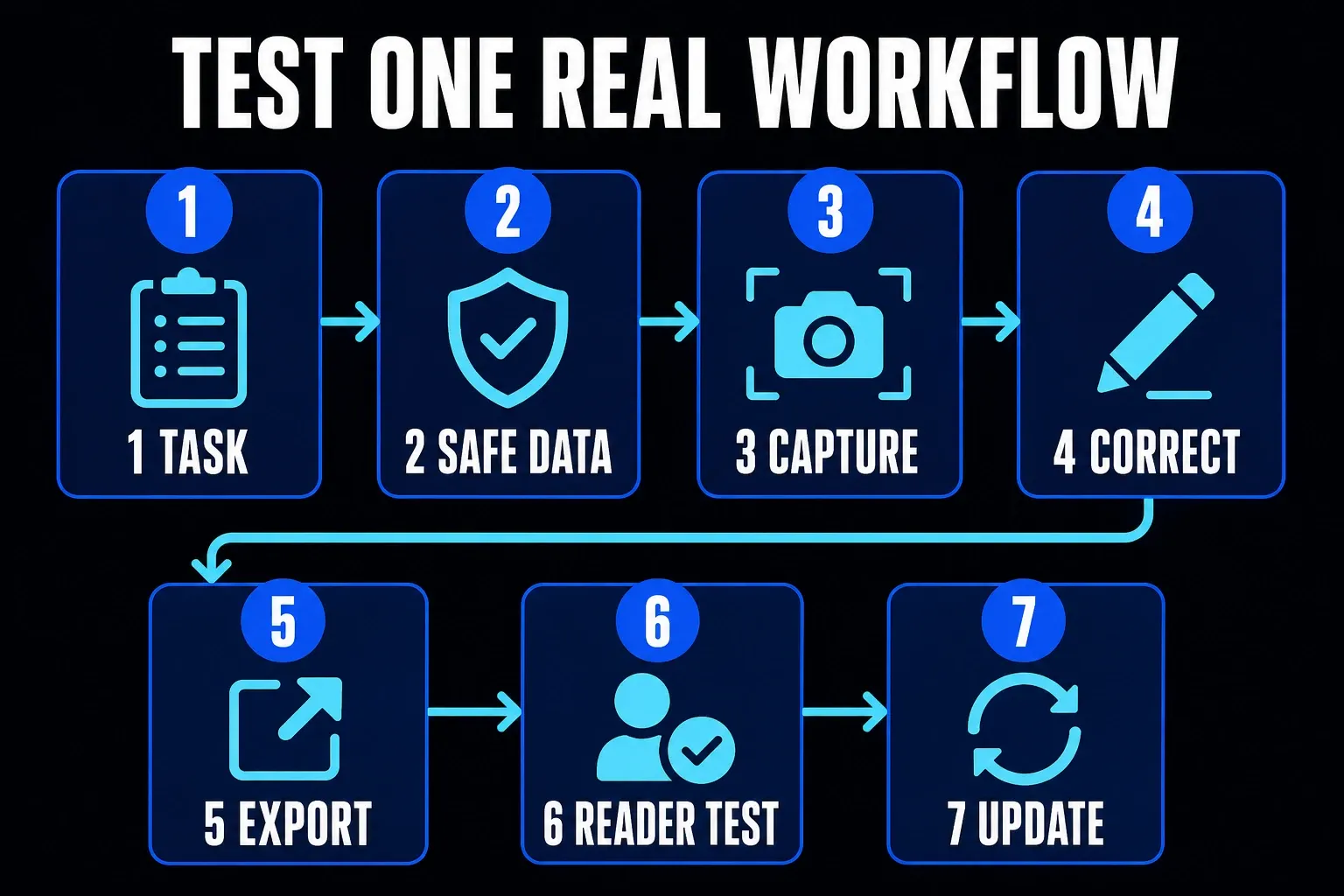
Compare two finalists on the same task and account type, recording authoring minutes, corrections, failed handoffs, reader questions and update work. Include the cost of required seats and export features. A shorter recording time alone is not enough to choose a tool.
Protect private data before capture
Keep real private data out of a trial. Use synthetic content in a staging account, hide revealing bookmarks, close messaging windows and inspect the capture area. A notification can introduce material that was never part of the procedure.
Ask where screenshots, recorded inputs, generated text, deleted steps, thumbnails and backups go. Check who can open drafts, how access is revoked, which retention controls you receive and what any AI provider does with submitted content. Include the destination and synced storage in that review.
With synthetic data, inspect the saved project, available history, share link, embeds and required exports using authorized author and viewer accounts. A blurred preview is not a complete privacy test. For a sensitive real workflow, prevent collection where possible and have an appropriate reviewer approve the exact copy you deliver.
Common selection mistakes
- Choosing by recording speed alone: Count editing, review, delivery and update work as well.
- Using video for every instruction: Motion can help explain a gesture; a field name may only need written steps and one relevant image.
- Publishing generated text unchanged: Capture cannot reliably establish an unstated approval rule or verify a business decision.
- Treating blur as complete protection: Check when it acts, what was already collected and which copies still exist.
- Ignoring the destination: Test search, access, readability and device support where the reader receives the guide.
- Skipping the update test: Changing one source does not necessarily replace every distributed file.
Screen capture documentation tools FAQ
What is a screen capture documentation tool?
It captures screenshots, actions or screen video and helps turn them into reusable instructions. Depending on the product and plan, you may receive an edited image, step guide, interactive walkthrough, video, document export or LMS package.
What is the best tool for creating step-by-step guides?
Shortlist Scribe for generated screenshot-and-text guides, Snagit for detailed image editing, Tango for live browser guidance if your workspace has access, or Folge for local desktop authoring. There is no measured winner here. Test the required capture and output in two tools, including their plan limits.
Can screen capture software create documentation automatically?
Many tools can assemble steps or walkthroughs from captured actions. The output still needs a reviewer to verify the sequence, wording, images, private data, prerequisites, decisions and expected result. Existing-video import is a separate capability from recording new clicks.
Which tool works without uploading screenshots to a cloud service?
Folge documents local capture, editing and file exports on Windows and Mac. Keep external AI, cloud-synced storage and publishing disabled or out of the workflow if files must stay local. Its optional AI step-description feature can send screenshots to the provider you configure.
Should I use screenshots, video, or an interactive tutorial?
Use screenshots with written text for exact controls and reference, video for motion and timing, and an interactive demo for a simulated walkthrough. A simulation is not proof that the learner can complete the real task. Keep multiple formats only if you can maintain them.
How do I test privacy in a documentation tool?
Use synthetic data and authorized test accounts. Check the saved project, available history, share link, embeds and required exports at author and viewer access levels. Confirm retention, deletion and AI-provider terms. Do not use real private records to discover whether a tool hides them.
Do I still need an SOP or knowledge-base system?
Not always. Some capture platforms also manage published guides. Identify the search, ownership, access, approval and version controls you require, then check whether the chosen plan provides them. Use a separate documentation system when those requirements are not met.