
Steam saves F12 screenshots inside its own folder, at Steam\. The quickest way there is View > Recordings & Screenshots in the Steam client, where you pick a shot and open its folder. If you'd rather have new screenshots land in a folder you pick, turn on the external copy in Settings > In Game.
The start of the path changes with your system, and the two numbers in the middle are what trip most people up. Below are the folders for Windows, Mac, Linux and Steam Deck, how to tell which numbered folder is yours, and what to check when F12 does nothing.
Where are Steam screenshots saved?
In the same chain of folders on every system; only the Steam folder at the start moves. Every guide in Google's top ten that gives a path agrees on that chain, five out of five, from How-To Geek's Steam folder guide to IONOS and ScreenSnap.
| System | Default screenshot folder |
|---|---|
| Windows | C:\ |
| Mac | ~/ |
| Linux | ~/ |
| Steam Deck | The Media tab in Gaming Mode; the files sit at the Linux path, which you can browse in Desktop Mode |
If you installed Steam on another drive on Windows, start from that Steam folder instead. Screenshots sit in your Steam user data, not in the game's install folder, so looking next to the game files won't find them. On a Mac, the Library folder is hidden: in Finder, press Shift + Command + G, paste the path and press Return.
What's the fastest way to open the folder?
Let Steam open it for you, so you don't have to work out either number.
- In the Steam client, choose View > Recordings & Screenshots. That's the current name in Valve's Game Recording FAQ; older guides call it View > Screenshots or the Screenshot Uploader.
- Pick the game, then select a screenshot.
- Choose Show on Disk. Depending on your client version, it sits behind the folder icon or in the right-click menu.
Valve rebuilt this viewer when it added game recording, and beta testers complained in July 2024 that Show on Disk had disappeared. Recent guides find it again, but if your build doesn't show it, use the path table above or the external copy below.
On Steam Deck, the same FAQ points to the Media tab in the main menu, which holds both screenshots and clips. To get the files themselves onto another device, switch to Desktop Mode and open the Linux path in the Dolphin file manager.
Which numbered folder is mine?
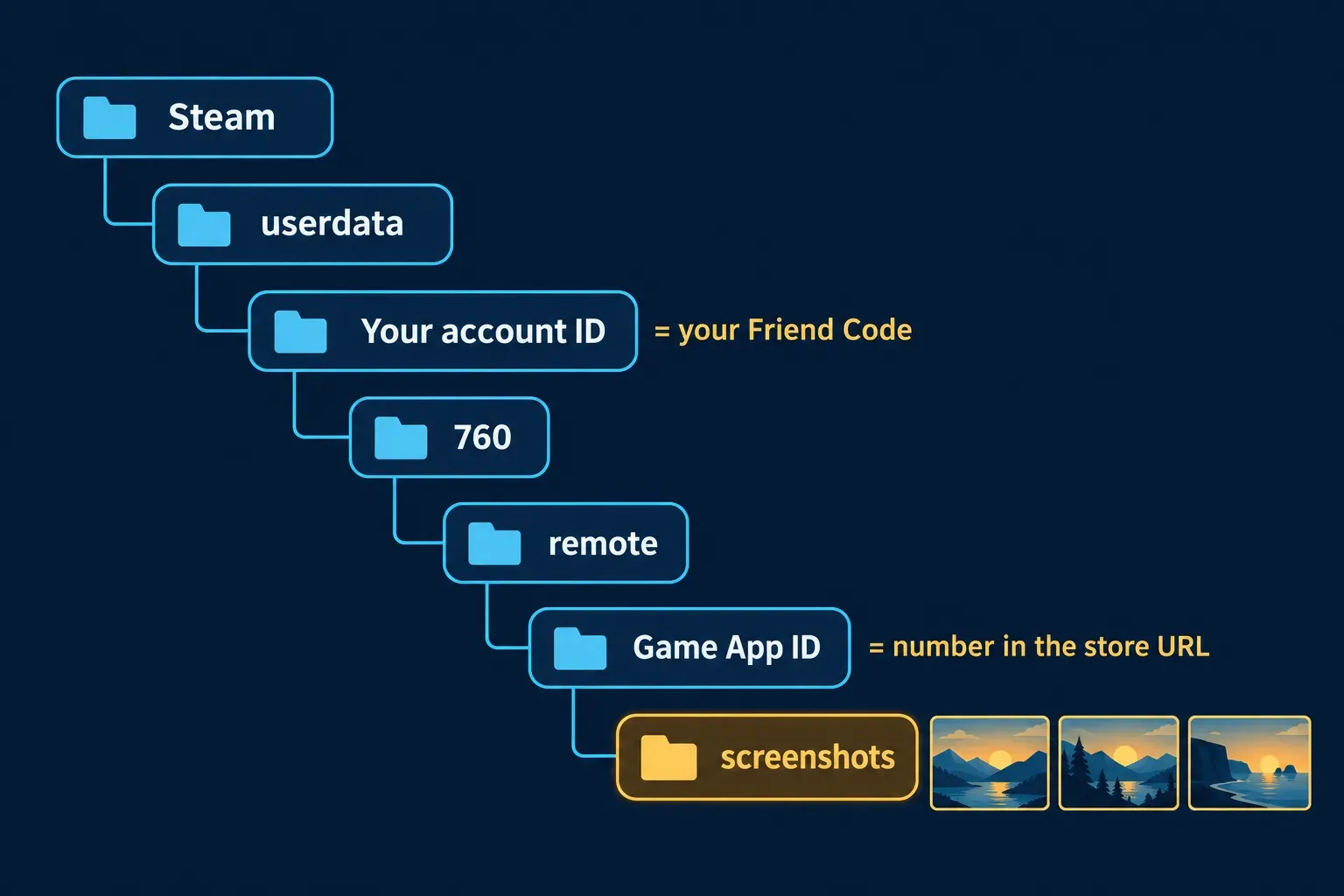
Inside userdata there's one numbered folder for every Steam account that has signed in on that computer. If there's only one, it's yours. If there are several, your number is your Steam account ID, the same number Steam shows as your Friend Code under Friends > Add a Friend.
The folders under 760\remote are games, each named by its App ID. That's the number in the game's store address: Counter-Strike 2's store page ends in /app/730/, so its screenshots are in remote\730\screenshots. Each screenshots folder also has a thumbnails subfolder; the full-size images are the files in screenshots itself.
How do I save Steam screenshots to a folder I choose?
Turn on the external copy. I'd do this on any PC where you take more than the odd screenshot, because the default path is buried behind two numbers and Steam's own copy is compressed.
- Open Steam > Settings and go to In Game.
- Turn on Save an external copy of my screenshots.
- Set the External screenshots folder, for example a Steam folder inside Pictures.
Steam keeps its own copy in userdata for the viewer and uploads, and saves an extra full-quality PNG to your folder, as ScreenSnap's Steam folder guide also describes. Two things catch people out. The setting only applies to new screenshots, so copy older ones across from userdata yourself. And if the folder is on an external drive that's unplugged, Steam skips the extra copy without telling you, so I'd keep it on an internal drive.
The same settings page holds Screenshot shortcut keys, in case you want something other than F12. Valve's screenshot documentation for game developers confirms that F12 is the default and that players change the key and other screenshot settings there.
Why isn't Steam saving my screenshots?
Usually because the overlay isn't running or the key belongs to something else. Work down this list:
- The overlay is off. The F12 hotkey works through the Steam Overlay, so it does nothing when the overlay is disabled. Check Enable the Steam Overlay while in-game in Settings > In Game and in the game's own Properties > General. Some games with anti-cheat block the overlay entirely; for those, use your system's screenshot shortcut.
- The key is taken. If the game or another app already uses
F12, pick a different key under Screenshot shortcut keys. - You pressed Print Screen.
PrtSccaptures are handled by Windows, not Steam. My guide to where screenshots go on Windows 11 covers those folders, and the Mac version coversShift + Command + 3and4. If the key does nothing at all, see Print Screen not working. - Steam's copy is there but the external copy isn't. Check that the folder still exists and the drive is connected, then pick the folder again. If that doesn't help, it's the client rather than your settings: after the July 2024 recording update, beta users reported the external copy stopping with the option still on. Update Steam, and if you're on the beta client, switch back to the stable one.
Where do Steam game recordings go?
Into the same viewer. Valve's Game Recording FAQ says recordings and their timeline show up in the overlay and under View > Recordings & Screenshots, kept in a raw format until you make a clip. For a normal video file, select Clip, set the start and end points, then choose Export Video File from the share options to get an MP4. The folder for raw recordings is set in Settings > Game Recording, and Valve suggests pointing it at a drive with more free space.
When is a desktop capture tool the better choice?
For anything inside a game, I'd stick with F12: it's built in, it files every shot by game and it doesn't need another app running. The Steam hotkey only captures a running game, though. The store page, your library, a launcher error or a settings screen you want to mark up for a guide all need a desktop tool.
For one capture, the Snipping Tool on Windows or the Mac's built-in shortcuts are enough, and my guide to using the Snipping Tool on Windows 11 covers the options. If you write setup guides or bug reports with arrows and numbered steps every week, Snagit saves the repeat work, and my guide to where Snagit keeps its library explains where those captures end up.
The short version
Steam keeps screenshots in userdata\ inside its own folder. Open View > Recordings & Screenshots to reach them without typing a path, match the numbered folders to your Friend Code and the game's store App ID, and turn on Save an external copy of my screenshots if you want full-quality PNGs in a folder of your own.