
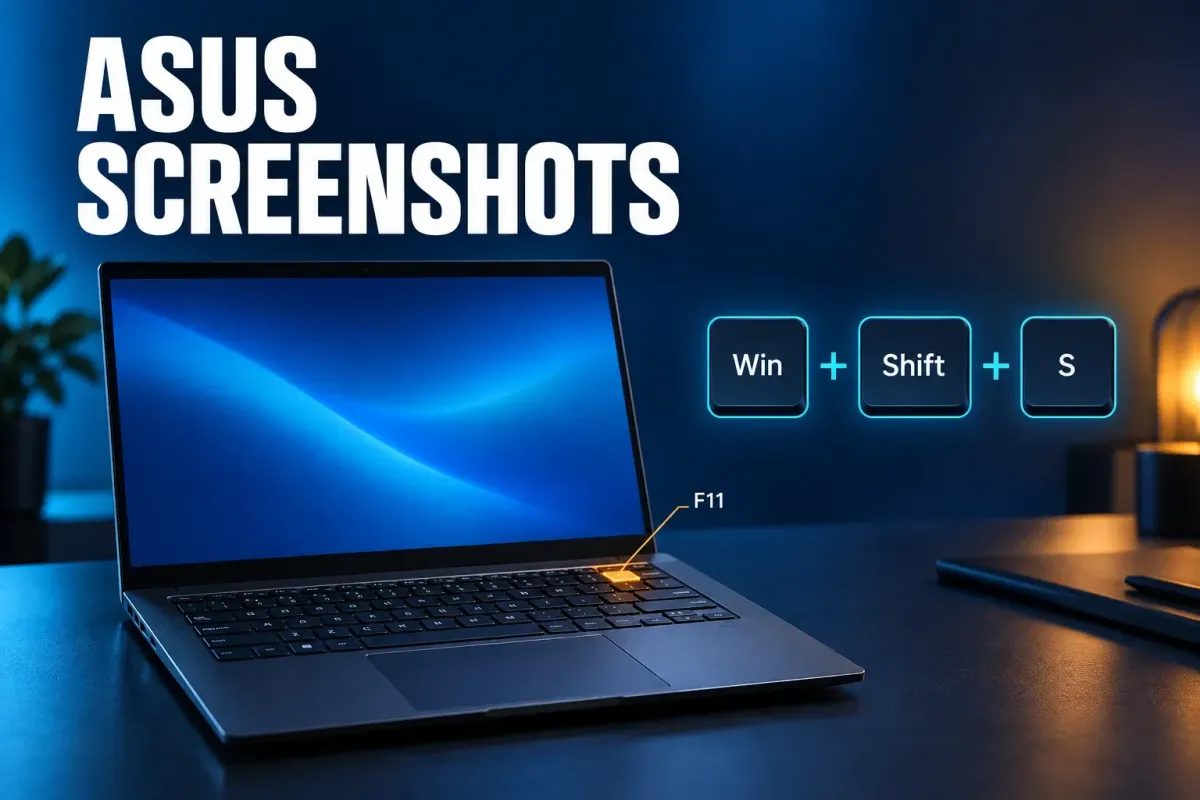
To screenshot on an ASUS laptop running Windows, press Windows + Shift + S and drag over the part of the screen you want. The capture goes to the clipboard, and on Windows 11 the Snipping Tool also saves a copy to Pictures → Screenshots. To save the whole screen as a file in one step, press Windows + PrtSc. Many ASUS keyboards also have a capture key in the top row: ASUS documents it as F11 on its standard layout and F6 on its ROG example. On an ASUS Chromebook, press Ctrl + Show windows.
ASUS laptops add one twist that most screenshot guides skip. The top row ships in hotkey mode, so F11 may open a capture tool instead of acting as F11, and whether PrtSc or an F-key needs Fn depends on that mode. Once you know which mode your keyboard is in, the shortcuts below behave predictably.
Every screenshot shortcut on an ASUS laptop
The Windows shortcuts are the same on a Vivobook, Zenbook, ROG, TUF or ExpertBook. Only the ASUS capture key and the Fn behavior change from model to model.
| Press | What it captures | Where it goes |
|---|---|---|
| Windows + Shift + S | An area, a window, the full screen or a freeform shape | Clipboard; on Windows 11 also Pictures → Screenshots while auto-save is on |
| ASUS capture key (F11 or F6 on the documented layouts) | Opens what ASUS calls the screen capture tool | Depends on the tool that opens |
| Windows + PrtSc | The full screen | A file in Pictures → Screenshots |
| PrtSc | Windows 11: opens the snipping bar. Windows 10: the full screen | Clipboard |
| Alt + PrtSc | The active window | Clipboard only |
| Windows + Alt + PrtSc | The game or app you're in, through Xbox Game Bar | A PNG in Videos → Captures |
| Ctrl + Show windows (Chromebook) | The full screen | The Downloads folder and the clipboard |
If the top row is in hotkey mode, PrtSc and the F-keys may need Fn first. The next two sections cover that.
Find the ASUS capture key on your top row
ASUS puts a screen capture hotkey on many of its keyboards, but not always on the same key. ASUS's keyboard hotkeys introduction shows two current layouts:
- The standard layout, with the UX325JA as the example: the 11th key, F11, "activates screen capture tool," and F12 launches MyASUS. ASUS's general guide to the notebook keyboard lists F11 the same way.
- The ROG layout, with the GA403UU as the example: the capture key moves to F6, right after the fan-mode key.
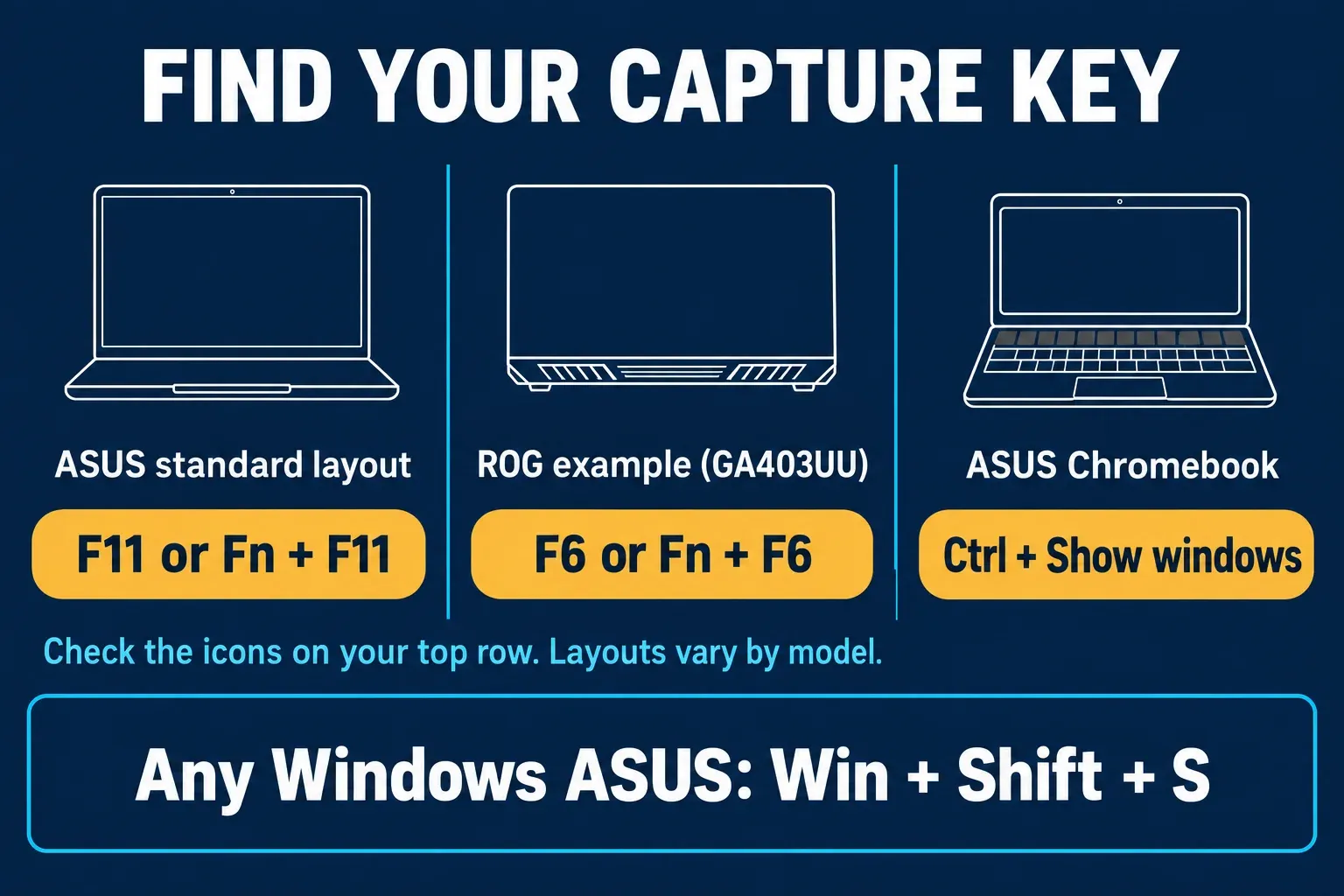
ASUS adds that hotkey features differ between models and points owners to the user manual, so read the small icons on your own F-keys rather than trusting a list, mine included. ASUS's FAQ doesn't name the app this key opens. It only says "screen capture tool." If the key does nothing on your laptop, skip it and use Windows + Shift + S, which works on any ASUS running Windows 10 or 11.
Hotkey mode, Fn + Esc and the Fn lock
This is the part that trips people up. ASUS sets the top row to Hotkeys by default, so the keys run their printed actions, and you hold Fn to get the real F1–F12. If someone switches the row to F1–F12, it's the other way round: F11 is a plain F11 (full screen in a browser), and Fn + F11 runs the capture hotkey. That is why the capture key may need Fn, depending on the mode and keyboard layout.
On models that support switching, Fn + Esc flips between the two modes. ASUS gives a quick way to check: if your Fn key has a small light in its upper-right corner, the model supports it. Not every ASUS has that light.
To set the mode for good, use the ASUS app your laptop ships with:
- MyASUS (consumer laptops such as Vivobook and Zenbook): go to Device Settings → Input Device Settings → Function key. Locked Fn key makes F1–F12 run the hotkeys, and Normal Fn key makes them act as standard function keys. According to ASUS's MyASUS Device Settings page, this needs ASUS System Control Interface V2, and gaming laptops don't support it. If you're looking for the older ASUS Keyboard Hotkey (ATK Package) utility, ASUS has folded that feature into MyASUS.
- Armoury Crate (ROG and TUF): the Armoury Crate FAQ says the function key lock is only available on gaming laptops released in 2024 and later.
- ExpertWidget (ExpertBook and other business models): go to Settings → General, then pick Locked Fn Key or Standard Fn Key. ASUS's ExpertWidget guide also lists Fn + Esc as the quick switch.
What PrtSc does on an ASUS with Windows 11
Plenty of guides still say PrtSc copies the whole screen to the clipboard. On Windows 11 that's out of date. Microsoft's Windows keyboard shortcuts list says PrtSc now opens screen snipping by default, the same bar you get with Windows + Shift + S.
To get the old full-screen copy back, open Start → Settings → Accessibility → Keyboard and turn off Use the Print Screen button to open screen snipping. On Windows 10, PrtSc copies the full screen by default, and the switch under Ease of Access → Keyboard turns it into the snipping shortcut instead.
The same list covers the other two PrtSc combinations. Windows + PrtSc saves the full screen as a file in the Screenshots folder inside Pictures. Alt + PrtSc copies only the active window, so paste it somewhere before you copy anything else.
No PrtSc key, or PrtSc does nothing
You don't strictly need PrtSc. Windows + Shift + S and the ASUS capture key both work without it. Microsoft's Print Screen shortcut page also gives Fn + Windows + Space Bar for devices without a PrtSc button, though whether that works depends on the hardware.
If your keyboard has PrtSc but pressing it does nothing, the key may need Fn. TechSmith's Print Screen troubleshooting advice for laptops is to press Fn + Esc to turn off the function lock and then try PrtSc again, which matches how ASUS keyboards switch modes.
ROG and TUF gaming laptops
Gaming models are where a single shortcut list is most likely to mislead you. ASUS's ROG example puts the capture key on F6, but its own note says hotkeys vary, so a TUF or an older ROG may differ. Check the icons. The MyASUS Fn lock doesn't apply to gaming laptops, so use Fn + Esc if your Fn key has the light, or Armoury Crate on a 2024 or newer model.
For a capture inside a game, press Windows + Alt + PrtSc. Microsoft's Xbox Game Bar guide says the image is saved as a PNG in the Captures folder, which you'll find under Videos rather than Pictures.
Copilot+ ASUS laptops: Perfect screenshot
Some recent ASUS laptops are Copilot+ PCs, including the Snapdragon-powered Vivobook S 15 (S5507), which ASUS calls its first Copilot+ PC, and the Zenbook A14 (UX3407). On a Copilot+ PC, the Windows 11 Snipping Tool adds two features that other PCs don't get. Perfect screenshot tightens the capture area around the content, which saves a crop afterwards. Color picker copies the exact color value of anything on screen.
Everything else is the same as on any Windows 11 laptop. Microsoft's Snipping Tool guide lists the four modes (rectangle, window, full screen and freeform), Alt + D for a 1–5 second delay, and Windows + Shift + R to record a video clip. My list of Snipping Tool keyboard shortcuts covers the rest of the bar.
ASUS Chromebook screenshots
An ASUS Chromebook runs ChromeOS, so none of the Windows shortcuts apply. ASUS's Chromebook keyboard guide lists these for US keyboards:
- Ctrl + Show windows captures the full screen.
- Shift + Ctrl + Show windows lets you drag over part of the screen, or pick another mode from the toolbar.
- Power + Volume down works on Chromebook tablets.
Google's Chromebook screenshot help adds the Screenshot key on Chromebooks that have one, and Ctrl + Shift + F5 on an external keyboard without a Show windows key. Screenshots go to the Downloads folder and are copied to the clipboard. You can choose another folder from the settings in the screen capture toolbar. I cover the toolbar in more detail in how to screenshot on a Chromebook.
Without a keyboard: ASUS 2-in-1s and touch
On a Windows ASUS 2-in-1 folded into tablet mode, whether a button combination takes a screenshot depends on how the hardware buttons were set up. Microsoft's hardware button behavior table maps Power + Volume Up to a screenshot on devices built to the Windows 10 button layout. On that layout Power + Volume Down opens the Ctrl + Alt + Del screen instead, so the Power + Volume Down advice some guides give for ASUS tablets doesn't apply to a Windows one.
The touch route doesn't depend on buttons. Open Start, search for Snipping Tool, set a delay, and get the screen ready before the countdown ends. If ScreenXpert is installed on your ASUS, its Control Center can hold Print Screen and Snipping Tool buttons. ASUS's ScreenXpert introduction has you open ScreenXpert and go to Settings → Control Center to add them, and it notes that the available functions vary by model. My Snipping Tool walkthrough for Windows 11 covers the modes and the delay step by step.
Where ASUS screenshots are saved
- Windows + PrtSc and Fn + Windows + Space Bar: a file in Pictures → Screenshots.
- Windows + Shift + S, and PrtSc on Windows 11: the clipboard. The Snipping Tool also saves each snip in Screenshots while auto-save is on, and you can change that in the Snipping Tool settings.
- Alt + PrtSc, and PrtSc on Windows 10: the clipboard only.
- Windows + Alt + PrtSc in a game: Videos → Captures.
- ASUS Chromebook: Downloads, unless you've picked another folder.
If you back up to OneDrive, note that Microsoft has removed the separate "Save screenshots to OneDrive" setting. Screenshots are backed up only if your Pictures folder is part of OneDrive. My guide to where screenshots go on Windows 11 traces every route, and the fixes for screenshots that aren't saving help when the Screenshots folder stays empty.
When an ASUS screenshot doesn't work
One owner of a TUF Gaming F15 described the full version of this problem in a Microsoft Q&A thread. They said none of the usual shortcuts worked, their laptop had no "f lock," they couldn't find the setting to stop snipping, and uninstalling the Snipping Tool app changed nothing. I'd go through these checks in order:
- Check the hotkey layer. Try the key on its own, then with Fn. If your Fn key has a light, press Fn + Esc and try again.
- Check the PrtSc setting. On Windows 11, PrtSc opening a snipping bar is the default, not a fault. Use Windows + PrtSc for a file, or turn the switch off under Accessibility → Keyboard.
- Check for a paste. Open Paint and press Ctrl + V. Several shortcuts copy without saving a file, so the screenshot may already be on the clipboard.
- Check that the Snipping Tool is there. Windows + Shift + S and the Windows 11 PrtSc bar both open it, so keep it installed and working. The Snipping Tool fixes cover updating it and, as a last resort, reinstalling it.
- Check who owns PrtSc. The same TechSmith Print Screen article says other programs can take the key, most often OneDrive and Dropbox, and that Windows 11 updates can bind it to the Snipping Tool.
- Check the result. A capture that comes out black is a separate problem with its own fixes for black screenshots.
If PrtSc is still dead after that, my Print Screen troubleshooting guide goes deeper, and there's a broader page for screenshots that fail in general.
Snagit on an ASUS laptop
The usual friction is the hotkey. Snagit can use PrtSc as its capture key, Windows 11 wants the key for snipping, and OneDrive or Dropbox may have claimed it already. TechSmith says it released a fix for the Windows 11 binding in Snagit 2023.2.1, and that Snagit 13.0.2 and later can override a hotkey another program uses. The setting is under File → Capture Preferences → Hotkeys: Allow Snagit to override other hotkey assignments. The Snagit Print Screen setup guide walks through it, including the laptop Fn-key check.
On a Snapdragon ASUS such as the Vivobook S 15 or Zenbook A14, check one more thing. TechSmith's ARM compatibility article says Snagit runs on Windows 11 ARM devices through x64 emulation, with no native ARM version planned, and that the printer driver isn't supported. TechSmith's current system requirements ask for Windows 11 on ARM version 23H2 or later, and my Snagit system requirements page has the full list.
For a quick capture, Windows + Shift + S or the ASUS key is enough. Snagit earns its place when you need a scrolling capture of a long page, want to add arrows and steps (see annotating a screenshot), or have to redact personal information before you share an image. If you're still choosing a tool, the roundup of screenshot software for Windows puts Snagit next to the free options.