
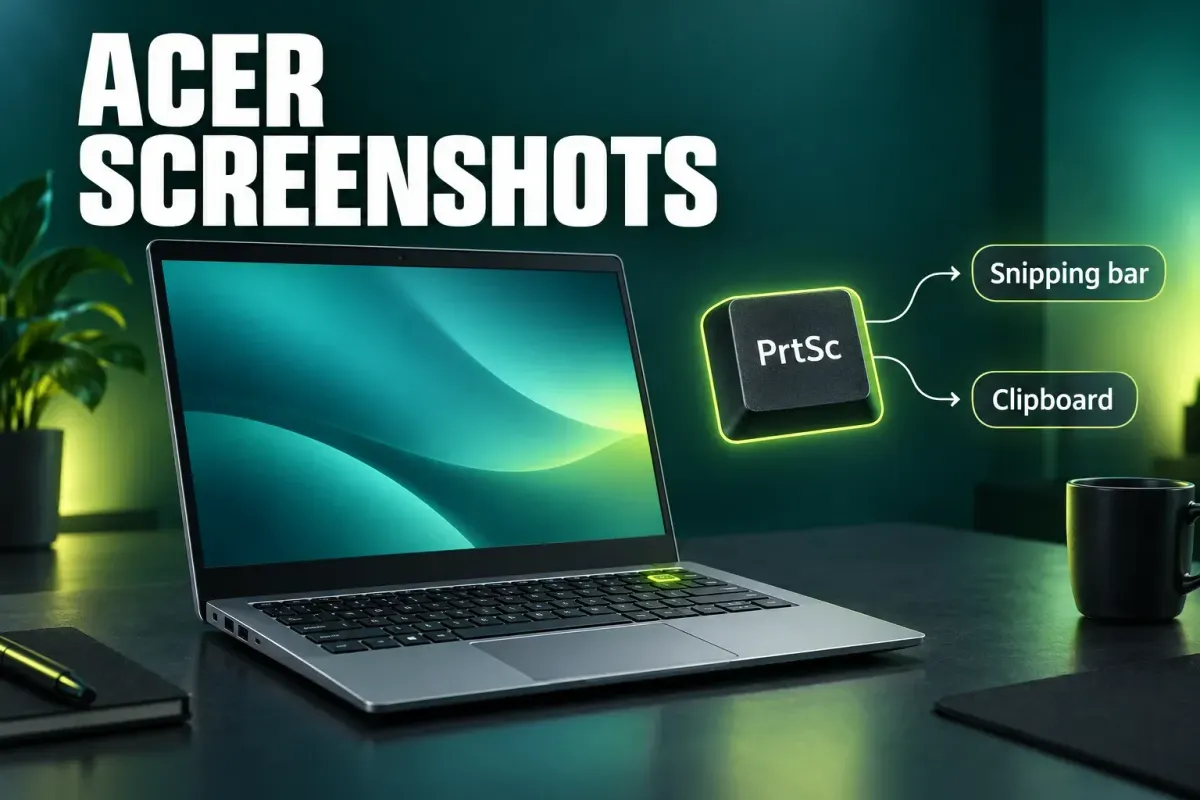
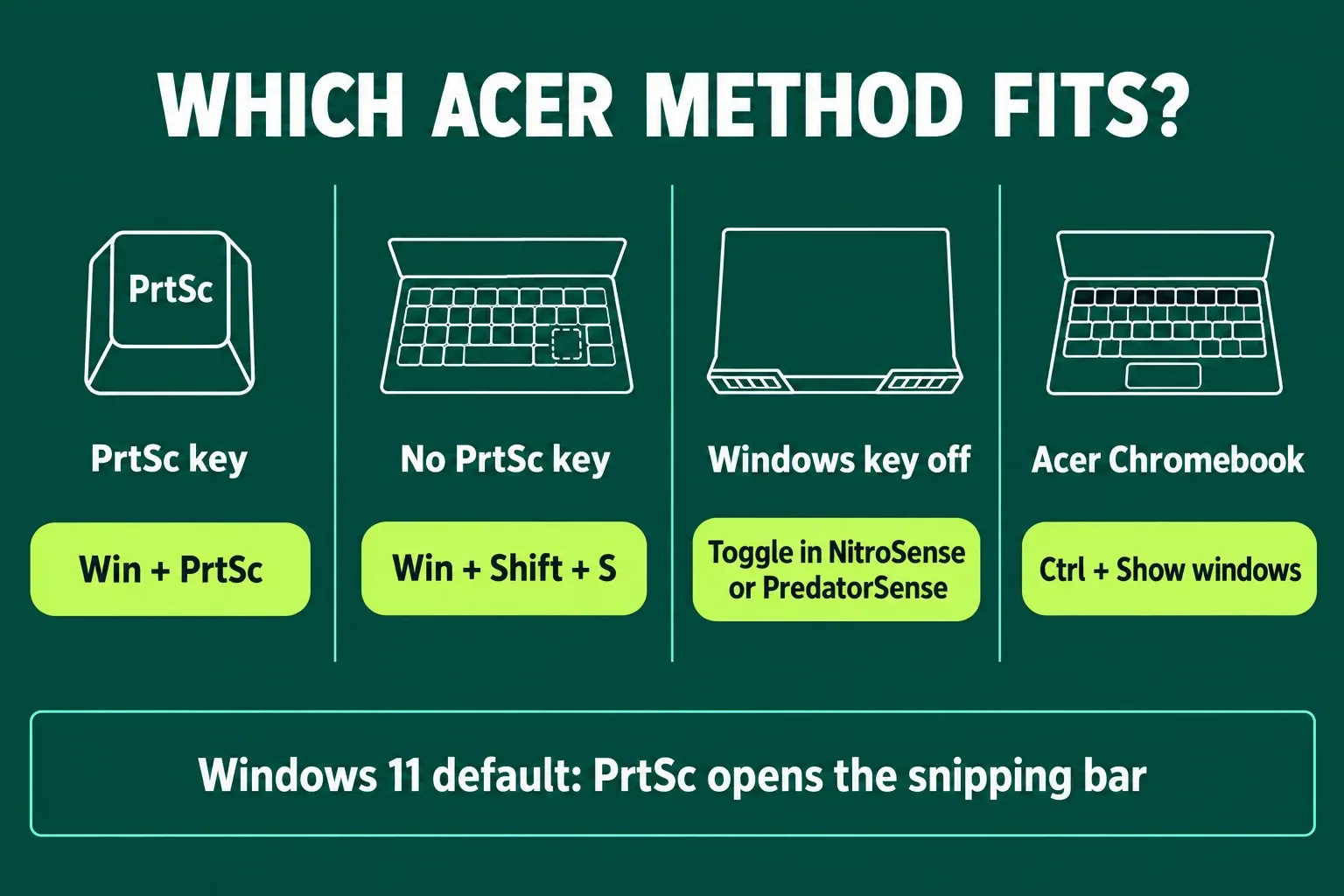
On any Acer laptop with Windows, Windows + Shift + S is the shortcut to learn first: drag over the area you need, then paste it anywhere with Ctrl + V. When you want the entire screen saved without pasting anything, use Windows + PrtSc. Acer's Windows 11 screenshot article says that copies the image to the clipboard and saves it to Pictures → Screenshots. If your Acer has no PrtSc key, as on the Aspire Lite models, Windows + Shift + S still works. On an Acer Chromebook, press Ctrl + Show windows.
The key that trips people up is PrtSc itself. Many screenshot guides still say it quietly copies the screen to the clipboard. On a current Windows 11 Acer it opens the Snipping Tool's selection mode instead, unless that has been switched off, so the same key can seem to do two different things on two different laptops. Work out which behavior yours has and everything else falls into place.
Acer screenshot shortcuts at a glance
These are Windows shortcuts, so they're the same on an Aspire, Swift, Nitro or Predator, and on an Acer desktop with whatever keyboard is plugged in. What changes from model to model is the keyboard: whether there's a PrtSc key, whether it needs Fn, and whether the Windows key is switched on.
| Press | What it captures | Where it goes |
|---|---|---|
| Windows + Shift + S | An area, a window, the full screen or a freeform shape | Clipboard; on Windows 11 also Pictures → Screenshots while Snipping Tool auto-save is on |
| Windows + PrtSc | The full screen | Clipboard and a file in Pictures → Screenshots |
| PrtSc | Windows 11 default: opens the same selection mode as Windows + Shift + S. Windows 10, or with the switch off: the full screen | Clipboard (plus Screenshots when the Snipping Tool saves the snip) |
| Alt + PrtSc | The active window | Clipboard only |
| Windows + Alt + PrtSc | The game or app in front, through Xbox Game Bar | A PNG in Videos → Captures |
| Ctrl + Show windows (Chromebook) | The full screen | Downloads and the clipboard |
If PrtSc does nothing at all, it may need Fn, or another app may have claimed it. Both are covered below.
Why PrtSc seems to do something different every time
On Windows 11, PrtSc opens screen snipping by default. The screen dims, the Snipping Tool's selection mode appears, and you pick an area, a window or the full screen. Microsoft's list of Windows keyboard shortcuts describes that default and shows where to change it: Start → Settings → Accessibility → Keyboard, then set Use the Print Screen button to open screen snipping to Off. With it off, PrtSc goes back to copying the whole screen to the clipboard, and the image only shows up when you paste it somewhere.
Windows 10 starts from the opposite side. PrtSc copies the full screen, and the Print Screen shortcut toggle under Settings → Ease of Access → Keyboard makes it open snipping instead. So two Acer owners can press the same key and describe two different results. The setting decides, not the laptop.
A third possibility is that an app has taken the key. TechSmith's note on Print Screen hotkey conflicts says some programs can assign PrtSc to themselves and names OneDrive and Dropbox as the common ones. Screenshot apps, Snagit included, can do the same.
My advice: leave the Windows 11 default on. It lets you choose the area every time, and Windows + PrtSc already covers the "just save the whole screen" case.
Find PrtSc on your Acer, and when you need Fn
Look for the label rather than a fixed spot. Acer's own support articles write the key as PrtScr, PrtSc or print screen, and some Acer laptops don't have one at all (next section). When PrtSc shares a key with another function and is printed as its secondary marking, hold Fn while you press it. TechSmith gives the same advice for laptops in general.
Newer Acer notebooks add a fn-lock, and it's worth knowing which way round it works. If your Esc key shows "fn" and a padlock, Acer's fn-lock article says the feature is off by default, so F1–F12 act as normal function keys. Press fn + Esc to turn it on, and the F-keys run their media controls, such as volume and brightness, instead. Press fn + Esc again to turn it off, or hold fn to override it for a single press. Ctrl, Alt, Shift or the Windows key held with an F-key always gives you the standard function.
For screenshots, the practical point is that fn-lock changes F1–F12, not a PrtSc key of its own. If your F-keys have suddenly started changing the volume, fn-lock has probably been switched on with fn + Esc. If PrtSc itself does nothing, check the Windows 11 switch and the app conflict above first.
No Print Screen key: Aspire Lite and other models
Some Acer laptops ship without a PrtSc key. Acer's article on screenshots without a Print Screen key names the Aspire Lite models and points to the Snipping Tool. You have three ways in:
- Windows + Shift + S. Your screen dims as the selection mode opens. Pick a snip type (rectangular, freeform, window or full screen) and make the capture.
- Start → Snipping Tool. Type "snipping tool" in the search box and open the app. This route works even when a shortcut doesn't, and inside the app Alt + D delays the capture by 1–5 seconds, which helps with menus that close as soon as you press a key.
- Fn + Windows + Space Bar. For keyboards that lack the key, Microsoft's Print Screen shortcut page offers this combination as a possible substitute and sends you to Pictures → Screenshots in File Explorer for the result. It depends on the hardware, so it's worth one try rather than a long search.
Acer's article finishes by telling you to paste the snip into Paint and save it there. On current Windows 11 you can usually skip that step: Microsoft's Snipping Tool guide says each snip is saved to your Screenshots folder automatically, and the app's settings let you change that folder or turn auto-save off. If auto-save is off on your laptop, Acer's Paint step still works. My guide to the Snipping Tool on Windows 11 covers the app in full, and the Snipping Tool keyboard shortcuts are handy on a keyboard with no PrtSc.
Windows key not working on an Acer Nitro or Predator
Acer's gaming laptops can switch the Windows key off so a stray press doesn't pull you out of a game. Acer's NitroSense instructions say the Windows and Menu keys are on by default on a Nitro and can be turned off with a toggle in the app's settings. Predator models have the same Windows and menu key toggle in PredatorSense.
With that toggle off, every shortcut that starts with the Windows key stops working, including Windows + Shift + S, Windows + PrtSc and the Game Bar shortcut. To turn it back on:
- Press the NitroSense or PredatorSense key, or open the app from the Start menu.
- Select the Settings icon in the top-right corner.
- Switch on the toggle next to Windows and menu key. On a Nitro it shows red when the keys are on and black when they're off. On a Predator, close PredatorSense afterwards; Acer says that saves the change.
Need a capture before you change anything? PrtSc doesn't use the Windows key, so on Windows 11 it still opens the selection mode, and Alt + PrtSc still copies the active window. You can also click Start and open the Snipping Tool with the mouse. The same workarounds help if the Windows key is physically damaged.
Where Acer screenshots are saved
- Windows + PrtSc: the clipboard and a file in This PC → Pictures → Screenshots.
- Snips (Windows + Shift + S, or PrtSc with the Windows 11 default): copied to the clipboard and, while Snipping Tool auto-save is on, filed in Screenshots too.
- Alt + PrtSc, or PrtSc in copy mode (Windows 10, or the Windows 11 switch off): nothing is written to disk. The image waits on the clipboard until you paste it or copy something else.
- Game Bar (Windows + Alt + PrtSc): a PNG file in Videos → Captures, according to Microsoft's Xbox Game Bar instructions.
- Fn + Windows + Space Bar: Pictures → Screenshots.
- Acer Chromebook: Downloads, unless you've chosen another folder.
Older guides describe a OneDrive setting that saves screenshots for you. Microsoft has retired the Save screenshots to OneDrive option. To keep screenshots backed up, Microsoft says your Pictures folder needs to be part of OneDrive. If a capture still seems to vanish, follow the folder trail in where screenshots end up on Windows 11, or work through the fixes for screenshots that aren't saving.
Acer Swift Copilot+ laptops and Snagit on ARM
On a Copilot+ PC, the Snipping Tool adds two extras, according to Microsoft's Snipping Tool guide: Perfect screenshot, which adjusts the capture area to frame the on-screen content tightly, and a color picker. Acer's Copilot+ laptops come with two kinds of processor, and the difference matters once you install desktop screenshot apps:
- Swift 14 AI, model SF14-11 or SF14-11T: Acer's first Copilot+ PC. The launch announcement lists Snapdragon X Elite and X Plus processors and Windows 11 for ARM64.
- Swift Go 14 AI, model SFG14-01: Snapdragon X Plus, per Acer's Copilot+ lineup expansion.
- Swift 14 AI, model SF14-61 or SF14-61T: AMD Ryzen AI 300, announced in the same release. That's a standard x64 processor.
Because two Swift 14 AI models share a name but not a chip, go by the model number or the processor listed under Settings → System → About. On the Snapdragon models, Snagit runs through x64 emulation. TechSmith's ARM compatibility details say it works on Windows 11 ARM devices except for the printer driver, with no native ARM build planned, and the Snagit system requirements list Windows 11 on ARM version 23H2 or later. The Windows shortcuts in this guide are part of Windows itself, so they don't change with the chip.
Acer Windows tablets and 2-in-1s
With its keyboard attached, an Acer 2-in-1 takes the same shortcuts as any Acer laptop. Without it, use the hardware buttons. Acer's Print Screen article gives Windows key + Volume Down for Windows tablets, and an older Acer tablet article adds that you hold both for about a second and the image goes to the clipboard. That combination needs a hardware Windows button. On a tablet without one, try Power + Volume Up, which Microsoft's hardware button guidance lists as the screenshot combination for devices built on its Windows 10 button layout.
Acer Chromebook screenshots
ChromeOS has its own shortcuts, and an Acer Chromebook uses the same ones as any other Chromebook. From Google's Chromebook keyboard shortcuts and its screenshot help:
- Ctrl + Show windows: the full screen.
- Shift + Ctrl + Show windows: opens screen capture, where you drag a partial area or choose a window.
- Screenshot key: press it if your Chromebook's keyboard has one.
- Ctrl + Shift + F5: opens screen capture from a plugged-in keyboard that has no Show windows key.
- Power + Volume down: in tablet mode. Acer's tablet-mode article notes that the keyboard is disabled when a convertible Chromebook folds into a tablet, and says to hold both buttons for about a second.
Each Chromebook screenshot lands in Downloads and is also placed on the clipboard. To pick a different folder, press Shift + Ctrl + Show windows, select Settings in the capture bar, then choose Select folder, as Google's screenshot help explains. My Chromebook screenshot guide goes further into ChromeOS capture.
When an Acer screenshot doesn't work
- PrtSc opens a selection bar instead of copying: that's the Windows 11 default. Switch it off under Accessibility → Keyboard if you prefer the old behavior.
- PrtSc does nothing: hold Fn if PrtSc is the second label on its key. Then check whether OneDrive, Dropbox or a screenshot app has taken the key. My Print Screen troubleshooting guide works through the rest.
- No Windows shortcut works on a Nitro or Predator: the Windows key is probably switched off in NitroSense or PredatorSense.
- The F-keys change volume or brightness: fn-lock is on. Press fn + Esc.
- Windows + Shift + S does nothing: the Snipping Tool itself may be the problem; see when the Snipping Tool isn't working.
- The capture comes out black: start with the black screenshot fixes.
- Something else: the general screenshot troubleshooting checklist covers the remaining causes.
Snagit on an Acer laptop
If screenshots are a regular part of your work, Snagit adds what the built-in tools leave out: scrolling capture for long pages, arrows and callouts for annotating a screenshot, and editing controls for redacting personal information with a fully opaque cover and a checked flattened export. It can also take over PrtSc, which I'd only do if you no longer want the Windows selection mode on that key; my note on making PrtSc open Snagit explains the setup.
If another app holds the key, TechSmith's Print Screen article gives the fix: in Snagit, go to File → Capture Preferences → Hotkeys and turn on Allow Snagit to override other hotkey assignments. The same article says a Windows 11 update could bind PrtSc to the Snipping Tool, and that TechSmith released a fix for this in Snagit 2023.2.1. Check the Snagit system requirements before you install, especially on a Snapdragon Swift, and if you're still choosing a tool, my roundup of the best screenshot software for Windows compares the options.