
If your screenshot isn’t working, first try another built-in capture method on the desktop or Home Screen. Finish the capture and open the new image. When that one works, look into the original shortcut or app next. If a preview appears but no file turns up, check where that method saves or copies images.
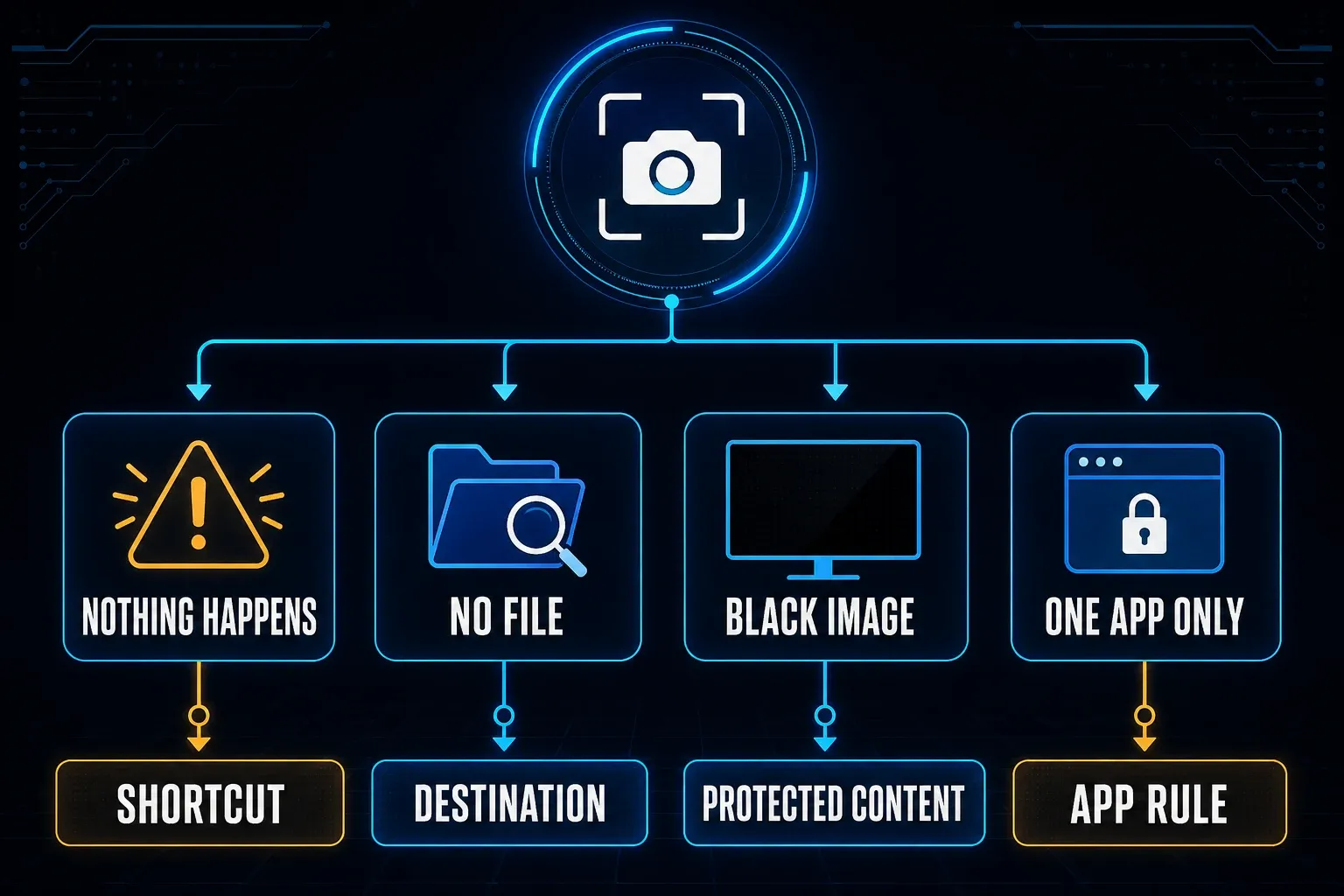
A black image calls for a different check: compare the failing app with an ordinary screen. Some content is protected, but black output alone doesn’t prove a restriction caused it. Pick a test from the table, then follow the section for your device below.
I checked these instructions against Microsoft, Apple and Google documentation on September 19, 2026. Menu names vary by operating-system version, device maker and organization policy.
Find the failed step before changing settings
| What you see | What to investigate | First test |
|---|---|---|
| No response to the shortcut or buttons | Input, shortcut assignment or capture app | Open the built-in capture control without that shortcut |
| A preview appears, but no file is found | Clipboard output, save settings or destination | Check the destination for that method; on a computer, try pasting a fresh capture |
| The saved image is black or blank | Content protection or a capture/app fault | Capture the desktop or Home Screen for comparison |
| Only one app fails | That app’s restrictions, permissions or behavior | Try an ordinary screen with the same capture method |
| Several methods fail on ordinary content | A broader device, app, storage or policy issue | Save your work, restart once and repeat a controlled capture |
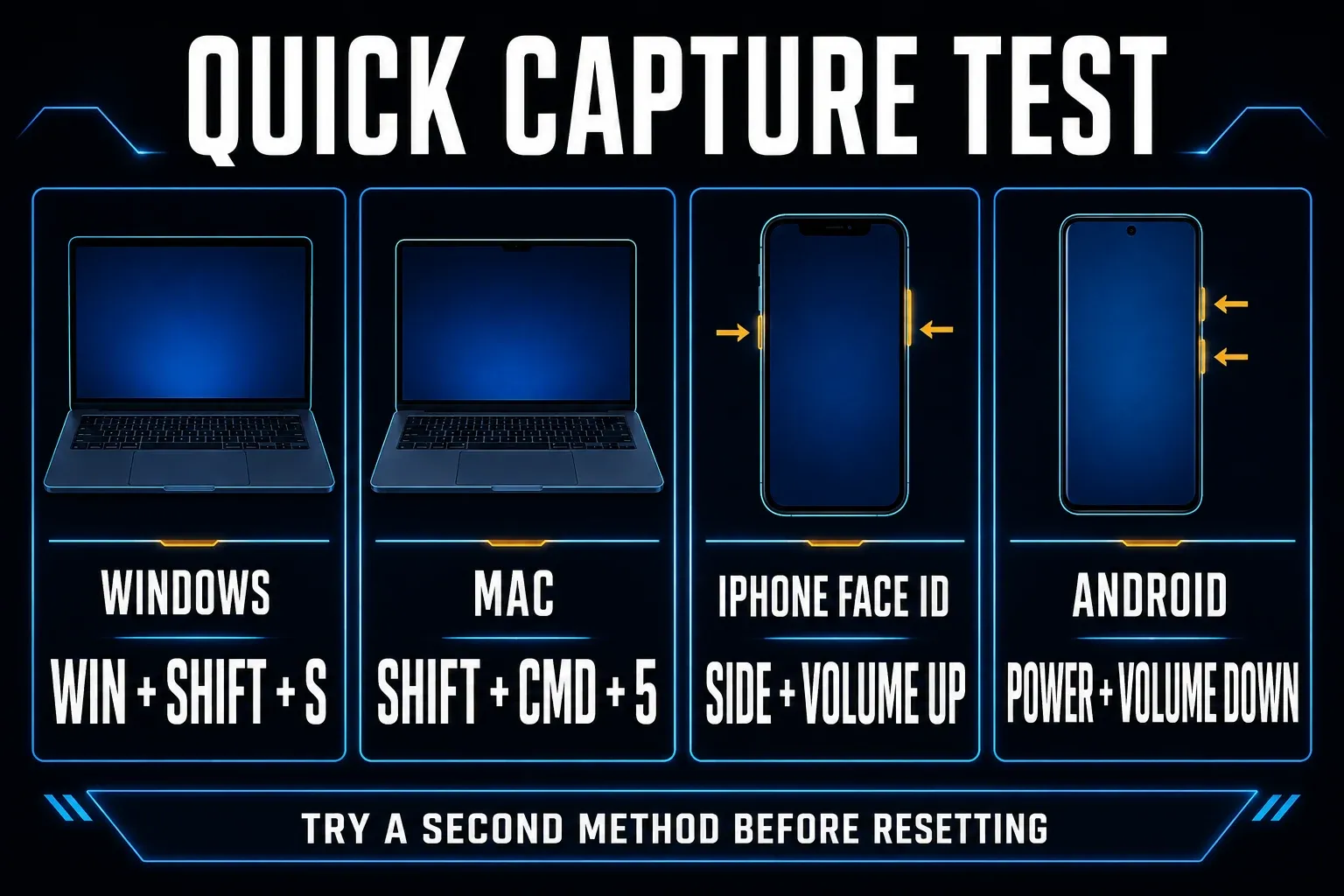
Use a second built-in capture method
Pick a different route from the one that failed. Opening a toolbar or seeing the screen dim isn’t enough, so finish the selection and check the image it produces. The symptom diagram suggests where to start, but it doesn’t confirm a cause.
- Windows: open Snipping Tool from Start, choose image capture and New, then drag a small rectangle over ordinary desktop content. Try Windows + Shift + S if you had been using the app directly.
- Mac: open Screenshot through Spotlight, choose Capture Selected Portion, set the area and click Capture. Shift + Command + 5 opens the same controls.
- iPhone or iPad: use the button combination for your model, listed below. If the buttons fail, set up the AssistiveTouch Screenshot action.
- Android: press power and volume down together. If that fails, try your manufacturer’s documented on-screen Screenshot control.
Test on content you’re allowed to capture, such as an empty desktop or a Home Screen without private notifications, and keep that same screen while you compare methods. One successful capture rules out a total failure, but it doesn’t explain other problems in the original app.
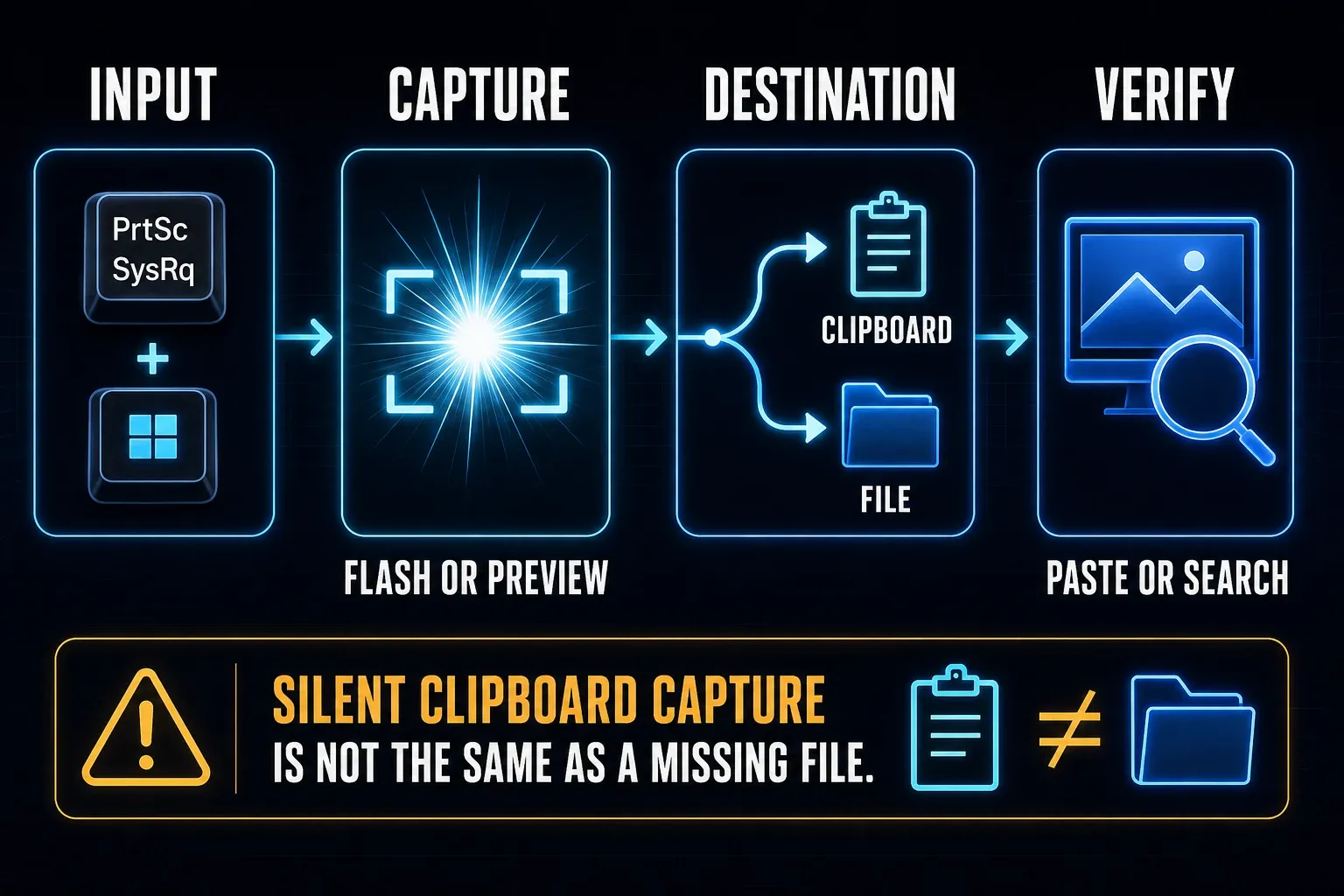
When the screenshot happened but you cannot find it
On Windows, Print Screen can open a selection overlay or copy an image, depending on how it’s assigned, as Microsoft describes in its Windows keyboard shortcuts. Finish any selection, then paste into a blank Paint document with Ctrl + V and make sure the pasted image is the new capture, not an older clipboard item. Windows + Print Screen is a separate route that saves a file; Microsoft directs you to Pictures > Screenshots in File Explorer. Snipping Tool has its own save settings.
On Mac, check Options > Save to in Screenshot. Adding Control to a screenshot shortcut copies the result to the clipboard instead of saving a file. On iPhone and iPad, look in Photos under Screenshots; current Photos versions group this under Collections > Media Types. On Android, check the Screenshots folder in your photo or gallery app. In Google Photos, use Collections > On this device > Screenshots.
Take a fresh image of something easy to recognize, such as a short test note, then open it and check its contents and time. Dismissing a thumbnail isn’t the same as choosing Delete, and not every shortcut creates both a clipboard image and a saved file.
Fix screenshot capture on Windows 11
- Press Windows + Shift + S, choose a still-image mode and complete a small desktop selection. Verify the new capture in Snipping Tool or by pasting it into Paint.
- If the image is correct but your original Print Screen shortcut still fails, inspect that key’s assignment. In Settings > Accessibility > Keyboard, check Use the Print Screen button to open screen snipping. On compact keyboards, check the keyboard maker’s Fn instructions.
- If the shortcut fails, open Snipping Tool from Start, choose image capture and New, then complete the selection. A toolbar appearing without a resulting image is still a capture failure.
- Save your work and restart Windows. Check for supported Windows and Snipping Tool updates, then repeat the same capture.
- If Snipping Tool still fails, open Settings > Apps > Installed apps > Snipping Tool > More (...) > Advanced options. Try Repair when available and retest. Read any Reset warning and back up needed work before considering Reset. These options are not available for every app.
Microsoft’s Snipping Tool instructions cover capture modes, manual saving and automatic-save settings. If you can paste a fresh image but cannot find a file, check those settings or save the capture yourself. The app repair guide puts Repair before Reset, but you don’t need to repair the app when the only issue is where a successful capture went.
Match the check to the symptom. A Print Screen key problem needs a keyboard check, a Snipping Tool capture failure needs an app check, and Screenshots not saving in Windows require a destination check. For Black screenshot output, compare with ordinary content before you change graphics settings.
Fix screenshot capture on Mac
- Open Screenshot through Spotlight or press Shift + Command + 5. Choose Capture Selected Portion, set the area, then choose Options > Save to > Desktop and click Capture.
- Try Shift + Command + 3 for the full screen, or Shift + Command + 4 and drag a selection. Release the mouse or trackpad button to finish the selected-area capture.
- If the app works but shortcuts fail, open System Settings > Keyboard > Keyboard Shortcuts > Screenshots. Check that the required shortcuts are enabled and assigned to the keys you are using.
- Check for conflicting shortcuts. Save your work and restart once if the failure persists; check for supported macOS updates before repeating the test.
Apple’s Mac Screenshot guide documents these controls, and its shortcut troubleshooting advice covers conflicts. If Apple’s tool works but a third-party capture app doesn’t, check that app under System Settings > Privacy & Security > Screen & System Audio Recording. Grant access only to an app you trust; Apple explains the screen-recording permission controls. This permission check isn’t a universal fix for built-in screenshots.
Fix screenshots on iPhone or iPad
For an iPhone with Face ID, press the side button and volume up together, then quickly release both. An iPhone with a Home button uses Home plus the side button, or Home plus the top button on older models. An iPad without a Home button uses the top button and either volume button. An iPad with Home uses the top button and Home. Quickly release the pair rather than holding it.
If one button is unreliable, try an on-screen capture on iPhone or iPad:
- Open Settings > Accessibility > Touch > AssistiveTouch and turn it on.
- Choose Customize Top Level Menu, tap an icon and assign Screenshot to it.
- Return to the Home Screen, tap the floating AssistiveTouch button and choose Screenshot. Open the saved image in Photos to confirm it worked.
Apple documents AssistiveTouch menu customization. When an on-screen capture works, that points you back to button timing or hardware. If both routes fail on the Home Screen, save your work, restart and check for supported iOS or iPadOS updates. If the device shows a storage or restriction warning, look into that warning before you try again.
Fix screenshots on Android
Google’s Android screenshot instructions start with power plus volume down. If that fails, Google suggests holding power for a few seconds and choosing Screenshot on devices that offer it. If your phone has neither route, use the manufacturer’s instructions for your exact model. Do not assume every phone has a Screenshot tile or the same gesture.
- Try power plus volume down on the Home Screen, then check the Screenshots collection in your photo app.
- Try the manufacturer’s documented on-screen capture method and inspect the new image.
- Save your work and restart the phone if neither route succeeds.
- Check any storage warning. Saving a new camera photo can help identify a broader saving problem, but success there does not prove the screenshot destination works.
- Check for supported Android and system-app updates. Retest the same screen and record the result.
If both capture routes still fail, contact the phone maker with the exact error and model. Do not clear Android system-app data based on generic instructions: capture components and settings differ between manufacturers.
If screenshots fail in one app or turn black
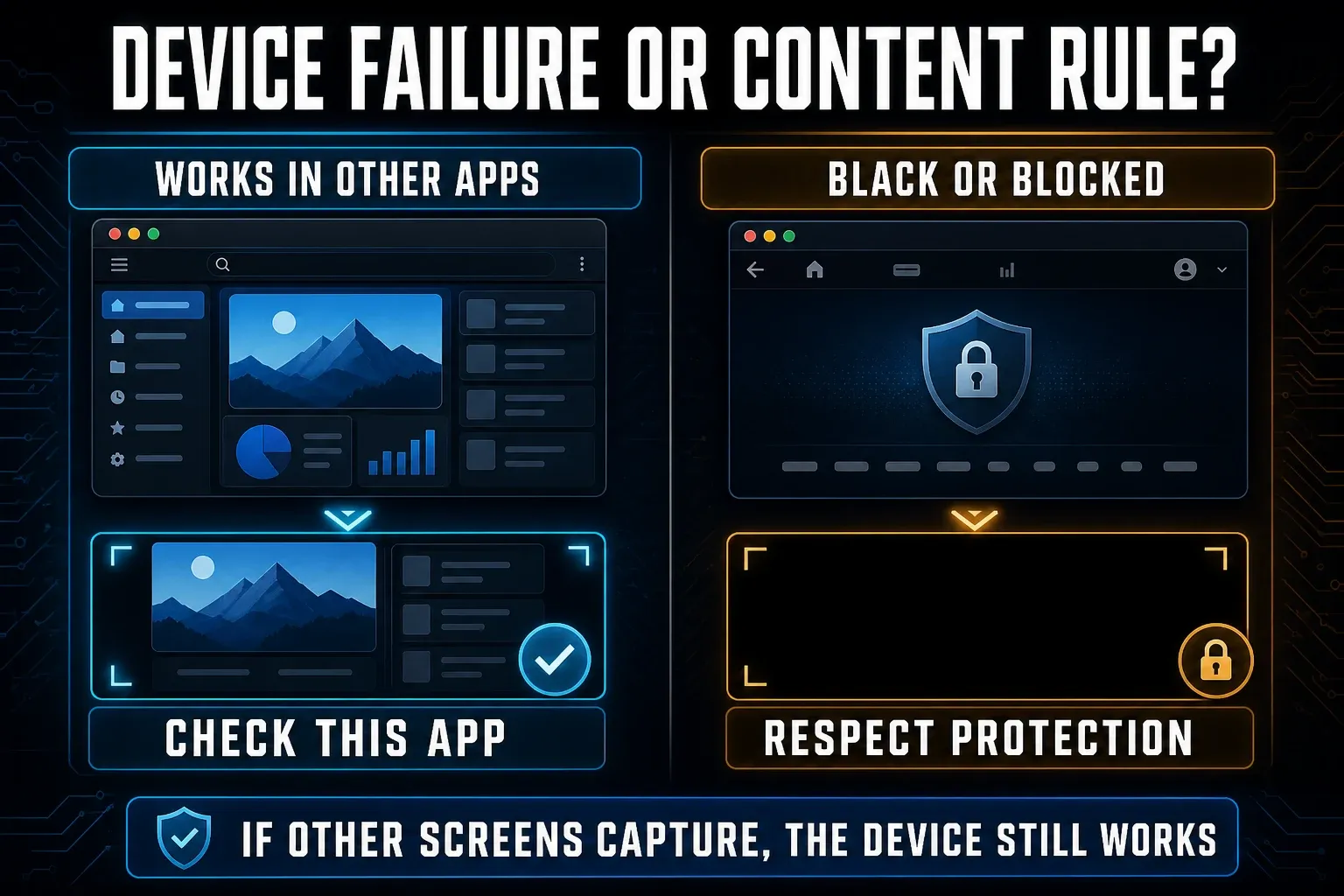
Capture the Home Screen or desktop, then an ordinary browser page you’re allowed to record. If both images come out correctly, screenshot capture works in those contexts, which leaves the original app: it might protect its content or have a capture fault. This comparison narrows the problem down, but it won’t identify the cause on its own.
Android’s FLAG_SECURE lets an app protect sensitive windows from screenshots and non-secure displays, and Google Play requires apps to respect it. Google’s FLAG_SECURE explanation describes why protected content may appear blank. That’s one possible cause, so don’t read it as the diagnosis for every black image.
If the app shows a capture restriction, stick to the sharing or export options it permits, or contact its support team. Do not try to bypass the restriction with another capture app. When only Snagit fails on ordinary content, follow the Snagit black-screen troubleshooting guide.
Check work, school, and managed-device restrictions
On a work or school device, ask IT whether capture is restricted. Apple’s device-management restriction list includes screenshots and screen recordings, though the rules differ by platform and management setup. Do not remove a management profile, disable security software or install an unapproved utility to get around a restriction.
Give support the device model, OS version, affected app, exact error and the time it failed, plus a working method if you found one. For example: “Windows + Shift + S captures the desktop correctly. App X produces a black image with the same method.” Keep customer data and private notifications out of attachments.
If nothing works, list the two capture routes you tried and whether each produced an overlay, preview, clipboard image or saved file. That tells support where the attempt stopped. You don't need a screenshot to report a screenshot failure. Copy the error text if necessary.
What not to do first
- Do not factory-reset a phone or reset Windows because one shortcut failed.
- Do not install a random capture app to bypass a protected screen.
- Do not clear unknown Android system packages from generic instructions.
- Do not disable security software or management policy.
- Do not make five changes before testing. Change one thing, capture a neutral screen, and record the result.
If capture works but you need better annotation, history or a different delivery workflow, compare tools with the screenshot software guide. Installing another app is optional, and it won’t resolve a device policy or guarantee access to protected content.
Screenshot not working FAQ
Why is my screenshot not working?
The shortcut, capture app, save destination or a restriction may be responsible. Try a second built-in method on ordinary content and verify a fresh image. Check the relevant destination: clipboard or file on a computer, or the Screenshots collection in Photos or your phone’s gallery.
Why can I not take a screenshot in one app?
If screenshots work elsewhere, the app may intentionally protect sensitive content or have its own capture fault. Do not bypass a protection notice. Check the app's help page or contact its support team with the exact screen and error.
Why did my screenshot turn black?
An app may protect its content, or the capture may have failed. Compare that app with the desktop or Home Screen using the same method. Black output alone does not prove protection is the cause. If ordinary screens also turn black, investigate the capture app or device.
Why does my screenshot flash but not save?
A preview does not confirm a file was saved where you expected. On a computer, check whether the method copies to the clipboard or saves to a chosen folder. On a phone, check Photos or the gallery’s Screenshots collection. Verify a fresh image rather than relying on an old clipboard item.
What should I do if screenshot buttons do not work?
Open Snipping Tool from Start on Windows or Screenshot through Spotlight on Mac. On iPhone and iPad, use an AssistiveTouch Screenshot action. On Android, use your manufacturer’s documented on-screen method. Complete the capture; if it works, investigate the original keys or buttons.
Does low storage stop screenshots from saving?
Insufficient storage can prevent a file from being written, but a missing screenshot does not prove you are out of space. Check storage warnings and the actual save destination. A successful camera photo is only a comparison test, not proof that the screenshot folder is writable.
Should I reset my device to fix screenshots?
Not as a first step. Test another built-in capture route, verify the destination, restart and check for supported updates. Escalate persistent failures to the device maker or your IT team. Follow their diagnosis before considering a reset, and protect your data first.