
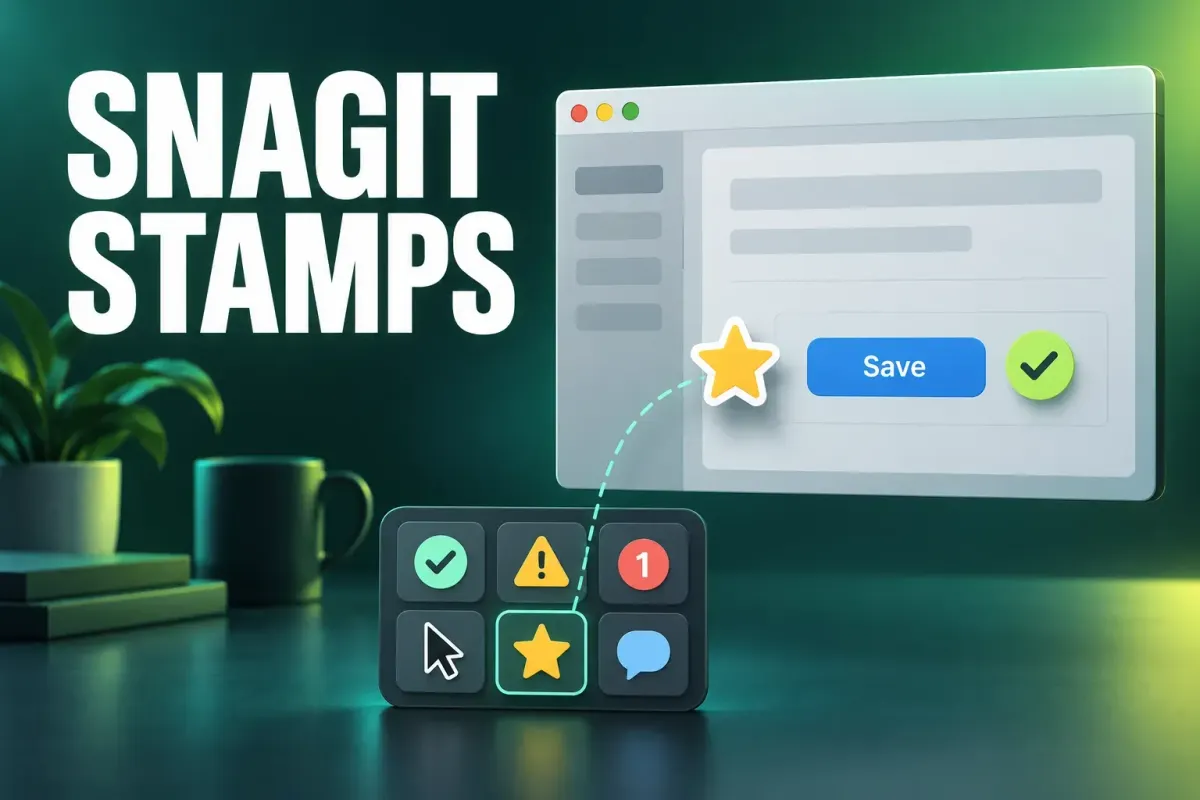
To add a stamp in Snagit, open the image in Snagit Editor and click the Stamp tool. If it isn't on the toolbar, look in the More dropdown. Pick a category or search in Quick Styles, select a stamp and click the canvas, then drag it to move or drag a handle to resize. For more stamps, click Download More in the same Quick Styles panel. To use your own image, go to Organize Stamps > Add Stamp on Windows or Import Stamps on Mac.
Those steps follow TechSmith's current Stamp tool tutorial, which covers Snagit 2025 and later. On 2024 or older, some names and buttons may differ. The tutorial stops at the buttons. This guide covers the questions that come after:
- where a downloaded set lands, and what Starter and Premium mean;
- how to prepare a logo so it doesn't arrive as a white box;
- how to place a stamp without hiding the thing it labels;
- how to get stamps back when they disappear.
Snagit stamps on Windows and Mac at a glance
Adding a stamp works the same on both platforms. Downloading, importing and storage don't.
| Task | Windows | Mac |
|---|---|---|
| Add a built-in stamp | Stamp tool > Quick Styles > category or search > click the canvas | Same |
| Download more stamps | Quick Styles > Download More > Send to Snagit on a set | Quick Styles > Download More > download icon > Open |
| Import your own image | Stamp tool > Organize Stamps > Add Stamp; lands in My Stamps | Stamp tool > Import Stamps; lands in Custom |
| Turn a capture into a stamp | No Save As Stamp: save the cropped capture as a PNG, then use Add Stamp | Select it in the recent captures tray > File > Save As Stamp |
| Restyle all stamps on an image | Tool Properties > Select All (Stamp), version 2026.1.0 or later | Same button, version 2025.3.0 or later |
| Where stamps are stored | Documents\Snagit Stamps; change it in Organize Stamps | No folder documented by TechSmith |
Add a built-in stamp to a screenshot
- Open the capture in Snagit Editor and click Stamp in the toolbar. If it isn't there, open the More dropdown.
- In Quick Styles, choose a category from the dropdown or type a search term.
- Click a stamp, then click the canvas where it should go.
- Drag the stamp to move it. Drag a handle to resize it.
- When you're finished, switch to the Move tool to select, move, edit or delete stamps and other objects on the image.
A stamp is a finished graphic, such as:
- a check mark or a warning sign;
- a cursor or a numbered marker;
- a logo.
My rule of thumb: use a stamp when the same mark repeats across many screenshots and means the same thing every time. Use something else in these cases:
- If the label needs its own words or has to point at one exact control, use a callout or an arrow. My guide on annotating a screenshot without clutter covers that choice.
- If what repeats is the whole page layout, use a template; the Snagit templates tutorial is the better place to start.
Place the stamp beside what it labels
The easiest way to spoil a stamp is to put it on top of the thing it labels. A big check mark over the Save button, or an "Approved" badge across the dialog that shows the approval, hides the evidence. The reader is left guessing what was underneath.
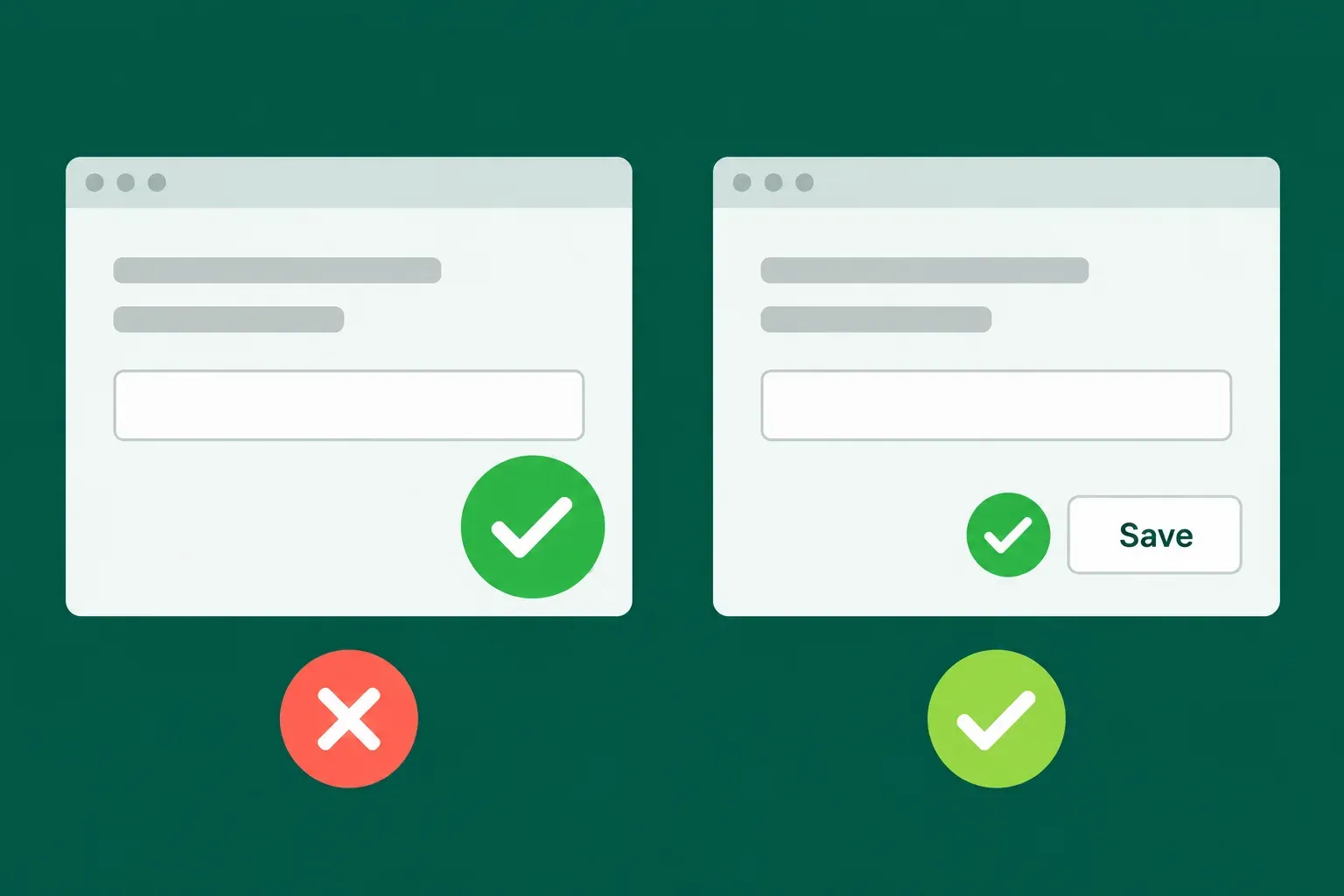
Before you keep a stamp, run four quick checks:
- Beside, not on top. The button label, field value or error message stays fully visible. Put the stamp in empty space next to it, or just outside the window edge.
- Readable at the final size. Judge it at the size the screenshot will actually be shown. A stamp that looks right while zoomed in can shrink to a smudge once a help page scales the image down.
- Separate from the background. A dark stamp on a dark title bar disappears. A shadow helps here. Click a shadow direction in the stamp's properties, and click it again to turn the shadow off.
- One meaning per mark. If a green check means "done" in step 2, don't use it for "recommended" in step 5.
Opacity is the other stamp property in TechSmith's tutorial. I'd use it sparingly: a half-transparent stamp over a control still hides the control, just less clearly. Moving the stamp usually beats fading it.
Restyle several stamps at once and save the look
Once a stamp is on the canvas, its settings are in Tool Properties.
- Shadow has a dropdown with advanced settings for color, angle, distance, opacity and blur.
- Opacity is a single slider.
To change every stamp on the image in one go, click Select All (Stamp) in Tool Properties, then adjust the property. TechSmith lists the requirement as Snagit for Windows 2026.1.0 or later, or Snagit for Mac 2025.3.0 or later. On Windows the button arrived in the 2026.1.0 release of March 13, 2026, according to the Snagit Windows 2026 version history. If you don't see it, check your version first; my guide to installing and updating Snagit shows where.
When you settle on a shadow and opacity you'll use again, save the customization as a Quick Style, as TechSmith's tutorial suggests, so you can reuse the look later.
Download more stamps from Snagit Assets
The stamps Snagit ships with are a starting point. TechSmith says Snagit Assets has hundreds of free stamps, and stamps from older Snagit versions are there too, also free. On both platforms the download starts in the Stamp tool, but it finishes differently.
Windows
- Click Stamp, then click Download More in the Quick Styles panel.
- On the Snagit Assets website, browse or search the stamp sets. Sign in with your TechSmith account if the site asks.
- Hover over a set to preview its stamps, then click the set's Send to Snagit icon.
- If a message prompt appears, click Open Snagit. The set opens in the Quick Styles panel, and later you'll find it under its category in the Stamp dropdown.
Mac
- Click Stamp, then click Download More in the Quick Styles panel.
- In Assets, browse or search the stamp sets.
- Click the download icon on the set you want.
- Click Open on the downloaded set. Snagit Editor shows it in the Quick Styles pane.
TechSmith's guide to downloading Snagit Assets describes the same route from the Assets button in the Editor, which also handles templates, themes and photos.
Starter and Premium sets
Every set in the catalog carries one of two labels:
| Starter | Premium | |
|---|---|---|
| Who can download | Snagit users, at no extra cost | Subscribers to Assets for Snagit |
| Price | Free | $49.99 per user per year on its own; listed as included in the older Snagit Pro and Snagit Create packages |
| After the subscription ends | Not applicable | Sets you already downloaded stay usable |
TechSmith's Assets support article, rechecked October 17, 2026, still lists $49.99/year/user and inclusion in Snagit Pro and Snagit Create. Those are older package names, not a guarantee that the current store sells those bundles. Check the current offer and your account entitlement before buying. Enterprise customers should request a quote. The library FAQ says downloaded assets remain usable after the subscription expires.
When I looked at the stamp catalog on October 5, 2026, the categories were Business, Interface, Stickers, Symbols, Activity, Food & Drink, Travel & Places, Smileys & People and Holiday. Free Starter sets I saw:
- Symbols: Symbols Classic, Round Arrow Buttons, several Letters And Numbers marker sets and Weather Icons;
- Interface: Interface Classic and Snagit Step Capture Cursors. The cursor set suits guides built with Step Capture.
Premium sets sit in the same lists, so check the label before you plan a guide around one. The catalog changes; treat those names as a snapshot.
You may also come across a .snagitstamps file. FileInfo describes it as a Snagit stamp pack that opens through the Import Stamps command. Its example comes from Snagit 2022, and TechSmith's current help names Import Stamps only on Mac. On Windows, the routes TechSmith documents today are Send to Snagit and the stamp folder covered below.
Before a downloaded set goes into public documentation, think about what each symbol could be taken to mean. A padlock, a shield or a badge with a check can read as a security or certification claim the product doesn't make.
Make your own stamp from a logo, icon or capture
Custom stamps are image files; TechSmith's tutorial names JPGs, PNGs and GIFs.
Windows
- Click Stamp, then the Organize Stamps button.
- Click Add Stamp, choose the image file and click Open.
- Find the new stamp under My Stamps.
TechSmith also has a short support video on adding a company logo or image as a new stamp.
Mac
- Click Stamp, then Import Stamps.
- Choose the image file and click Open.
- Find the new stamp under Custom.
On Mac you can also turn a capture into a stamp. Select the capture in the recent captures tray and choose File > Save As Stamp; it lands in Custom. As a 2023 cryan.com post on Save As Stamp points out, the whole image becomes the stamp, so crop the capture down to the mark first. Windows has no Save As Stamp. Save the cropped capture as a PNG and add it with Add Stamp instead.
Prepare the file so it looks right on any screenshot
- Use a transparent PNG for anything that will sit on different backgrounds. JPG can't store transparency, so a logo saved as JPG brings its background rectangle with it. That's the white box around a logo on a dark screenshot.
- Crop away empty margins. The handles then hug the visible mark, and alignment is predictable.
- Start bigger than you need. Custom stamps are ordinary raster images, so enlarging a small file on the canvas softens it. In a 2024 r/SnagIt thread about user-defined assets, the poster raised the same limit: stamps made from JPG, GIF or PNG files aren't scalable. Make the source at least as large as the biggest size you'll use, then shrink it on the canvas.
- Keep words to one or two. A sentence inside a stamp becomes unreadable once it's resized. Put explanations in a callout or in the step text.
- Use current, approved artwork. Old logos and unverified "certified" or "secure" badges repeat a mistake in every screenshot they touch.
Find the right stamp faster
- Category and search. The Quick Styles dropdown filters by category, and the search box finds stamps by name.
- Favorites. TechSmith's Quick Styles and Favorites tutorial says the star icon saves Quick Styles (and Quick Effects on Mac) to Favorites and turns yellow when it's saved. It doesn't mention stamps by name, though a reply in the same r/SnagIt thread suggests adding a custom stamp you use often to Favorites. If your version shows a star on a stamp, use it. If not, a clearly named folder in Organize Stamps (Windows) keeps your regulars together.
- Folders, on Windows. Organize Stamps is where you create and rename folders. Name them by job, such as "Review status", "Cursor markers" or "Product icons 2026", so stale artwork is easy to spot. Snagit for Windows 2026.2.0 (April 30, 2026) fixed two problems in that dialog: a crash when creating or renaming folders, and a selected folder that could be unreadable in the Dark theme. If either happens to you, update first.
Stamps missing? Where Snagit keeps them
Windows
TechSmith documents the stamp folder as C:\Users\<your name>\Documents\Snagit Stamps. Stamps in that folder show up under My Stamps in the Quick Styles dropdown. If yours have gone:
- Check that the folder exists in Documents. If it doesn't, create it and name it exactly Snagit Stamps.
- Restart Snagit, click Stamp and choose My Stamps in the Quick Styles dropdown.
- Still empty? Open Organize Stamps > Change Stamp Folder and point Snagit to the folder that holds your stamps.
Those steps come from TechSmith's SuperStamps installation article, updated January 2026. Missing the default stamps from Snagit 11 or 12? TechSmith's article on installing old stamps from older Snagit versions provides them as a ZIP to extract into the same folder. The Stamp tool tutorial adds that stamps from previous Snagit versions are free on Snagit Assets, which is usually the simpler route.
Before you reinstall Snagit or move to a new PC, copy that folder along with your capture Library. My guide to Snagit Library location and backup covers the Library side.
If you roll Snagit for Windows out with the Deployment Tool and include stamps, note version 2026.0.0 (January 14, 2026). It fixed an issue where installing certain versions with stamps could fail.
Mac
I couldn't find a Mac stamp folder documented anywhere in TechSmith's help. The workable route:
- restore missing sets from saved originals, or use Download More if your account currently grants access to that set; keeping a downloaded asset does not by itself establish a right to download it again after a subscription ends;
- re-import custom stamps with Import Stamps.
That only works if you keep the original PNG files somewhere you back up.
Troubleshooting Snagit stamps
| What you see | Likely cause | What to do |
|---|---|---|
| No Stamp button | Stamp isn't on the visible part of the toolbar | Open the More dropdown, or customize the toolbar to add it back |
| A downloaded set doesn't appear (Windows) | The Open Snagit prompt was dismissed | Send the set again, click Open Snagit, then check its category in the Stamp dropdown |
| A downloaded set doesn't appear (Mac) | The set was downloaded but not opened | Click Open on the downloaded set in Assets |
| The set asks for a subscription | It's a Premium set | Choose a Starter set, or use an Assets subscription (check entitlement for an older Snagit Pro or Create package) |
| A custom stamp looks blurry | A small raster file was enlarged | Import a larger PNG and scale it down on the canvas |
| White box around a logo | A JPG, or a PNG saved without transparency | Export a transparent PNG and import it again |
| Custom stamps gone after a reinstall (Windows) | Snagit is looking in a different folder, or the folder wasn't copied over | Organize Stamps > Change Stamp Folder, or restore Documents\Snagit Stamps |
| Organize Stamps crashes when you rename a folder, or the folder name is unreadable in Dark theme | Known Windows bugs | Update to 2026.2.0 or later |
| No Select All (Stamp) button | Older Snagit version | Update to Windows 2026.1.0+ or Mac 2025.3.0+ |
Keep stamps accessible and safe to share
A stamp is part of the picture. Someone using a screen reader gets nothing from it unless the text says it too. Put any status, warning or step number a stamp carries into the step text. If the stamp changes what the reader should notice, mention it in the alt text, for example "Account settings with a warning mark beside Delete account". My guide to alt text for screenshots covers how short that can be.
Don't use a stamp to hide a password or an account number. In an editable SNAGX file a stamp stays a movable object, like any other cover. The blur and redaction guide explains how to cover private details and share a flattened copy. Also check custom stamps themselves for names, client logos, internal project codes and old product names before they go into a set your whole team reuses.
The short version
Pick stamps from Quick Styles and keep each one beside what it marks, not on top of it. Get more through Download More, and use Starter sets unless your account already has Premium entitlement, including through an older Snagit Pro or Create package. Import your own marks as transparent PNGs made larger than you need. On Windows, keep a copy of Documents\Snagit Stamps, and on Mac keep your original files. If you're new to the editor itself, start with my Snagit Editor guide.