
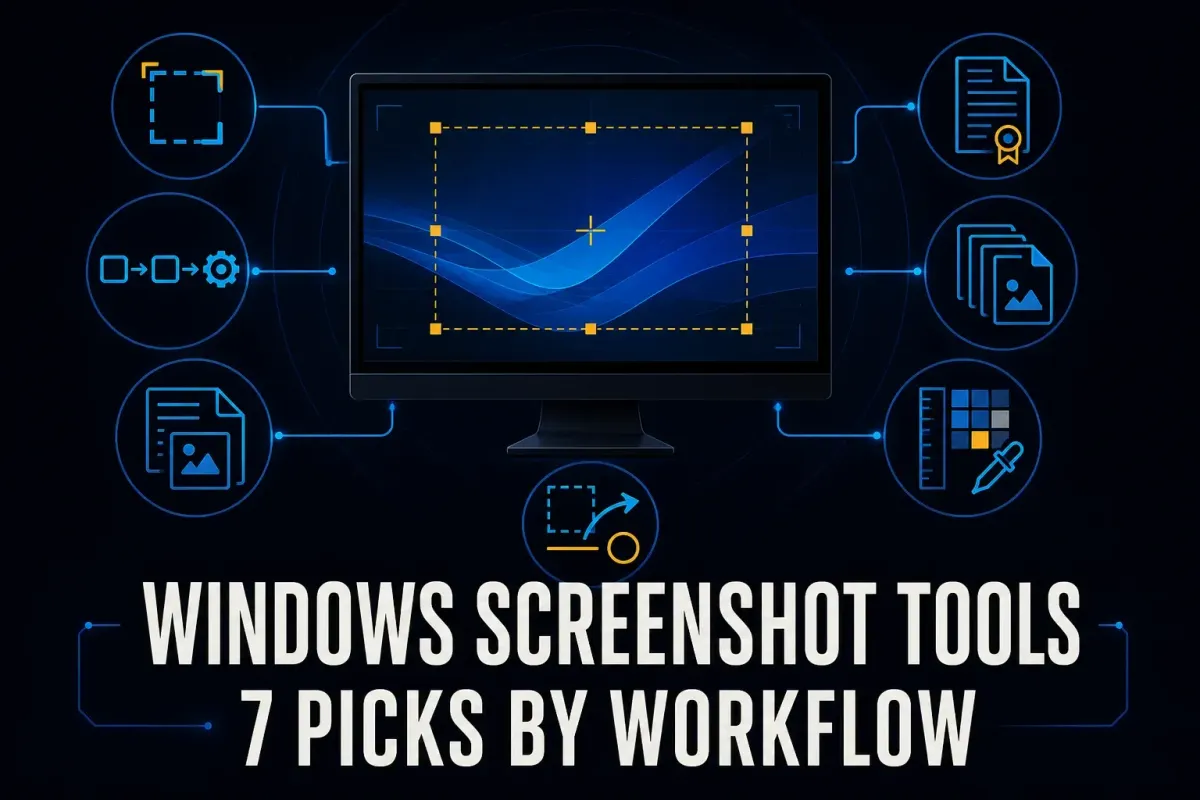
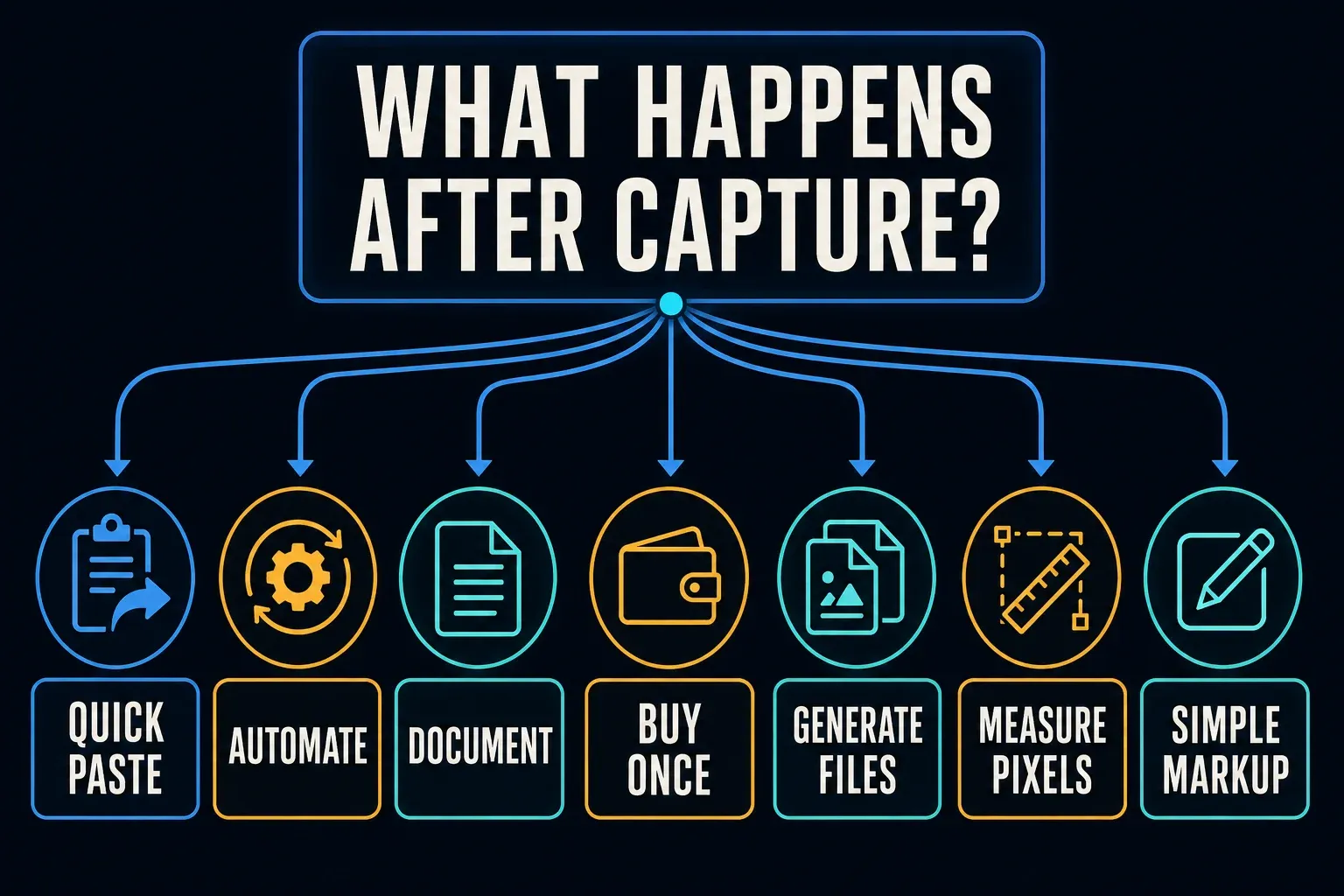
Start with Windows Snipping Tool for a region or window you need to paste into a message. Choose ShareX for free capture automation, Snagit for illustrated documentation, FastStone Capture for a one-time purchase, Screenpresso Pro for document generation, PicPick for pixel measurement, or Greenshot for simple arrows and boxes. The useful upgrade is the one that removes a step you repeat.
This comparison covers still-image work on Windows and leaves out livestreaming and long-form video production. I checked official product and licensing documentation on September 18, 2026, and the recommendations rest on those documented capabilities. Confirm your region, edition, and tax at checkout.
SnagitPro is an independent publication, unaffiliated with Microsoft or the other vendors in this comparison.
Best screenshot software for Windows at a glance
| Pick | Best Windows job | License snapshot | Main tradeoff |
|---|---|---|---|
| Snipping Tool | Included region and window capture | Included with Windows | No general scrolling capture or project library |
| ShareX | Free automation and power-user workflows | Free and open source | Dense setup and many optional upload routes |
| Snagit | Documentation, training, and repeatable editing | Individual annual subscription; regional price at checkout | Subscription and more tool than occasional users need |
| FastStone Capture | Broad paid toolkit without a subscription | US$29.95 one-time purchase, checked September 18, 2026 | Test scrolling output in your own apps |
| Screenpresso | Pro: PDF, DOCX, or HTML document generation | Free for work; OCR and document generator require Pro | Current builds require Windows 11 |
| PicPick | Design measurement and image utilities | Free for personal use; Pro for business | Commercial work requires a license |
| Greenshot | Lightweight still capture and markup | Free, open source Windows installer | Use another tool for modern browser scrolling |
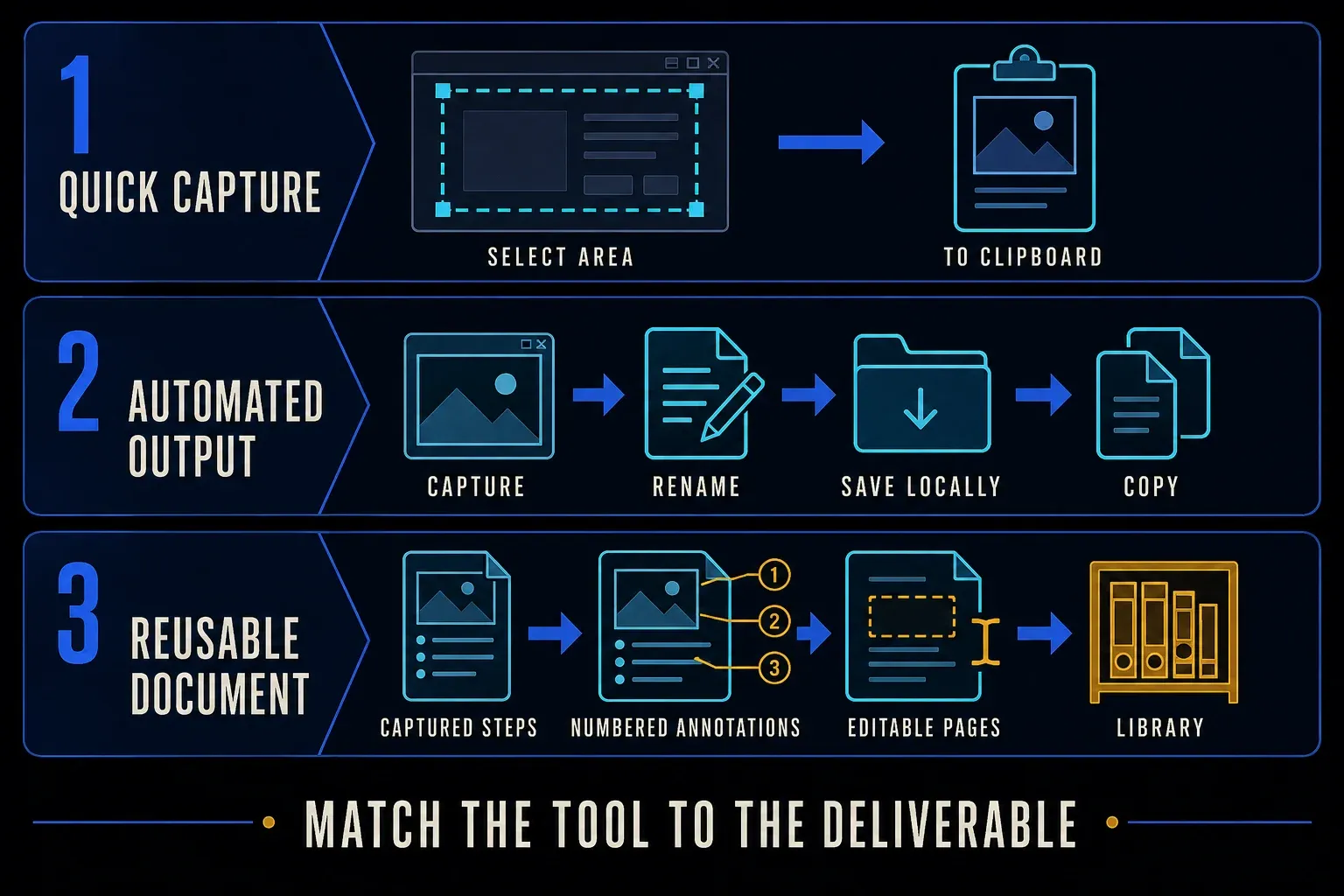
For a support ticket that needs one arrow, try the included editor first. If you maintain instructions, check numbered steps and whether annotations stay editable. Comparing interface layouts is where the ruler and color tools matter, so test those. Then pick one real task and use the comparison table to narrow your shortlist.
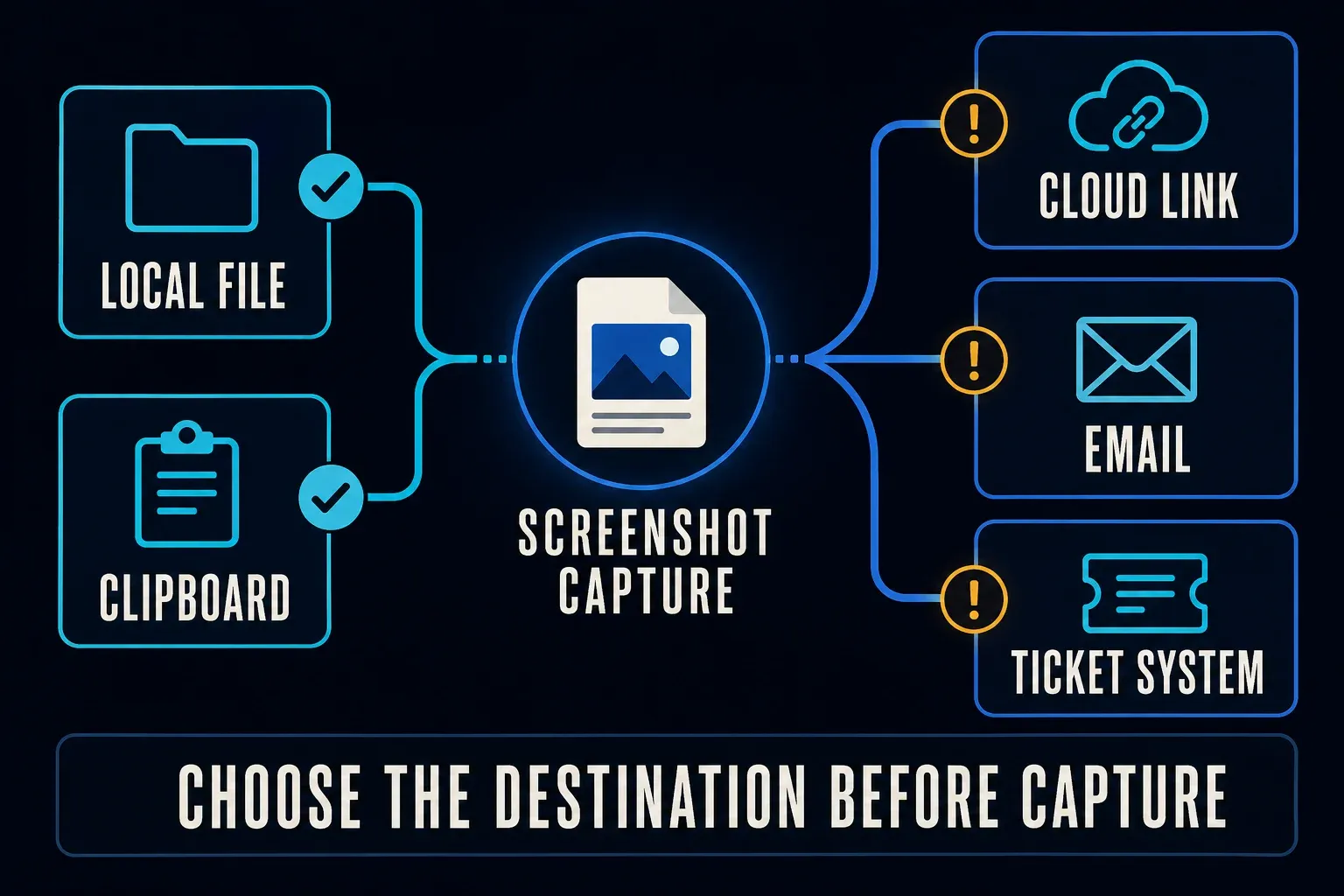
Decide where the finished file has to go: a local folder, a support ticket, or a shared drive your organization has approved. If your work requires local files, you don’t need a public upload button. Check the destination before you capture anything private.
What Windows already gives you
Press Windows + Shift + S to open the capture bar. Microsoft’s Snipping Tool guide covers rectangle, window, full-screen, and freeform capture, and in supported Windows 11 app versions Text Actions extracts text locally. The editor also provides cropping, drawing, and shapes.
For a receipt, error message, or marked-up region, try that included tool first. Basic OCR alone doesn’t justify another installation. Consider a separate app when you need scrolling capture, configurable filenames, capture history, numbered steps, or automated saving.
Snipping Tool features aren’t identical on Windows 10 and Windows 11. Microsoft’s feature announcement says Perfect Screenshot requires a Copilot+ PC while Color Picker was released for Windows 11 PCs generally, but Microsoft’s current Snipping Tool support page now groups both controls under Copilot+ PC features. Since those official pages conflict, check your device, Windows build, and Snipping Tool version before you rely on either control.
1. ShareX: best free Windows screenshot software for power users
ShareX is free, open source, and ad-free, and you don’t need an account for local capture. It captures regions, windows, monitors, full screens, and scrolling content. With its editor, OCR, hotkeys, filenames, and after-capture tasks, you can configure what happens to each image.
Current builds need 64-bit Windows 10 or newer, according to the ShareX changelog. Version 19.0.1 turned automatic upload off by default for new installations, but existing settings can differ, so look through After capture tasks, After upload tasks, and Destinations before you use private material.
Use ShareX when you want to capture, edit, save with a predictable name, and copy the result with little repeated setup. You’ll need to maintain that configuration yourself, though. The Snagit versus ShareX comparison weighs configurable actions against a documentation-focused editor.
2. Snagit: best for documentation and repeatable communication
Snagit’s documented features include scrolling capture, text extraction, numbered markup, and a searchable capture library. Step Capture creates illustrated steps as you click through a process. Smart Redact helps identify sensitive information, but you still need to inspect the exported image before sharing it.
Snagit Individual is an annual, non-transferable subscription that uses account sign-in. Check the regional price and choose a business license if you need to reassign users. Current Windows requirements list 64-bit Windows 10 20H2 or later, Windows 11, and Windows 11 on ARM 23H2 or later. The Snagit Printer is not available on ARM.
Snagit is worth considering when captures become help-center articles, training, or recurring support instructions. Try updating an old annotated image, then see whether you can find it again in the library. If you only paste an occasional crop, start with Snipping Tool instead.
The focused Snagit versus Snipping Tool guide separates included Windows capture from the paid documentation workflow.
3. FastStone Capture: best one-time-purchase all-rounder
FastStone Capture combines scrolling capture, menu capture, OCR, annotation, pin-to-screen, and recording in a conventional desktop interface, and it saves PNG, JPEG, WebP, TIFF, and PDF. Its FSC project format keeps annotation objects editable, so send an exported image when recipients shouldn’t get those objects or the underlying capture.
The vendor lists a 30-day trial and a US$29.95 one-time purchase, and its text-capture feature requires Windows 10 or 11. Use the trial to check your actual browser and desktop windows before paying.
FastStone suits you if you want capture and editing utilities without an annual screenshot subscription. For a shared document workflow, compare what your team needs after export. Keep in mind that scrolling support alone doesn’t guarantee a complete image of every app or independently scrolling panel.
4. Screenpresso: best for turning captures into documents
Screenpresso’s feature tour documents scrolling capture, delayed capture for menus, a workspace, and an annotation editor with a numbered Step tool. The document generator creates PDF, DOCX, or HTML from images and comments.
The edition comparison puts OCR and the document generator in Pro. Free can be used at work, but its editor is limited and it adds branding to video and some sharing features. Pro is a one-time purchase with one year of updates and maintenance, and you keep the installed version when maintenance ends. The current download requires Windows 11, x64 or ARM64, and .NET 4.8.
Consider Screenpresso Pro if your output has to be a document assembled from several captures. Before you standardize on it, check the exported file and the recipient’s access. Its optional sharing destinations include public links, so stick to locations your organization approves. The Snagit versus Screenpresso comparison covers that document workflow.
5. PicPick: best for designers and pixel measurement
PicPick’s capture and design tools include scrolling windows, selected regions, a Ribbon-style editor, a color picker, a pixel ruler, a magnifier, a protractor, and a whiteboard. Those measurement tools are the reason to shortlist it for interface or design work.
Work and client projects need Pro, because PicPick’s license terms limit the free edition to personal, non-commercial use. The vendor offers annual subscriptions and a limited-time lifetime option, so compare the actual plan at checkout instead of assuming the free download covers your job.
Try PicPick when a capture needs measured dimensions or color values as well as markup. If you only need a free company screenshot utility, compare ShareX or Greenshot first. The Snagit versus PicPick guide examines the editing and licensing differences.
6. Greenshot: best for lightweight still-image markup
Greenshot for Windows is free and open source, including its official Windows installer. The $1.99 App Store offer on the download page belongs to the separate Mac product, not the Windows package.
Greenshot suits region or window capture followed by arrows, boxes, text, and file export. Its editor guide explains those controls. For scrolling capture in current browsers, choose a tool that documents that workflow rather than relying on Greenshot’s old Internet Explorer capture option.
If you already use Snagit, the Snagit versus Greenshot comparison helps you decide whether a simpler still-image editor covers your work. You don’t need to pay for the Windows installer to try it.
Privacy and deployment checks before you standardize
- Map the data route. Check local saving, clipboard copying, optional uploads, and public links separately. A folder synced to cloud storage is not local-only storage.
- Use opaque redaction. Cover private text completely, export a flattened PNG, and reopen it in another viewer. Share that export, not the editable project. Do not rely on a translucent marker, weak blur, or pixelation to remove sensitive data.
- Check the capture shortcut. Avoid assigning Print Screen to two apps. Greenshot documents shortcut conflicts; a different shortcut can avoid competing with Windows Snipping Tool.
- Confirm the license. Personal, commercial, per-user, transferable, perpetual, and subscription licenses solve different procurement problems.
- Verify Windows support. Check Windows 10 versus 11, x64 versus ARM64, .NET requirements, admin rights, and managed-install options.
- Control updates. Decide who approves new versions, whether automatic updates are allowed, and how you will roll back a broken build.
- Keep an original only when your work requires it, and store it with appropriate access restrictions. Do not attach the unredacted source to a ticket intended to contain the cleaned image.
Run a 30-minute Windows screenshot test
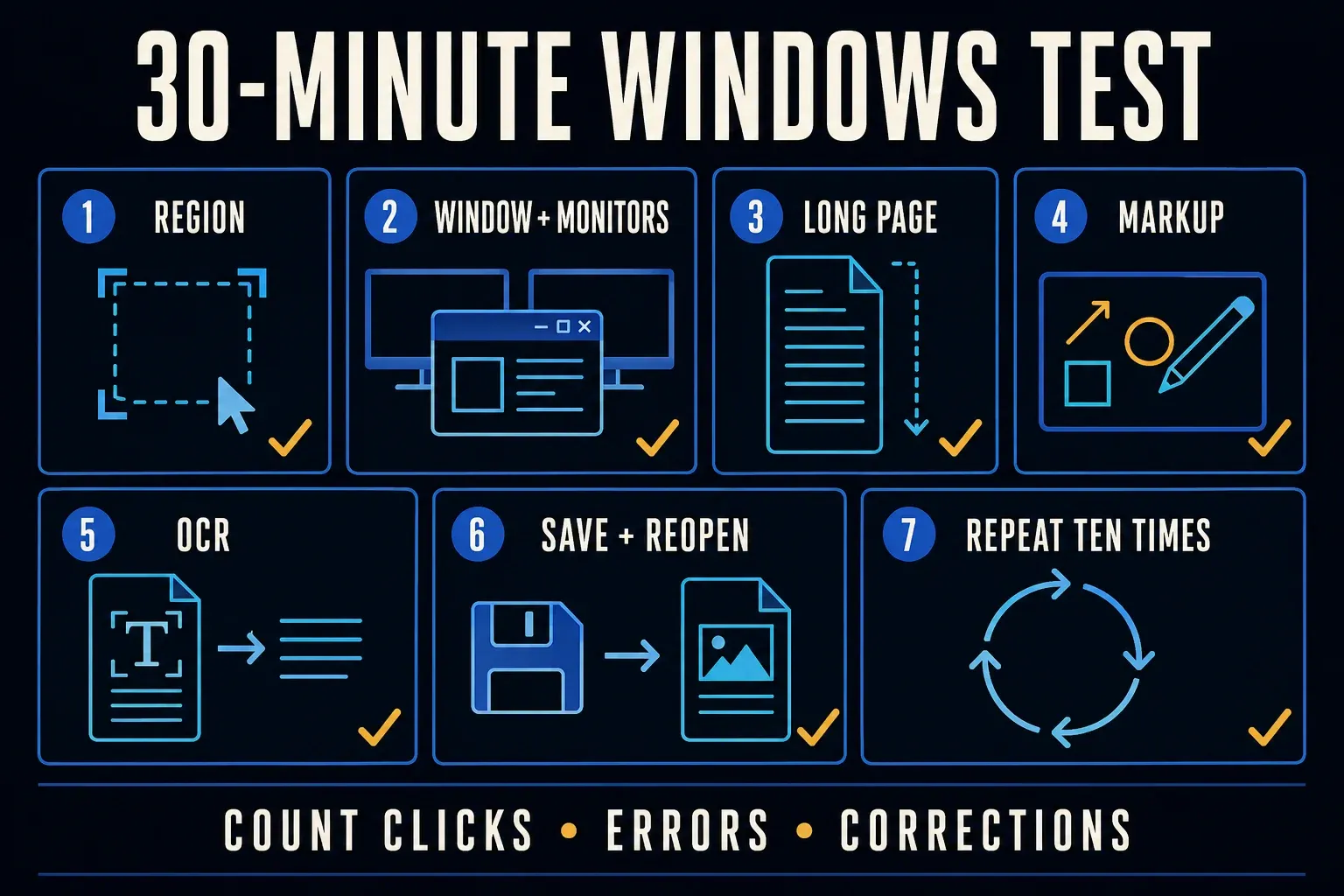
Treat 30 minutes as a suggested starting timebox rather than a promised test duration. Compare two finalists one at a time, using a safe test account and dummy data. Work through the seven tasks below where they apply, and if an app doesn’t support one, mark that as a limitation instead of forcing every app through the same workflow:
- Capture a selected region with small text. If you need menus in your instructions, also try a drop-down menu using the tool’s delay option where available.
- Capture one window and, if you use several displays, your multi-monitor desktop. Check text and colors on your actual scaling and HDR settings.
- If you need scrolling capture, try a long webpage with a sticky header and lazy-loaded images. Check the beginning, middle, and end of the saved result.
- Add an arrow, a text label, a crop, and an opaque block over dummy private text. Try numbered steps if your instructions use them.
- Extract one paragraph with OCR when the product supports it.
- Save PNG to an approved folder with a useful filename, such as ticket-184-login-error.png, and reopen it in another viewer.
- Repeat your routine capture ten times, as suggested in the checklist below. Count clicks, errors, and corrections; continue beyond the initial timebox if needed.
Compare completeness, readable text, scrolling seams, output location, privacy settings, and the cost for your actual users. Judge only the features you attempted. An extra effect isn’t worth much if your usual capture needs manual repair.
Which Windows screenshot tool should you choose?
Keep Snipping Tool if it completes your task. Choose ShareX for configurable actions, Snagit for recurring illustrated instructions, FastStone for a one-time-purchase toolkit, Screenpresso Pro for document generation, PicPick for measurement, or Greenshot for a separate free markup editor.
If you’re comparing Windows with another platform, use the cross-platform screenshot software guide. When cost is the deciding factor, the free screenshot software comparison separates free editions from license restrictions. Replacing an existing Snagit setup is covered in the Windows Snagit alternatives guide.
Windows screenshot software FAQ
What is the best screenshot software for Windows?
Start with Snipping Tool for included region and window capture. Shortlist ShareX for free automation, Snagit for illustrated documentation, or FastStone Capture for a one-time-purchase toolkit. Choose according to the task you repeat, not a universal ranking.
What is the best free screenshot software for Windows 11?
Start with Snipping Tool, which includes text extraction on supported Windows 11 app versions. Choose ShareX for configurable capture and saving, or Greenshot for simple separate markup. Both Windows tools are free and open source.
Can Windows Snipping Tool capture a scrolling page?
Snipping Tool does not provide a general scrolling-page capture mode. ShareX, Snagit, FastStone Capture, Screenpresso, and PicPick document scrolling options. For a webpage, a browser-specific full-page command may be enough. Inspect the output for missing sections.
Is ShareX better than Snagit?
ShareX suits a free workflow with configurable after-capture actions. Snagit adds a documentation-focused editor, Step Capture, and a searchable library. Try your own repeated task in each; this comparison does not establish a measured speed winner.
What Windows screenshot tool is best for scrolling capture?
Shortlist ShareX for a free scrolling tool or Snagit for scrolling capture combined with documentation. FastStone Capture, Screenpresso, and PicPick also document scrolling modes. Your browser, sticky headers, and inner scroll panels can affect the result, so inspect a trial capture.
What screenshot software is best for Windows on ARM?
Start with the included Snipping Tool. TechSmith lists Windows 11 on ARM 23H2 or later, with no Snagit Printer support; Screenpresso lists native ARM64 support. Confirm the exact installer and required features before a company deployment.
Is paid screenshot software worth it on Windows?
Pay only when a required feature improves your work enough to justify the license, such as reusable documentation or a document generator. Basic capture and OCR already have free options. Test the exact paid edition before buying.