
No. Discord sends no alert when you screenshot a DM, a server channel, a profile or a video call, and a screen recording stays silent too. Discord's help center describes no screenshot alert, and the events Discord sends to bots include nothing for screenshots, so a server bot can't report you. The one capture feature that announces itself is Discord's own Clips: when someone with Clips turned on starts streaming in a voice channel, the people in it see a notice that their voice could be recorded.
That cuts both ways. Anything you post can be saved without you knowing, and if you're the one collecting evidence, a message link and Discord's Report Message tool do more than a screenshot does. Below is each case, how calls, streams and Clips differ, and what Discord's rules say about sharing what you captured.
Who finds out when you capture each part of Discord
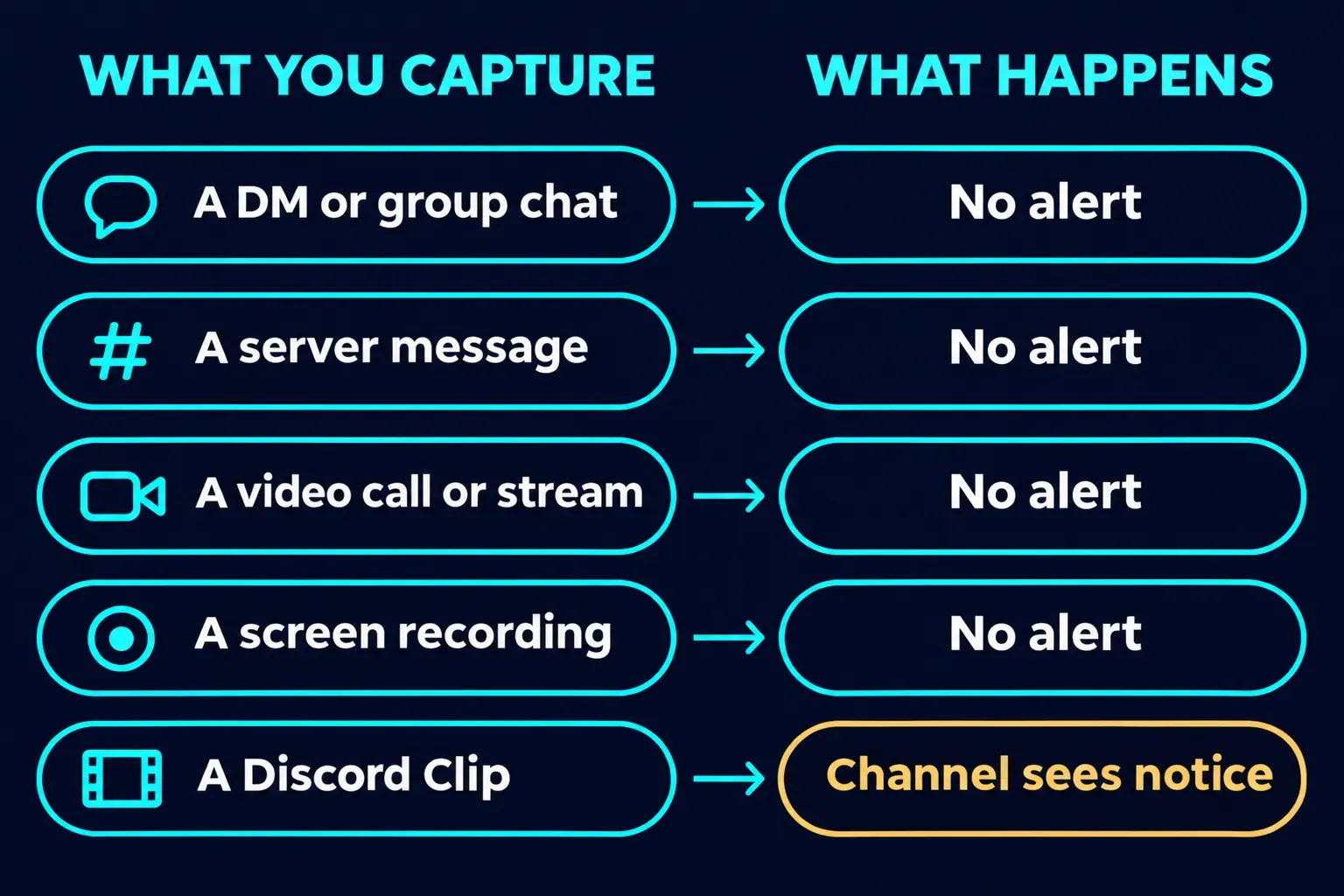
Nobody, in almost every case, and nothing stops the capture either. The only row with a notice in it is about Clips, and a clip isn't a screenshot.
| On Discord | Who gets told |
|---|---|
| A DM or a group DM | Nobody |
| A server channel, thread or forum post | Nobody, including moderators and bots |
| A profile, avatar or banner | Nobody |
| A video call or someone's Go Live stream | Nobody; a streamer can see that you're watching, not that you captured it |
| A screen recording with OBS, Nvidia Shadowplay or your phone's recorder | Nobody |
| A Discord Clip made by someone streaming in your voice channel | You are: a notice appears when they start streaming, saying your voice could be recorded |
| A photo of your monitor taken with a phone | Nobody |
Discord doesn't block the system shortcuts, so capture it the way you'd capture anything else. On Windows 11, Win + Shift + S opens the Snipping Tool capture bar, which my guide to using the Snipping Tool on Windows 11 walks through. On a Mac, Shift-Command-4 captures an area, and my guide to taking a screenshot on a Mac lists the rest. Phones use their hardware buttons: on an iPhone with Face ID, press the side button and volume up together, as Apple's screenshot instructions for iPhone show, and most Android phones take one with power plus volume down, according to Google's Android help page.
Does Discord notify when you screenshot a DM or a server message?
No. Neither a direct message nor a message in a server is flagged when you capture it, and the same goes for photos, videos and files sent in either. A search of Discord's help center for "screenshot" turns up billing, fraud and support articles, and none of them describes an alert or a block.
Bots can't tell either. Discord's developer documentation lists the gateway events a bot can receive: new, edited and deleted messages, someone typing, someone joining a voice channel, status changes and dozens more. Screenshots aren't among them, so a moderation bot that promises to catch screenshots has no Discord signal to work from. Server owners and moderators get no notice of their own.
Other guides land in the same place. Five of the pages Google ranks highest for this question could be read in full (EaseUS, iTop, Social Age Checker, Alphr and HitPaw Edimakor), and each one says Discord sends no screenshot notification. EaseUS goes furthest, with a table that marks DMs, server messages, profile pictures, video calls and screen recordings as no alert.
Can Discord tell when you take a screenshot?
It could, and that's where several guides go wrong. Social Age Checker says Discord simply can't detect a screenshot, but phones hand that signal to apps. On an iPhone or iPad, iOS has offered apps a screenshot notification since iOS 7, posted right after a person takes a screenshot. Since Android 14, Google has given apps a screenshot detection API that does the same job, and Google's own example use is "warning another user that someone took a screenshot of a messaging conversation."
So Discord's silence is a product choice, not a technical limit. Snapchat and Telegram both use screenshot notices in some chats, as the comparison further down shows. When an app uses Google's API, Android shows its own message naming the app, such as "Pay app detected this screenshot." Discord's help pages describe no screenshot feature on either platform.
Does Discord notify when you screenshot or record a call or stream?
No. A screenshot of a video call or of someone's stream isn't flagged, and neither is a recording. PC Gamer's look at Discord's Clips feature makes the point plainly: there's no notification when someone in a voice channel records desktop audio with Nvidia Shadowplay or OBS.
What a streamer can see is who's watching. Discord's Go Live and Screen Share page says that when someone watches your stream, an eyeball icon appears next to their name in the overlay. That tells the streamer you're there, not what you do with the picture. Up to 50 people in a voice chat can share their video or screen at the same time, so in a big server I'd treat a stream as public.
If you're the one streaming, two settings help. Hide stream preview, offered when you start sharing, keeps server members from seeing a preview until they join. Streamer Mode hides personal details such as your email and connected accounts, plus invite links, and Discord can switch it on automatically when it detects OBS or XSplit while you're live. I'd turn on the automatic switch, because it covers the stream you forgot to prepare for.
The exception: Discord Clips
Clips is the one capture tool built into Discord, and it's the one that warns people. Discord's Clips help page says it's in Early Access for Nitro members on Windows only, not on Mac, mobile or console. While you stream a game, a keybind (Alt + C by default) saves a clip of 30 seconds, 60 seconds or 2 minutes to your own computer, and you choose which clips to share.
A clip can include voice channel audio, which is why there's a notice. PC Gamer reports that Discord "clearly notifies the users in a voice channel" as soon as someone with Clips enabled starts streaming. How-To Geek describes the same warning as small and temporary, and very easy to miss. You don't need Nitro for your voice to end up in someone else's clip.
The opt-out is a single switch. On a computer, go to User Settings > Clips and turn off "Allow my voice to be recorded in Clips". On a phone, it's You > the gear icon > Clips. The switch is on by default. I'd turn it off in any server where you don't know everyone, because the notice is easy to miss and the switch only keeps your voice out of clips; calls work as before.
The person clipping gets a confirmation too. With Game Overlay on, Discord shows them a pop-up and plays a sound when a clip is saved. That confirmation is for them, not for the rest of the channel.
What should you save before reporting someone on Discord?
Copy the message link first, then report, then screenshot if you want a copy of your own. A screenshot shows what you saw; Discord's reporting tools point its safety team at the message itself.
- Copy the message link. On a computer, right-click the message or click the three-dot icon that appears when you hover over it, then choose Copy Message Link. On a phone, hold down on the message and choose Copy Message Link. Discord's guide to reporting content says a message URL is required when you report illegal content under the EU's Digital Services Act.
- Report the message. Right-click it on a computer or hold it on a phone, choose Report Message, and pick the type of violation. For a profile, use Report User Profile.
- Take a screenshot that shows the username, the message and its timestamp, so you still have it if the message is deleted.
- If it happened in a server, tell the moderators, who Discord says may be able to respond immediately. Block or ignore the person if you want the contact to stop.
Two details from that guide are worth knowing. Your identity isn't shared with the account you reported, even if they appeal. And Discord aims to review high-harm reports, such as threats of imminent harm, within 24 to 48 hours, and lower-harm reports such as harassment within a week.
Is it against Discord's rules to screenshot or share messages?
Taking a screenshot isn't against the rules. Discord's Community Guidelines don't mention screenshots at all. Sharing is a different matter. Guideline 3 bans sharing someone's personally identifiable information without consent, which covers doxxing, and guideline 10 bans sharing sexually explicit content of another adult without their explicit consent. A screenshot that does either breaks the guidelines, however you took it.
Before a screenshot leaves Discord, cover the usernames, avatars and anything else that identifies people who aren't the point of it. Use a solid box rather than a blur, because a blur can sometimes be reversed. The opaque-box method and the flattened export are both in how to redact personal information from a screenshot.
How does Discord compare with other apps?
Among messaging apps, Discord is one of the quiet ones: no alerts and no blocks. At the other extreme, Snapchat tells people when you screenshot their Snaps, chats or Stories. Telegram tries to send a notice in Secret Chats and for self-destructing media, and on Instagram, disappearing-message chats can notify the other person. WhatsApp sends no alert but won't let you capture view once photos and videos.
When is Snagit worth it for Discord captures?
For a one-off screenshot of a chat, the built-in tools above are enough. Snagit earns its place when you capture Discord again and again, say as a moderator keeping records or while documenting a server setup. A long thread fits in one image with Snagit's scrolling capture, and manual Scrolling Capture lets you guide it if the automatic arrows don't appear over the chat. Its blur and redaction tools cover usernames before you share; for anything private, I'd use the opaque redaction rather than blur, for the reason above.