
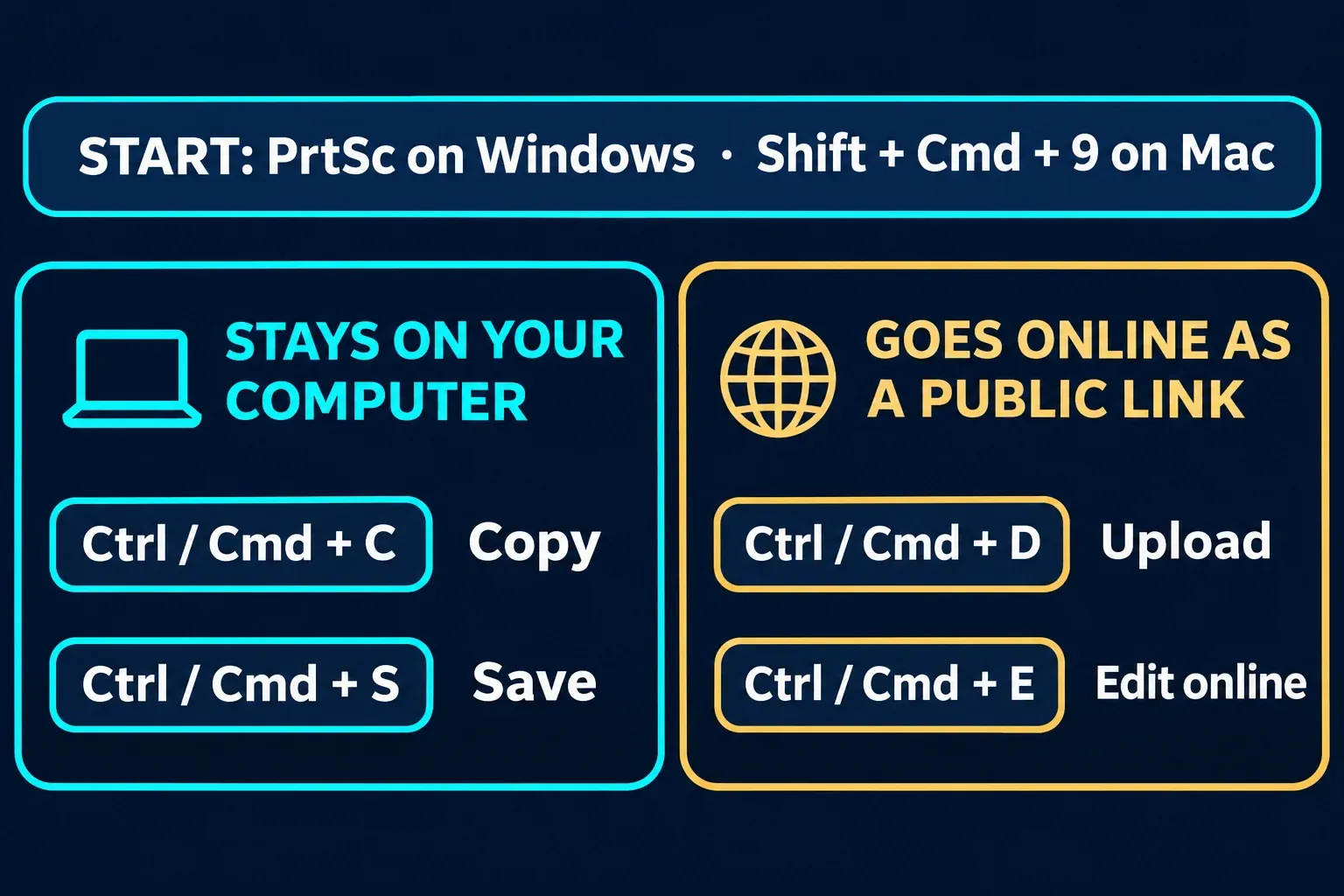
Lightshot is fine for screenshots that stay on your computer: press PrtSc, drag a box, then save it with Ctrl + S or copy it with Ctrl + C. The danger is the upload. Ctrl + D and the online editor (Ctrl + E) put the capture on a prnt.sc page that anyone with the link can open, and Lightshot's own privacy policy says no uploaded image is ever fully hidden.
I'd keep it away from work screenshots and anything showing names, logins or money, and I wouldn't choose it as a new tool: the Windows installer on the official site was signed in 2020, and the Mac app's last update came in 2019.
Users give it anywhere from 2.7 to 4.8 out of 5, with a median of 4.0 across five rating sources. Below you'll find what those scores rest on, what the public-link problem looks like in practice, how to take down a screenshot you uploaded by mistake, how to fix the usual "Lightshot isn't working" cases, and which free tool to pick instead.
Lightshot in one table
| Question | Answer |
|---|---|
| Price | Free to download and use |
| Maker | Skillbrains |
| Platforms | Windows and Mac apps, Chrome and Firefox extensions; no Linux app |
| Latest builds | Windows 5.5.0.7, Mac 2.22, Chrome 7.0.1, Firefox 6.2.5 |
| Capture key | PrtSc on Windows, Shift + Command + 9 on a Mac |
| Local options | Copy to the clipboard, save as PNG, JPG or BMP |
| Online options | Upload for a short prnt.sc link, edit in a web editor, search for similar images |
| Video, GIF, scrolling capture | None |
| Best for | Quick still screenshots you keep local |
The platform list and the Linux answer come from Lightshot's download page, which suggests running the Windows build under Wine on Ubuntu. What Lightshot does with your data in return is covered in the safety section below.
What do users rate Lightshot?
It depends on who's rating. Business-software reviewers like it a lot, the browser-extension stores are lukewarm, and the one consumer review site is harsh but stale. Each review pool is counted once.
| Source | Score | Basis |
|---|---|---|
| Capterra | 4.8 / 5 | 38 reviews; Software Advice shows the same pool |
| G2 | 4.7 / 5 | 130 reviews, about half from small businesses |
| Firefox Add-ons | 4.0 / 5 | 209 ratings of the browser extension |
| Chrome Web Store | 3.4 / 5 | About 7,000 ratings of the browser extension |
| Trustpilot | 2.7 / 5 | 11 reviews, none newer than 2021 |
| Mac App Store (US) | No score | Too few ratings to display one |
Across the five scored sources, the median is 4.0 and the range runs from 2.7 to 4.8, from roughly 7,400 ratings in total. Most of that volume belongs to the Chrome extension. The desktop-app pools on G2's Lightshot reviews and Capterra's review page land at a median of 4.75 from 168 reviews. Software Advice breaks the Capterra pool down to 4.92 for ease of use, 4.96 for value and 4.40 for customer support, and the reviews quoted on Capterra mention cloud saves that sometimes fail and the odd crash. The small Trustpilot page for prntscr.com is unclaimed by the company, and its complaints are "Upload failed. Retry?" errors, trouble on a 4K monitor and a support request that went unanswered. I'd treat 4.0 as the honest number: well liked on the desktop, rough once uploads or support come into play.
Speed and footprint hold up. Two published hands-on write-ups, from ScreenSnap's Lightshot review and AnyMP4's review of version 5.5, both put its memory use at 15 to 20 MB, and AnyMP4 saw CPU use near zero. Both companies sell a competing capture app, so read the rest of their verdicts with that in mind. The Windows installer I downloaded from the official site is 2.8 MB.
Is Lightshot safe to use?
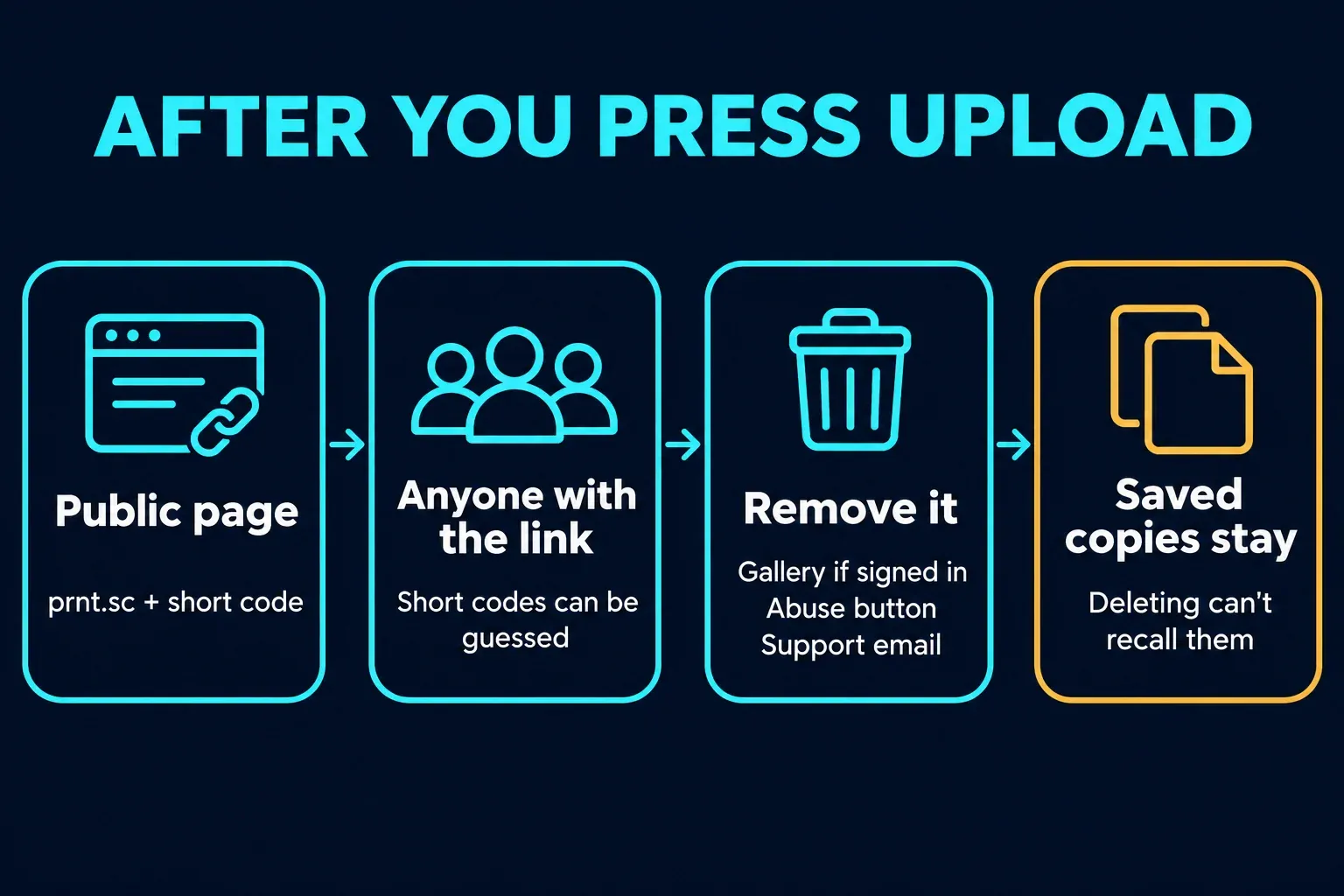
The risk sits in the uploads, not in the app on your PC. Every documented safety issue I found traces back to images people pushed to prnt.sc, and the rules for those images are spelled out in Lightshot's privacy policy: every uploaded image, "even if it was uploaded to your gallery", can be opened by "anyone who types in that exact URL", and "no image uploaded to this website is ever completely hidden from public view." The same policy says the gallery isn't meant for secure storage and that you don't need an account to upload at all.
Those links are short, which makes them guessable. In 2021, WIRED's investigation of prnt.sc links tried 11,000 random addresses and found 529 live screenshots. About one in five held details that could help someone steal an identity or break into an account, and around 8% were more sensitive still, from private photos to images showing logins, bank details, phone numbers and shipping addresses. Scripts that crawl prnt.sc this way were already on GitHub, and Skillbrains didn't respond to WIRED.
The concern hasn't faded. In August 2025, Missouri S&T's IT team blocked Lightshot on campus-managed computers, both Windows and macOS, and pointed users to the Snipping Tool and the macOS Screenshot app. The notice says Lightshot uploads automatically, which isn't quite right: Lightshot's documentation lists Save and Copy as local actions, and only Upload and Edit online send the image away. The risk is a single click, though, and on a shared work PC that's enough.
Data is the second question. The privacy policy says Lightshot collects your device ID, operating system, browser, IP address and viewing statistics, and that it passes "automatically collected anonymous data to third party advertisers", who may be able to combine it with other data. The Chrome Web Store listing tells a different story for the extension: the developer has declared that it won't collect or use your data, and Google notes the publisher has no history of violations. The store declaration covers the extension; the website policy covers prnt.sc and everything you upload there.
As for the download itself, I fetched the Windows installer from the official download page and checked the file without running it: a 2.8 MB setup file, version 5.5.0.7, with a digital signature dated August 2020 that names Kilonova LLC as the signer. My rule: use Lightshot only with Save and Copy, and if a screenshot needs blurring or hiding, do that locally before sharing it. My guide to redacting personal information in screenshots covers that step.
How do you delete a Lightshot screenshot you uploaded?
Which route you take depends on whether you were signed in when you uploaded.
- Signed in: open your gallery on prntscr.com and remove the image there. Lightshot's feature guide says the gallery lets you remove images you don't need from the web. Only screenshots uploaded after you signed in are added to it.
- Not signed in: open the image page and press the abuse button under the picture, or email the link to support@skillbrains.com. Both routes come from Lightshot's FAQ.
- Anything secret on it: act as if it's already been copied. WIRED found a public dataset of 13,000 scraped Lightshot images, so a deleted page doesn't recall copies. Change the password, revoke the code or call the bank first, then ask for removal.
Is Lightshot still updated?
Not in any way you'd notice. Here are the newest builds I could find on each official channel.
| Version | Latest build | Date |
|---|---|---|
| Windows app | 5.5.0.7 | Installer signed in August 2020 |
| Mac app | 2.22 | July 26, 2019, for macOS 10.7 or later |
| Chrome extension | 7.0.1 | July 22, 2024 |
| Firefox add-on | 6.2.5 | April 25, 2024 |
The Mac date and requirement come from the Mac App Store listing, the extension dates from the Chrome Web Store and Firefox Add-ons, and the website footer still reads © 2009–2022. A capture tool doesn't need monthly releases to save a PNG. The catch is that nobody is fixing Windows 11 and macOS changes as they arrive, and the public-link design hasn't changed since WIRED reported on it.
How do you take a screenshot with Lightshot?
Press PrtSc on Windows or Shift + Command + 9 on a Mac, drag over the area, then pick an action from the toolbar next to the selection or press its key. Lightshot's hotkey page lists the full set.
| Action | Windows | Mac | Leaves your computer? |
|---|---|---|---|
| Start a capture | PrtSc | Shift + Command + 9 | No |
| Copy the selection | Ctrl + C | Command + C | No |
| Save to a file | Ctrl + S | Command + S | No |
| Expand to the full screen | Ctrl + A | Command + A | No |
| Upload and get a link | Ctrl + D | Command + D | Yes, as a public link |
| Open in the online editor | Ctrl + E | Command + E | Yes, the area is uploaded |
| Cancel | Esc or Ctrl + X | Command + X | No |
Two shortcuts save time. Hold Ctrl as you start dragging and the area goes straight to the clipboard. Ctrl + S skips the Save As dialog and writes to the last folder you used, or to Documents the first time, as PNG, JPG or BMP. The quick marks under the selection cover a pen, lines, arrows, rectangles, text and a color picker, according to ScreenSnap's walkthrough. There's no blur among them, which matters more than it sounds: the blur tool lives in the online editor, and opening that uploads the image.
Why is Lightshot not working?
Four problems account for most complaints.
PrtScopens the Snipping Tool instead. Windows 11 gives the key to its own tool by default. Turn that setting off, then close and reopen Lightshot so it can take the key. My guide to freeing the Print Screen key from the Snipping Tool shows where the switch lives on current builds, and if the key does nothing in any app, start with my fixes for Print Screen not working.- "Upload failed. Retry?" The upload didn't go through. Press
Ctrl + Sand share the saved file another way; local saving doesn't depend on the server. - Blank or white captures from the browser extension. Peakline's write-up, from a company that sells a rival extension, reports this since the 7.0.1 update in July 2024. I can't confirm it, but with no newer version there's no fix coming. Use the desktop app or the Snipping Tool for web pages.
- Nothing gets captured on a Mac. Open Apple menu > System Settings > Privacy & Security > Screen & System Audio Recording and turn Lightshot on. Apple's guide to screen recording access explains the switch, which every capture app needs.
For anything else, Lightshot's FAQ suggests installing the latest build and then contacting support. Since that build dates from 2020 and a Trustpilot reviewer never heard back, I wouldn't spend long on it before switching tools.
Where does Lightshot fall short?
- Still images only. No screen recording, GIFs or scrolling capture of long pages.
- A thin local editor. AnyMP4 found no blur or pixelate tool in the desktop app, so hiding a password means uploading the image or opening another editor.
- Clumsy drawing on a Mac. A Mac App Store reviewer complained that drawing a box often moves the selection instead and that text has no font-size box, and ended up using Lightshot only to select and save.
- Public sharing only. Every link works for anyone who has it; there's no private or password-protected option.
- No Linux app and no recent releases. Linux users get Wine, and the desktop apps haven't moved in years.
Which free tool should you use instead?
Pick by the job, not by the brand. For a straight feature-by-feature duel, my comparison of Snagit vs Lightshot goes through capture, editing and privacy one area at a time.
| If you need | Use | Why it beats Lightshot here |
|---|---|---|
| Quick private screenshots on Windows 11 | Snipping Tool | Already installed, already on PrtSc, saves locally |
| Lightshot's speed with a local blur | Greenshot | Free, current, with pixelize and blur in its editor |
| Scrolling pages, video, GIFs or text recognition | ShareX | Free and far more capable, with a longer setup |
| Screenshots on a Mac | The built-in Screenshot app | Maintained by Apple, nothing to install, no upload route |
My Greenshot review is the closest like-for-like swap on Windows, and my guide to setting up ShareX covers the capable option. If you'd rather install nothing, start with my walkthrough of the Snipping Tool on Windows 11, and on a Mac, my guide to taking a screenshot on a Mac. The wider field is in my roundup of the best free screenshot software.
Who should still use Lightshot?
Keep it if it's already on your home PC, you like two keys to a saved PNG, and you've trained yourself never to press Upload. For that narrow job, it still works and costs nothing.
Skip it on work computers, for anything you might need to delete later, and for any screenshot that needs blurring before it leaves your desk. If you're choosing today, I'd start with the Snipping Tool or Greenshot on Windows and the built-in tool on a Mac. They're just as quick, they keep everything local, and someone is still updating them. My verdict: Lightshot is still a fair local snipper, but its public links and frozen code make it the wrong default for anything private.
When is Snagit worth it over Lightshot?
For quick grabs, it isn't; the free tools above cover them. Paying makes sense once you're documenting software for other people every week: Snagit adds scrolling capture, screen recording, step-by-step guides, a searchable library and the same app on Windows and Mac. It has hosted share links too, and those need the same care as any upload. My Snagit review covers what you pay and what you get.