
Yes, on Windows. Press PrtSc, drag a box, add an arrow or a highlight and send the result to a file, the clipboard or an Office app: that's what Greenshot does well, and it costs nothing, at home or at work. Install the stable 1.3 build from the official site and keep it updated, because the 2025–2026 releases fixed several serious security flaws. I'd skip it if you need screen video, GIFs, scrolling capture of modern web pages or a good Mac app.
Windows users rate it 4.8 out of 5, the old editorial reviews land around 4 out of 5, and the separate Mac app sits at 2.4. Below is what those numbers rest on, how safe Greenshot is, which download to pick, how to stop Windows 11 from taking over PrtSc, and what to use when Greenshot can't do the job.
Greenshot at a glance
| Question | Answer |
|---|---|
| Price | Free under the GPL, including commercial use |
| Platform | Windows with .NET Framework 4.7.2, which Windows 10 version 1803 and Windows 11 already include; a separate paid Mac app |
| Current stable version | 1.3.328, released October 19, 2026 |
| Download size | About 4 MB for the installer or the portable ZIP |
| Capture modes | Region, last region, window, full screen, text, and Internet Explorer pages |
| Editor | Shapes, arrows, text, highlight, pixelize or blur, crop, image overlays |
| Video or GIF | No |
| Scrolling capture | Only for pages open in Internet Explorer |
| Best for | Fast, marked-up screenshots on Windows without paying |
The license comes straight from Greenshot's answer to whether you have to pay for it, and the .NET requirement from its FAQ entry on dependencies. On a current Windows 10 or 11 PC, there's nothing extra to install.
What do ratings and published measurements say?
The Windows app scores high wherever users rate it, and the editorial scores are decent but old. Here's every score I could check, with each review pool counted once.
| Source | Score | Basis |
|---|---|---|
| G2 user reviews | 4.8 / 5 | 164 reviews |
| Capterra user reviews | 4.8 / 5 | 39 reviews; Software Advice shows the same pool |
| PCWorld | 4.0 / 5 | Editorial review, 2012 |
| CNET, Techworld, Softonic | 5 / 5, 4 / 5, 7 / 10 | Editorial reviews of 1.x versions |
| Mac App Store (US) | 2.4 / 5 | 161 ratings of the Mac app |
Put together, the Windows user score has a median of 4.8 across two independent pools and 203 reviews. Four editorial reviews give a median of 4 out of 5, with a range of 3.5 to 5 once Softonic's 7/10 is scaled. All four predate the 1.3 series, so they say nothing about the security fixes or the Windows 11 changes. G2's Greenshot reviews and Capterra's review page hold the user scores. Software Advice lists ease of use at 4.74 and value at 4.82 from the same Capterra reviews, so I don't count it twice. PCWorld's review found it so easy to use that paying for a capture tool looked hard to justify, and the other three are summarized on Greenshot's Wikipedia page.
On resources, the one published idle figure is about 30 MB of RAM, measured by ScreenSnap's Greenshot review; ScreenSnap sells a competing app and put Snagit at 200 MB or more and ShareX at 150 MB or more in the same review. Greenshot's own FAQ on memory use says Task Manager overstates the number, and that memory grows with the size of your captures and drops after you close editor windows. Either way, it's one of the lighter capture apps you can leave running.
Is Greenshot safe and legit?
Yes, when it comes from getgreenshot.org or the project's GitHub page. It's a real open-source project, started in 2007 by Thomas Braun, Jens Klingen and Robin Krom, with its code on GitHub under GPL-3.0. Greenshot's answer to whether Greenshot is clean says each build is made on a freshly reset Windows install and checked with VirusTotal, files have been code-signed since 1.2.9, and the antivirus reports the team has looked into came from other download sites or were false positives. I'd only download it from the official downloads page.
Being open source doesn't mean being bug-free. The project has published seven security advisories on GitHub between September 2025 and October 2026, five rated high and two medium, and 1.3.290 had already fixed CVE-2023-34634, a flaw that let a crafted file run code. Two recent fixes matter if you still run an older build:
- Greenshot 1.3.328 stops Greenshot from sending your Windows credentials to any server it loads content from. Before it, a malicious image URL could trigger that sign-in. The same release code-signs every EXE and DLL, plugins included, so Smart App Control no longer blocks them.
- 1.3.323 turned certificate checks back on. Earlier builds switched them off for the whole program, which exposed sign-in tokens and uploads to Imgur, Box, Dropbox, Flickr, Confluence and Jira.
So update to 1.3.328 and leave the update check on: in Greenshot's settings, the General tab has an update check interval in days, and 0 turns checking off. Two smaller things to know: the installer opens a browser window when it finishes, and the FAQ on that browser window says the only way to avoid it is the ZIP version. And no, Greenshot can't be used to monitor someone: every capture starts from a hotkey or the tray menu, and its documentation describes no scheduled or automatic capture.
Is Greenshot still maintained?
Yes. After 1.2.10.6 in September 2017, no stable release came out until 1.3.290 in May 2025, which is why so many older reviews call it abandoned. Counting that one, the 1.3 series has shipped 11 stable releases, the newest being 1.3.328 on October 19, 2026, and the Greenshot 1.3 changelog lists each one. The first of them added an installer option to turn off the Windows 11 Print Screen tool, zooming in the editor with Ctrl and the mouse wheel, and better support for high-DPI screens.
The next version is in the open as well. Builds of 1.4 appear on the GitHub releases page labeled unstable and unsigned, and the 1.4 documentation describes a dark editor, fixed-size capture, hiding recognized text and QR codes. Any of that can change before release. I'd stay on 1.3 for daily work, because an unsigned build loses the signing protection that 1.3.328 just added.
Which Greenshot download should you install?
| Download | Pick it when |
|---|---|
| Installer, 1.3.328 | You want Greenshot on your own PC with all plugins, including the Windows 10 plug-in that Text mode needs |
| Portable ZIP, 1.3.328 | You can't install software, want to carry it on a USB drive, or don't want the browser window at the end of setup |
| 1.4 development build | You want to try upcoming features and accept unsigned, unstable files |
| Mac App Store app | You're on a Mac and want Greenshot's look: US$1.99, version 1.2.19 from June 2020 |
The installer is the one I'd pick for most people. The portable version keeps its settings file, greenshot.ini, next to Greenshot.exe instead of in %APPDATA%\Greenshot, which is what makes it portable.
How do you make PrtSc open Greenshot on Windows 11?
Turn off the Windows setting that gives PrtSc to the Snipping Tool, then restart Greenshot. This is the fix Greenshot's FAQ gives for a PrtSc key that no longer works:
- Open the Start menu and type
open screen. - Select the result Use the Print screen key to open screen capture.
- Turn the setting off.
- Quit Greenshot from its tray icon and start it again.
If PrtSc still doesn't reach Greenshot, something else holds the key. The same FAQ names OneDrive, where you'd turn off automatic screenshot saving, and Dropbox, which has its own screenshot feature you can switch off in its settings. You can also give Greenshot a different hotkey on the General tab of its settings. The Windows side works the same for any capture app, so my guide to making Print Screen open Snagit covers the setting in more detail, and the guide to Print Screen not working covers keyboards with an Fn lock or no PrtSc key.
How does a Greenshot capture work?
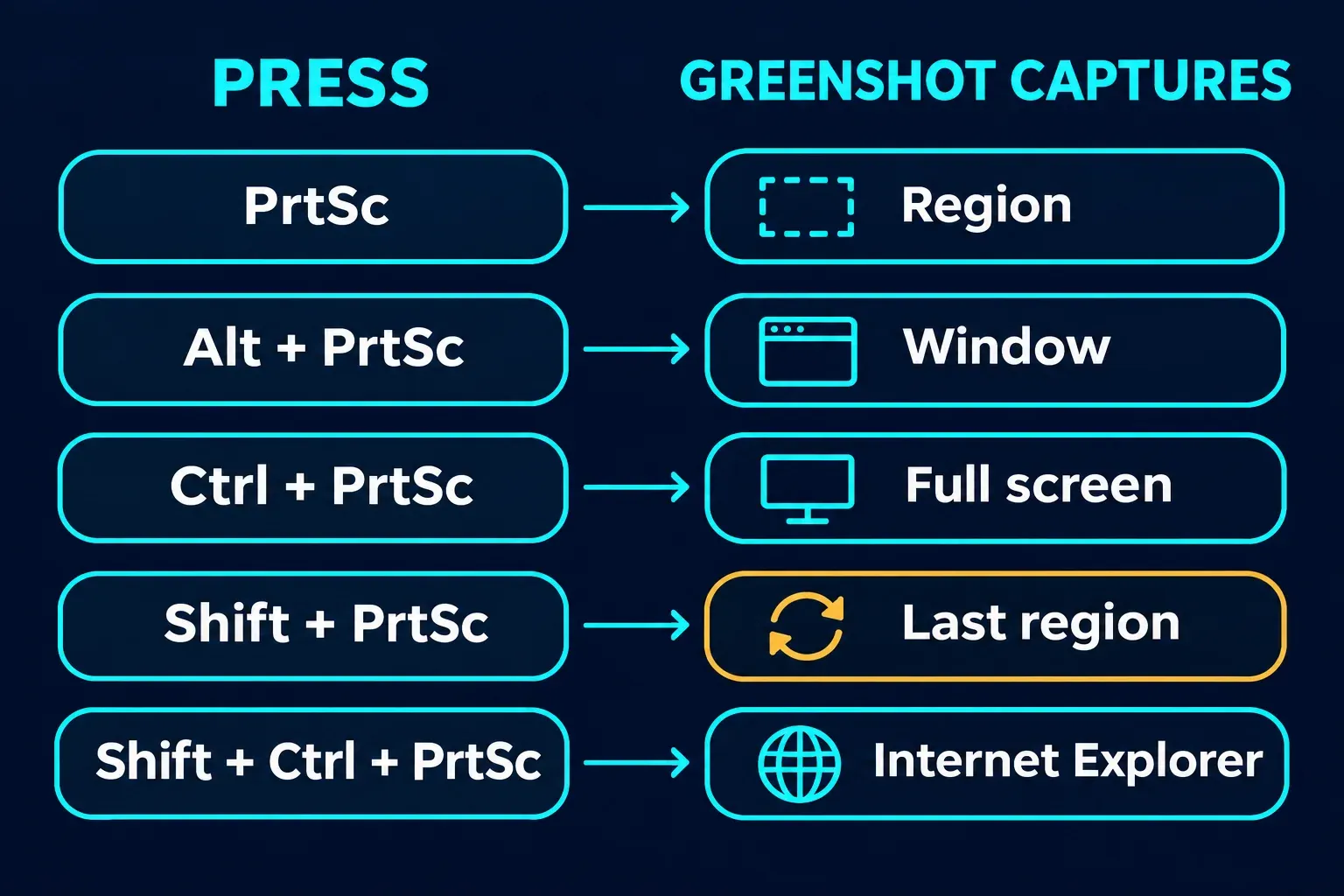
Greenshot sits in the tray and waits for a hotkey. These are the defaults in 1.3, from the official guide to capturing with Greenshot 1.3:
| Press | Greenshot captures |
|---|---|
PrtSc | A region you drag, on a frozen picture of the screen |
Alt + PrtSc | The active window, right away |
Ctrl + PrtSc | The whole monitor the mouse is on |
Shift + PrtSc | The same area as your last capture, with no selection step |
Shift + Ctrl + PrtSc | The page open in Internet Explorer, when that option is on |
The region screen is where Greenshot feels quick. Because the picture is frozen, an open menu or a tooltip stays put while you select. A few keys do the fine work: Space switches to window mode, Z shows or hides the magnifier, M adds or removes the mouse cursor, the arrow keys move one pixel and Ctrl with an arrow moves 10, and Esc cancels. For a window that's partly covered, Alt + PrtSc or Capture window from list in the tray menu captures it on its own.
Press T on that screen and you're in Text mode: Greenshot reads the screen with Windows text recognition, you drag over the words, and the text goes to the clipboard with no image saved. It needs the Windows 10 plug-in, an option of the installer, and a Windows language with text recognition installed under Time and language, Language and region. Without them, Text mode shows no lines, and Space takes you back to region mode. If you only need text now and then, my guide to copying text from a screenshot on Windows 11 covers the built-in options.
By default, the editor opens after every capture; the Output tab of the settings lets you send captures straight to a file or the clipboard instead, and sets the folder and file name pattern for saved ones. The editor has rectangles, ellipses, lines, arrows, freehand, text, highlight and an obfuscate tool with pixelize and blur, plus crop, resize and added graphics. From there, the result goes to a file, the printer, the clipboard, an email, an Office program or an upload service. One warning: for passwords, card numbers or addresses, draw a rectangle with a solid fill instead of using pixelize or blur. My guide to redacting personal information in a screenshot explains why blurred text can sometimes be read back.
Where does Greenshot fall short?
- No video or GIF. Greenshot only takes still images.
- Scrolling capture only works in Internet Explorer. Microsoft's Internet Explorer lifecycle FAQ lists the IE11 desktop app as retired and out of support, so for a long page in Chrome or Edge you'll want one of the methods in my guide to taking a scrolling screenshot on Windows.
- The delay is a global setting. "Milliseconds to wait before capture" on the Capture tab applies to every capture. There's no countdown you set for one shot.
- The Mac app is far behind. It's still version 1.2.19 from June 2020, rated 2.4 out of 5 in the US App Store, and reviewers there point out missing features such as last-region capture and a delay. On a Mac, the built-in tools in my guide to taking a screenshot on a Mac do more.
- No Linux version. Greenshot's FAQ on Linux and Mac versions says none is planned.
- The help pages lag behind. The main help still describes 1.2.10; the GitHub guide is the one that matches 1.3.
Greenshot vs Snipping Tool: which should you use?
The Snipping Tool comes with Windows 11, and Microsoft's page on using the Snipping Tool lists its keys. Here's how the two compare for screenshots:
| Task | Greenshot | Snipping Tool |
|---|---|---|
| Start a region capture | PrtSc | Win + Shift + S |
| Repeat the exact last area | Shift + PrtSc | No; Alt + N repeats the mode, not the area |
| Delay one capture | Global setting in milliseconds | Alt + D, 1 to 5 seconds |
| Record video | No | Win + Shift + R |
| Copy text from the screen | Text mode, with the plug-in and a Windows language | Text actions, processed on your PC |
| Hide emails and phone numbers | By hand, with shapes or obfuscate | Quick redact in Text actions |
| Send to Office or email | Built-in destinations | Save, copy or share |
I'd keep the Snipping Tool for video, quick text grabs and quick redact, and use Greenshot when I capture the same area again and again or send screenshots straight into Office documents. They work fine side by side once PrtSc belongs to Greenshot. My guide to using the Snipping Tool on Windows 11 and the list of Snipping Tool keyboard shortcuts cover the other side.
What is better than Greenshot?
It depends on what Greenshot can't do for you.
- ShareX for a free Windows tool that does more. The ShareX site lists scrolling capture, screen recording, GIF recording, OCR, auto capture and after-capture tasks. It takes longer to set up, and my comparison of Snagit vs ShareX shows where its settings get busy.
- Flameshot if you also work on Linux or a Mac and want the same annotation tool on each. My roundup of the best free screenshot software covers it and its platform limits.
- Snipping Tool if you'd rather install nothing and need short videos.
- Snagit if you pay for one tool that handles scrolling capture, video and step-by-step guides.
Who should use Greenshot?
Use it if you take screenshots on Windows every day, mostly still images with arrows, boxes and highlights, and you want them in a file, a chat or an Office document fast. The Shift + PrtSc repeat alone saves time when you document the same window over and over. It's also an easy pick for an office where nobody wants to buy licenses for a capture tool, since commercial use is free.
Skip it if you record your screen, need full-page captures from Chrome or Edge, or work on a Mac. My verdict: on Windows, Greenshot 1.3.328 is a fast, free and now actively maintained screenshot tool, and the right first install for still screenshots. Just treat updates as part of using it.
When is Snagit worth it over Greenshot?
For quick screenshots, it isn't. Greenshot and the Snipping Tool cover them for free. Snagit earns its price when screenshots are part of your job: scrolling capture that works in current browsers, screen video in the same app, Step Capture for numbered guides, and the same tools on Windows and Mac. My comparison of Snagit vs Greenshot goes through those differences one by one, and my Snagit review covers price and licensing.