
How to Translate Text in a Screenshot
Use Google Translate for a saved image, Live Text for supported Apple devices, and source-text checks when a translation looks wrong.
 SnagitPro
Topic
Step-by-step Snagit tutorials for captures, recording, annotation, and OCR — Windows and macOS workflows for technical writers and support teams.
Use Google Translate for a saved image, Live Text for supported Apple devices, and source-text checks when a translation looks wrong.
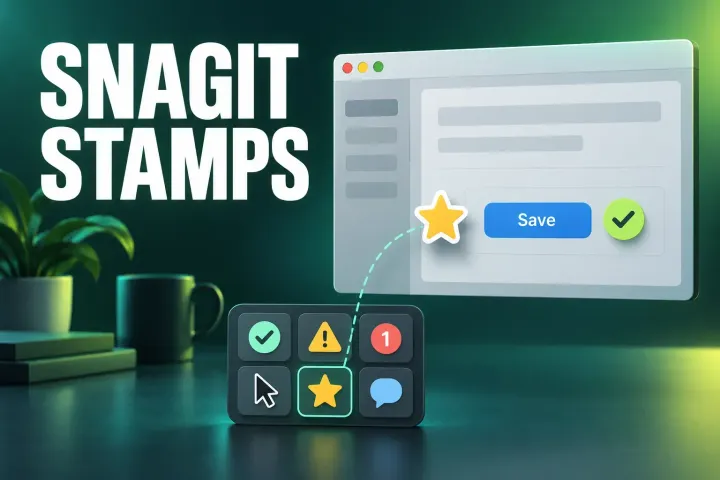
Add a stamp from Quick Styles, download Starter or Premium sets with Download More, import your own transparent PNG, and restore missing stamps on Windows or Mac.
Capture useful detail before export. Learn the Chrome DPR route, prepare Windows or Mac captures, and keep screenshots readable in the final document.
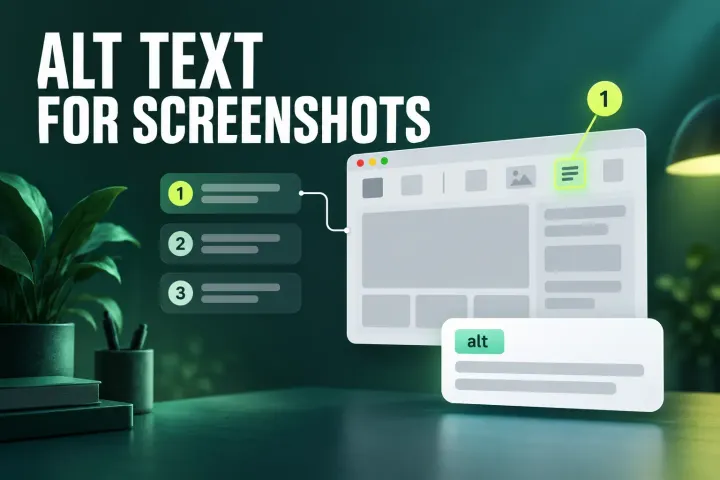
Write the step first, then give each screenshot alt text for what a reader would miss: short, empty, functional, or backed by a description in the page.
Use the saved image on your phone or computer. Follow the Photos, Lens, or Gallery route, fix recognition problems, and review the decoded result.

Clean a copy of your screenshot, inspect hidden tags, and check the image and filename before sharing. Windows, Mac, and phone location limits explained.
Keep the mouse pointer in your screenshot on Windows or Mac, position it with a hotkey or timer, and fix captures that leave it out.

Open the screenshot in Google Photos and use Google Lens, or tap the yellow T in Samsung Gallery. Here is how to select the words, copy them, and fix common problems.

Open the screenshot in Photos, touch and hold a word, adjust the grab points and tap Copy. Live Text can also select all, call, email and translate on iPhone XS or later.
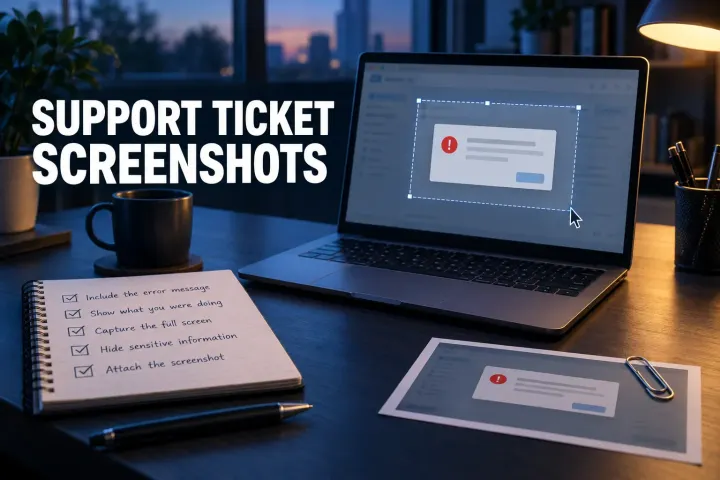
A useful support screenshot does more than prove an error exists. Capture the failure state, add reproducible steps and environment details, remove private data, and verify every attachment before sending the ticket.
Snipping Tool's Text actions copies text from a screenshot, a Text Extractor button skips the screenshot, and PowerToys copies from anything on screen with Win + Shift + T.