
There is no official Snagit web app that replaces Snagit Capture and Snagit Editor in a browser. If you want the full screenshot workflow, you still need the installed Windows or macOS app. What TechSmith does run in a browser: Camtasia Online records and edits video, and Screencast hosts finished Snagit captures so people can review them.
TechSmith has been pulling these products closer together. Snagit for Windows 2026.3.1 can send images to Camtasia Online in their original SNAGX format, with cursor, text and other capture information included, and 2026.4.0 added recording video straight into Camtasia Online from the Video tab in Snagit Capture. Those handoffs are handy when you want to turn Snagit captures into a video. They don't make Camtasia Online a browser version of Snagit Editor, though.
| If you need... | Use this official route |
|---|---|
| The installed Snagit trial for Windows or Mac | Download Snagit from TechSmith |
| A browser-based screen video | Open Camtasia Online |
| A shared image or video with comments | Open TechSmith Screencast |
| Your subscription, downloads, or saved keys | Open your TechSmith account |
Snagit Online: the short answer
| What you want to do | Use | Where it runs |
|---|---|---|
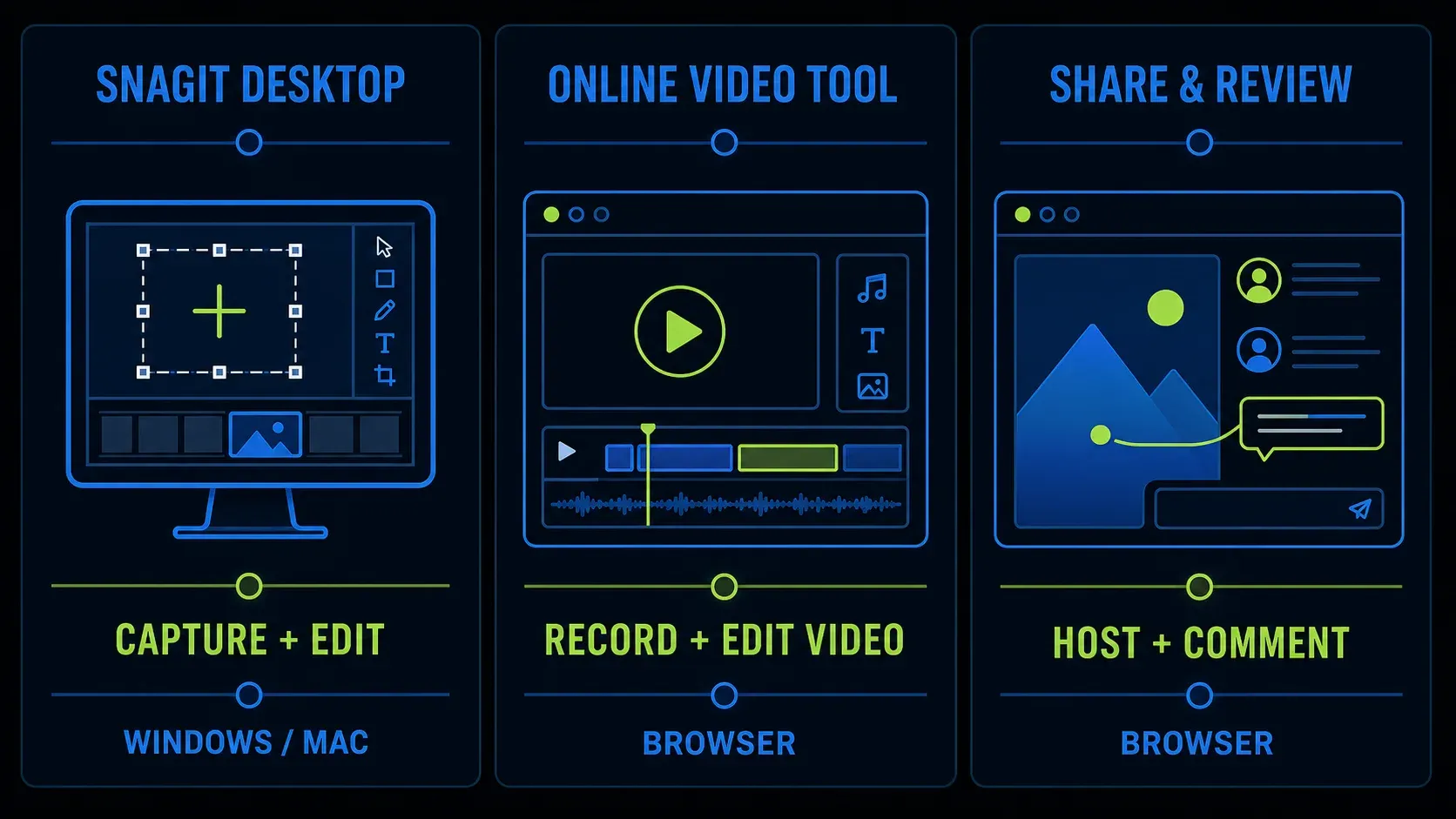
| Capture screenshots, scrolling pages, interface objects, or short videos and edit them deeply | Snagit | Installed Windows or macOS app |
| Record, edit, and share a quick screen video without installing software | Camtasia Online | Supported desktop browser |
| Host a Snagit image or video, send a link, and collect comments | Screencast | Web browser for sharing and review |
| Take a simple screenshot on a locked-down or borrowed computer | Built-in OS or browser capture | Already available on the device |
Camtasia Online is not “Snagit in the browser,” and it doesn't replace Snagit Editor's screenshot annotation, scrolling capture, OCR, presets, templates, or capture library. Current Snagit versions can send images and Step Captures to Camtasia Online, and the browser app turns them into a video project.
Is there an official Snagit web app?
No. TechSmith's current Snagit product explanation calls it screen-capture and recording software for Windows and Mac, and its system-requirements page lists supported Windows and macOS versions. You won't find a browser operating system anywhere in that compatibility list.
There's also a practical reason a browser page can't stand in for every desktop capture mode. Snagit works beyond a single webpage: application windows, scrolling regions, system audio, webcam, printer output on supported systems, local files, and a persistent capture library. Browser security deliberately limits how far a website can reach into the rest of your computer.
If you've found a site claiming to run the complete Snagit Editor online, don't enter a TechSmith password or upload sensitive captures until you've verified who operates it. An interface that looks like Snagit is not proof that it's a TechSmith service.
What TechSmith does offer in a browser
Camtasia Online records a browser tab, window, or screen with camera and microphone, lets you edit right in the browser, and shares the result with a link. TechSmith says it's free, has no watermark, and doesn't require a credit card. You do need a free TechSmith account.
Check the limits before you record. TechSmith's current Camtasia Online FAQ sets a five-minute maximum for each scene — a project can contain multiple scenes, though. Its browser-support page is not fully aligned with that FAQ: the dedicated page lists Chrome and Edge, while the FAQ names Chrome and treats other Chromium browsers as untested. Use current Chrome when you want the least ambiguous supported route, especially for system audio.
My rule of thumb: pick it for a short walkthrough, video message, presentation, or collaborative review. Pick installed Snagit when the result is primarily an image — a scrolling page, a numbered procedure, a heavily annotated screenshot, or a capture you expect to revise later.
Snagit for Windows 2026.3.1 also sends SNAGX data to Camtasia Online for video creation. I cover the release-specific workflow in my Snagit 2026 changes guide.
For the installed video workflow — microphone, system audio, webcam, trimming, and the common failure modes — use my Snagit screen-recording guide.
Where Screencast fits
Screencast is the sharing layer, not the local capture editor. TechSmith's Snagit share-destinations documentation says Screencast provides a URL or embed code for a capture, and the current service supports review features such as comments. Viewers can open shared content in a browser without installing Snagit.
This is why a teammate might tell you they “used Snagit online” when all they really did was view or comment on the finished capture in a browser. The author captured and edited locally; the audience consumed it on the web.
Be careful with older instructions here. TechSmith says the legacy Screencast.com service has been retired; current documentation refers to Modern Screencast. If an old tutorial points you at a retired endpoint, start from the current share destination inside a supported Snagit version instead.
How to download Snagit safely
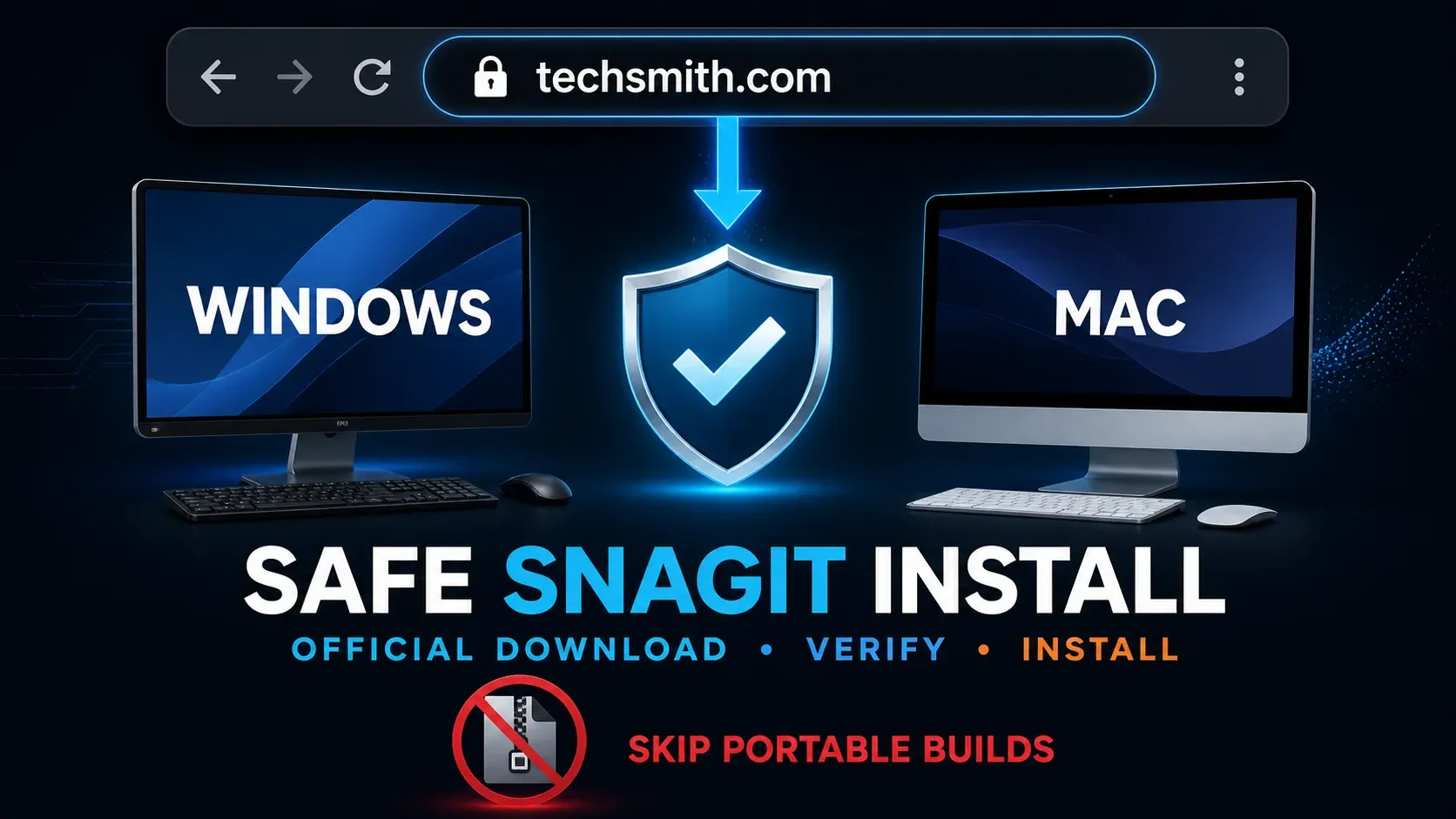
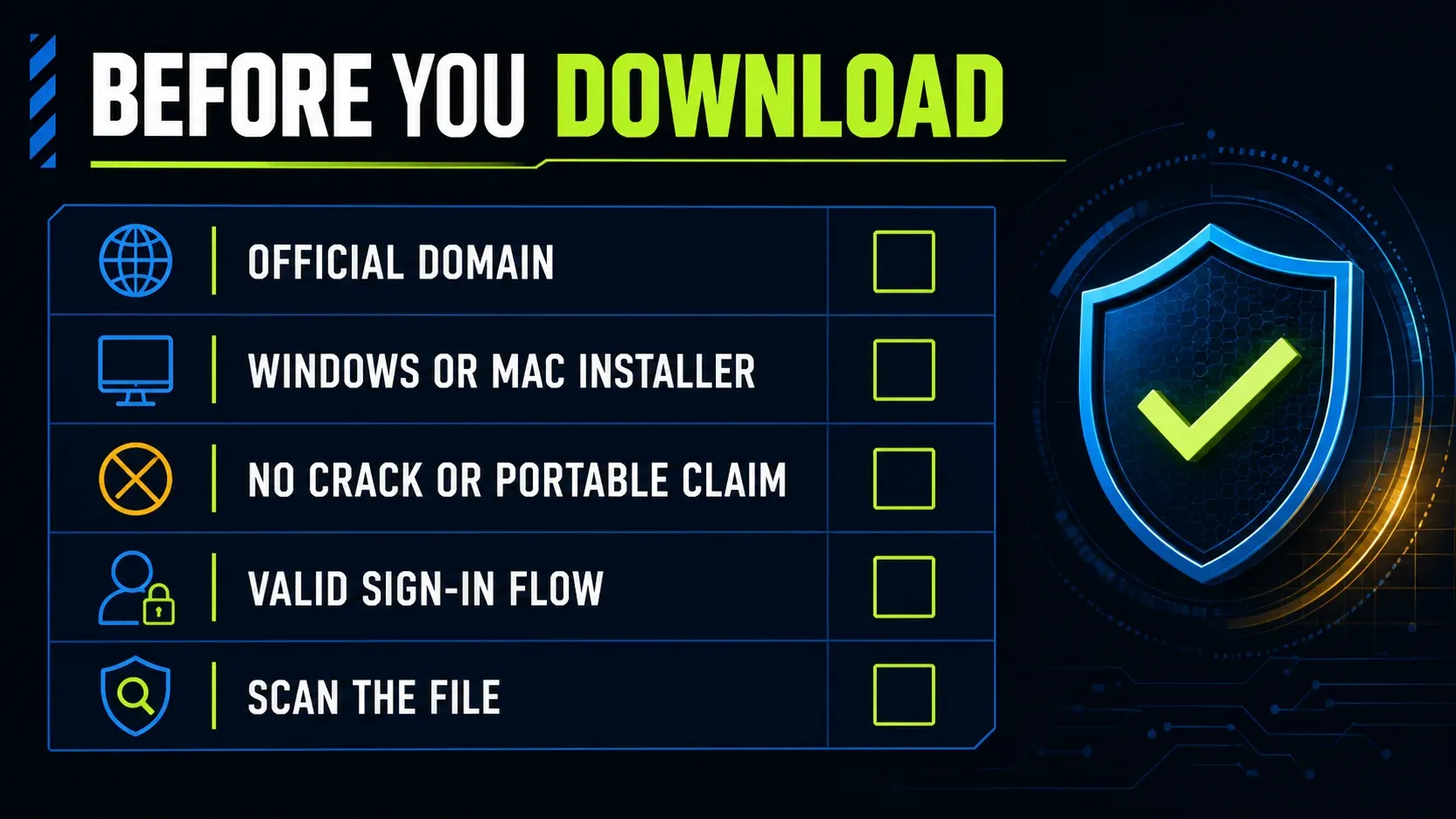
- Start at the official Snagit download page, not a download aggregator or sponsored look-alike result.
- Check the address bar before signing in or downloading. The hostname should belong to TechSmith.
- Confirm that your Windows or macOS version meets the current requirements.
- Download the installer intended for your operating system.
- Check the publisher information shown by Windows or macOS. Stop if the publisher is missing or unexpected.
- Install, sign in if your license requires it, and run one test image and one test video before changing system-wide shortcuts.
My Snagit installation and update guide walks through the full Windows and Mac sequence. If you're on an older OS, Windows on ARM, a managed computer, or a recent macOS release, check the current compatibility guide first.
Can you use Snagit online for free?
Not as a permanent Snagit web app. TechSmith currently offers a fully functional 15-day trial of the installed product, and Camtasia Online gives you a free browser workflow. The Snagit trial is for evaluation, and the current trial terms do not authorize commercial work, training, or benchmarking.
Use the trial to evaluate desktop features with harmless sample content: scrolling, text recognition, audio routing, permissions and export. TechSmith's download terms limit trial use to evaluation and review, excluding commercial production, training and benchmarking. Use an appropriate paid licence for a real work pilot.
Bundles change, so check whether a plan you already pay for includes Snagit before you buy it separately. My Snagit pricing and licensing guide explains what to verify at checkout.
Is there a Snagit browser extension?
There is no current official Snagit browser extension. TechSmith did offer a Google Chrome extension once, but its May 2016 product notice set the end of support for August 31, 2016. Current Snagit captures browser content through the installed desktop app, not through a Chrome, Edge, Firefox, or Safari add-on.
If all you need is a webpage screenshot, a browser's built-in full-page capture or a reputable extension may be enough. The tradeoff is scope: an extension generally stays inside browser pages, while Snagit also handles desktop applications and routes the result into its own editor and library.
For pages longer than the viewport, compare the methods in my scrolling-capture troubleshooting guide. It covers nested panels, sticky headers, and panoramic capture — because not every page scrolls cleanly, whatever other tutorials imply.
Is Snagit Portable official?
TechSmith lists no official portable Snagit build. Pages offering “Snagit Portable,” a repacked installer, a preactivated archive, or a crack are not the normal TechSmith distribution path. For an offline computer, TechSmith instead documents copying the official EXE or DMG installer to a USB drive and installing it normally.
The problem isn't merely licensing. A modified executable can hide what was removed, added, or configured, and it bypasses the publisher-controlled update route. Even if the file appears to launch normally, you have no way to know that your capture data, clipboard contents, credentials, or future updates are safe.
On a computer where you can't install software, use a built-in capture tool or a browser-based alternative that fits the task. On an offline workstation, follow the legitimate route in my Snagit offline activation guide — “offline” and “portable” are not synonyms.
Best option when you must stay in a browser
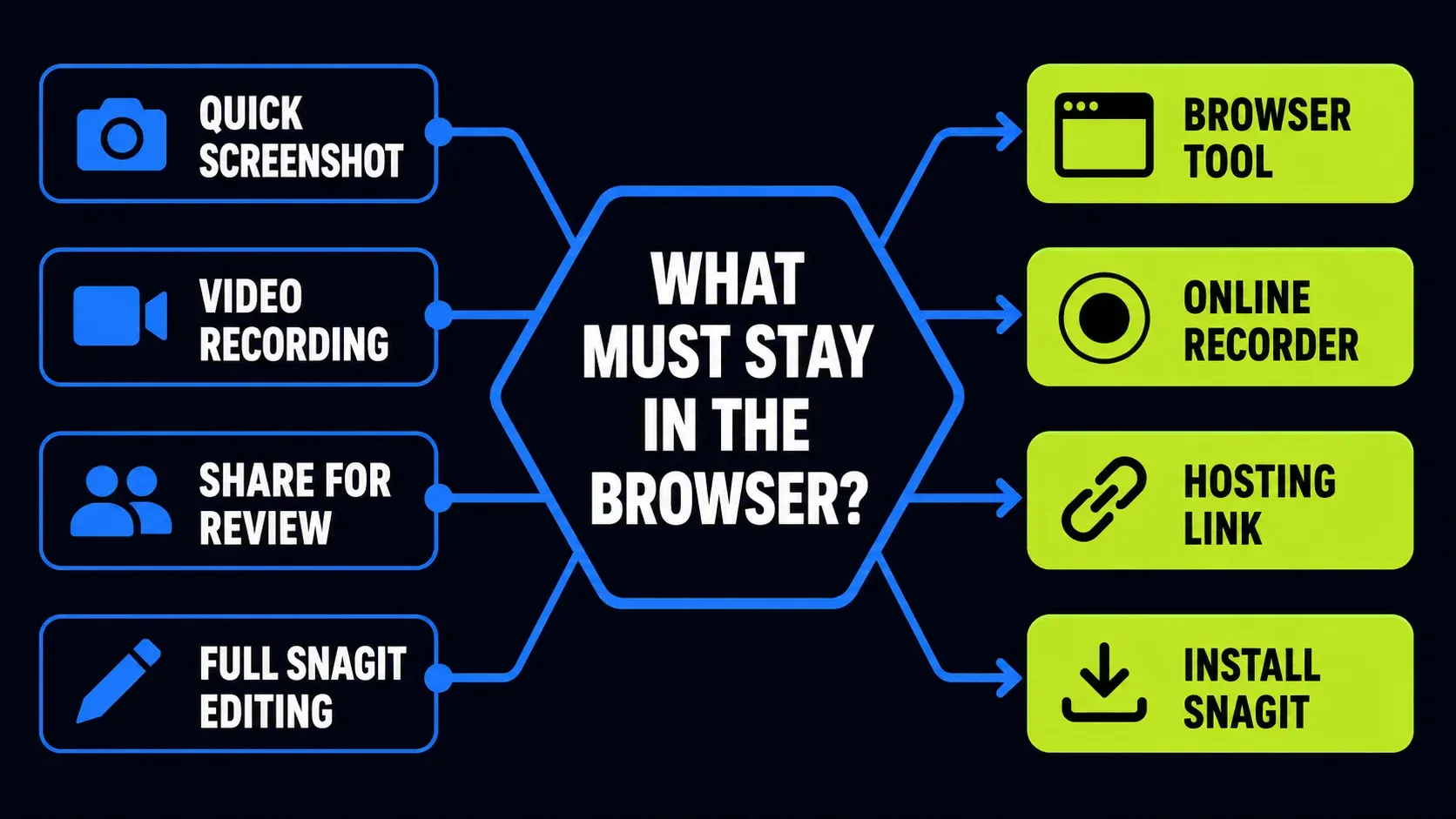
- Quick browser video: use Camtasia Online in current Chrome when you want the least ambiguous support path. TechSmith’s separate browser-support page also lists Edge.
- One full webpage: test the browser’s own full-page screenshot command before adding an extension.
- Share and comments: upload a finished Snagit capture to Screencast and send the review link.
- Detailed screenshot editing: use installed Snagit or choose a browser image editor only after checking where files are processed and stored.
- Chromebook: installed Snagit is unavailable, but TechSmith supports Camtasia Online with the warning that results vary across Chromebook hardware.
- Linux: installed Snagit is unavailable, and TechSmith does not officially support or test Linux Chromium browsers for Camtasia Online. For image and PDF markup, Markup Hero works in the browser, and its download page labels the Linux app beta; the Snagit vs Markup Hero comparison explains how its shared links and plan limits work.
If cost or operating-system support rules Snagit out, compare task-specific choices in my free Snagit alternatives guide. A browser tool isn't automatically better: it may require uploading the capture to a third party, while a local app can keep more of the workflow on the device.
Privacy checklist before using an online capture tool
- Close private tabs, messages, password managers, and unrelated applications.
- Choose a browser tab instead of the entire screen when that is sufficient.
- Remember that Camtasia Online stores recordings on TechSmith cloud servers. TechSmith says only authorized collaborators can view project media.
- Review retention, deletion, account, and workspace permissions before recording regulated or client data.
- Disable notifications and inspect the address bar, bookmarks, profile name, and taskbar.
- Review the exported pixels and audio. Cropping the visible canvas does not always remove underlying or previously shared data.
FAQ
Can I use Snagit without downloading it?
You can view a shared Snagit capture in Screencast and edit a video project in Camtasia Online. The full Snagit capture and screenshot-editing workflow still requires the Windows or macOS application.
Does Snagit work in Chrome?
The installed Snagit app can capture Chrome windows, regions, and compatible scrolling webpages. It is not a Chrome web app and does not need to be a browser extension to capture browser content.
Is Snagit Online free?
There is no separate official product called Snagit Online. TechSmith currently offers a 15-day trial for installed Snagit. Camtasia Online is free, has no watermark, and requires a free TechSmith account.
Can I use Snagit on a Chromebook?
ChromeOS is not listed in TechSmith’s current Snagit system requirements, so you cannot install the desktop app. TechSmith supports Camtasia Online on Chromebooks but warns that results can vary with the device hardware.
Is Snagit Portable safe?
TechSmith does not list an official portable edition. Avoid modified or preactivated packages because their contents, licensing, update path, and handling of sensitive captures cannot be trusted like the publisher’s installer.
What is the difference between Snagit and Screencast?
Snagit captures and edits on a Windows or Mac computer. Screencast hosts finished images or videos so other people can open a link, review the content, and comment in a browser.