
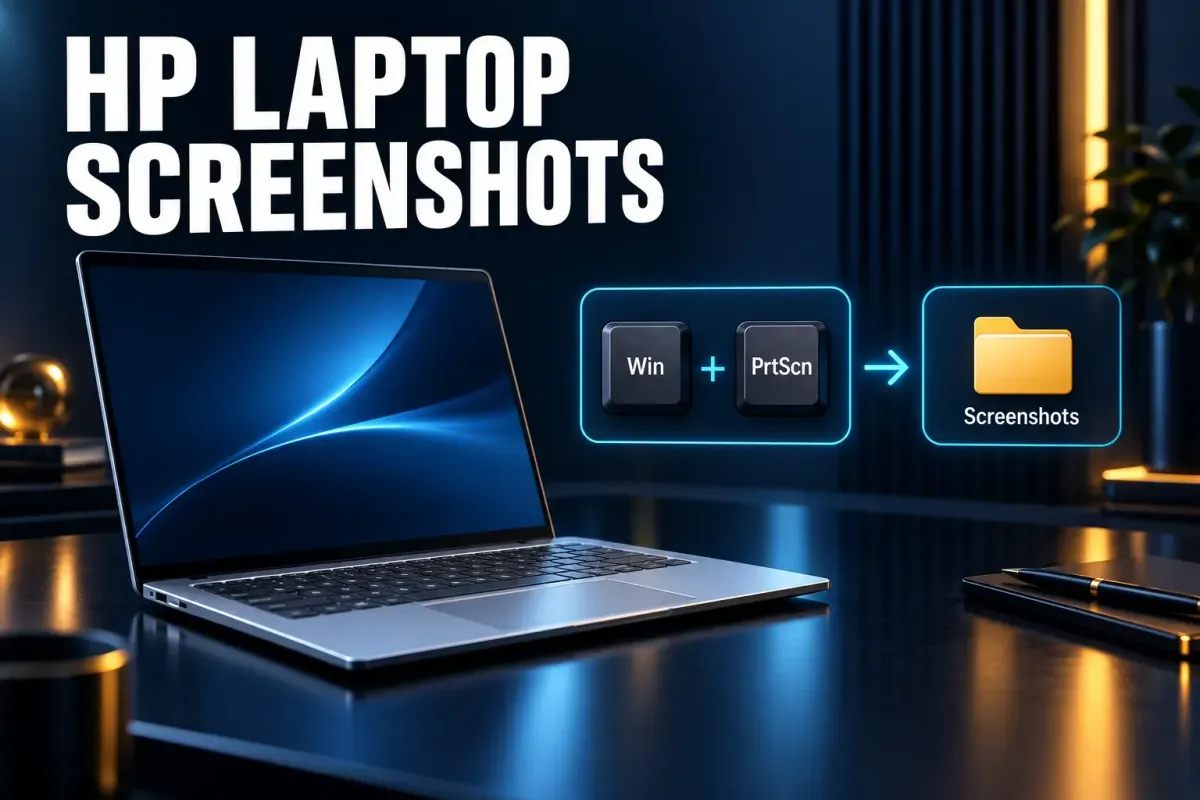
To screenshot on an HP laptop running Windows, press Windows + Shift + S and drag over the part of the screen you need. To save the whole screen as a file in one step, press Windows + PrtScn; the image goes to Pictures → Screenshots. Alt + PrtScn copies only the window you're working in. If PrtScn is printed as a second label on another key, hold Fn as well.
Those are Windows shortcuts, so they work the same on a Pavilion, Envy, Spectre, EliteBook or OmniBook. Two things change from one HP to the next: the keyboard, which may hide Print Screen behind Fn or leave it out, and the operating system, because some HP laptops are Chromebooks and some fold into tablets. I start with those checks, because they decide which keys to press.
First, check which kind of HP you have
A Windows laptop has a Windows logo key next to Alt, and most of this guide is for you. Keep an eye on whether your keys have a separate PrtScn (or prt sc) key, or whether it's printed as a second label on a key that does something else.
An HP Chromebook has a Show windows key in the top row, which HP describes in its Chromebook screenshot guide as a rectangle with two vertical lines on its right side. The Windows shortcuts won't work there; skip to the Chromebook section below.
A 2-in-1 folded into tablet mode may have no keyboard in reach, so the screenshot comes from the hardware buttons or the Snipping Tool app. That has its own section too.
The series name on the lid doesn't settle any of this. People search for EliteBook or OmniBook steps, but the shortcut depends on the operating system and the labels on the keys, not on the product line.
HP screenshot shortcuts by what you need
The three built-in ways to screenshot on any Windows PC, HP or not, are Windows + Shift + S for an area, Windows + PrtScn for a saved full screen, and Alt + PrtScn for a quick copy of one window. The difference that matters most is whether you get a file or only a copy on the clipboard.
| What you need | Press | What you get |
|---|---|---|
| Part of the screen | Windows + Shift + S, then drag | Copied to the clipboard; on Windows 11 the Snipping Tool can also save it to Screenshots |
| The whole screen as a file | Windows + PrtScn (add Fn on some keyboards) | A file in Pictures → Screenshots |
| The window you're using | Alt + PrtScn | Copied to the clipboard only |
| Quick copy with one key | PrtScn | Windows 11: opens the snipping overlay by default; Windows 10: copies the whole screen |
| No PrtScn key | Fn + Windows + Space Bar, where supported | A file in Pictures → Screenshots |
| A game or full-screen app | Windows + Alt + PrtScn | A PNG in Videos → Captures |
| A short video of the screen | Windows + Shift + R | An MP4 in Videos → Screen Recordings (Windows 11) |
These come from Microsoft's list of Windows keyboard shortcuts and its Snipping Tool help. Microsoft ended Windows 10 support on October 14, 2025, but plenty of HP laptops still run it, so I note where it behaves differently.
Capture part of the screen with Windows + Shift + S
This is the screenshot people mean when they ask how to screenshot on an HP laptop with the Shift key. It's the one I'd use most days, because it captures only what the other person needs to see.
- Open what you want to capture and close anything private that sits in the same area.
- Press Windows + Shift + S. The screen dims and a small toolbar appears.
- Choose rectangle, window, full screen or freeform from that toolbar, then drag or click.
- Paste the result with Ctrl + V into an email, chat or document, or open the Snipping Tool to mark it up first.
Microsoft describes the shortcut as copying the selected region to the clipboard. On Windows 11, the current Snipping Tool also saves each snip to the Screenshots folder automatically, unless someone turned that off under See more → Settings in the app. If you can't find a file afterwards, paste the image somewhere before you copy anything else.
Swap the S for an R, as in Windows + Shift + R, and Windows 11 records a video of the area you select instead. Microsoft says the recording is saved as an MP4 in Videos → Screen Recordings.
Save the whole screen with Windows + PrtScn
Press Windows + PrtScn when you want a file straight away. The screen dims for a moment, and Windows saves the image in the Screenshots folder inside Pictures. Nothing appears on the screen apart from that brief dim, so open File Explorer to check.
On some keyboards the shortcut needs Fn as well. Lifewire's HP screenshot walkthrough gives the full version as Windows + Fn + PrtSc, which is what to try when Windows + PrtScn alone does nothing. Microsoft's Print Screen shortcut page hedges in the same way, saying you may use it "depending on your hardware".
A full-screen capture picks up everything: the taskbar, notifications, open tabs and any message that pops up at the wrong moment. For anything you'll send to someone else, I'd rather take an area with Windows + Shift + S than crop a full screenshot later.
What PrtScn does on its own
The single Print Screen key behaves differently depending on your version of Windows and one setting.
On Windows 11, Microsoft's shortcut list says PrtScn opens screen snipping by default, the same overlay as Windows + Shift + S. If you'd rather have it copy the whole screen, go to Start → Settings → Accessibility → Keyboard and turn off Use the Print Screen button to open screen snipping. With it off, PrtScn copies a still image of the entire screen to the clipboard, which is how Microsoft's Snipping Tool help still describes the key.
On Windows 10, PrtScn copies the whole screen to the clipboard. To make it open screen snipping instead, go to Start → Settings → Ease of Access → Keyboard and turn on the toggle under Print Screen shortcut.
A clipboard copy isn't a file. Paste it with Ctrl + V into a chat or document, or into Paint if you want to save it as an image. If you quickly pressed PrtScn and then looked in Pictures, that's why the folder is empty.
Copy one window with Alt + PrtScn
Click the window you want so it's active, then press Alt + PrtScn. Windows copies only that window to the clipboard, without the desktop or the taskbar around it. As with a full-screen PrtScn copy, there's no file until you paste it somewhere and save it.
This works well for a dialog box or an error message. If the window you need sits behind another one, click it first; Alt + PrtScn always takes the window that has focus.
When PrtScn shares a key with something else
HP doesn't put Print Screen in the same place on every keyboard. On some models it has a key of its own. On others, prt sc is printed as a second label on a key that does something else, and you need Fn to reach it. HP's own screenshot troubleshooting advice starts there: if Print Screen doesn't respond, try Fn + PrtScn.
The layout can be confusing even then. In one archived HP Community thread about an Envy 17 with HP's newer keyboard layout, prt sc sat on another key. The owner found that Fn + prt sc opened the Snipping Tool, while Windows + prt sc did nothing, and the thread ends without a fix. That's one laptop from 2020, not a rule, but it shows why the label on your keys matters more than a generic list of shortcuts.
When a combination fails, try it with Fn, then without. If neither works, use Windows + Shift + S, which doesn't need the Print Screen key at all.
How to screenshot on an HP laptop without a PrtScn key
Use Windows + Shift + S. It's the easiest answer, because it doesn't involve Print Screen. Choose full screen from the toolbar if you need everything.
Try Fn + Windows + Space Bar. Microsoft says devices without a PrtScn button may use this combination, with the result in Pictures → Screenshots. The word "may" matters: it depends on the hardware.
Use the On-Screen Keyboard. Go to Start → Settings → Accessibility → Keyboard and turn on the On-Screen Keyboard. Microsoft says it shows all the standard keys, and wikiHow's Windows screenshot guide places PrtScn beneath Insert. Click it with the mouse or touchpad.
Open the Snipping Tool from Start. Select Start, type snipping tool, open it and select New. This is also the route when the Windows key itself is broken or missing, together with PrtScn and Alt + PrtScn, which don't use it.
Screenshot a game or full-screen app with Game Bar
For a game or a full-screen app, Xbox Game Bar has its own shortcut: press Windows + Alt + PrtScn. Microsoft's Game Bar help says the image is saved as a PNG in a folder called Captures under Videos, not in Pictures. Game Bar has to be turned on for the shortcut to respond.
The same help lists Windows + Alt + R to start and stop a recording of the game or app. The video lands in the same Captures folder as an MP4.
HP 2-in-1s and tablets
When a convertible such as an Envy x360, Spectre x360 or OmniBook X Flip is folded into tablet mode, the keyboard is out of reach. The hardware buttons take over, and this is where sources disagree.
Microsoft's button guidance for Windows device makers maps Power + Volume Up to a screenshot and Power + Volume Down to the Ctrl + Alt + Del screen, on devices set up with what it calls the Windows 10 button architecture. On devices with a Windows button, Windows button + Volume Down takes a screenshot. HP's UK screenshot guide says something different: for HP tablets running Windows or Android, hold Power + Volume Down together for about two seconds.
On a Windows 2-in-1, I'd try Power + Volume Up first, because that matches Microsoft's specification. If a screen opens with options to lock the PC or change your password instead, that's the Ctrl + Alt + Del screen; close it and try the other pair. The maker decides how the buttons are set up, so your model may follow either source.
If the buttons don't cooperate, open the Snipping Tool from Start, select New and draw the area with a finger or pen. HP also says some of its tablets can take a screenshot with a stylus button if they support active pen input.
On an HP tablet running Android, Google's Android screenshot help gives Power + Volume down. If that doesn't work, hold Power for a few seconds and tap Screenshot.
HP Chromebooks use ChromeOS shortcuts
On an HP Chromebook, press Ctrl + Show windows for the whole screen. For part of it, press Shift + Ctrl + Show windows, then select and drag. Both shortcuts come from Google's Chromebook keyboard shortcut list, and they're the same on every Chromebook brand.
Google's help on Chromebook screenshots and screen recording says each capture is copied to the clipboard and saved in the Downloads folder, unless another folder was chosen in the capture settings. Snagit is a Windows and macOS app, so on a Chromebook the built-in capture tools are the main option.
Older HP laptops still on Windows 7
Microsoft ended Windows 7 support on January 14, 2020. The shortcuts above are documented for Windows 10 and 11, so don't count on Windows + PrtScn or Windows + Shift + S on an older machine.
The tool that does carry over is the Snipping Tool. HP's New Zealand screenshot guide notes it was built into Windows Vista, 7, 8 and 10. Open it from the Start menu, select New (or press Ctrl + N), capture the area and save it as a PNG or JPEG. A PrtScn copy pasted into Paint with Ctrl + V is the other old-school route.
Where HP screenshots are saved
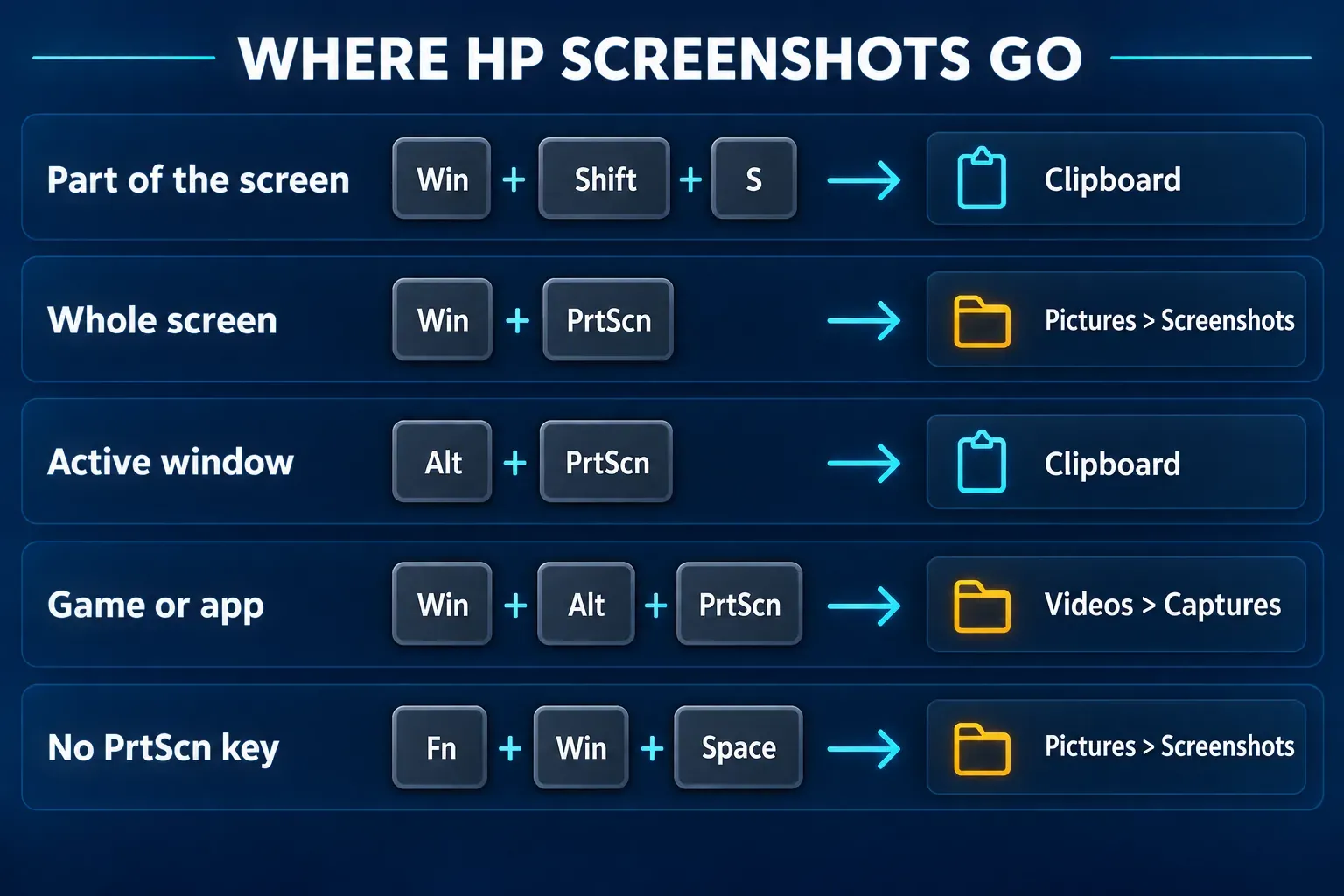
There isn't one folder for every screenshot. Windows + PrtScn and Fn + Windows + Space Bar save to Pictures → Screenshots, Game Bar saves to Videos → Captures, and screen recordings go to Videos → Screen Recordings. Alt + PrtScn leaves nothing on disk until you paste the image and save it, and so does PrtScn when it copies the whole screen (Windows 10, or Windows 11 with the snipping setting turned off). Windows + Shift + S, and PrtScn with the Windows 11 default, sit in between: both copy to the clipboard, and on Windows 11 the Snipping Tool also files a copy in Screenshots if automatic saving is on.
To open the folder, open File Explorer from the taskbar, select Pictures in the side pane, then Screenshots. If OneDrive backs up your Pictures folder, the screenshots may sit inside the OneDrive copy of it. The guide to screenshots that aren't saving on Windows walks through the folder settings that move them.
When nothing happens
Another app has taken the Print Screen key. TechSmith's Print Screen hotkey article notes that programs can claim the key, and that this commonly happens with OneDrive or Dropbox. HP's advice points the same way: check for conflicting software, then update the keyboard driver through Device Manager. The Print Screen troubleshooting guide covers the rest of the checks.
The screen dims but nothing gets saved. You probably made a clipboard capture. Paste it, or switch to Windows + PrtScn for a file.
The screenshot is black. HP's guide says streaming services may block screenshots of DRM-protected content, and suggests updating the graphics driver. The black screenshot fixes go through the other common causes.
The Snipping Tool won't open. If Windows + Shift + S and PrtScn both do nothing, the app itself may be the problem. See Snipping Tool not working, or the broader guide for when screenshots aren't working at all.
Long pages, markup and private details
The Snipping Tool's modes are rectangle, window, full screen and freeform, plus video. None of them scrolls, so a web page longer than the screen won't fit into one image. The guide to scrolling screenshots on Windows covers the ways around that.
After a capture, the Snipping Tool has pen, highlighter, shapes and crop tools. Its Text actions button reads the text in the image, so you can copy it, or use Quick redact to cover email addresses and phone numbers. Microsoft says this text recognition runs locally on your device. For arrows, numbered steps and callouts that stay readable, see the guide to annotating a screenshot. For names, account numbers and anything Quick redact doesn't catch, use the screenshot redaction steps before you share it.
If you use Snagit on your HP
Snagit runs on Windows laptops, HP included, and can use the Print Screen key as its capture hotkey. On Windows 11, the snipping setting above can grab that key first. The Snagit Print Screen setup explains how to turn the Windows setting off and give the key to Snagit, including the Fn case on laptop keyboards.
For a quick screenshot, the built-in shortcuts are enough. A dedicated tool earns its place when you capture the same kinds of screens every day, need scrolling capture, or build step-by-step guides. The roundup of screenshot software for Windows compares the options, and the Snipping Tool keyboard shortcuts cover more of what's already built in.