
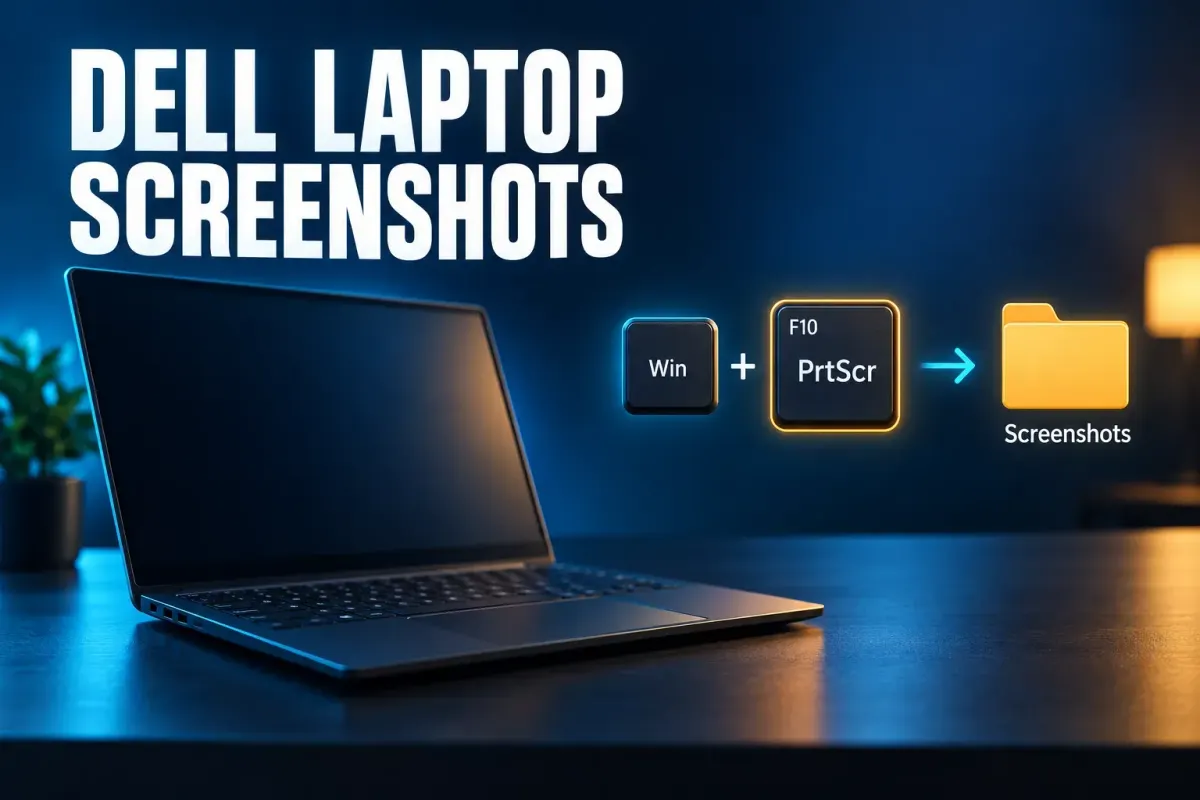
To screenshot on a Dell laptop, press Windows + Shift + S and drag over what you want, or press Windows + PrtScr to save the whole screen as a file in Pictures → Screenshots. On many Dell laptops PrtScr shares a key with F10 or another key on the top row, and some models put it on Insert, so you may need to hold Fn, or let go of it, depending on how your function row is set.
That last part is the first thing I'd check when a Dell screenshot doesn't work. The Windows shortcuts are the same on an Inspiron, Latitude, XPS, Vostro, Alienware or one of the newer Dell, Dell Pro and Dell Pro Max laptops. What changes is the keyboard, so I'll start with finding the key and working out which layer it's on, then go through what each shortcut does and where the image ends up.
The quick answer for most Dell laptops
If you just need the image and your Dell runs Windows 11 or Windows 10, one of these will do it. The middle column assumes PrtScr is reachable; if it shares F10 or Insert, read the next two sections before deciding the shortcut is broken.
| What you want | Press | What happens |
|---|---|---|
| Pick an area | Windows + Shift + S | Copied to the clipboard; on Windows 11 the Snipping Tool also keeps a copy in Screenshots unless you've turned auto-save off |
| Whole screen, saved as a file | Windows + PrtScr | File in Pictures → Screenshots |
| Just the window you're in | Alt + PrtScr | Copied to the clipboard; paste it somewhere to keep it |
| One key | PrtScr | Windows 11: opens the snipping bar by default. Windows 10: copies the whole screen |
| Keyboard with no PrtScr | Fn + Insert on some Dells, or Fn + Windows + Space where supported | Fn + Insert acts as PrtScr; Fn + Windows + Space takes a screenshot on hardware that supports it |
| A game | Windows + Alt + PrtScr | PNG in Videos → Captures |
| 2-in-1 in tablet mode | Windows button + Volume Down | Saved like Windows + PrtScr |
The shortcuts come from Microsoft's Windows keyboard shortcuts list and Dell's own Print Screen article, which covers Dell laptops, desktops and tablets.
Find Print Screen on your Dell keyboard
Dell doesn't label the key the same way on every keyboard. Look for PrtScr, PrtSc, PrtScn, PrntScr, PrntScrn or the full PrintScreen. They all mean the same key.
On a laptop, start with the top row. Dell says the key usually sits among the F keys and often needs Fn + F10 or another function key. If you don't see it there, check Insert: some Dell laptops have no dedicated PrtScr key and use Fn + Insert instead. Dell gives the same Fn + Insert advice for some of its desktop keyboards, the KM3322W among them, which is worth knowing if your laptop sits on a dock with a Dell keyboard attached.
If none of that matches what's under your fingers, the user guide for your exact model has the key map. Dell's Print Screen article points there too, and its function key guide for the Precision 5750 is a good example of what those tables look like.
On a Dell desktop or all-in-one
Desktop keyboards make this easier. Dell's Print Screen article places the key in the upper-right corner of a desktop keyboard, usually as a key of its own, so PrtScr works without Fn and every Windows shortcut below applies as written. The same article covers OptiPlex, Inspiron and Vostro desktops and Dell all-in-ones. The exception is a compact keyboard with no Print Screen key, the KM3322W among them, where Fn + Insert takes its place. The Fn Lock trouble in the next section only applies when PrtScr shares a key with something else.
Why the same keys work one day and not the next
When PrtScr is printed on F10, that one key does two jobs, and a setting decides which job is the default. In the Precision 5750 table I just mentioned, F10 on its own is Print screen, and Fn + F10 sends a plain F10. On a keyboard set up like that, the usual advice to "hold Fn" is exactly what stops the screenshot.
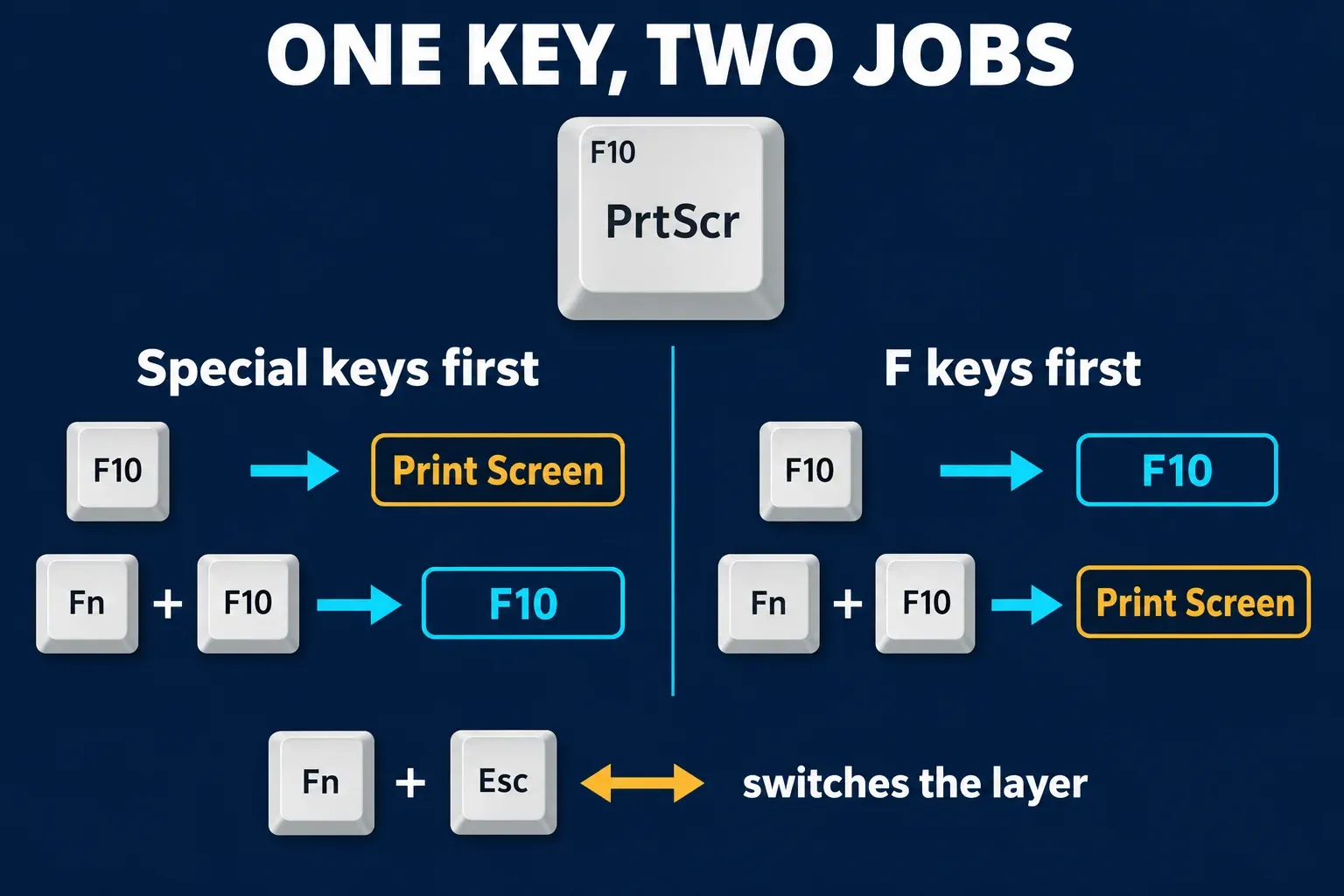
There's a quick way to tell which layer you're on. In Windows, F10 activates the menu bar in the active window. So if you press the key and an app's menu bar lights up instead of a screenshot happening, the keyboard sent F10. Press the other combination and try again.
The reason it seems to change by itself is Fn Lock. Dell's keyboard troubleshooting guide describes three ways to control it:
- Fn + Esc. Hold Fn and press Esc to swap which layer works without Fn. Press the same pair again to swap back. It's easy to press by accident, so if a shortcut worked yesterday and doesn't today, check this first.
- BIOS setting. Restart, press F2 about once a second when the Dell logo appears, and look for Post Behavior → Fn Lock Options or Advanced → Function Key Behavior, depending on which kind of setup screen your Dell has. Save the change, and the laptop restarts. On a company laptop, I'd check with IT before changing anything in there.
- Windows Mobility Center. Press Windows + Q, search for Mobility Center and look for a Function Key Row drop-down. Dell notes it may not be there, depending on your version of Windows.
Alienware and Dell G-series owners can hit the same lock from a different direction. Dell has a note for several Alienware m-, x- and G15/G16 models where Delete only responds to Fn + Delete because the function key lock is on. The fix is Fn + Esc, and Dell says it works when other function keys have the same problem. If PrtScr on your gaming Dell only responds with Fn held down, try the same pair.
XPS laptops with a touch function row
Some XPS 13, 14 and 16 models replace the physical F keys with a capacitive touch row that shows one set of keys at a time. Dell's XPS features page explains the controls: hold fn to switch between the function keys and media controls, and press fn + esc to lock whichever set you want shown.
So if you can't see a Print Screen icon on that row, it may simply be on the other layer. Hold fn and look again. If you'd rather not think about it, Windows + Shift + S uses only regular keys and works the same on every XPS.
What each Windows shortcut does on a Dell
Once PrtScr is reachable, everything else is plain Windows 11 or Windows 10. One detail even Dell's own article hasn't caught up with is that Windows 11 changed what the single key does.
If an old Dell still runs Windows 7, the keyboard part above still applies, but the Windows 11 behaviors below, such as PrtScr opening the snipping bar and snips saving automatically, aren't part of it. Microsoft ended Windows 7 support on January 14, 2020.
Windows + Shift + S: pick an area
This opens the Snipping Tool's capture bar. Choose rectangle, window, full screen or freeform, then drag or click. The image goes to the clipboard, ready to paste into an email or a chat. On Windows 11, the current Snipping Tool also saves every snip to your Screenshots folder automatically, and you can change that under See More → Settings in the app. If a menu closes when you start the capture, use the app's delay option instead. The Snipping Tool keyboard shortcuts cover the rest, including Windows + Shift + R for a short video clip.
Windows + PrtScr: save the whole screen
This is the one to use when you want a file and nothing else: the capture goes straight into Pictures → Screenshots. If PrtScr lives on F10 or Insert, add Fn only if your keyboard needs Fn for the PrtScr layer, as above.
PrtScr on its own
Dell's Print Screen article still says that PrtScr copies the entire desktop to the clipboard. That's how Windows 10 behaves. On Windows 11, Microsoft's shortcut list says PrtScr now opens screen snipping by default, so you get the same capture bar as Windows + Shift + S.
If you prefer the old one-key copy, go to Start → Settings → Accessibility → Keyboard and turn off Use the Print Screen button to open screen snipping. Windows 10 has the opposite toggle under Ease of Access → Keyboard, if you want PrtScr to open snipping there.
Alt + PrtScr: one window
This copies only the active window, without the taskbar or anything behind it. Nothing is saved as a file, so paste it with Ctrl + V into Paint, a document or a message before you copy anything else.
How to screenshot on a Dell without a Print Screen key
Try these in order:
- Fn + Insert. Dell lists this for laptops and keyboards without a dedicated PrtScr key, where it stands in for the missing key.
- Fn + Windows + Space. Microsoft's Print Screen shortcut page offers this for devices without PrtScn, with the caveat that it depends on your hardware, and sends you to Pictures → Screenshots to find the result.
- Windows + Shift + S. No PrtScr involved at all, which makes it the most reliable choice on any Dell keyboard.
- The Snipping Tool app. Open it from Start if a keyboard isn't handy, for example on a 2-in-1 in tablet mode.
Dell 2-in-1s in tablet mode
Folded back, a 2-in-1 has no keyboard in reach. Dell's answer for Windows tablets is Windows button + Volume Down, which matches Start + Volume Down in Microsoft's hardware button behavior table.
You'll also see Power + Volume Up recommended online. Microsoft lists it as a screenshot only on devices built to the Windows 10 button layout, and on those same devices Power + Volume Down opens the Ctrl + Alt + Del screen instead. If your Dell has no Windows button, I'd skip the guessing and open the Snipping Tool from Start, then use its delay so you have time to set up the screen.
Screenshots in games
Games have their own route through Xbox Game Bar. Press Windows + Alt + PrtScr, and Microsoft's Game Bar guide says the image is saved as a PNG in the Captures folder, which you'll find under Videos. Alienware and G-series owners should keep the Fn Lock section in mind here as well.
Where screenshots go on a Dell laptop
- Windows + PrtScr, Fn + Windows + Space, the tablet buttons: Pictures → Screenshots.
- Windows + Shift + S, and PrtScr on Windows 11: the clipboard. On Windows 11 the Snipping Tool also saves a copy in Screenshots while auto-save is on.
- Alt + PrtScr, and PrtScr on Windows 10: the clipboard only. Paste it before you copy something else.
- Game Bar: Videos → Captures.
If you use OneDrive, there's one more place to look. Microsoft has retired the separate "Save screenshots to OneDrive" option; screenshots are backed up only when your Pictures folder is part of OneDrive. If it is, the Screenshots folder syncs with it. My guide to where screenshots go on Windows 11 traces each route, and the fixes for screenshots that aren't saving cover a Screenshots folder that stays empty.
If your Dell is a Chromebook
If your Dell runs ChromeOS instead of Windows, none of the Windows keys above apply. Google's Chromebook screenshot help lists the Screenshot key if your keyboard has one, Shift + Ctrl + Show windows for the capture menu, and Ctrl + Shift + F5 on an external keyboard without a Show windows key. Captures are copied to the clipboard as well. My Chromebook screenshot guide goes through the whole menu. Snagit doesn't run on ChromeOS, so the Snagit section below is for Windows Dells only.
When your Dell won't take a screenshot
Work down this list before reinstalling anything:
- Check the layer. If a menu bar highlights, F10 went through instead of PrtScr. Switch between F10 and Fn + F10, or press Fn + Esc once.
- Check for a paste. Open Paint and press Ctrl + V. PrtScr on Windows 10 and Alt + PrtScr copy without saving a file, so the image may already be on the clipboard.
- Check who owns the key. TechSmith's Print Screen hotkey article names OneDrive and Dropbox as apps that commonly claim PrtScr, and on Windows 11 the Snipping Tool can take it too. Keyboard software can also remap it; TechSmith covers Logi Options+ for Logitech keyboards, which matters if your Dell is docked with one.
- Check for a work policy. On a laptop managed by your employer, IT can switch off the Snipping Tool with a Windows policy that prevents it from running. If the capture bar never opens on a company Dell, ask IT rather than trying workarounds.
- Check the result. A capture that comes out black is a separate problem with its own fixes for black screenshots.
If the key is still dead after that, the Print Screen troubleshooting guide goes deeper, and there are separate pages for a Snipping Tool that won't open and for screenshots failing in general.
Long pages, arrows and private details
The built-in tools capture what's on screen and stop there. For a web page longer than your display, see scrolling screenshots on Windows. To add arrows or numbered steps before you send a capture, annotating a screenshot covers the basics. And if the image shows an email address, a ticket number or a customer's name, redact it properly rather than drawing a box over it.
Snagit on a Dell laptop
Snagit runs on Windows Dells and can use PrtScr as its capture hotkey, which is exactly the key Windows 11, OneDrive and Fn Lock all compete for. TechSmith's own fix list for a dead Print Screen hotkey on a laptop includes pressing Fn + Esc to turn off the function lock, the same check as above. The Snagit Print Screen setup guide shows how to hand the key to Snagit. On an F10-shared key, the Fn rules above still decide whether Snagit sees PrtScr at all.
For a one-off capture, Windows + Shift + S is enough. Snagit is worth it when you capture long pages often, with scrolling capture, or build step-by-step guides every week. If you're comparing options, the roundup of screenshot software for Windows puts Snagit next to the free alternatives.