
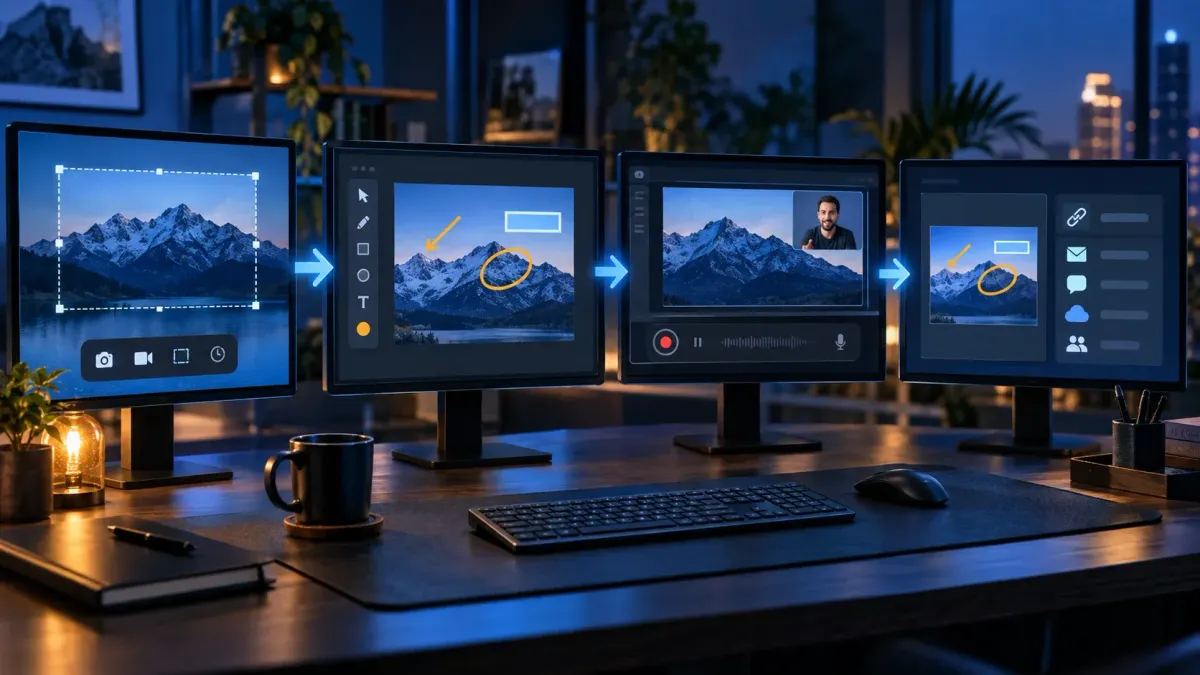
Snagit is used to capture and explain what is on your screen. It combines screenshots, annotation, scrolling capture, process guides and short recordings in a Windows and Mac app. You can also copy text from images and organize captures for later use. Typical jobs include support replies, software documentation, bug reports, onboarding and visual feedback.
TechSmith now markets it as Camtasia Snagit. This guide uses the shorter app name. The useful question is whether its capture, editing and storage tools make your repeated work easier than the free tools you already have.
I checked these features against the linked developer documentation on September 14, 2026.
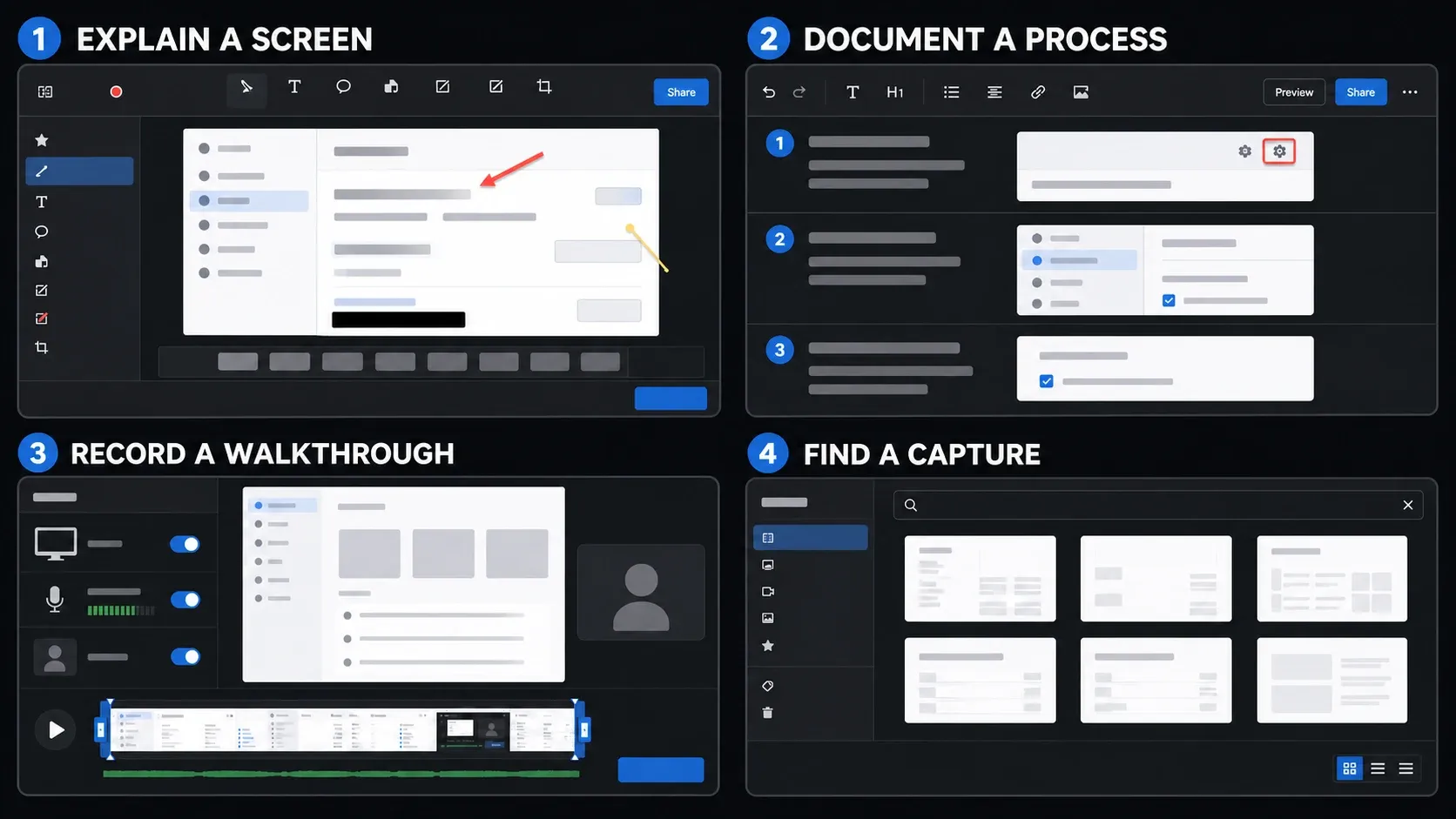
1. Capture screens for support tickets and records
Use a region capture for an error message, a window capture for a settings panel, or a full-screen capture when the surrounding desktop explains the problem. This first job is about recording the right state, before you add an explanation or turn it into a procedure.
For a support ticket, keep the error code and the relevant app controls visible, and leave unrelated tabs, account details and other people's messages outside the capture where possible. A tightly cropped message only helps if the recipient still understands where it appeared.
Snagit can save a standard image such as PNG or JPG for the recipient while retaining an editable source for you. The Snagit beginner tutorial covers the capture, edit and export sequence. If taking and pasting this one image is your entire task, a built-in screenshot tool may be enough.
2. Capture long pages and wide tables
A settings page, help article or spreadsheet may extend beyond the visible window. Snagit's scrolling capture collects that content into one image, including horizontal content when the application supports it. This can preserve the order of a long page without a folder of separate screenshots.
There are automatic and manual methods. Automatic Scrolling Capture scrolls a supported window for you; with manual Scrolling Capture, you select an area and scroll it yourself. Older instructions may call the manual method panoramic capture.
Check the finished image for missing sections, repeated rows and awkward joins before you use it as a reference. If the automatic arrows don't appear, the application or page may not support that method, so follow the automatic and manual scrolling instructions rather than assuming every page will work. For data you need to sort or calculate, use the application's data export instead of a screenshot.
3. Add clear feedback to a screenshot
Capture records the screen. Annotation tells someone what to notice: an arrow at the wrong button, a callout explaining a layout issue, or numbered markers showing the order of several controls. Use this for design reviews, support responses, release notes and QA reports.
Keep each image focused on one question: one arrow beside a confusing label, with the replacement wording in a callout. Five competing arrows and a paragraph of tiny text leave the recipient doing the editing work.
In a technical-writing discussion about everyday Snagit use, contributors describe adding callouts, redacting details and sending marked-up screenshots to teammates. Those are useful examples of actual work, though they don't show that every team needs a paid tool.
For revisions, keep the SNAGX source. TechSmith's file-saving guidance describes editable vector objects such as text, callouts, shapes, stamps and cursors. Not every pixel edit can be reversed, though, and not every exported file retains those objects. The Snagit Editor guide explains source files, annotation and flattening.
4. Redact private details before sharing
Support screenshots can expose customer names, email addresses, payment details or internal URLs. Snagit's Smart Redact can detect categories of sensitive information and cover them, but you must inspect the whole image and handle anything it missed.
Use fully opaque coverage for confidential information, not blur or pixelation. TechSmith warns in its Blur tool and Smart Redact instructions that third-party tools can reverse blur or pixelation. Choose the Solid shapes redaction type, then flatten the image or save a flattened copy, such as PNG or JPG, to send.
Open the exact file you're going to send, outside the editable source, and check every covered field before it goes out. Keep the original and any editable SNAGX file private, because a removable redaction object can expose the information underneath. The Snagit redaction workflow covers the checks in detail.
This is an image workflow. Snagit's image Blur tool doesn't redact a recorded video, so keep private material out of the recording or use a video editor that can cover it throughout the clip. Local editing and sharing are also different things: creating a Screencast link uploads content, so use only a destination your organization approves.
5. Build SOPs and onboarding guides with Step Capture
For a repeated task such as submitting a request or changing an app setting, Step Capture takes screenshots as you click through the process and assembles numbered steps. TechSmith also calls this feature Step Recorder in its marketing. The preset and tutorial name is Step Capture.
The main limitation is easy to miss: Step Capture records clicks and drags, not text entry or keyboard shortcuts, so you'll add those instructions yourself. Review the order, remove duplicate steps, explain the choices and redact private details before the guide reaches a colleague.
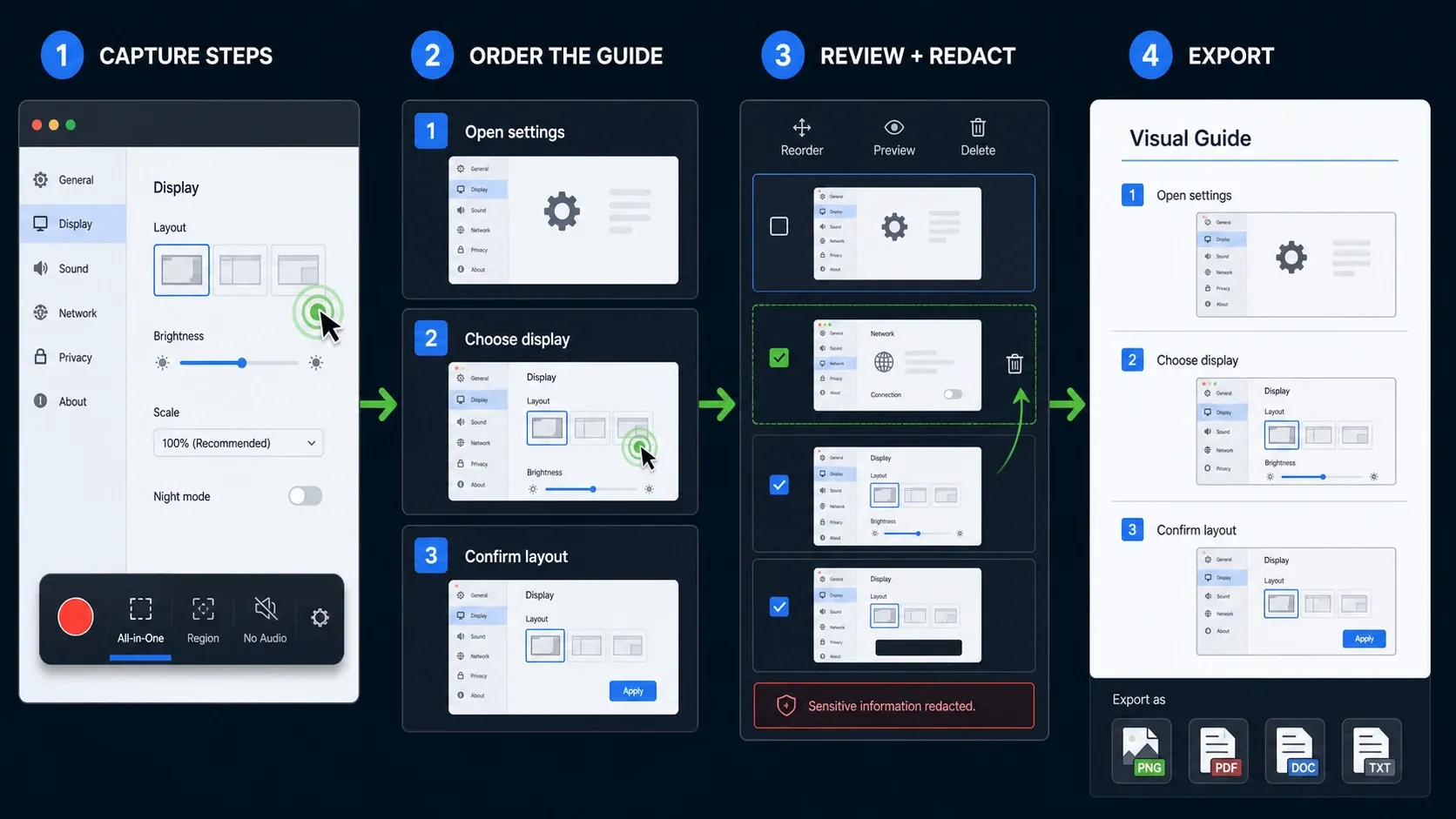
Choose the output according to what the recipient needs to change. A PDF or image gives them a visual guide. An editable Word or PowerPoint export gives them text and individual screenshots. TechSmith's Step Capture output documentation lists Word support in Snagit for Windows 2025.3.0 or later and Snagit for Mac 2025.1.0 or later. Editable PowerPoint output starts with Snagit for Windows 2026.1.0 and Snagit for Mac 2026.0.0. Text fonts, text colors and step colors are not preserved in these exports.
For a standard operating procedure (SOP), add what a click sequence can't supply: who should perform the task, required access, what a successful result looks like and what to do when a step fails. Snagit supplies the visual instructions; the approvals and decision rules are yours to write. Use the Step Capture guide for setup and export details. If you already have the screenshots, the templates tutorial covers assembling them into a guide.
6. Record short walkthroughs and bug clips
Choose video when timing or movement matters. A clip can show a menu closing unexpectedly, demonstrate a short task or explain a change to a teammate. Snagit records the screen with optional microphone audio, system audio and webcam picture-in-picture.
Before recording the walkthrough, make a short sample and play it back. Check the selected microphone, whether application audio is needed, and whether notifications or private windows could appear. TechSmith's recording tutorial documents the separate microphone and system-audio controls and microphone background-noise removal.
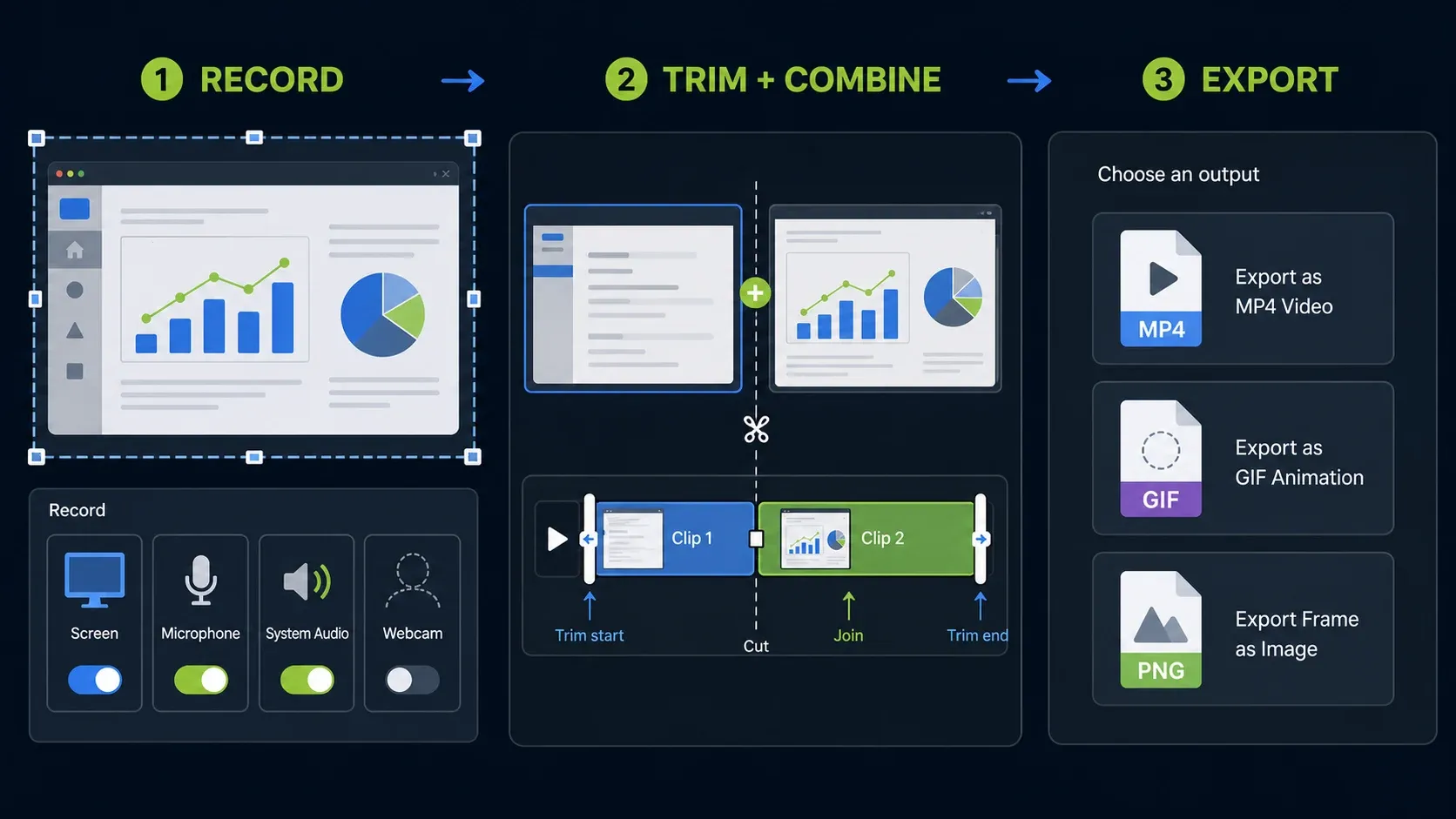
Use MP4 when the explanation needs narration or other audio. Use an animated GIF for a short, silent visual loop. Snagit can trim or cut unwanted sections, combine clips and save a frame as an image; the official video editing instructions explain these controls.
Snagit Editor is suited to quick corrections, not a full multitrack production. For separate tracks, extensive audio work or animation, consider Camtasia Editor. The screen recording guide covers Snagit setup, while Snagit vs Camtasia explains the editing decision. Keep clips focused on one task rather than recording a long session and hoping to repair it afterward.
7. Copy or correct text in screenshots
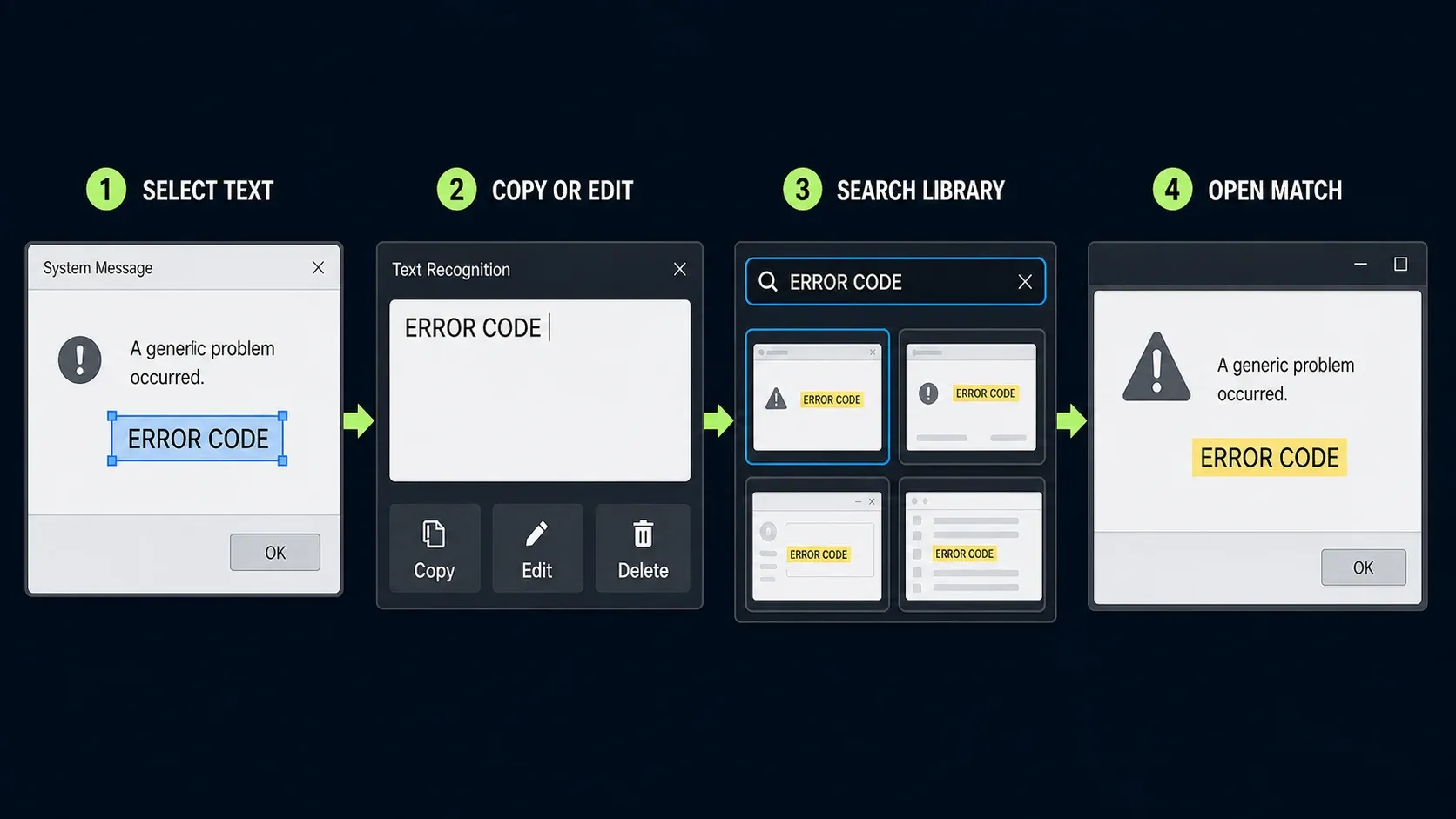
Grab Text uses optical character recognition, or OCR, to copy words out of an image. It is useful when you receive an error screenshot and need to search for the message, or when a document contains an image of text rather than selectable characters.
Edit Text does a different job: it changes recognized wording within the screenshot. Use it for a clearly identified documentation example or a corrected label in a mockup. It doesn't update the original application, account or document, and you shouldn't alter a screenshot that another person needs as an accurate record of what happened.
Check names, numbers, punctuation and commands against the source before reusing them. TechSmith's OCR accuracy guidance identifies small type, low contrast and angled text as potential problems, and font matching and layout can also need correction. The Grab Text tutorial explains extracting from a new capture or an existing image.
8. Organize and reuse older captures
A capture Library is useful when documentation changes and you need last month's source, rather than another screenshot of today's screen. Snagit keeps capture history in one place and provides naming, tagging, sorting and filtering tools.
Build the workflow around the documented controls. TechSmith's Library tutorial specifies filename search and filters for date, tags, application and website. Give a capture a descriptive name such as account-settings-error, then add a relevant tag so you have more than its creation date to find it by.
One documentation mismatch is worth knowing about: TechSmith's product page advertises finding text inside screenshots, but the Library tutorial describes filename search and filters without explaining that full-text feature's platform or version requirements. Until you've confirmed it in your installed build, don't make an important retrieval workflow depend on screenshot-text search. Copying text with Grab Text is a separate operation.
Keep editable sources when you expect to revise them, but maintain a separate backup. A Library holding the only copy isn't a backup, and cloud syncing alone doesn't guarantee you can recover an accidental deletion. Check the Library location and backup guide before moving or clearing captures.
When a built-in tool is enough
You do not need Snagit simply to crop a screenshot, draw a shape, recognize text or record a short video. Current Windows 11 Snipping Tool supports annotation, Text actions OCR, quick text redaction and screen recording. Microsoft introduced system-audio and microphone recording support in its 2023 Windows 11 rollout; use the updated app rather than the older Windows 10 tool.
On Mac, Screenshot and Markup handle basic capture and annotation. Apple's screen recording instructions also cover recording with a microphone. Snagit's advantage is the combination of scrolling capture, reusable annotation, process guides and organized sources, when you actually need those features together.
If your job ends after capture, crop and paste, keep the free tool. If you keep rebuilding annotated instructions or digging up old sources, evaluate the complete workflow rather than counting features; the Snagit and Snipping Tool comparison helps Windows users make that call. For Linux or a different recording workflow, start with the free alternatives guide.
Evaluate a sample task before subscribing
As checked on September 14, 2026, TechSmith advertises a fully functional 15-day trial. Its trial download page says no credit card is required, but you need a TechSmith account.
The trial is for evaluation only. TechSmith's trial-use policy says it is not authorized for company projects or for creating training or marketing material. Evaluate with sample content rather than producing a real work deliverable under the trial.
Check the system requirements for your computer, then try a representative sample capture, annotation and export. Can you find the saved source again? Can the recipient open the delivery format without Snagit? Does the process reduce enough repeat work to justify a subscription?
TechSmith's subscription transition policy covers annual subscriptions for Snagit 2025 and later. Previously purchased perpetual versions are a separate case. Use the pricing and licenses guide for current purchase and renewal terms rather than treating the trial as a free edition.
Once you know the task you want to solve, the Snagit guides hub routes you to capture, OCR, recording and shortcut instructions. Start with the relevant task, not every tool in the app.
Frequently asked questions
Does the recipient need Snagit to view a capture?
Not for a standard delivery file such as PNG, JPG, PDF or MP4. They need an application that opens that format. A SNAGX source is different: use Snagit to reopen its editable objects, and do not share it when it contains private information behind removable redactions.
Does Edit Text change the original app or document?
No. Edit Text changes recognized text in the screenshot. It does not change the source application's data or the original document. Use ordinary editing in the source application when that is what you need.
Does Step Capture record typing and keyboard shortcuts?
No. It captures clicks and drags, then assembles a visual guide. Add typed instructions, keyboard-only actions and decision rules manually so the reader can complete the task.
Does a GIF keep the recording's audio?
No. Animated GIFs are silent. Keep the recording as MP4 when narration or application audio is part of the explanation.
Can I use the free trial to produce work guides?
TechSmith restricts the trial to evaluation and says it is not authorized for company projects or for creating training or marketing material. Use sample content to assess the workflow. The trial lasts 15 days, requires a TechSmith account and does not require a credit card.
Does Snagit use AI?
Yes. Smart Redact uses AI to identify patterns of sensitive information in images. Review its results before sharing. That feature does not remove the need for opaque coverage, a flattened delivery file and your own privacy check.