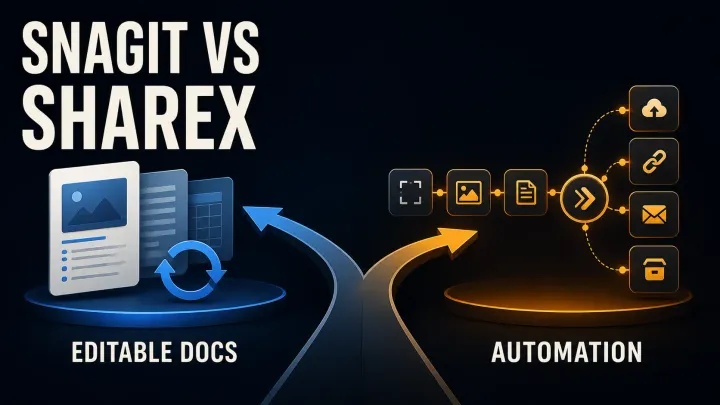
Snagit vs ShareX: Documentation or Automation?
Compare Snagit and ShareX for price, screenshot editing, scrolling capture, OCR and automation. Check editable files, upload settings and team workflows.
 SnagitPro
Snagit on Windows
On Windows, Snagit shares the keyboard with Snipping Tool, so most setup questions are about which app owns Print Screen and where each one saves files. The quick reference below answers those first, then points to the full guide.
Windows articles are researched from current Microsoft and TechSmith documentation. Settings labels differ between Windows 10, Windows 11 and recent Windows 11 updates, so each guide names the layout it describes.

| Task | What to do | Full guide |
|---|---|---|
| Take a quick screenshot | Win+Shift+S opens the Snipping Tool overlay for an image and Win+Shift+R for a video clip, as Microsoft's Snipping Tool guide lists. | Snipping Tool shortcuts |
| Find a saved screenshot | Windows 11 Snipping Tool saves to the Screenshots folder, usually Pictures\Screenshots, which may sit inside OneDrive. Check See more > Settings for the auto-save switch. |
Screenshots not saving |
| Make Print Screen open Snagit | Turn off the Windows setting that lets Print Screen open screen snipping, then assign Print Screen in Snagit Capture's hotkey field. | Print Screen as Snagit default |
| Print Screen or Snipping Tool does nothing | Check which app owns the key, try Fn on laptop keyboards, and confirm the Snipping Tool app itself opens. | Print Screen not working |
| Capture a whole webpage | In Edge, press Ctrl+Shift+S and choose Capture full page. Snipping Tool has no documented scrolling mode. | Scrolling screenshots on Windows |
| Check compatibility | TechSmith's system requirements list 64-bit Windows 11, Windows 10 20H2 or later and Windows 11 on ARM 23H2 or later. On ARM, Snagit runs through x64 emulation and the Snagit Printer is unavailable. | System requirements |
Compare Snagit and ShareX for price, screenshot editing, scrolling capture, OCR and automation. Check editable files, upload settings and team workflows.
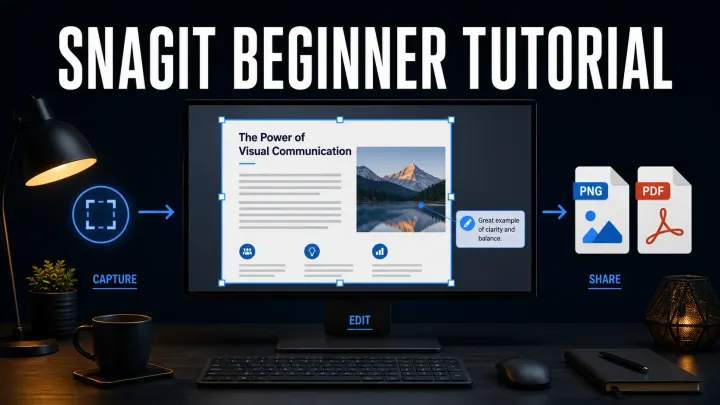
Learn how to use Snagit step by step: capture a region, add an arrow and callout, redact safely, save SNAGX and PNG, share, and record a short video.
A current Snagit shortcut and hotkey reference for Windows and Mac, including capture, Editor, tools, presets and Print Screen conflict fixes.
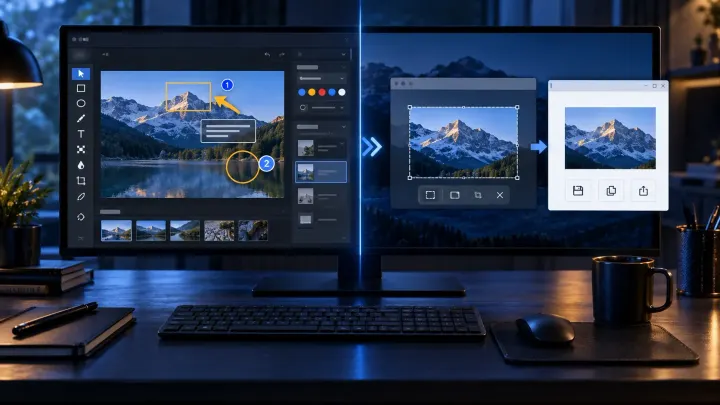
Compare Snagit and Windows Snipping Tool for scrolling capture, editable files, OCR, video and privacy. See when the free tool is enough and when to pay.
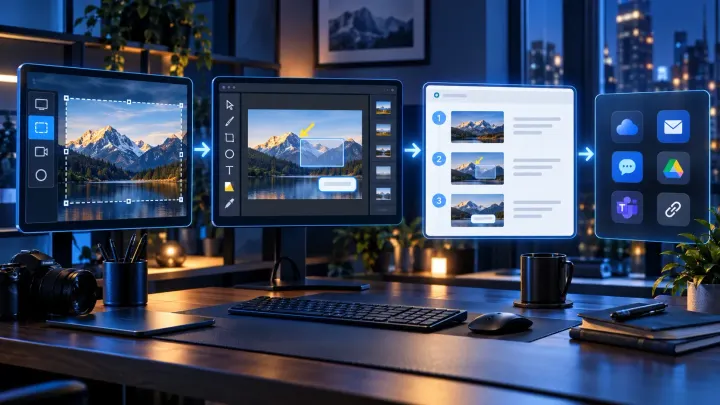
Check the latest Snagit 2026 versions for Windows and Mac, release changes, experimental features, compatibility and steps to update your installed app.
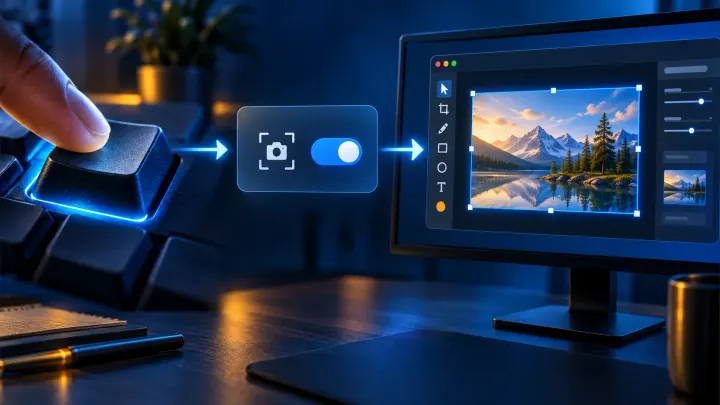
Set Print Screen to open Snagit in Windows 11. Find the Windows toggle, enable image preview, and resolve Logitech, Fn, startup and hotkey conflicts.
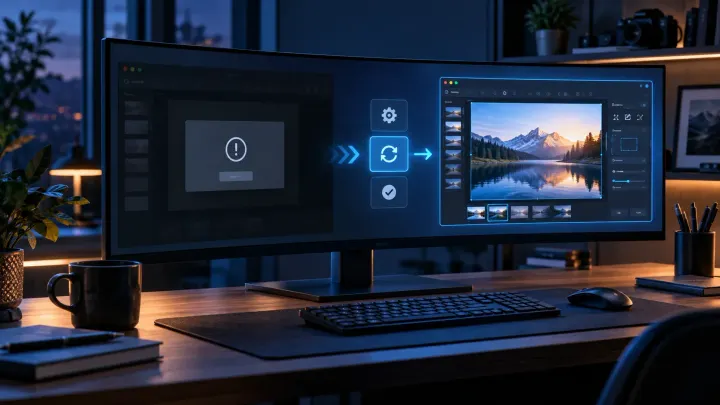
Snagit Editor will not open? Check hidden windows, capture settings and Windows or Mac errors, with backup precautions before resets or reinstalling.
Turn off the Windows setting that lets Print Screen open screen snipping, then assign Print Screen as the global capture hotkey in Snagit Capture. Print Screen is Snagit's default capture hotkey on Windows, so the conflict is usually the Windows setting. The Print Screen guide shows both Settings layouts.
On Windows 11, Snipping Tool can save snips automatically to the Screenshots folder, usually under Pictures, which may be local or inside OneDrive. The destination and the auto-save switch are in Snipping Tool under See more > Settings.
Snagit 2026 supports Windows 11 on ARM version 23H2 or later. It runs through x64 emulation rather than as a native ARM build, and the Snagit Printer is not available on ARM.
For quick area captures, short clips and basic markup, Snipping Tool may be enough. Snagit adds scrolling capture, templates, a capture library and a fuller editor, which matter more when screenshots are part of documentation or training work. The Snagit vs Snipping Tool comparison goes through the differences.