Best Screenshot Software for Windows: 7 Picks
Compare seven Windows screenshot tools by capture, editing, license, and file output. Includes free options, one-time purchases, and ARM compatibility.
Snagit tutorials
Choose a guide for scrolling capture, copying screenshot text, recording the screen or setting up capture shortcuts. Check the individual guide for its sources and evidence scope; a documentation check is not a hands-on test.
Check each guide for platform differences, version requirements and limitations.
What Snagit actually does, who it is for, and whether it fits your workflow before you spend a cent.
Capture scrolling content in supported pages and applications, troubleshoot incomplete results, or set the Print Screen key to open Snagit.
Grab Text extracts recognized text from screenshots. Follow the guide to choose a capture method, copy plain text and check recognition errors.
Record the screen with webcam or audio, choose MP4 or silent GIF output, and decide when you need a separate video editor.
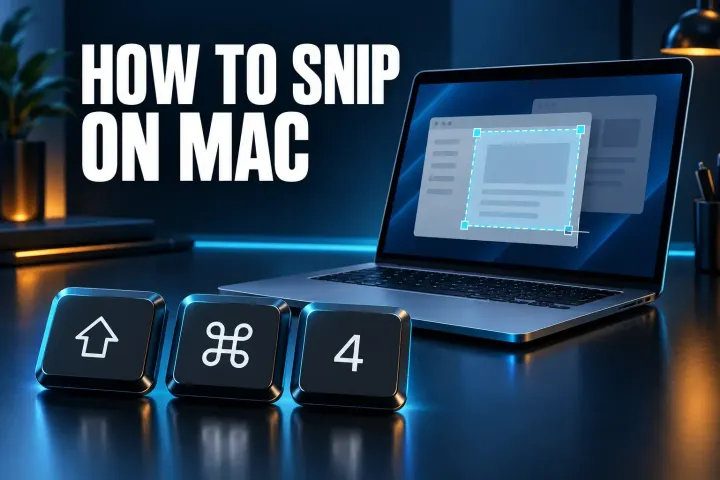
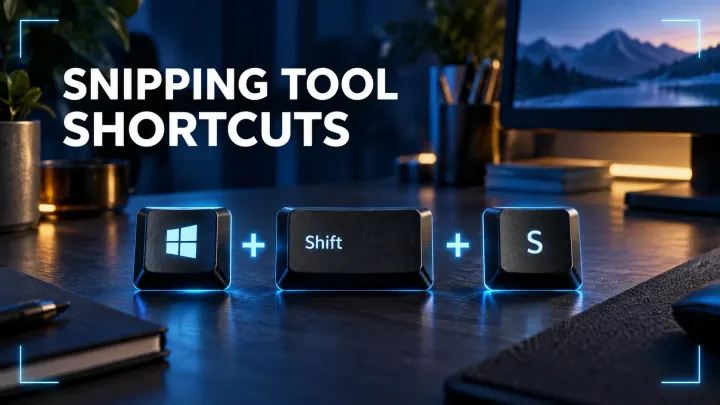
Find Windows and Mac capture shortcuts and learn how to assign shortcuts for repeated documentation tasks.
If the Editor will not open, capture stalls or hotkeys stop responding, choose your symptom in the troubleshooting hub.
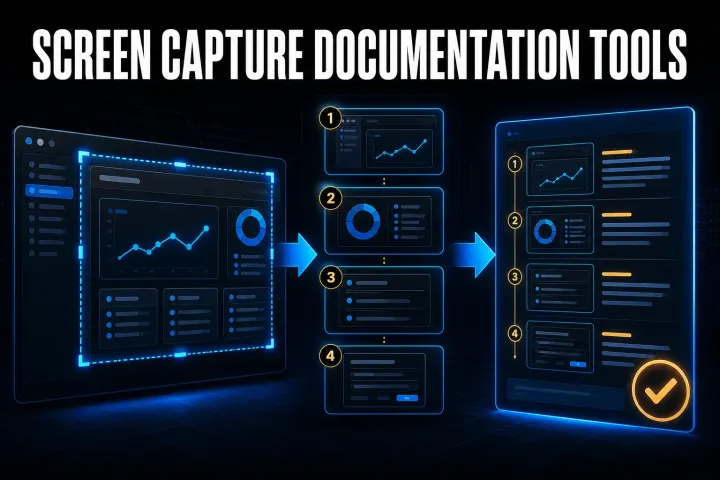
Compare seven Windows screenshot tools by capture, editing, license, and file output. Includes free options, one-time purchases, and ARM compatibility.
Six free screenshot options for Windows, Mac, Linux, and Chrome, with local saving, annotation, scrolling capture, and platform limits compared.
A precise Snagit workflow for edge trims, middle cuts, clip order, combine errors, and deciding when the edit needs Camtasia.
A clear map of installed Snagit, browser-based Camtasia Online, Screencast sharing, official downloads, extensions, and portable-build risks.
Open SNAGX files in Snagit, export PNG, JPG, or PDF, and keep editable originals. Covers Windows, Mac, mobile viewing, batch conversion, and file errors.
Remove a background in Snagit with transparent Fill, Magic Wand or Selection. Fix a white canvas, protect your original and check the exported PNG.
Create and test Snagit presets, distinguish global and preset hotkeys, check PNG output on Windows and Mac, and move Windows presets safely.
Annotate a screenshot in Snagit with the right arrow, box, callout, or numbered step, then verify the clean recipient copy.
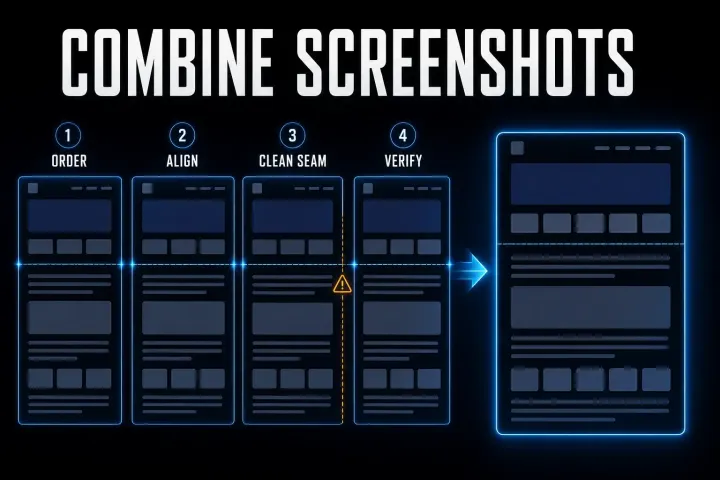
Choose the right full-page or scroll-and-stitch method for Windows, Mac, iPhone, Android, webpages, apps, and nested panels.
Choose the delivery format, keep an editable image master, and verify the exported file. Includes Windows automatic saving, Mac format checks and Library export.
A current, task-first Snagit templates tutorial covering Combine, Apply, Fit, Fill, editable SNAGX masters, accessibility, and delivery checks.
Install or update Snagit on Windows and Mac. Choose the right license and installer, back up captures, fix common setup problems, and verify the new build.
Check your OS, processor and capture workflow before installing Snagit 2026. Includes Windows ARM, Server 2022 and Mac compatibility limits.
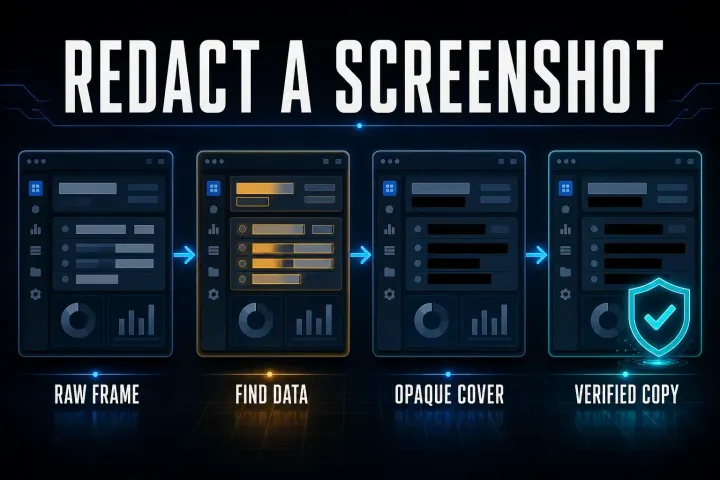
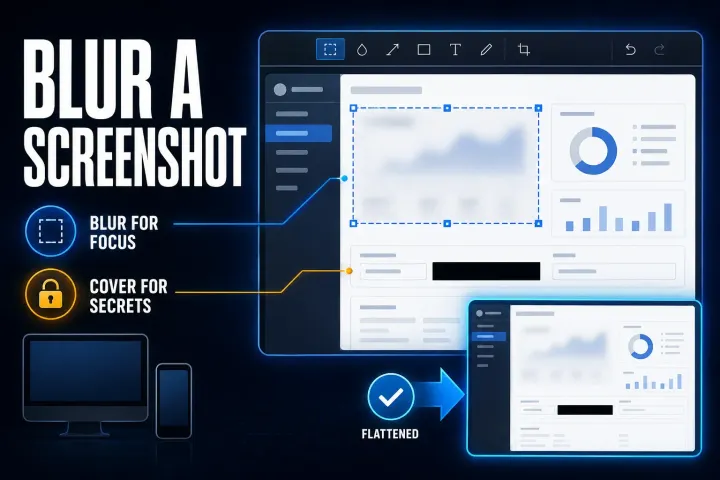
Blur or redact a screenshot in Snagit. Use Smart Redact, cover private fields, protect editable sources, and verify the exact exported image before sharing.
Open Snagit Editor on Windows or Mac, choose image and text tools, keep editable SNAGX files, trim video, and export safely. Includes current build checks.
Find your Snagit Library on Windows or Mac, back up its files, and verify a restore. Avoid legacy Datastore overwrite errors and unsafe folder merges.
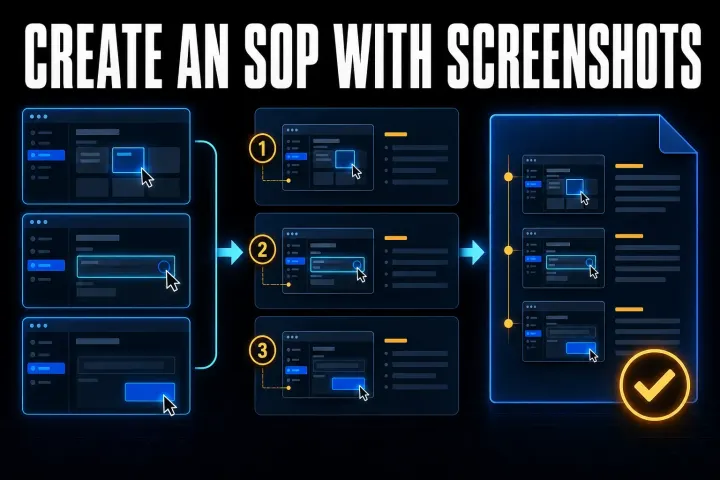
Start Snagit Step Capture, edit the numbered guide and choose Word, slides, Markdown or HTML. Check Windows and Mac limits and protect private data.
A current beginner path for taking a clean Snagit screenshot, editing it with restraint, preserving the source, and sharing a checked copy.
A current Snagit shortcut and hotkey reference for Windows and Mac, including capture, Editor, tools, presets and Print Screen conflict fixes.
Extract text from a new capture or an existing image, copy without source formatting, and check the result before using it in another document.
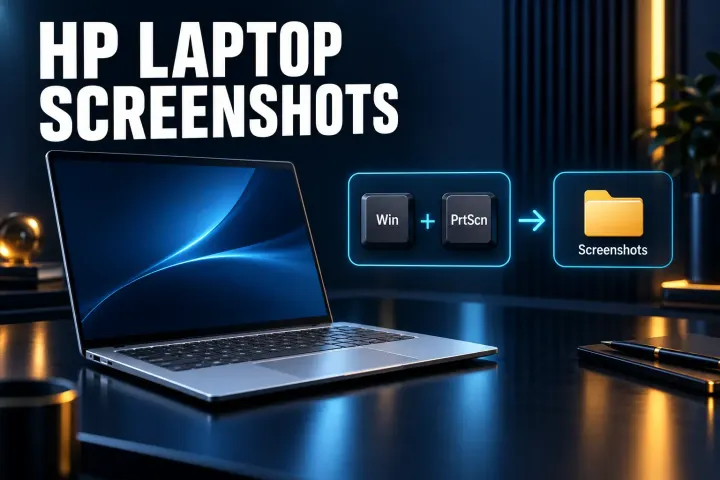
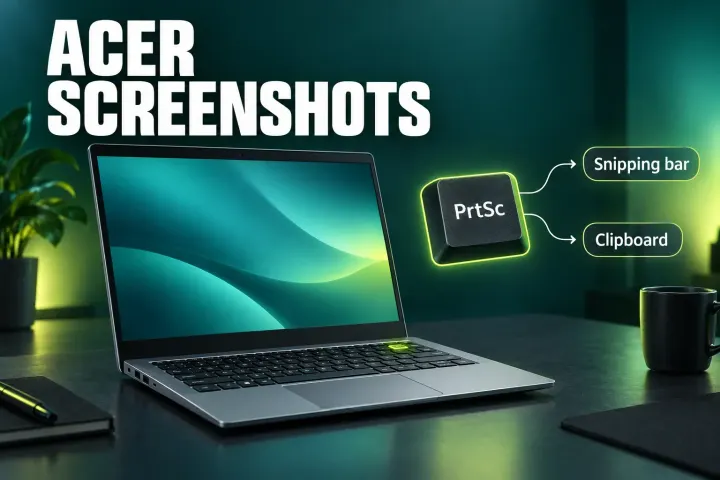
Set Print Screen to open Snagit in Windows 11. Find the Windows toggle, enable image preview, and resolve Logitech, Fn, startup and hotkey conflicts.
Record a region, window, or full screen in Snagit. Set microphone, system audio, and webcam, check FPS and length guidance, edit clips, and handle captions correctly.
Follow the automatic and manual Snagit scrolling workflows for full webpages and wide sheets, with preparation steps and checks before sharing.
Snagit captures, annotates, records, organizes, and shares screen content. See eight practical uses and when a free tool is enough.
Compare the review's recommendations with the current subscription and licensing terms.
The hub includes Windows and Mac guidance. Check the individual article for the platforms it covers, any version-specific limits and the scope of any disclosed hands-on testing.
Check the article's research date and any named Snagit version requirements. Some guides are based on developer documentation rather than a hands-on test of a specific build.
Start with what Snagit is used for to choose a task. For long pages, follow the scrolling capture guide. Set up the Print Screen hotkey on Windows if repeated captures are part of your workflow.
Snagit can capture scrolling content in supported pages and applications. The scrolling capture guide explains automatic and manual methods and how to check incomplete results.
Yes. Grab Text uses OCR to extract recognized text from a screenshot. The OCR guide explains capture methods, plain-text copying and checks for recognition errors.