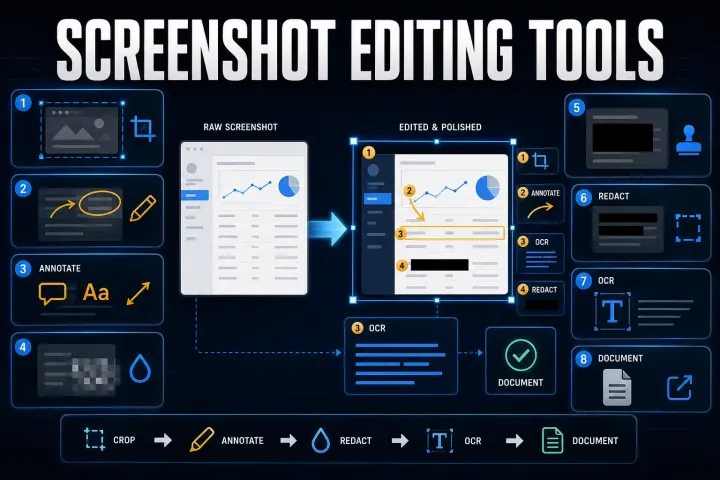
8 Screenshot Editing Tools: Free and Paid Options (2026)
Choose a screenshot editor for annotation, OCR, redaction or repeatable instructions. Compare file handling, editable projects and free versus paid licenses.
 SnagitPro
Snagit tutorials
Choose a guide for scrolling capture, copying screenshot text, recording the screen or setting up capture shortcuts. Check the individual guide for its sources and evidence scope; guides are researched from documentation rather than product tests.
Check each guide for platform differences, version requirements and limitations.
What Snagit actually does, who it is for, and whether it fits your workflow before you spend a cent.
Capture scrolling content in supported pages and applications, troubleshoot incomplete results, or set the Print Screen key to open Snagit.
Grab Text extracts recognized text from screenshots. Follow the guide to choose a capture method, copy plain text and check recognition errors.
Record the screen with webcam or audio, choose MP4 or silent GIF output, and decide when you need a separate video editor.
Find Windows and Mac capture shortcuts and learn how to assign shortcuts for repeated documentation tasks.
If the Editor will not open, capture stalls or hotkeys stop responding, choose your symptom in the troubleshooting hub.
Choose a screenshot editor for annotation, OCR, redaction or repeatable instructions. Compare file handling, editable projects and free versus paid licenses.
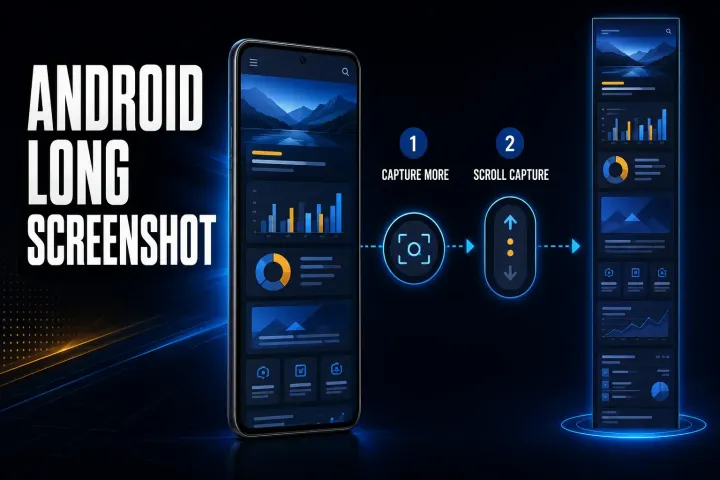
Find the right long-screenshot control for Pixel, Samsung and other Android phones. Fix missing options and verify the saved image before sharing.
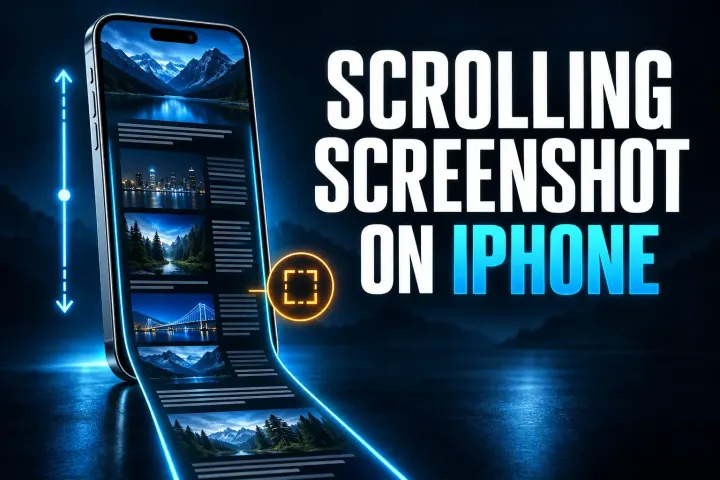
Choose Full Page, overlapping screenshots, recording or app export on iPhone. Follow current save controls and check every section before sharing.
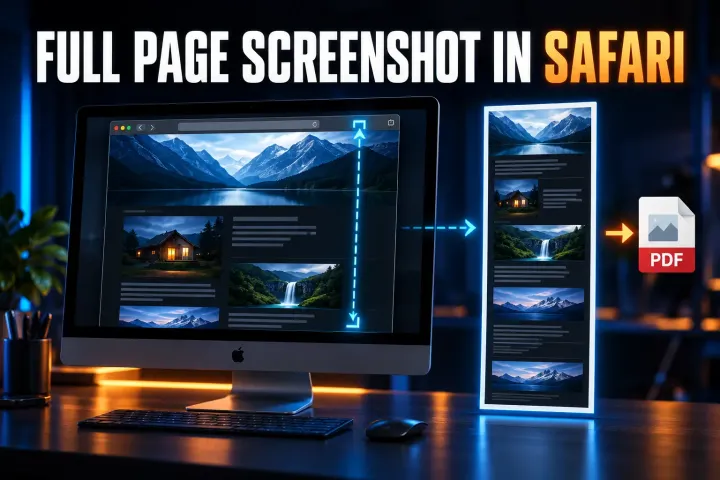
Safari full-page capture on iPhone and iPad, Web Inspector image capture on Mac, PDF saving, and checks for missing controls or incomplete output.
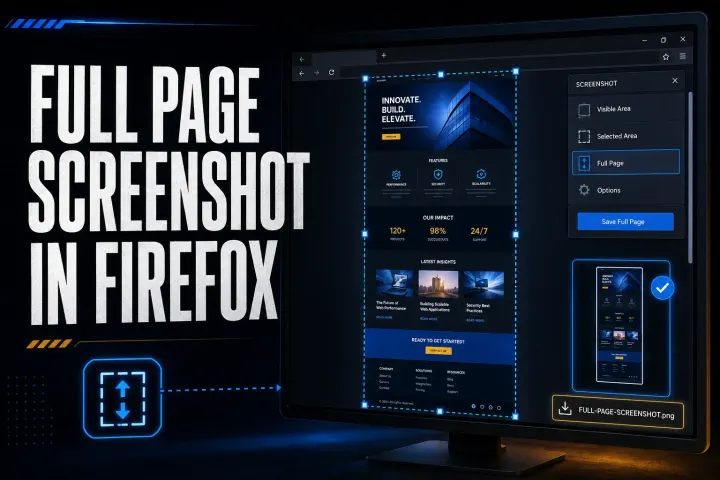
Firefox full-page capture, PNG and clipboard saving, practical DevTools commands, and fixes for missing options, incomplete images, and failed downloads.
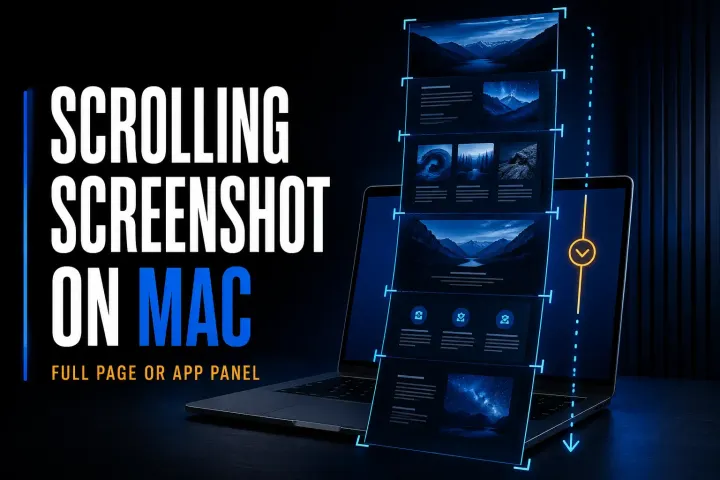
Mac full-page and scrolling capture methods for webpages and app panels, with local saving steps, permission checks, and fixes for missing or repeated content.
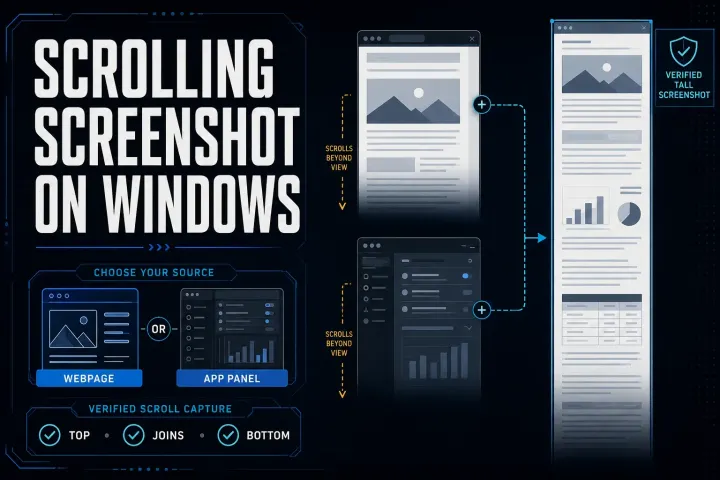
Five Windows scrolling screenshot methods for webpages and compatible app panels, with steps to save the result and check missing or repeated content.
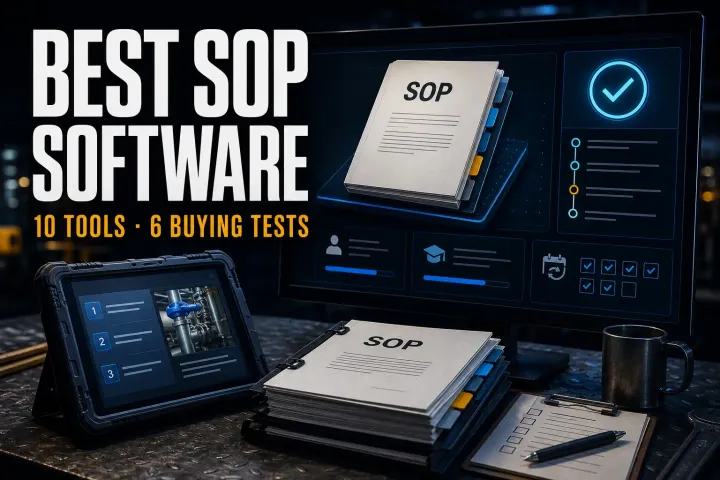
Compare ten SOP products by the job they perform, current pricing, role limits, governance, and a practical six-test pilot.
Find out whether the saved image is black, one app blocks capture, or your tool fails on ordinary content. Start with three fresh captures and a viewer check.
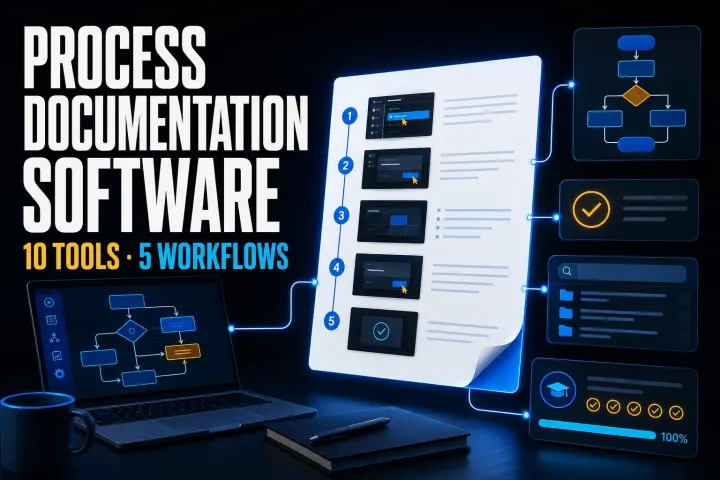
Choose tools for capture, approved procedures, recurring work or training. Compare ten options by plan limits and full-team cost, then run a three-process pilot.
Find out whether PrtScn reaches the right app, completes a capture or saves a file. Check Windows settings, laptop Fn keys and Logitech remapping.
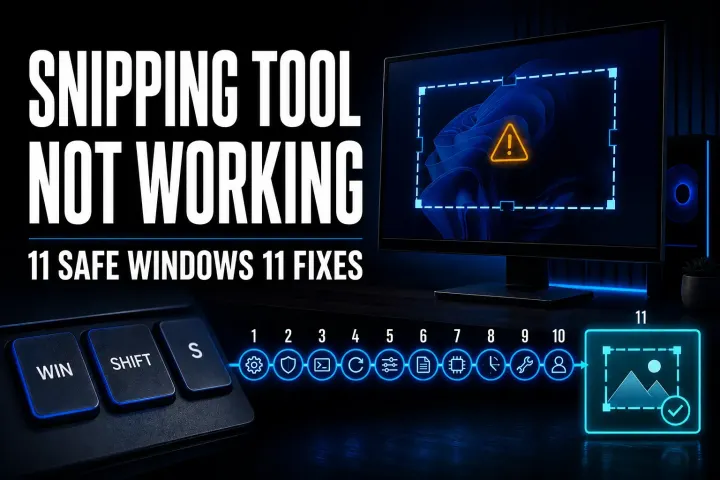
Find the failed capture step, then choose the matching Windows 11 fix for shortcuts, missing notifications, save settings or app errors.
Find whether the shortcut, capture tool, destination, protected content, or device policy stopped your screenshot, then follow the right platform fix.
Capture a full webpage in desktop Edge. Includes the Windows shortcut, Mac menu route, DevTools, export-format checks, PDF limits and fixes for missing content.
Save a full webpage as a PNG in desktop Chrome. Includes Mac and Windows shortcuts, responsive widths, missing-content fixes, PDF limits, and safer sharing.
Choose a Chrome screenshot extension by capture mode, file output, editing, permissions, and sharing. Includes an installation check and GoFullPage update.
Choose a Linux screenshot tool for your desktop and display server. Compare native capture, annotation, OCR, and a configurable Wayland command.
Compare seven Mac screenshot tools by the file you need: a quick capture, an annotated image, a styled post, or documentation you can update later.
Compare seven Windows screenshot tools by capture, editing, license, and file output. Includes free options, one-time purchases, and ARM compatibility.
Six free screenshot options for Windows, Mac, Linux, and Chrome, with local saving, annotation, scrolling capture, and platform limits compared.
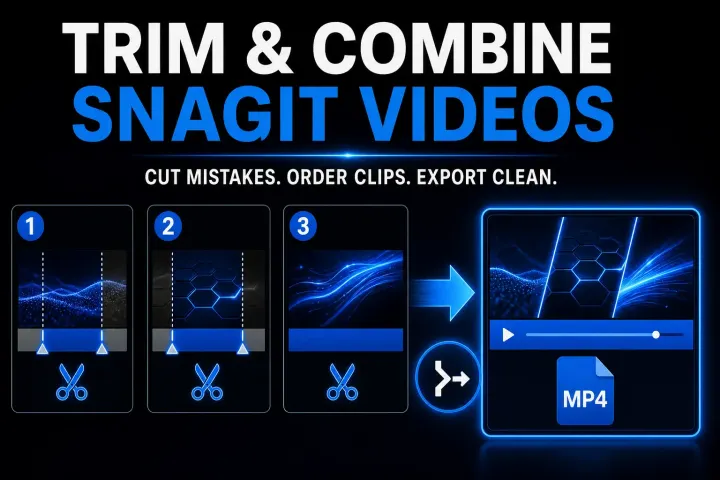
A precise Snagit workflow for edge trims, middle cuts, clip order, combine errors, and deciding when the edit needs Camtasia.
A clear map of installed Snagit, browser-based Camtasia Online, Screencast sharing, official downloads, extensions, and portable-build risks.
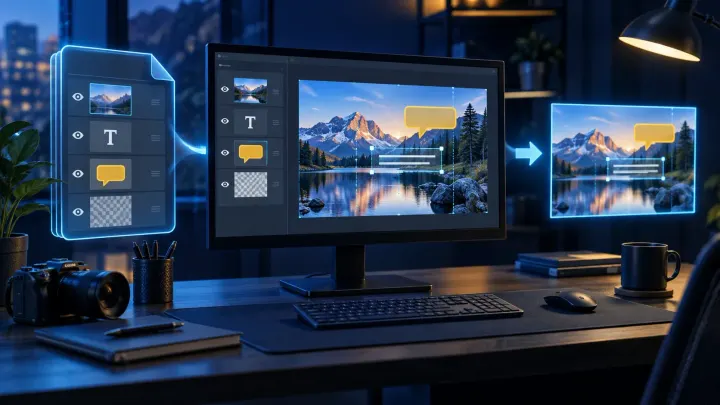
Open SNAGX files in Snagit, export PNG, JPG, or PDF, and keep editable originals. Covers Windows, Mac, mobile viewing, batch conversion, and file errors.
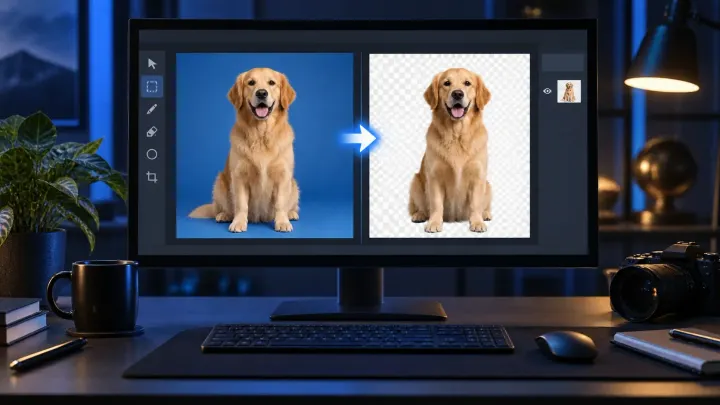
Remove a background in Snagit with transparent Fill, Magic Wand or Selection. Fix a white canvas, protect your original and check the exported PNG.
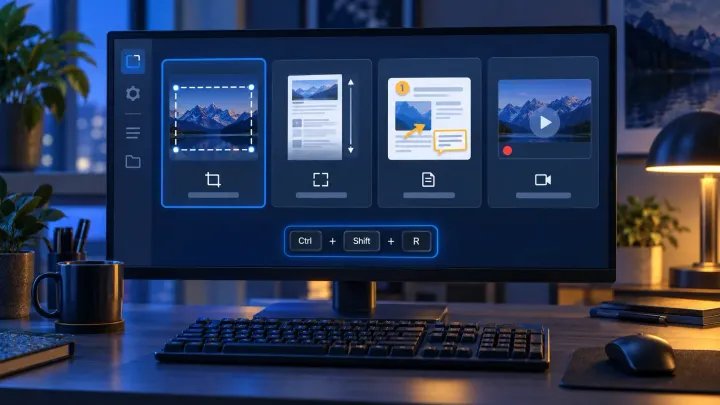
Create and test Snagit presets, distinguish global and preset hotkeys, check PNG output on Windows and Mac, and move Windows presets safely.
Compare the review's recommendations with the current subscription and licensing terms.
The hub includes Windows and Mac guidance. Check the individual article for the platforms it covers, any version-specific limits and its documented evidence.
Check the article's research date and any named Snagit version requirements. These guides are researched from product documentation and other attributed sources, not installation tests.
Start with what Snagit is used for to choose a task. For long pages, follow the scrolling capture guide. Set up the Print Screen hotkey on Windows if repeated captures are part of your workflow.
Snagit can capture scrolling content in supported pages and applications. The scrolling capture guide explains automatic and manual methods and how to check incomplete results.
Yes. Grab Text uses OCR to extract recognized text from a screenshot. The OCR guide explains capture methods, plain-text copying and checks for recognition errors.